-
1. Welcome
-
2. Getting Started
-
3. Install Theme
-
4. Customize Theme
-
5. WooCommerce Settings
-
6. E-commerce Features
-
7. Mobile
-
8. Pages & Menus
-
9. Blog Post
-
10. Ovinx Addons
-
11. Color & CSS System
-
12. Sources & Notes
-
13. Support & Credits
Themesflat · Auto Parts WooCommerce WordPress Theme
Welcome to Ovinx Documentation
This guide shows you step by step how to install, import the demo and set up the Ovinx Auto Parts WooCommerce theme: requirements, plugins, Customizer options, WooCommerce and shop settings, e-commerce features such as wishlist, compare and swatches, mobile options, menus and every Ovinx Addons widget.
Themesflat Ovinx WordPress Theme Documentation
- Theme: Ovinx – Auto Parts WooCommerce WordPress Theme by Themesflat, sold on Vithemes
- Technology: WordPress, Elementor, WooCommerce, Ovinx Addon, WCBoost (Wishlist, Variation Swatches, Products Compare), Contact Form 7
- Version: 1.0.0 (see the changelog inside your downloaded package for newer versions)
- Author: Themesflat
Thank you for choosing Ovinx! In this document you will find all the information you need to install, set up and customize the theme. We recommend reading it through to get the most out of Ovinx. Please also check the video tutorial in the install steps: it explains the same steps in more detail.
Ovinx needs Elementor, Ovinx Addon, WooCommerce and the three WCBoost plugins. Install the required plugins first, then import the demo on a new site or a staging copy.
Theme Features & Quick Start:
Main features:
- Built with Elementor and 26 Ovinx widgets, including Find Parts For Your Vehicle (Check Fit), product tabs and carousels, banners, mega menu and footer
- WooCommerce shop, cart, checkout and mini cart with catalog toolbar, product cards, badges and live notifications
- E-commerce tools: sale countdown, frequently bought together, wishlist, compare, variation swatches, volume discount, Buy X Get Y, size guide, cross-sell and up-sell
- Customizer options for general, header, page title, typography & color and footer, plus page-level options for header, footer and page title
- Dedicated mobile options with a bottom navigation bar, a mega menu builder and a documented color and CSS system
- One-click demo import and a child theme included
Quick start:
- Download the package from your account and unzip it. You get the theme, the child theme and the documentation.
- Install and activate the theme (Appearance → Themes → Add New → Upload).
- Install and activate the required plugins when the notice appears.
- Import the demo from Appearance → Import Demo Data.
- Customize the site in Appearance → Customize and set up WooCommerce.
Explore this documentation
Find detailed guides to build your auto parts store with Ovinx.
Getting Started
Requirements
There are minimal requirements to run this product:
- PHP 5.6 or higher (declared in the theme header; a currently supported PHP version is recommended)
Recommended
Required must have
- upload_max_filesize = 512M
- post_max_size = 516M
- max_execution_time = 300
- max_input_time = 300
- memory_limit = 512M
Besides, need more
- Elementor (Required)
- ovinx Addon (Required)
- WooCommerce (Required)
- WCBoost – Wishlist (Required)
- WCBoost – Variation Swatches (Required)
- WCBoost – Products Compare (Required)
- Contact Form 7 (Recommended)
- MC4WP: Mailchimp for WordPress (Recommended)
- One Click Demo Import (Recommended)
Required plugins: Elementor, ovinx Addon, WooCommerce, WCBoost – Wishlist, WCBoost – Variation Swatches, WCBoost – Products Compare. The others are optional (set in the theme’s plugin list).
WordPress Information
To install this theme you must have a working version of WordPress already installed. If you need help installing WordPress, follow the instructions in WordPress Codex. Below are all the useful links for WordPress information.
WordPress Codex – General info about WordPress and how to install on your server.
First Steps With WordPress – General info about multiple topics about WordPress.
FAQ New To WordPress – The most popular FAQ’s regarding WordPress.
Install Theme
After purchase and download we have file themename.zip. Continue we need to extract files, then follow the steps below to install the theme.
Watch the video One Click Install Demo
Install by WordPress Theme Manager
This is probably the simplest way for most users. Here are the steps you need to take:
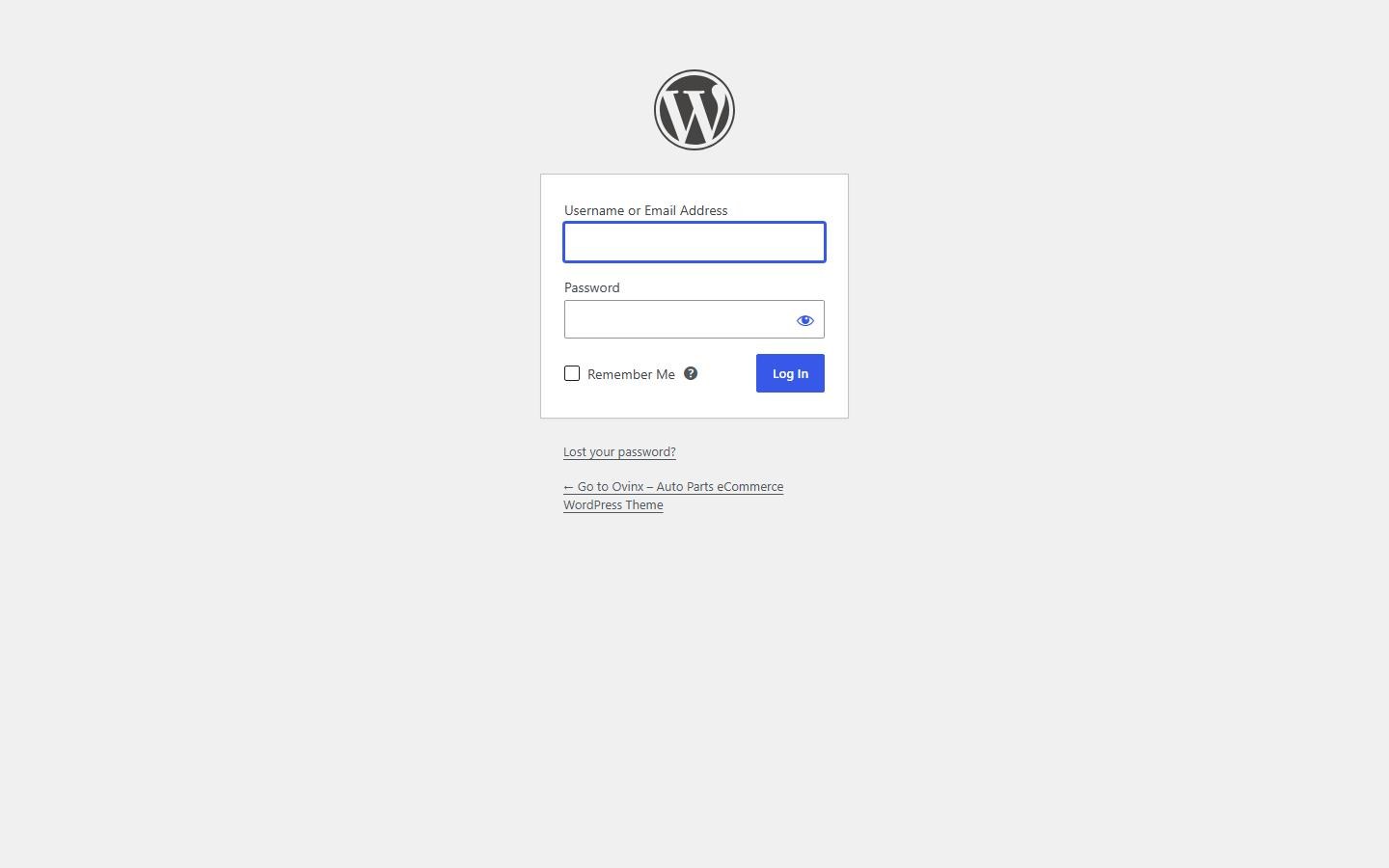
Step 1 – Login to your WordPress Dashboard.

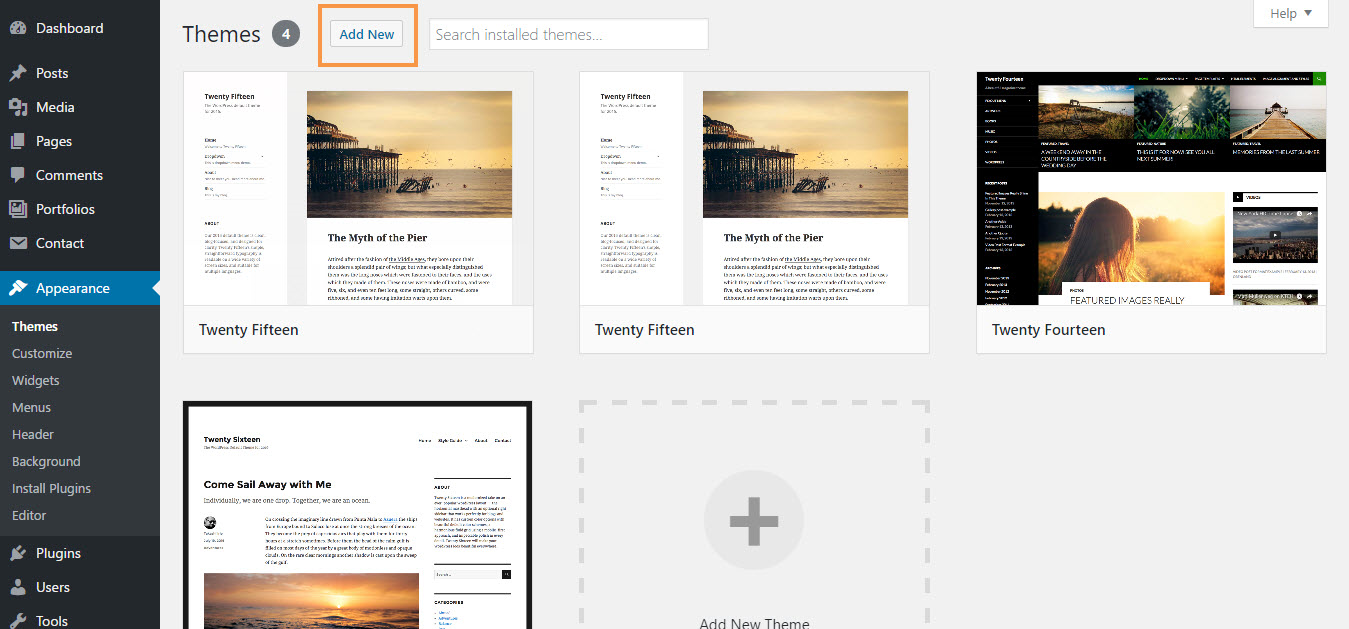
Step 2 – Go to Appearance > Themes. Then click the Add New button at the top of the screen.

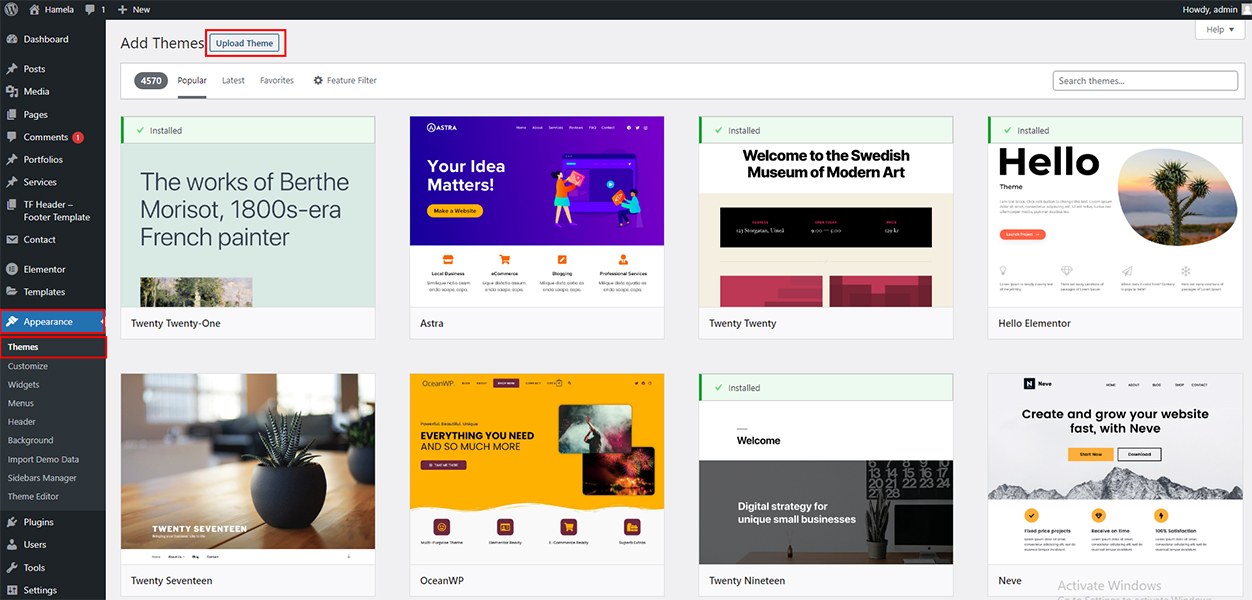
Step 3 – Click on the Upload Theme button at the top.

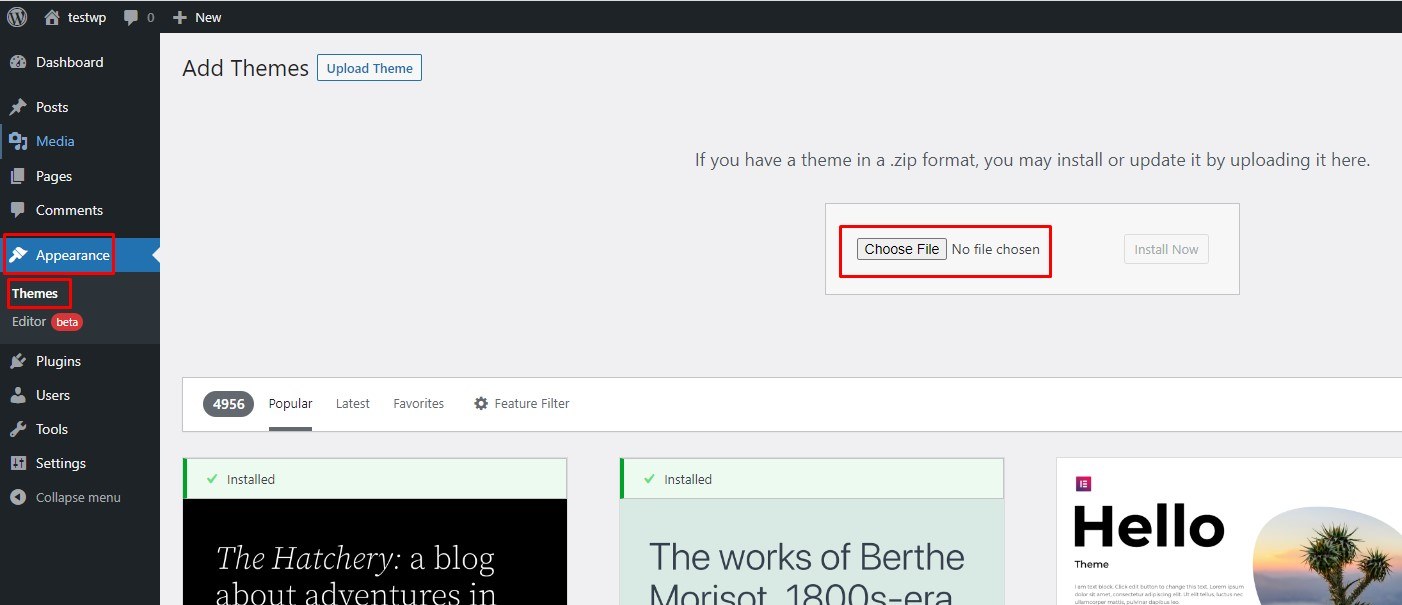
Step 4 – Click Choose File and select the theme zip file.

Step 5 – Click Install Now and wait a moment.
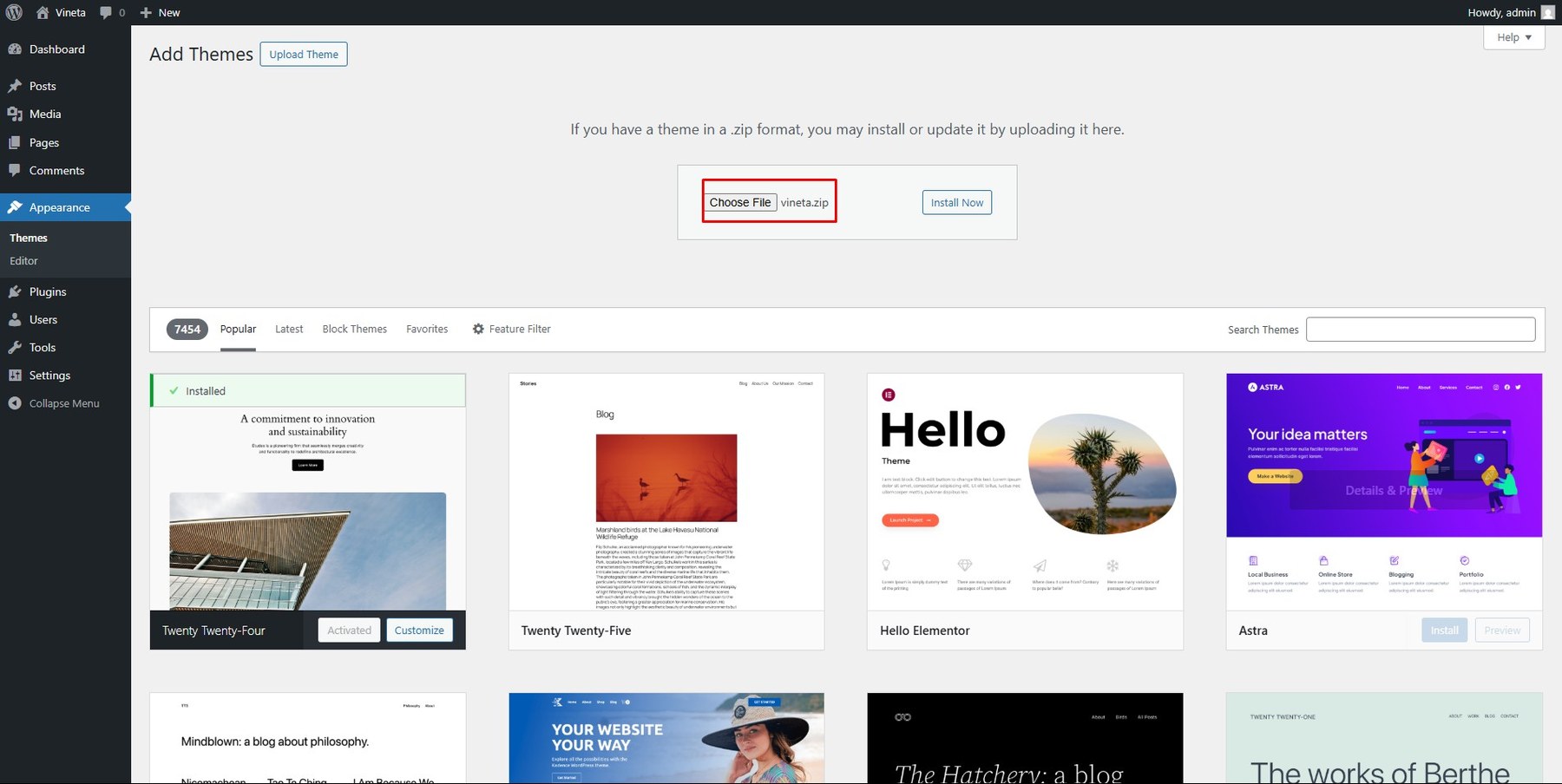

After installing the main theme, if you use a child theme, install it the same way as above.
Step 6 – Once installed, click Activate to enable the theme.
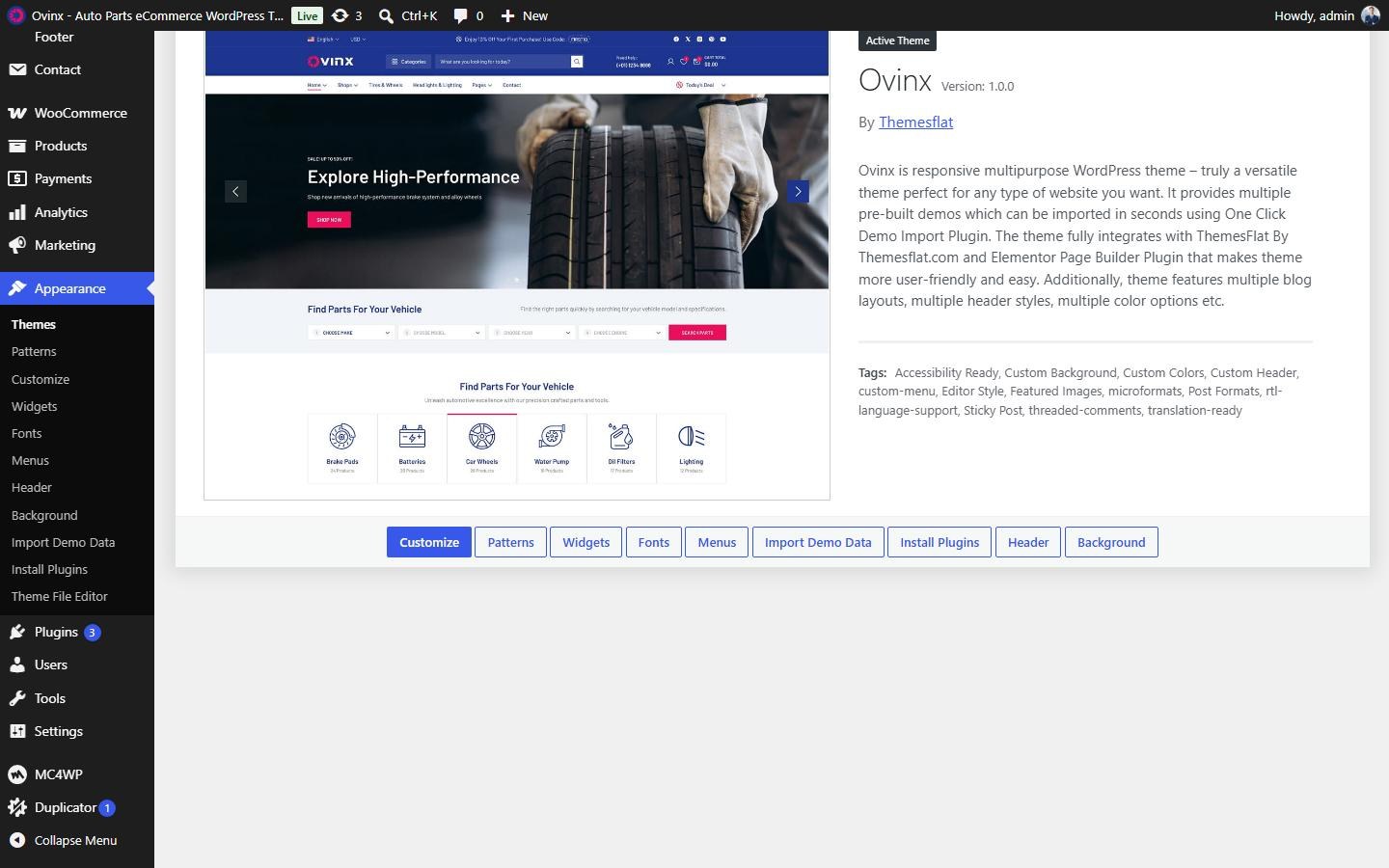

Step 7 – A notice will appear at the top of the dashboard. Click Begin installing plugins. The theme requires: Elementor, ovinx Addon, WooCommerce, WCBoost – Wishlist, WCBoost – Variation Swatches, WCBoost – Products Compare. Recommended: Contact Form 7, MC4WP: Mailchimp for WordPress, One Click Demo Import. For a multilingual store you can also use WPML (the theme includes wpml-config.xml).
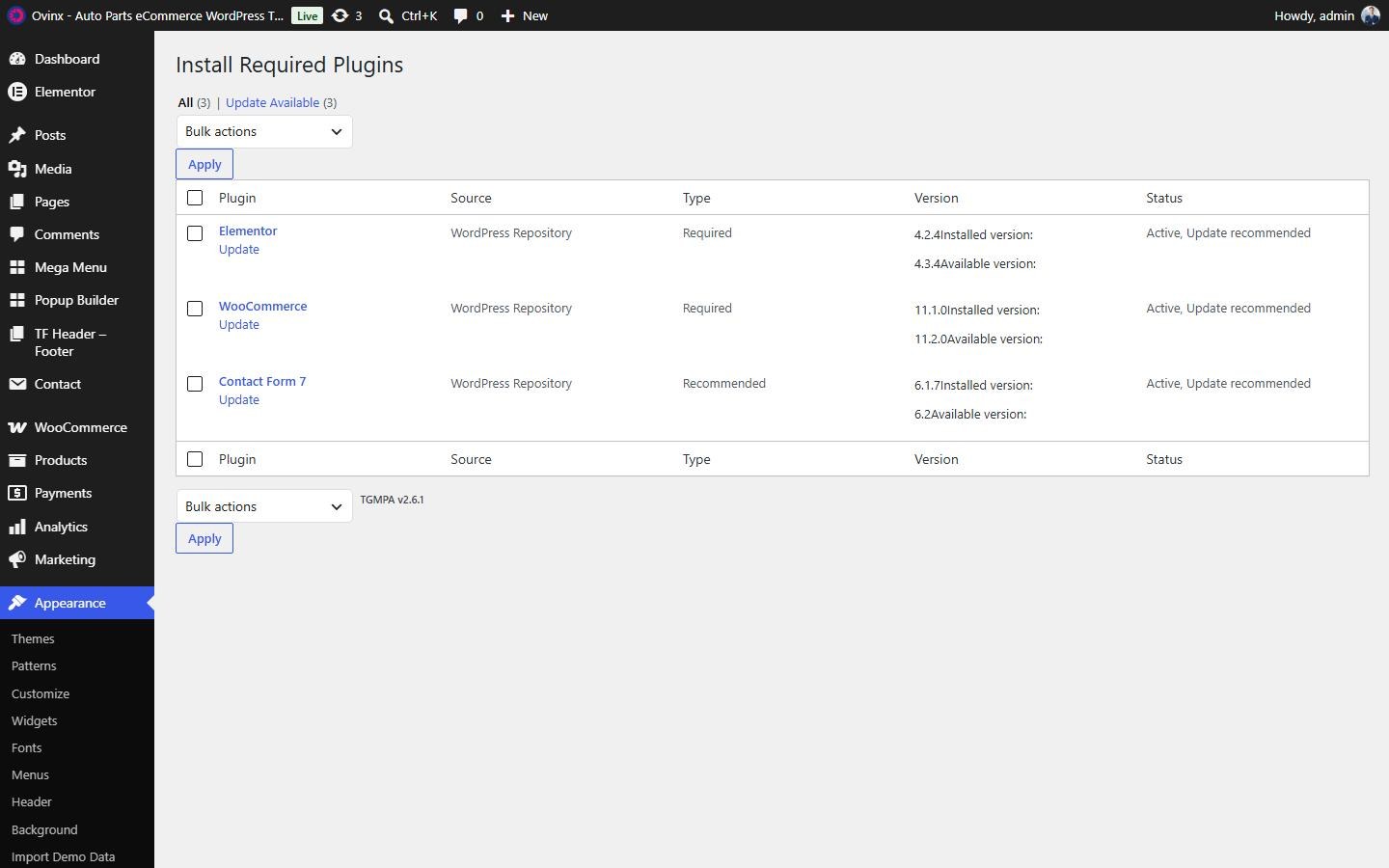
Step 8 – Go to Dashboard > Appearance > Install Plugins. Check all required plugins and activate them.

Step 9 – Go to Appearance > Import Demo Data, choose the demo and import it. Wait until it finishes.
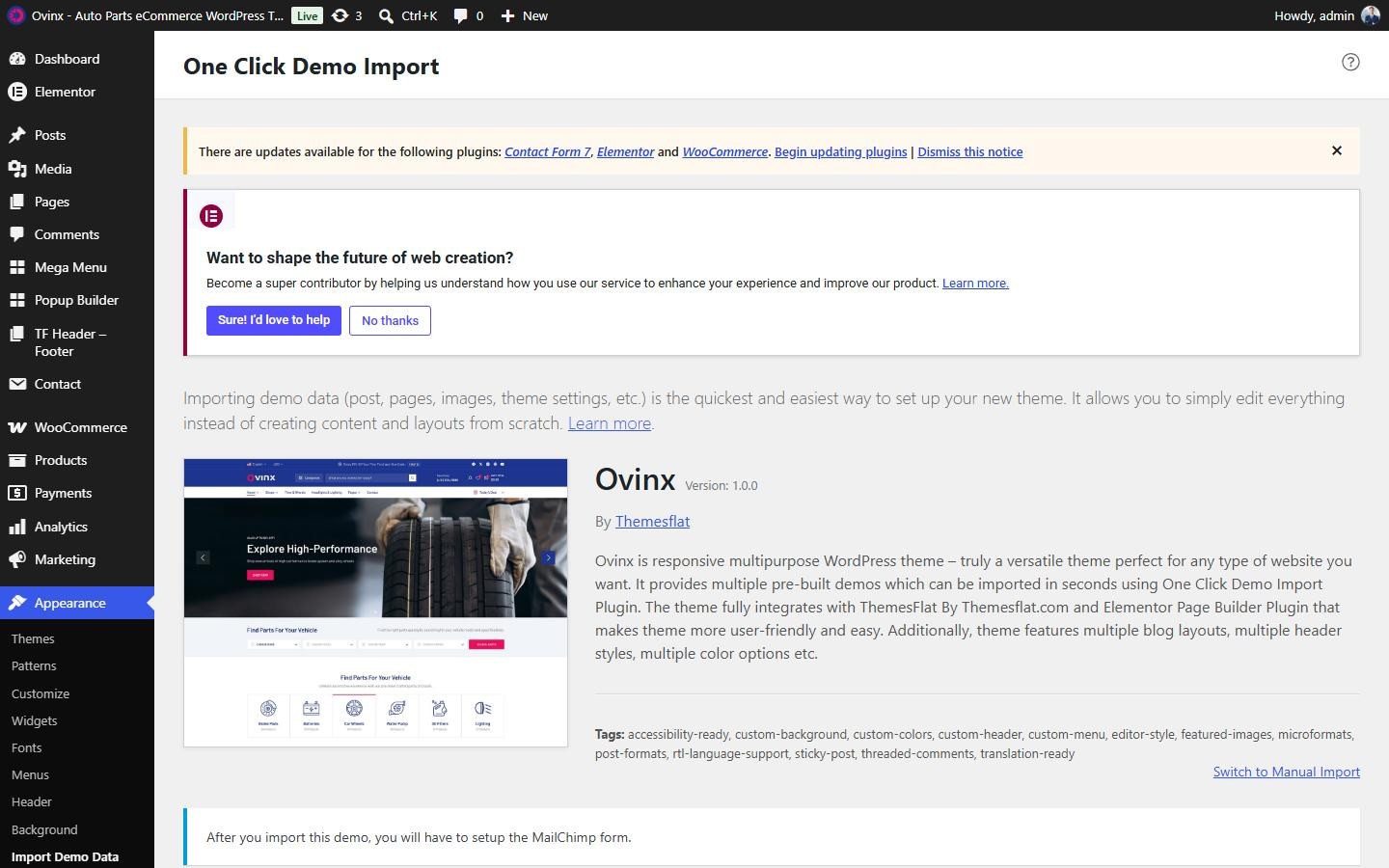

Importing a demo adds demo content and settings to your site. Do it on a new site or a staging copy. After importing, you have to set up the MailChimp form (notice shown on the import page).
Install through FTP upload
If you want to install via FTP, here are the steps:
- Using an FTP client, login to your server.
- Navigate to the
/wp-content/themes/directory. - Upload the
ovinxtheme folder into that directory. - Once the upload is complete, activate the theme in Appearance > Themes.
Customize Theme
To start customizing the theme, in the Admin page please go to Dashboard > Appearance > Customize.
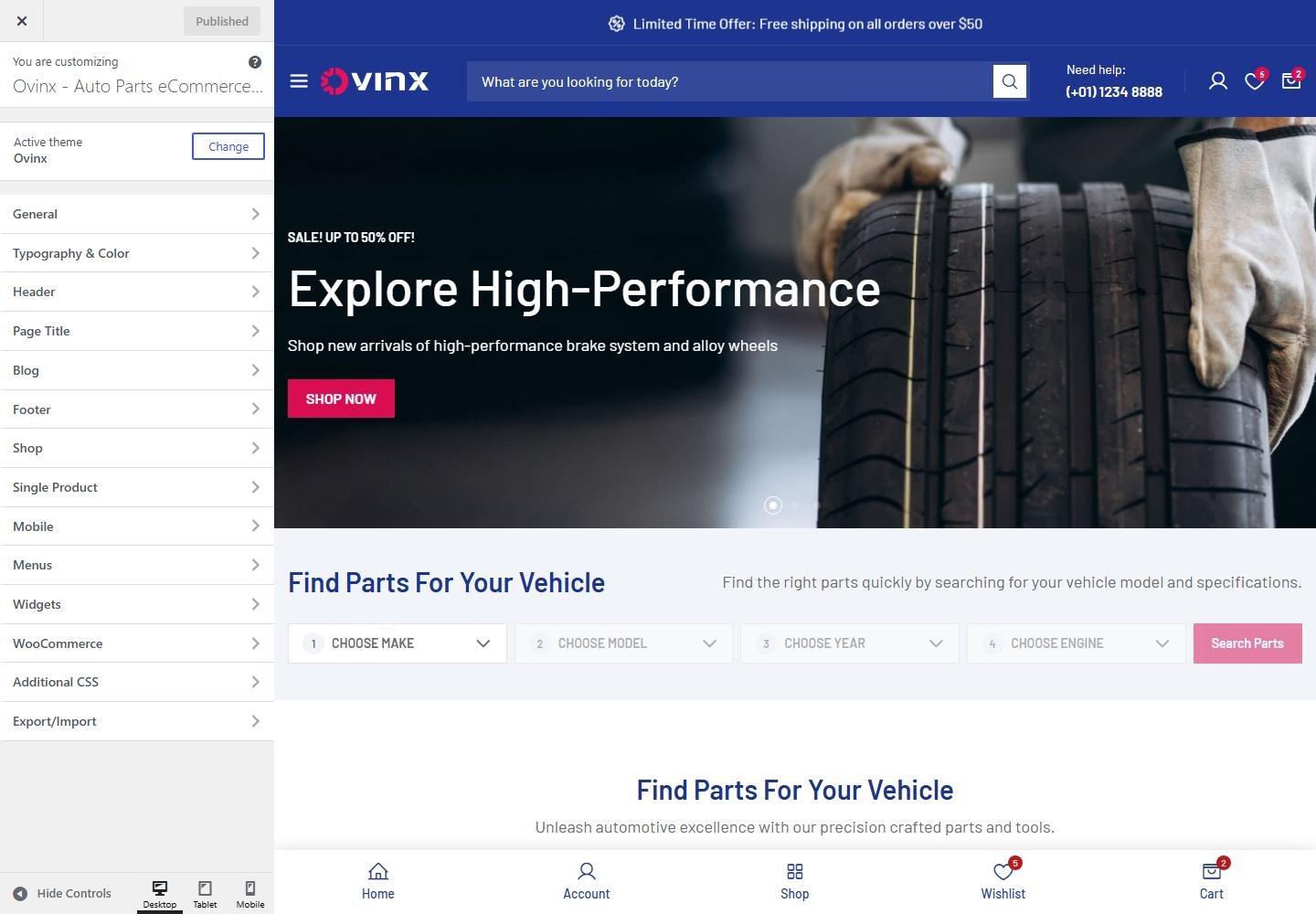

Please remember to click Publish after customizing to save changes. These are global settings, so they affect the entire site. However, they can be overridden per page (see Page Options).
General
Site Information
To customize, go to Dashboard → Appearance → Customize → General → Site Identity.
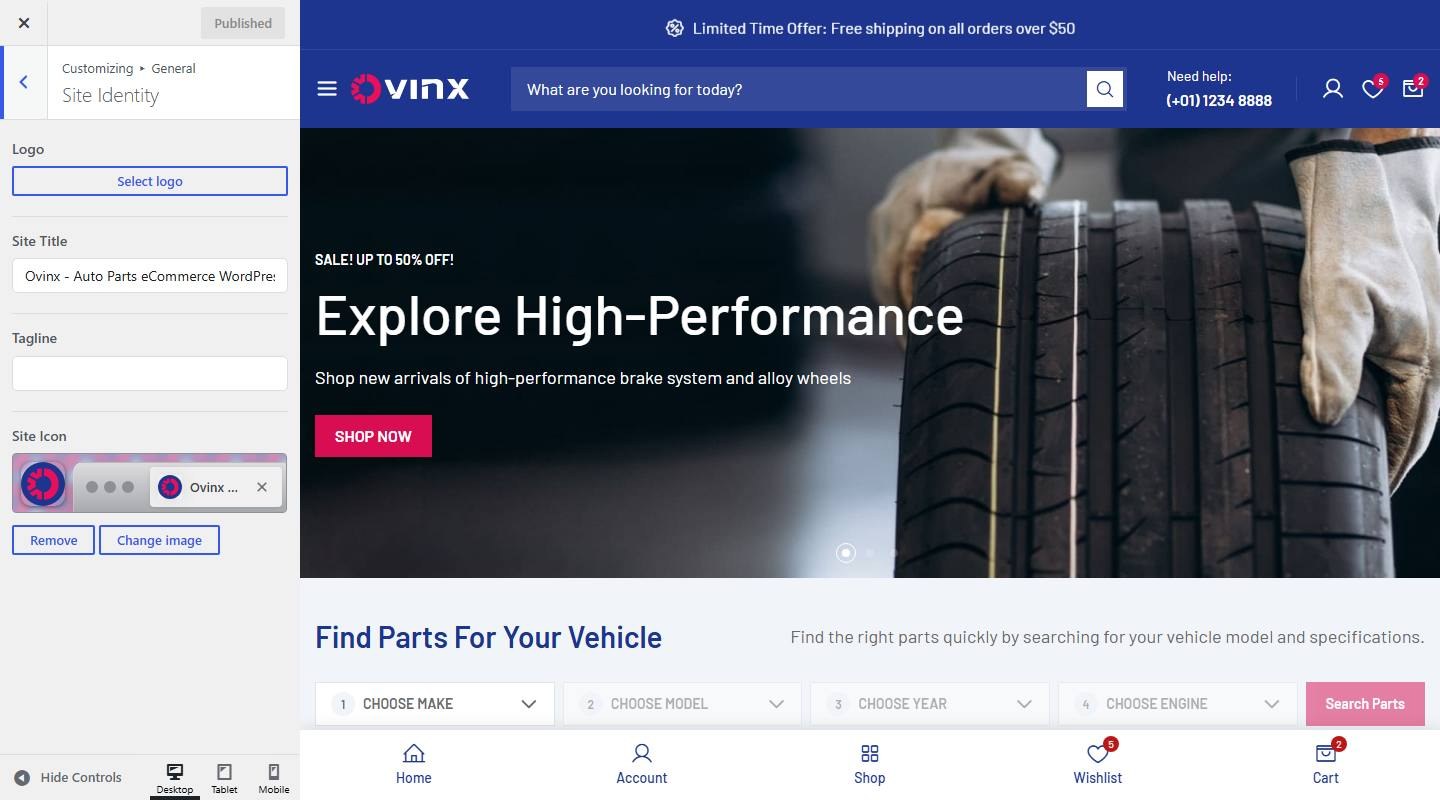

- Logo: Upload or select an image.
- Site Title: Enter the text (demo: “Ovinx – Auto Parts eCommerce WordPress Theme”).
- Tagline: Enter the text.
- Site Icon: Upload or select an image.
Background Image
To customize, go to Dashboard → Appearance → Customize → General → Background Image.
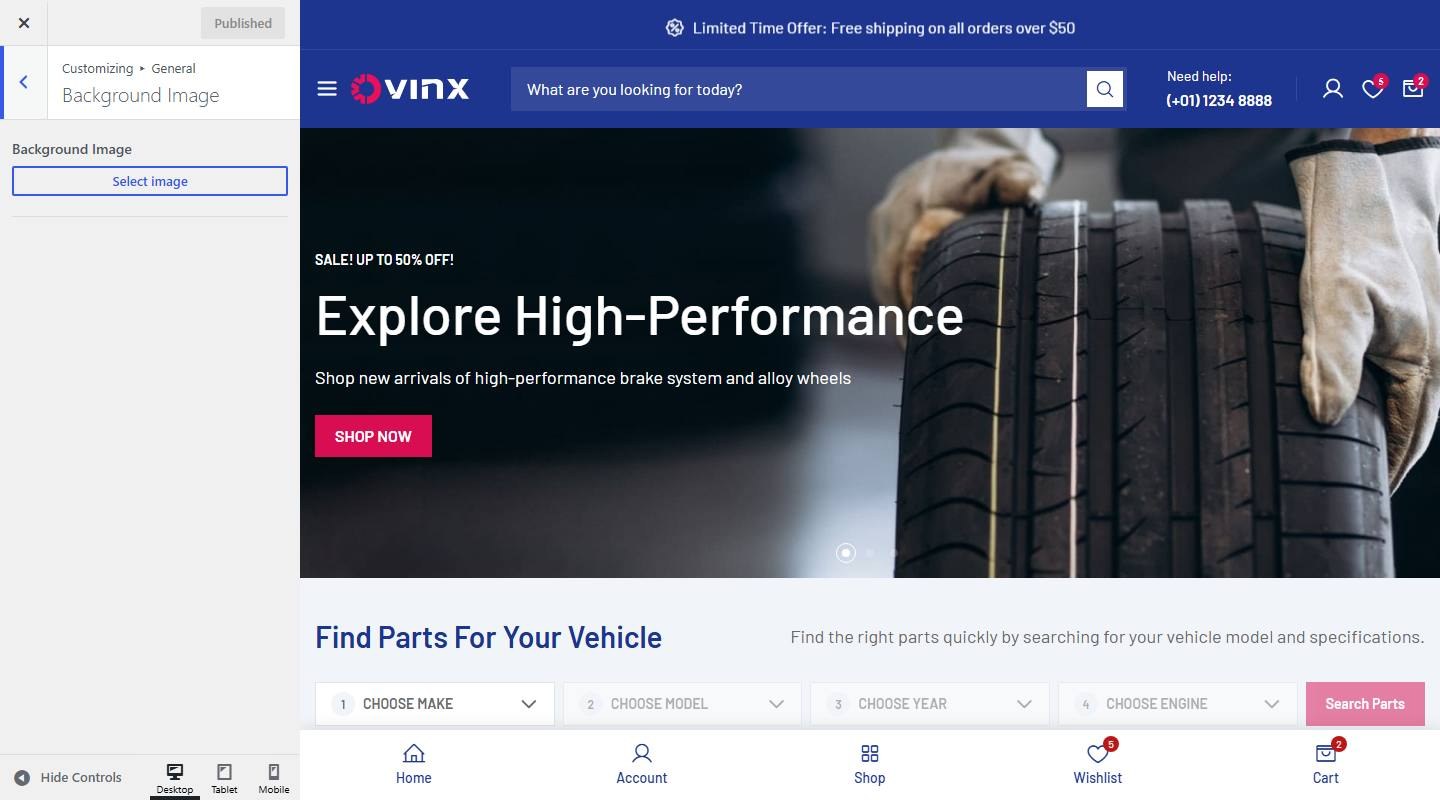

- Background Image: Adjust this setting.
- Preset: Choose one: Default, Fill Screen, Fit to Screen, Repeat, Custom.
- Image Position: Adjust this setting.
- Image Size: Choose one: Original, Fit to Screen, Fill Screen.
- Repeat Background Image: Turn on or off (demo: off).
- Scroll with Page: Turn on or off (demo: off).
Homepage Settings
To customize, go to Dashboard → Appearance → Customize → General → Homepage Settings.
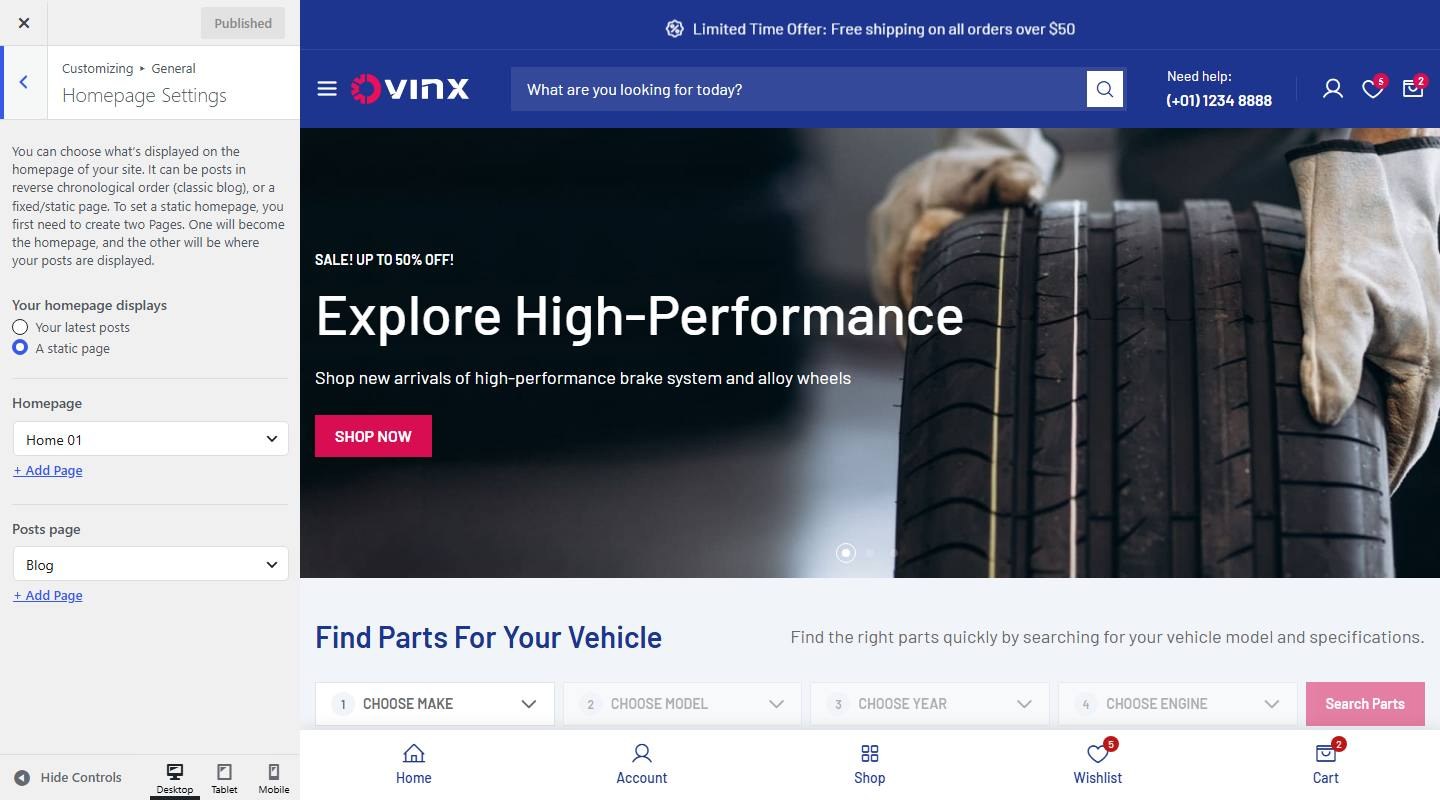

- Your homepage displays: Choose one: posts, page.
- Homepage: Adjust this setting.
- Posts page: Adjust this setting.
Site Display (Go Top, Preload, Social)
To customize, go to Dashboard → Appearance → Customize → General → Go Top, Preload, Social.
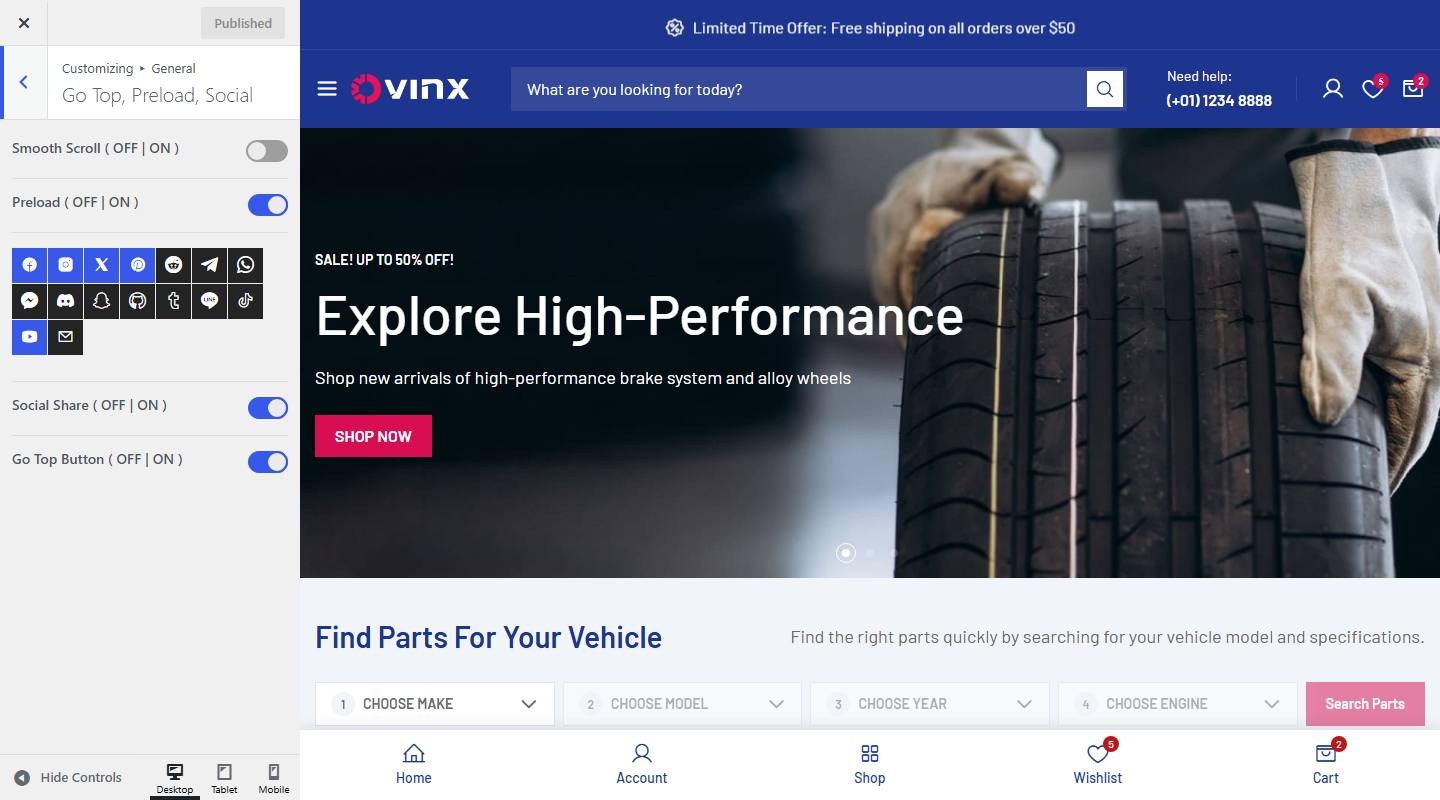

- Smooth Scroll ( OFF | ON ): Turn on or off (demo: off).
- Preload ( OFF | ON ): Turn on or off (demo: on).
- Social Share ( OFF | ON ): Turn on or off (demo: on).
- Go Top Button ( OFF | ON ): Turn on or off (demo: on).
Login
To customize, go to Dashboard → Appearance → Customize → General → Login.
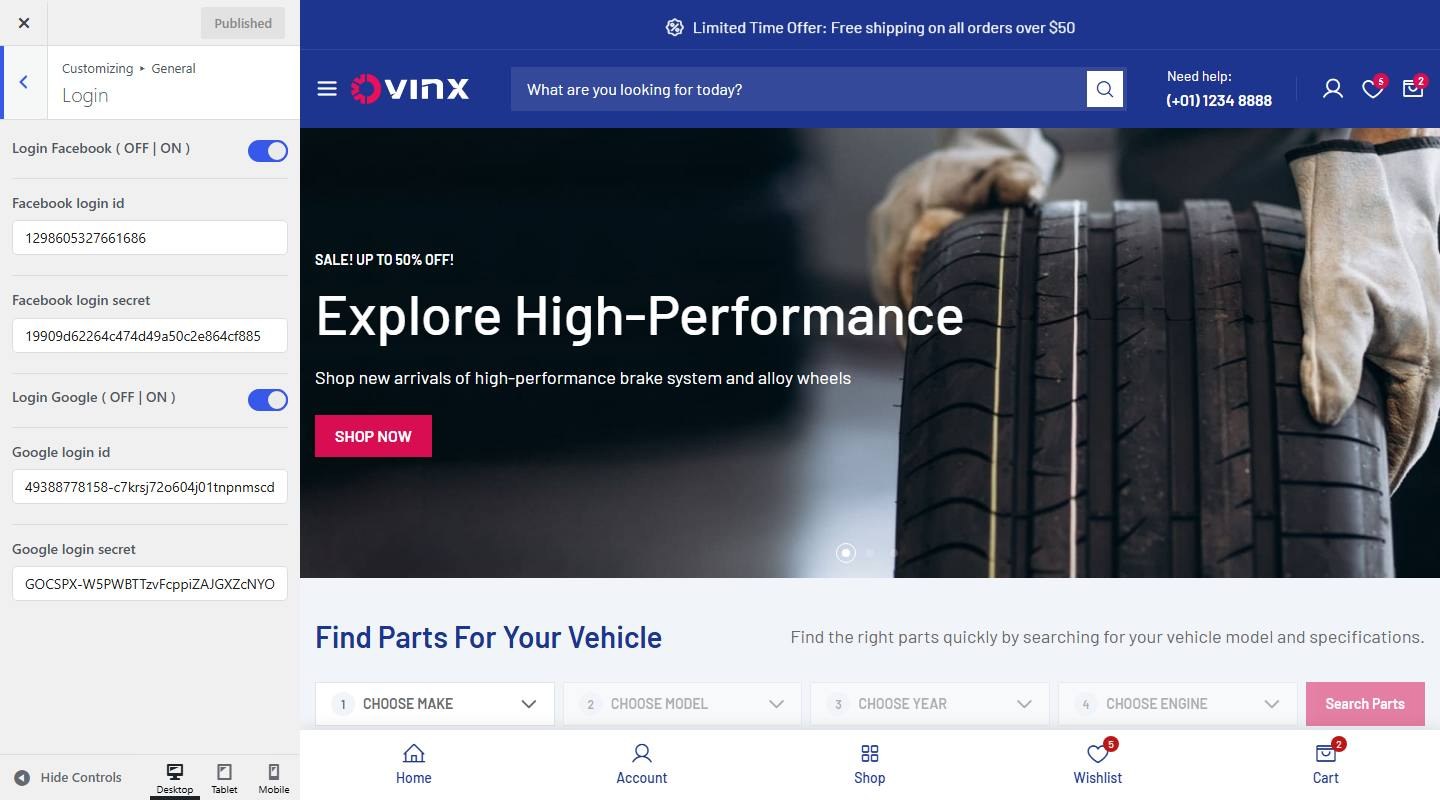

- Login Facebook ( OFF | ON ): Turn on or off (demo: on).
- Facebook login id: Enter the text (demo: “1298605327661686”).
- Facebook login secret: Enter the text (demo: “19909d62264c474d49a50c2e864cf885”).
- Login Google ( OFF | ON ): Turn on or off (demo: on).
- Google login id: Enter the text (demo: “49388778158-c7krsj72o604j01tnpnmscdksggt2dqi.apps.googleusercontent.co”).
- Google login secret: Enter the text (demo: “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“).
Header
To set up the default Header Style, navigate to Dashboard → Appearance → Customize → Header.
Promo Bar
To customize, go to Dashboard → Appearance → Customize → Header → Promo Bar.
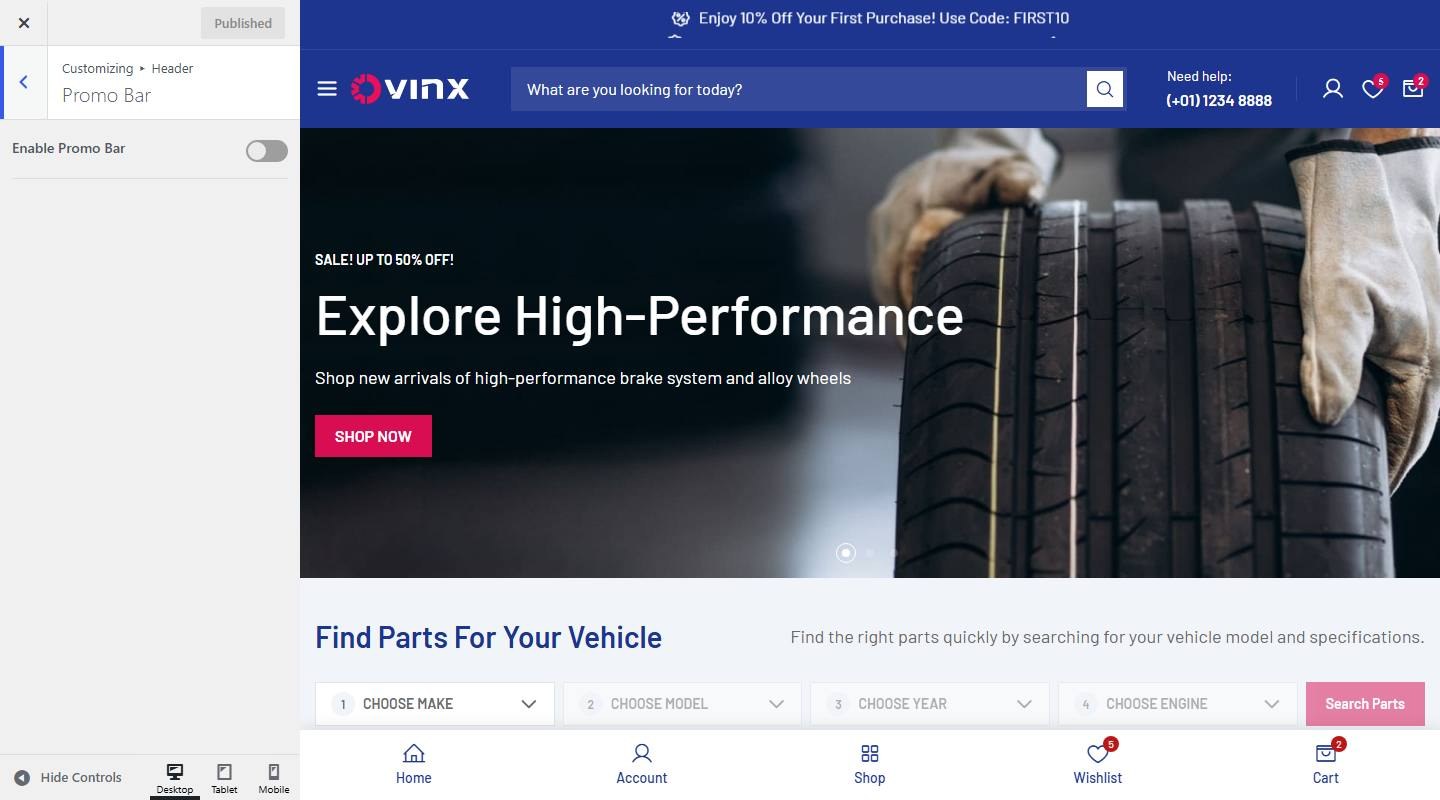

- Enable Promo Bar: Turn on or off (demo: off).
- Style: Choose one: Slides, Marquee Text.
- Slide Items: Adjust this setting.
- Marquee Text Items: Adjust this setting.
Top Bar
To customize, go to Dashboard → Appearance → Customize → Header → Topbar.
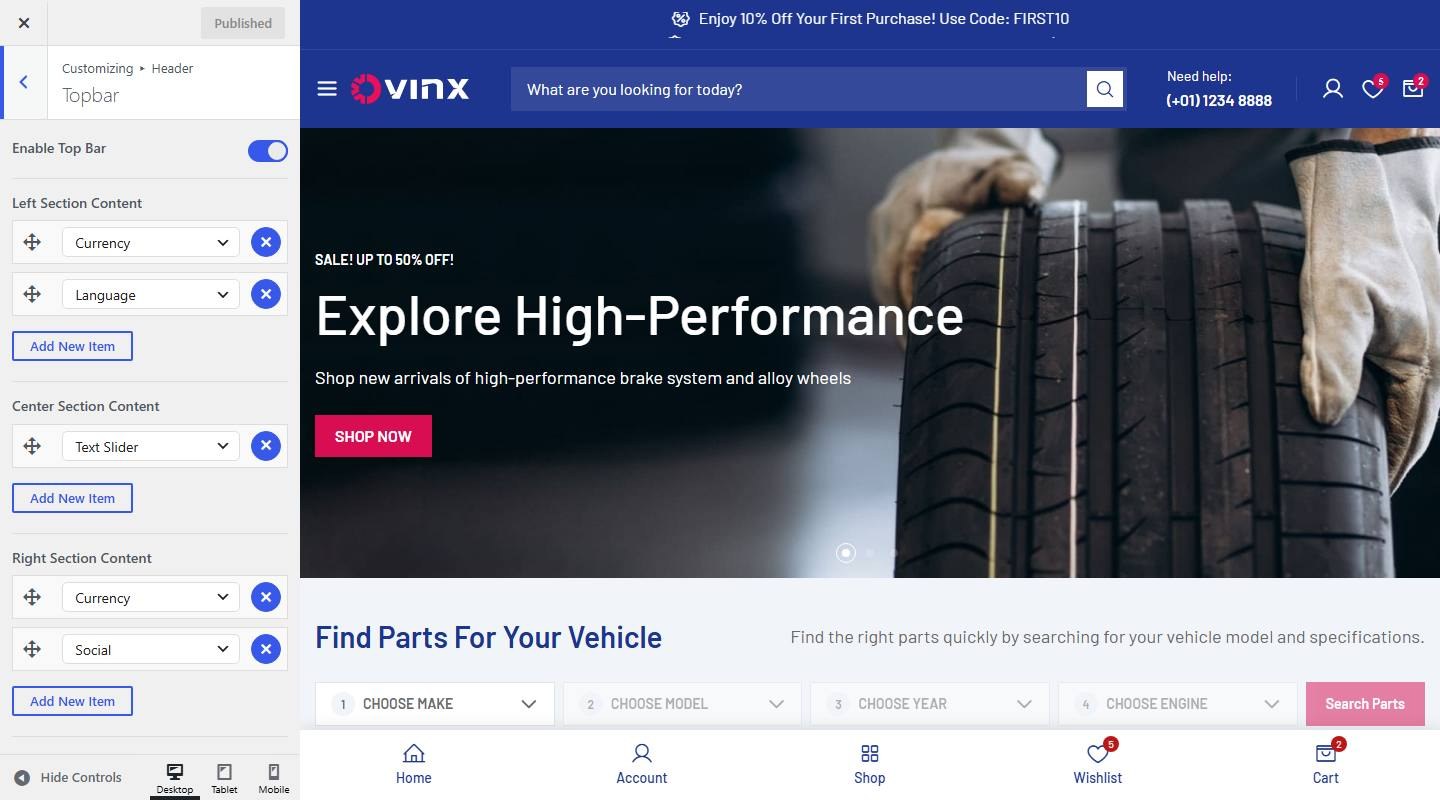

- Enable Top Bar: Turn on or off (demo: on).
- Left Section Content: Adjust this setting.
- Center Section Content: Adjust this setting.
- Right Section Content: Adjust this setting.
- Top Bar Elements
- Contact Phone: Enter the text (demo: “(+01) 1234 8888”).
- Announcement Slider Items: Adjust this setting.
Custom Logo
To customize, go to Dashboard → Appearance → Customize → Header → Logo.
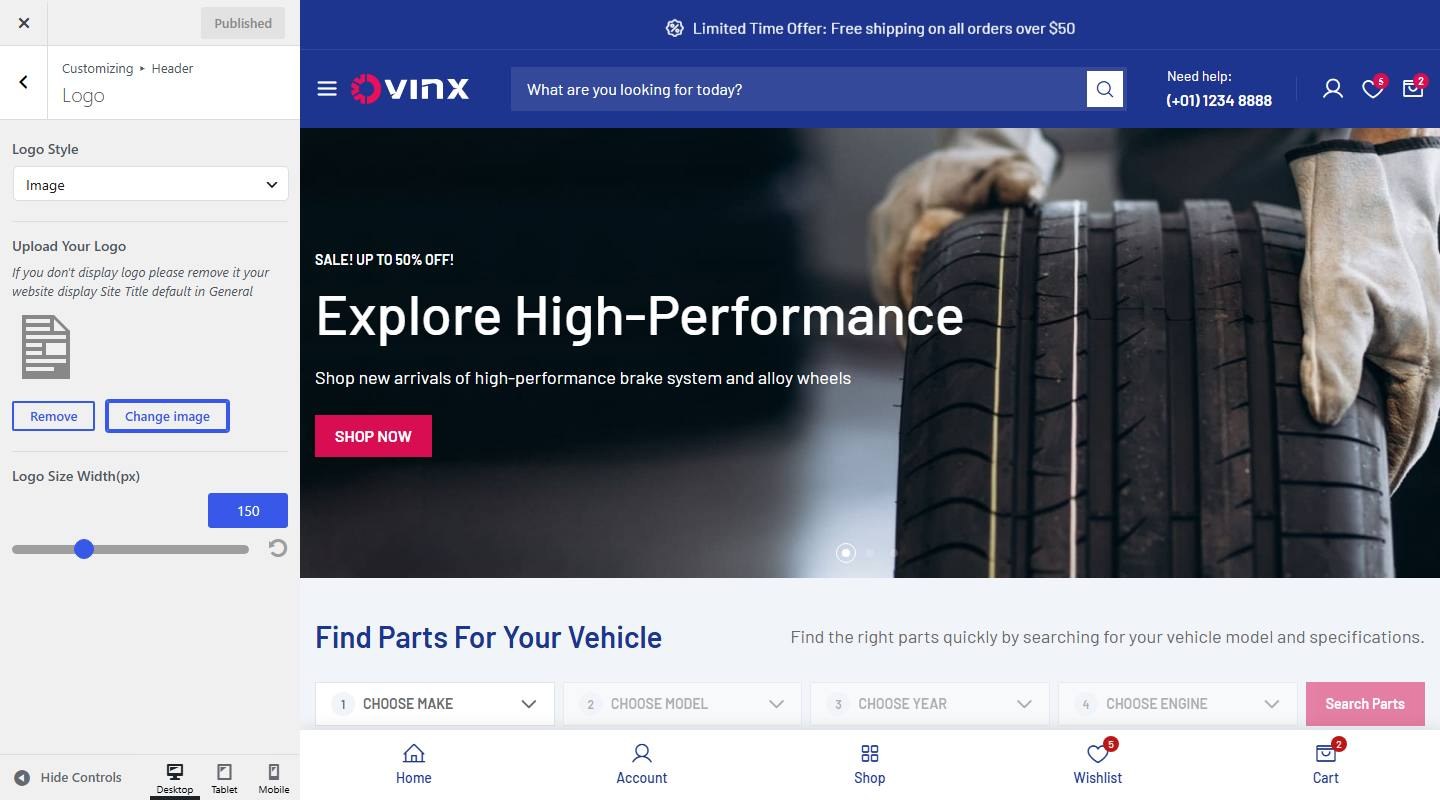

- Logo Style: Choose one: Image, Text.
- Text: Enter the text (demo: “Ovinx”).
- Upload Your Logo: Upload or select an image.
- Logo Size Width(px): Set the value (demo: 150).
Navigation
To customize, go to Dashboard → Appearance → Customize → Header → Navigation.
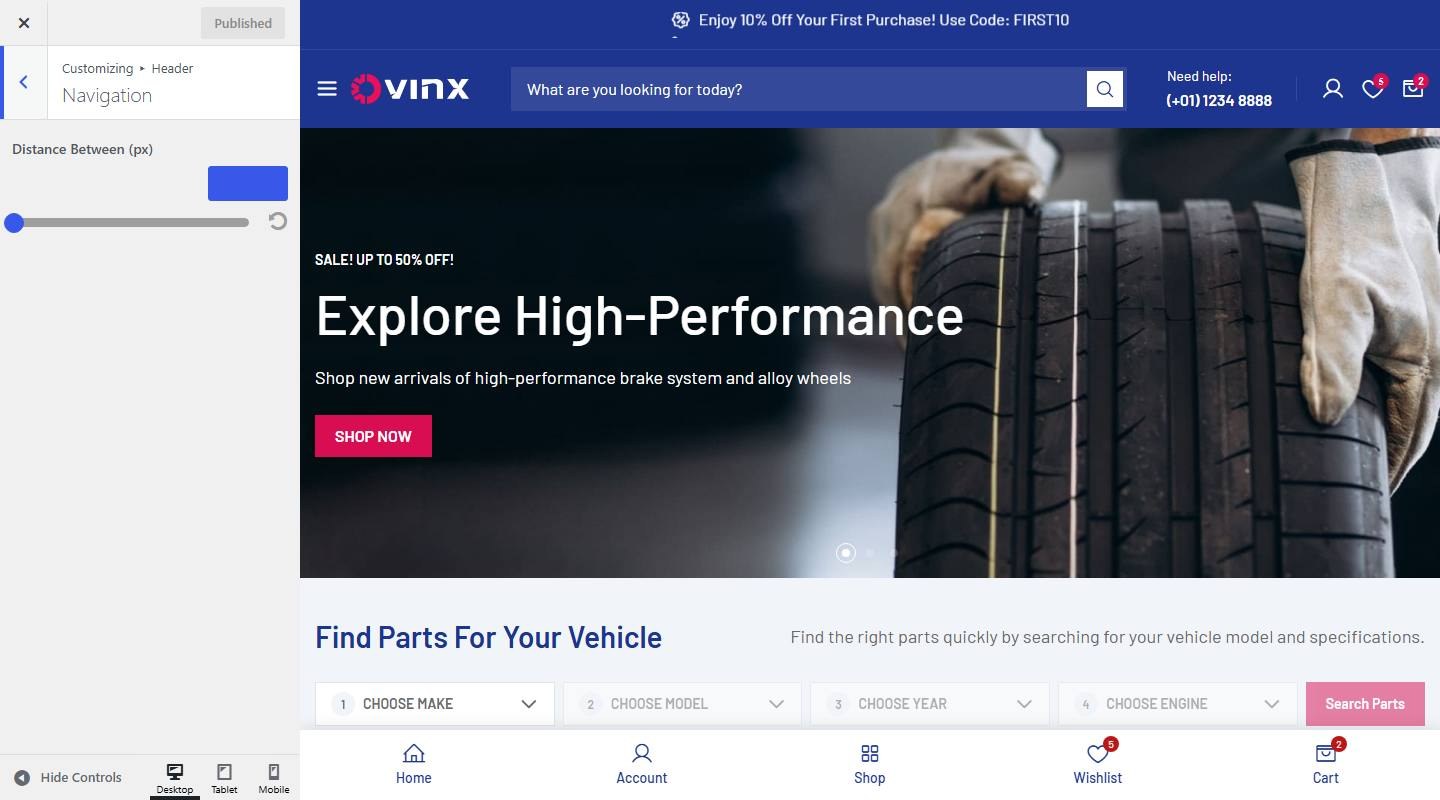

- Distance Between (px): Set the value.
Header Options
To customize, go to Dashboard → Appearance → Customize → Header → Header Options.
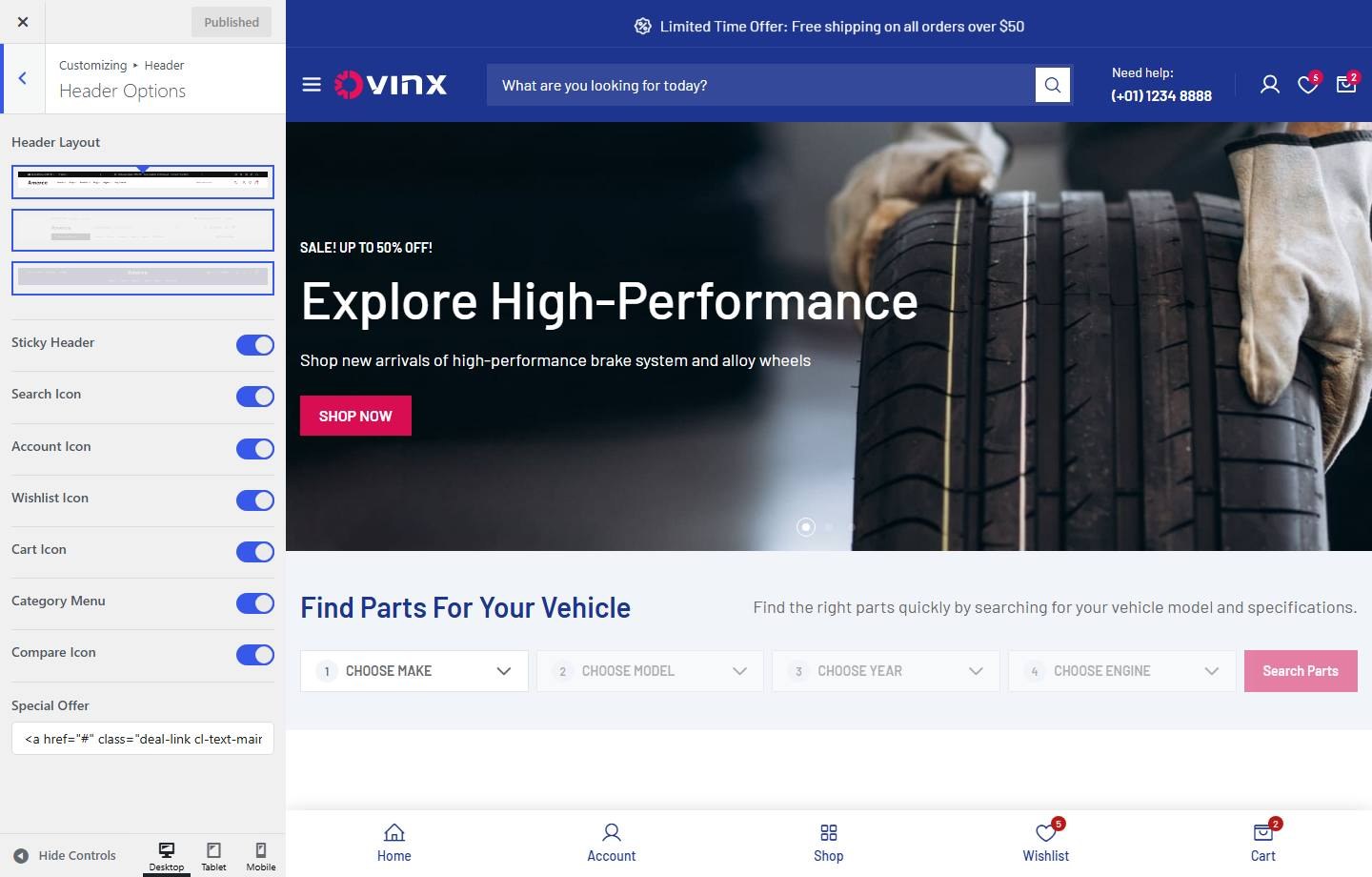

- Header Layout: Choose one: header-default, header-02, header-03.
- Sticky Header: Turn on or off (demo: on).
- Search Icon: Turn on or off (demo: on).
- Search Form: Turn on or off (demo: on).
- Account Icon: Turn on or off (demo: on).
- Wishlist Icon: Turn on or off (demo: on).
- Cart Icon: Turn on or off (demo: on).
- Category Menu: Turn on or off (demo: on).
- Compare Icon: Turn on or off (demo: on).
- Special Offer: Enter the text (demo: “Today’s Deal”).
Search Popup
To customize, go to Dashboard → Appearance → Customize → Header → Search Popup.
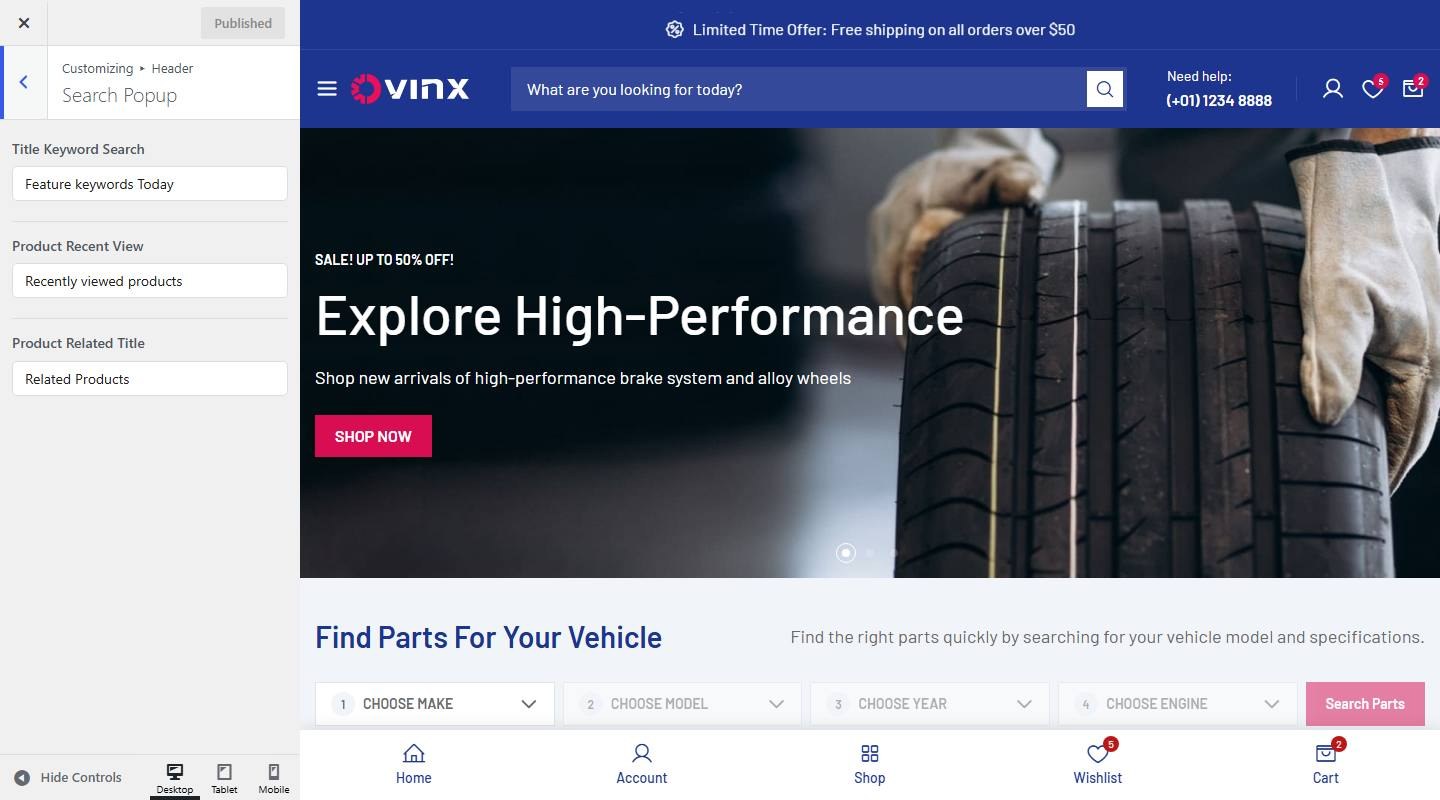

- Title Keyword Search: Enter the text (demo: “Feature keywords Today”).
- Product Recent View: Enter the text (demo: “Recently viewed products”).
- Product Related Title: Enter the text (demo: “Related Products”).
Custom Menu
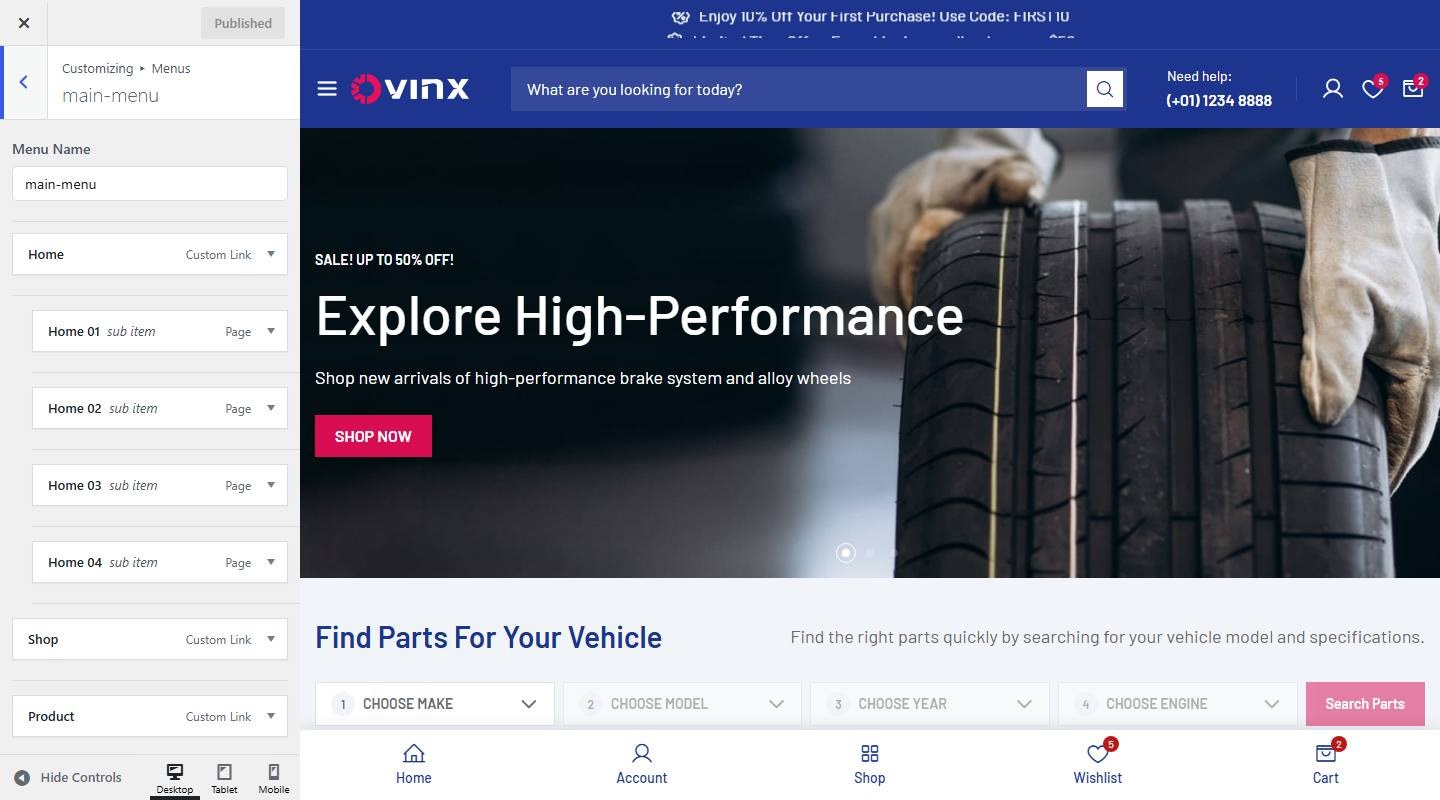
To create or customize a menu layout, go to Dashboard → Appearance → Customize → Menus. Select an existing menu to edit or create a new one. Drag and drop menu items to reorder. See also the Menus section.

Page Title & Breadcrumb
Page Title Style
To customize, go to Dashboard → Appearance → Customize → Page Title → Page Title.
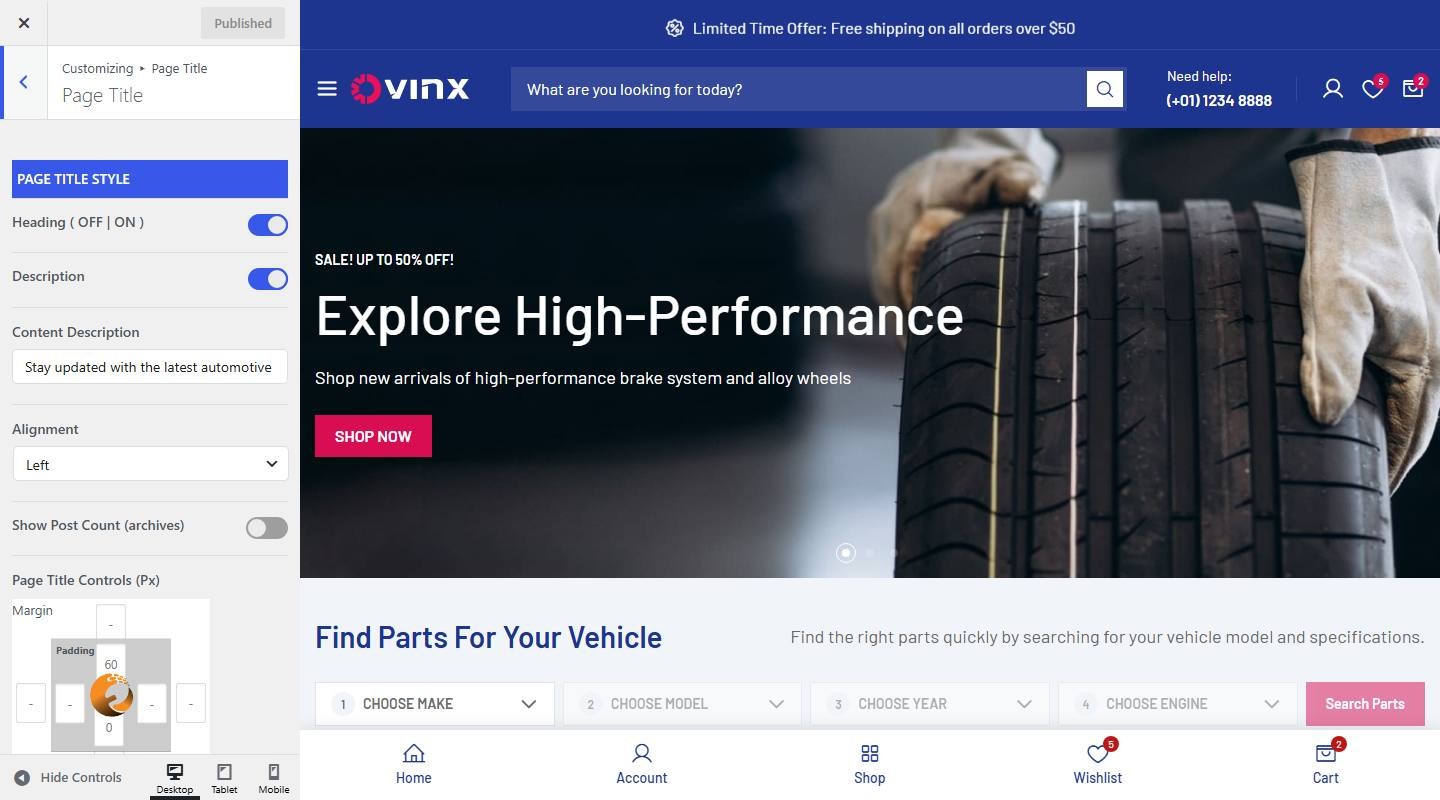

- Page Title Style
- Heading ( OFF | ON ): Turn on or off (demo: on).
- Description: Turn on or off (demo: on).
- Content Description: Enter the text (demo: “Stay updated with the latest automotive trends, tips, and product insi”).
- Alignment: Choose one: Left, Center, Right.
- Show Post Count (archives): Turn on or off (demo: off).
- Page Title Controls (px): Set the spacing in px.
Breadcrumb
To customize, go to Dashboard → Appearance → Customize → Page Title → Breadcrumb.
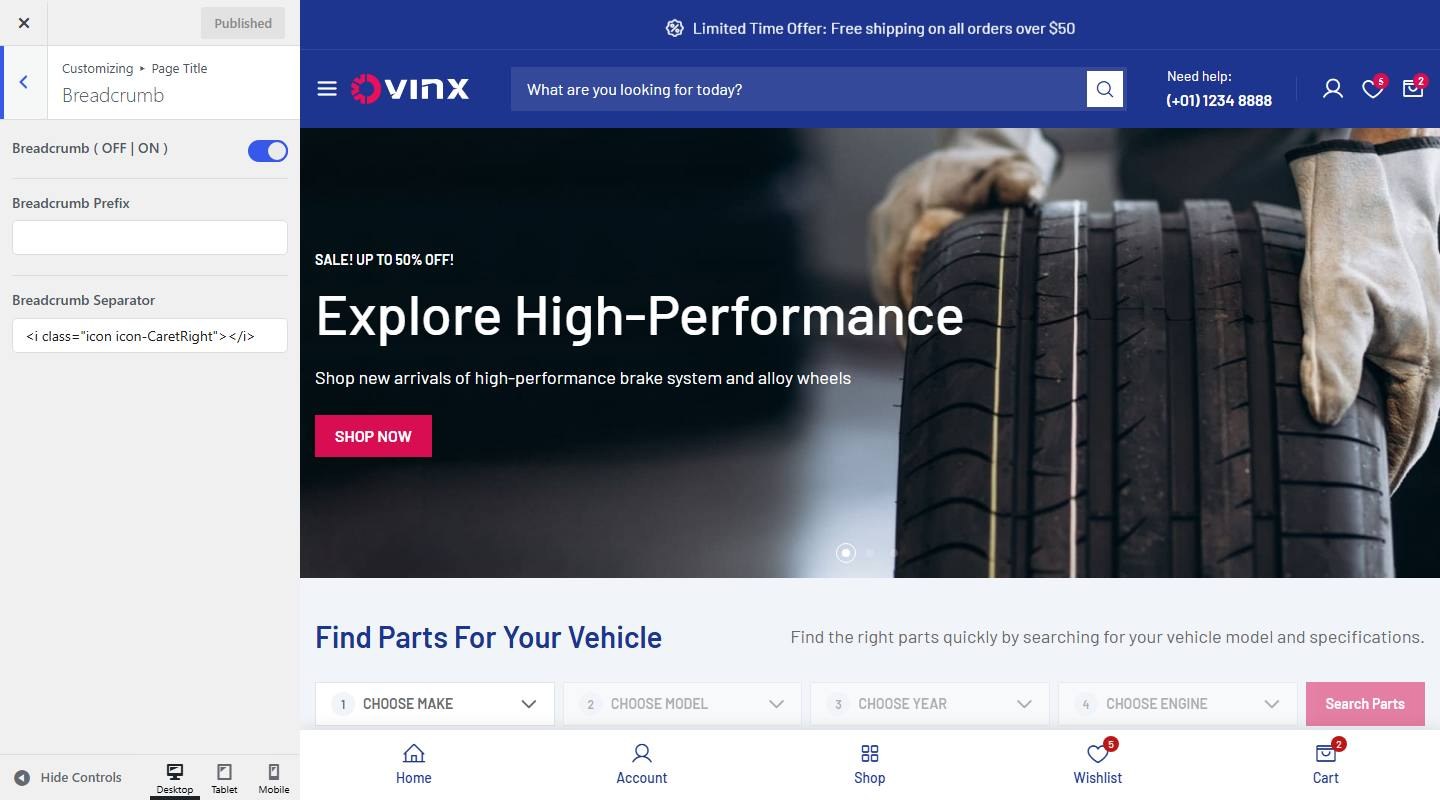

- Breadcrumb ( OFF | ON ): Turn on or off (demo: on).
- Breadcrumb Prefix: Enter the text.
- Breadcrumb Separator: Enter the text.
Typography & Color
To customize typography & color settings, go to Dashboard → Appearance → Customize → Typography & Color.
Main Color
To customize, go to Dashboard → Appearance → Customize → Typography & Color → Main Color.
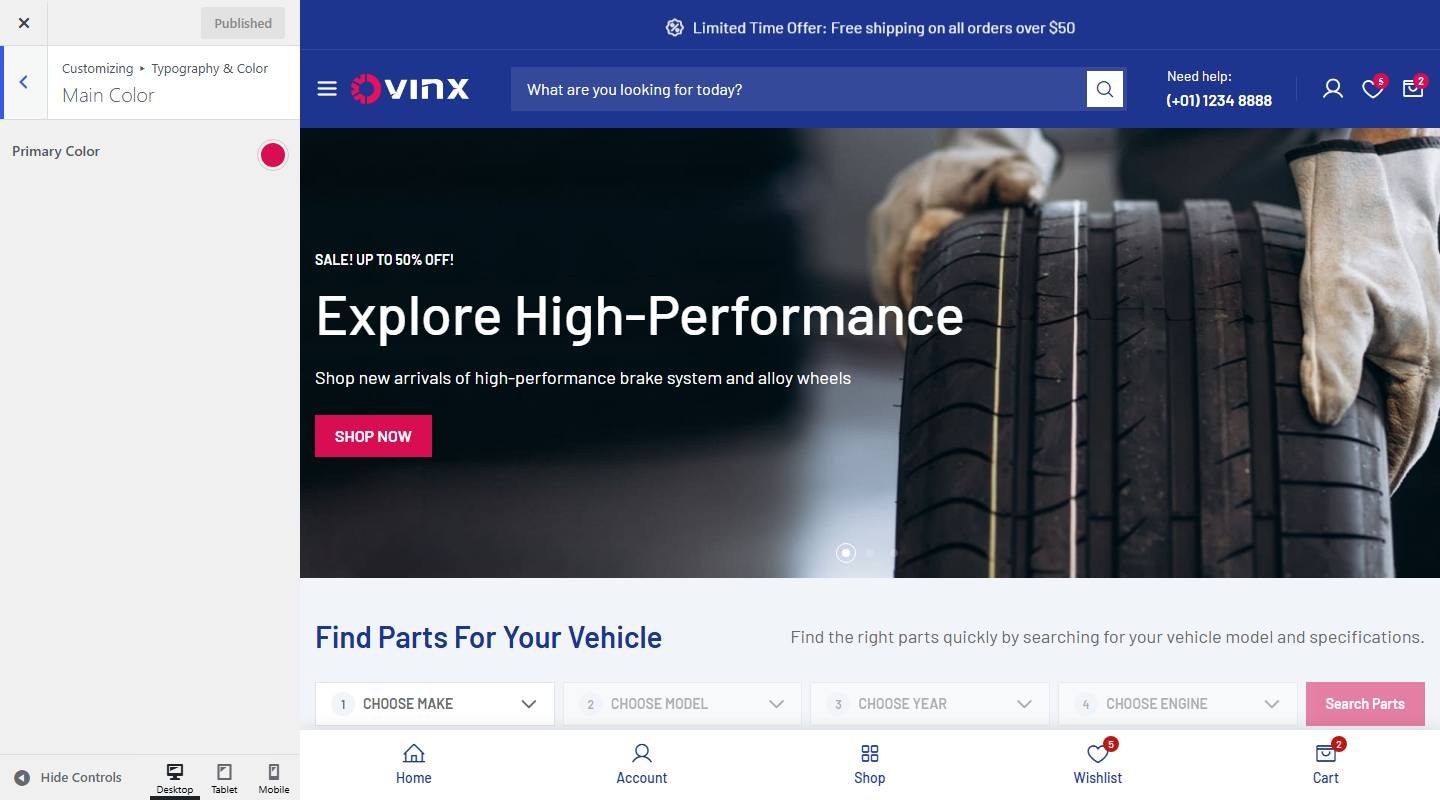

- Primary Color: Pick a color. Leave empty to keep the theme default.
Promo Bar
To customize, go to Dashboard → Appearance → Customize → Typography & Color → Promo Bar.
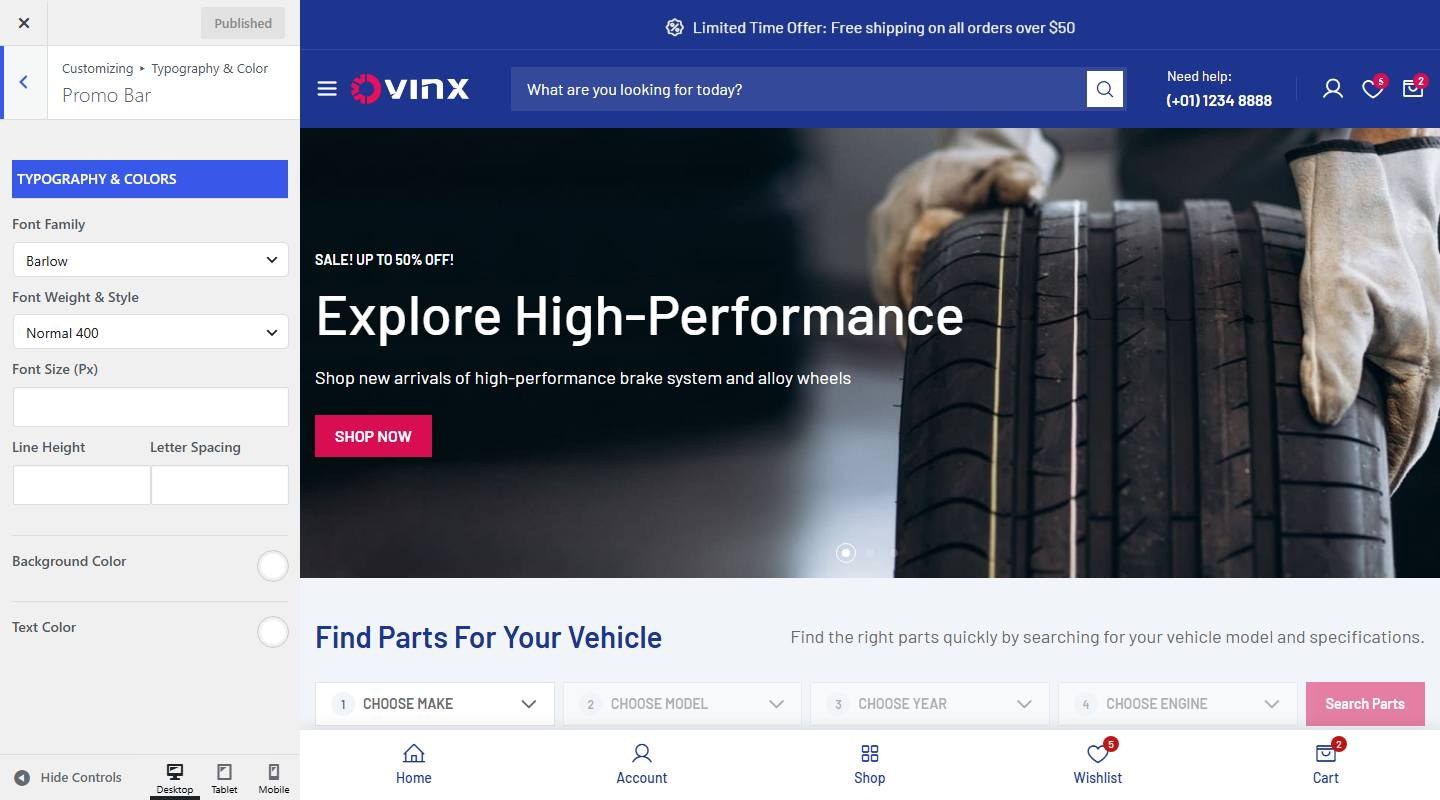

- Typography & Colors
- Text Typography: Set the font family, weight, size and line height.
- Background Color: Pick a color. Leave empty to keep the theme default.
- Text Color: Pick a color. Leave empty to keep the theme default.
Topbar
To customize, go to Dashboard → Appearance → Customize → Typography & Color → Topbar.
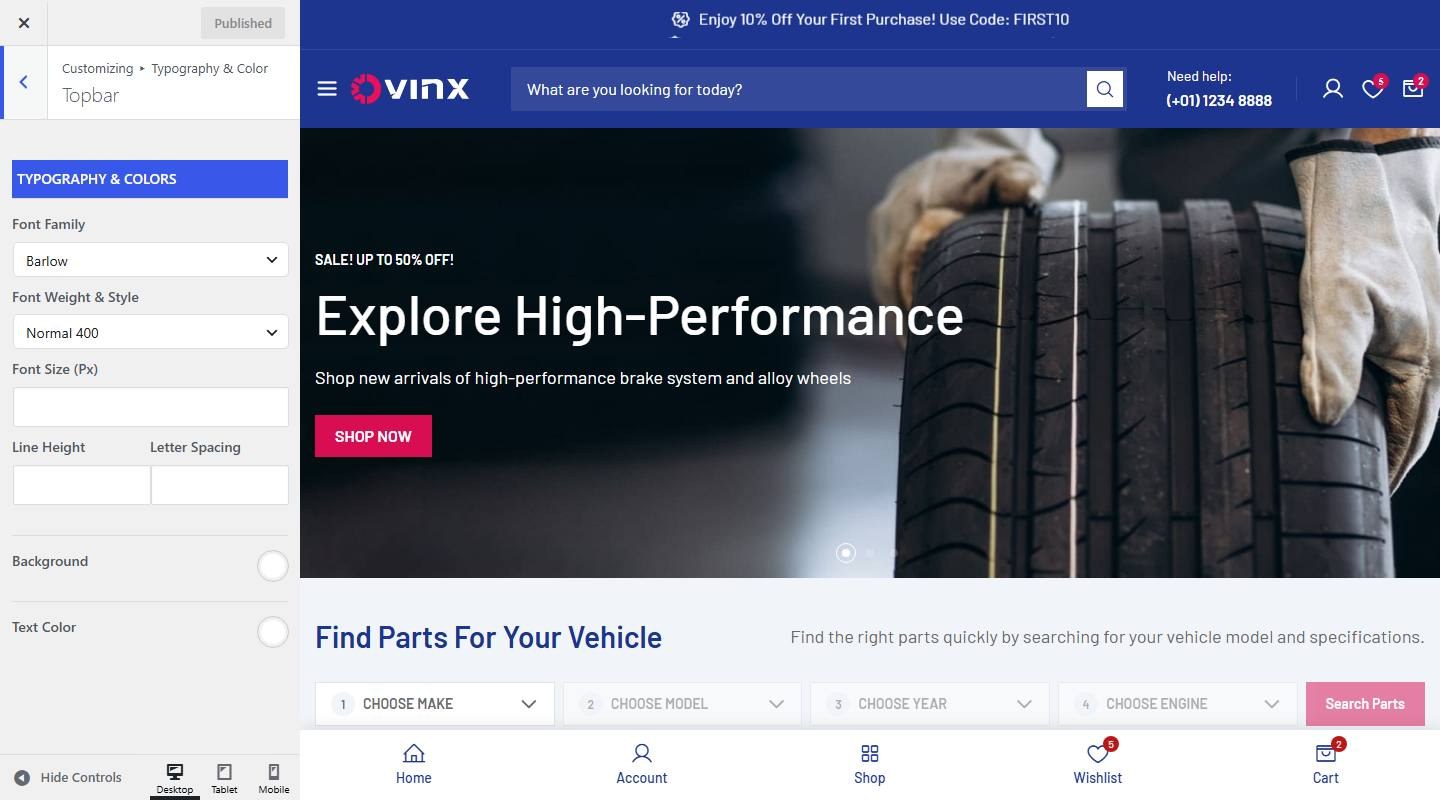

- Typography & Colors
- Text Typography: Set the font family, weight, size and line height.
- Background: Pick a color. Leave empty to keep the theme default.
- Text Color: Pick a color. Leave empty to keep the theme default.
Header (Menu Font)
To customize, go to Dashboard → Appearance → Customize → Typography & Color → Header.
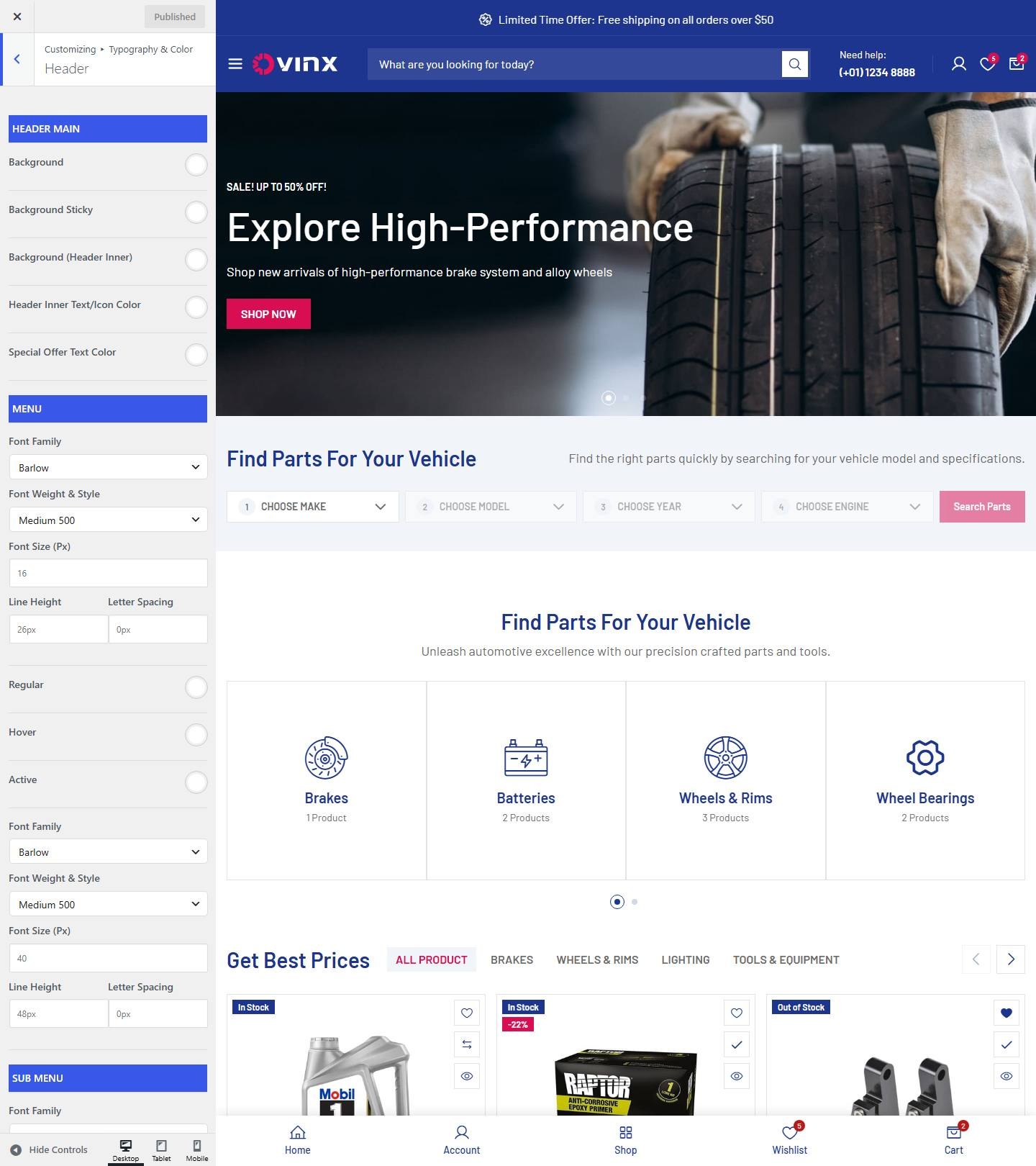

- Header Main
- Background: Pick a color. Leave empty to keep the theme default.
- Background Sticky: Pick a color. Leave empty to keep the theme default.
- Background (Header Inner): Pick a color. Leave empty to keep the theme default.
- Header Inner Text/Icon Color: Pick a color. Leave empty to keep the theme default.
- Special Offer Text Color: Pick a color. Leave empty to keep the theme default.
- Menu
- Text Typography: Set the font family, weight, size and line height.
- Regular: Pick a color. Leave empty to keep the theme default.
- Hover: Pick a color. Leave empty to keep the theme default.
- Active: Pick a color. Leave empty to keep the theme default.
- Logo (Text) Font name/style/sets: Set the font family, weight, size and line height.
- Sub Menu
- Text Typography: Set the font family, weight, size and line height.
- Regular: Pick a color. Leave empty to keep the theme default.
- Hover & Active: Pick a color. Leave empty to keep the theme default.
- Background: Pick a color. Leave empty to keep the theme default.
- Button ( Cart, Wishlist, Login, Search )
- Color: Pick a color. Leave empty to keep the theme default.
- Color Hover: Pick a color. Leave empty to keep the theme default.
Body
To customize, go to Dashboard → Appearance → Customize → Typography & Color → Body.
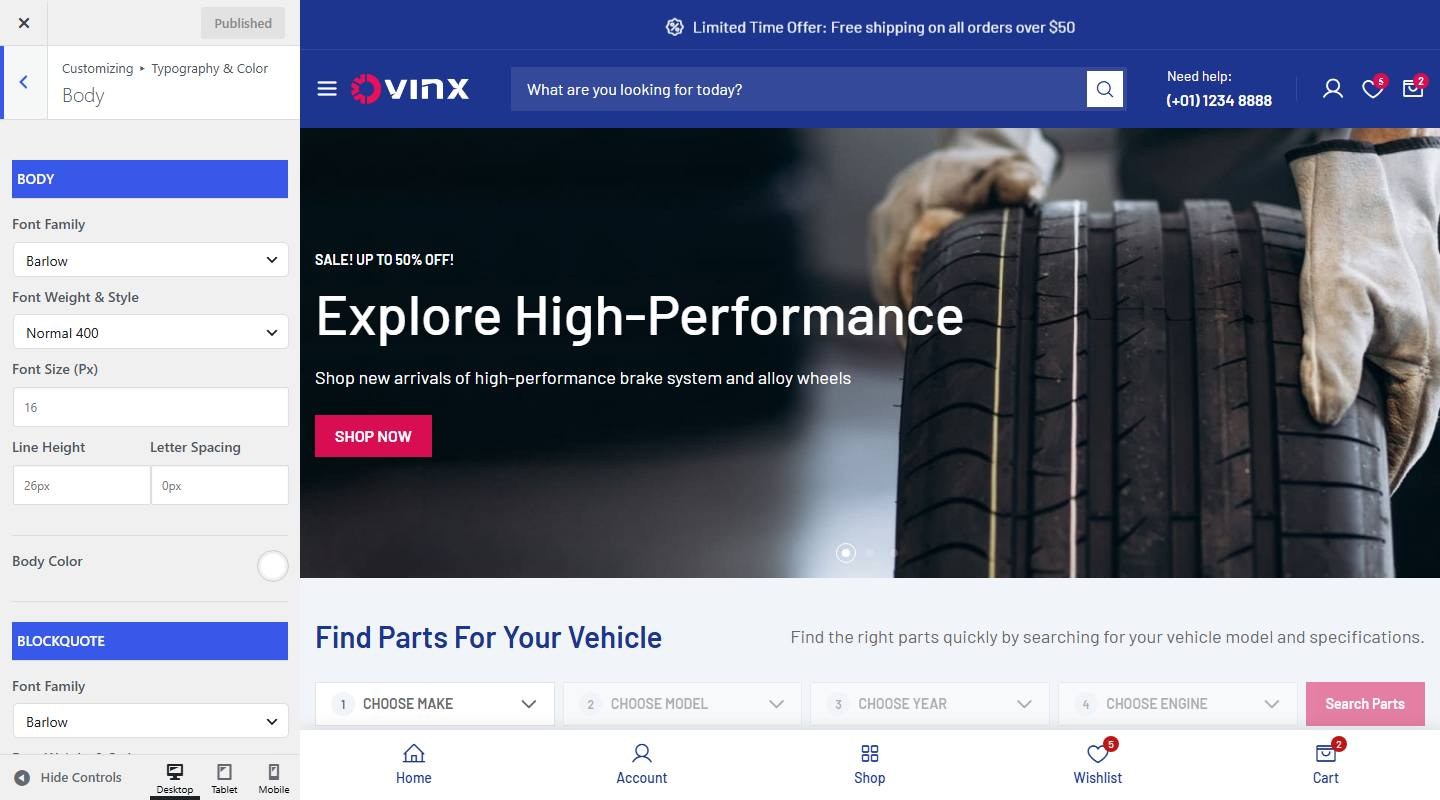

- Body
- Font name/style/sets: Set the font family, weight, size and line height.
- Body Color: Pick a color. Leave empty to keep the theme default.
- Blockquote
- Font name/style/sets: Set the font family, weight, size and line height.
Page Title
To customize, go to Dashboard → Appearance → Customize → Typography & Color → Page Title.
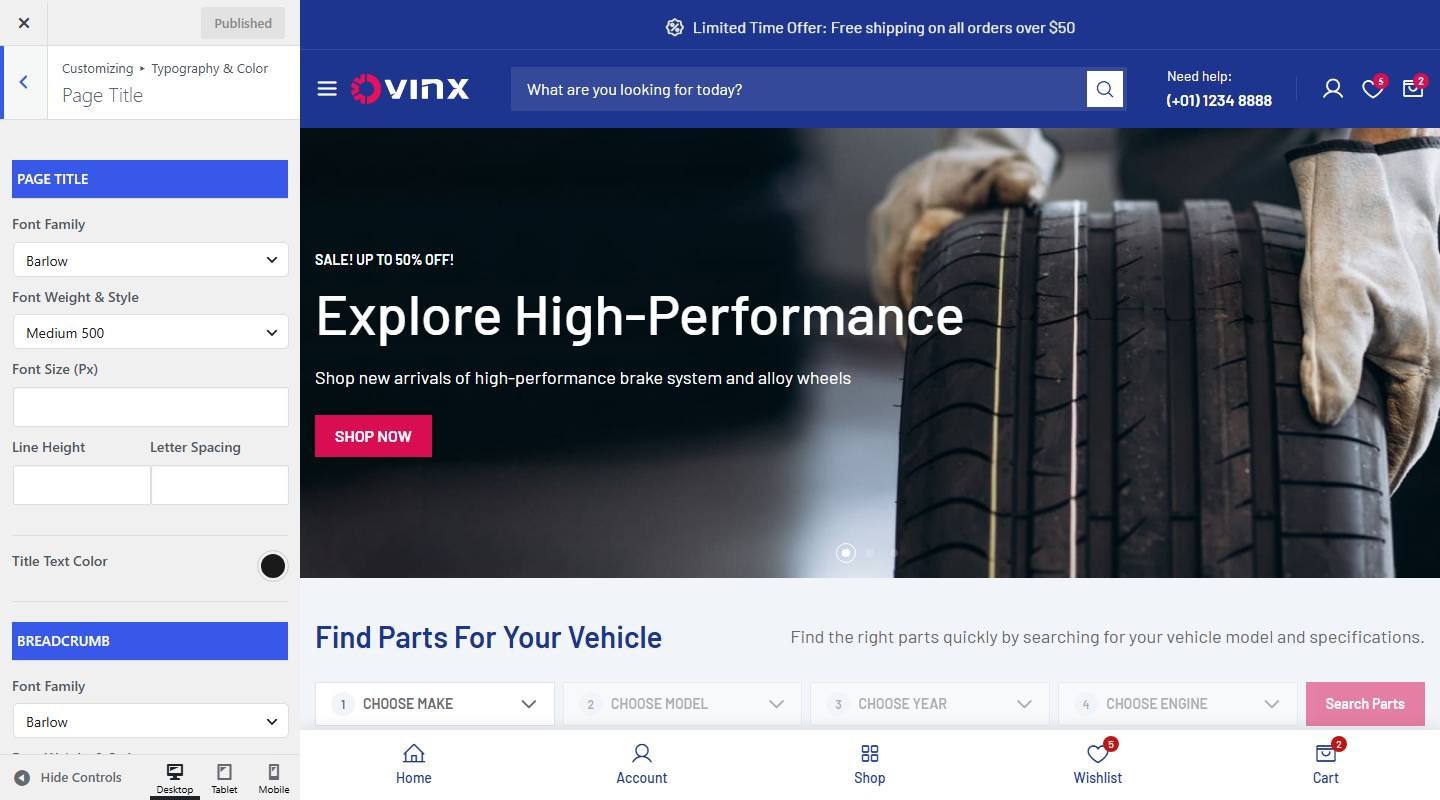

- Page Title
- Font name/style/sets: Set the font family, weight, size and line height.
- Title Text Color: Pick a color. Leave empty to keep the theme default.
- Breadcrumb
- Font name/style/sets: Set the font family, weight, size and line height.
- Breadcrumb Color: Pick a color. Leave empty to keep the theme default.
Blog Post
To customize, go to Dashboard → Appearance → Customize → Typography & Color → Blog Post.
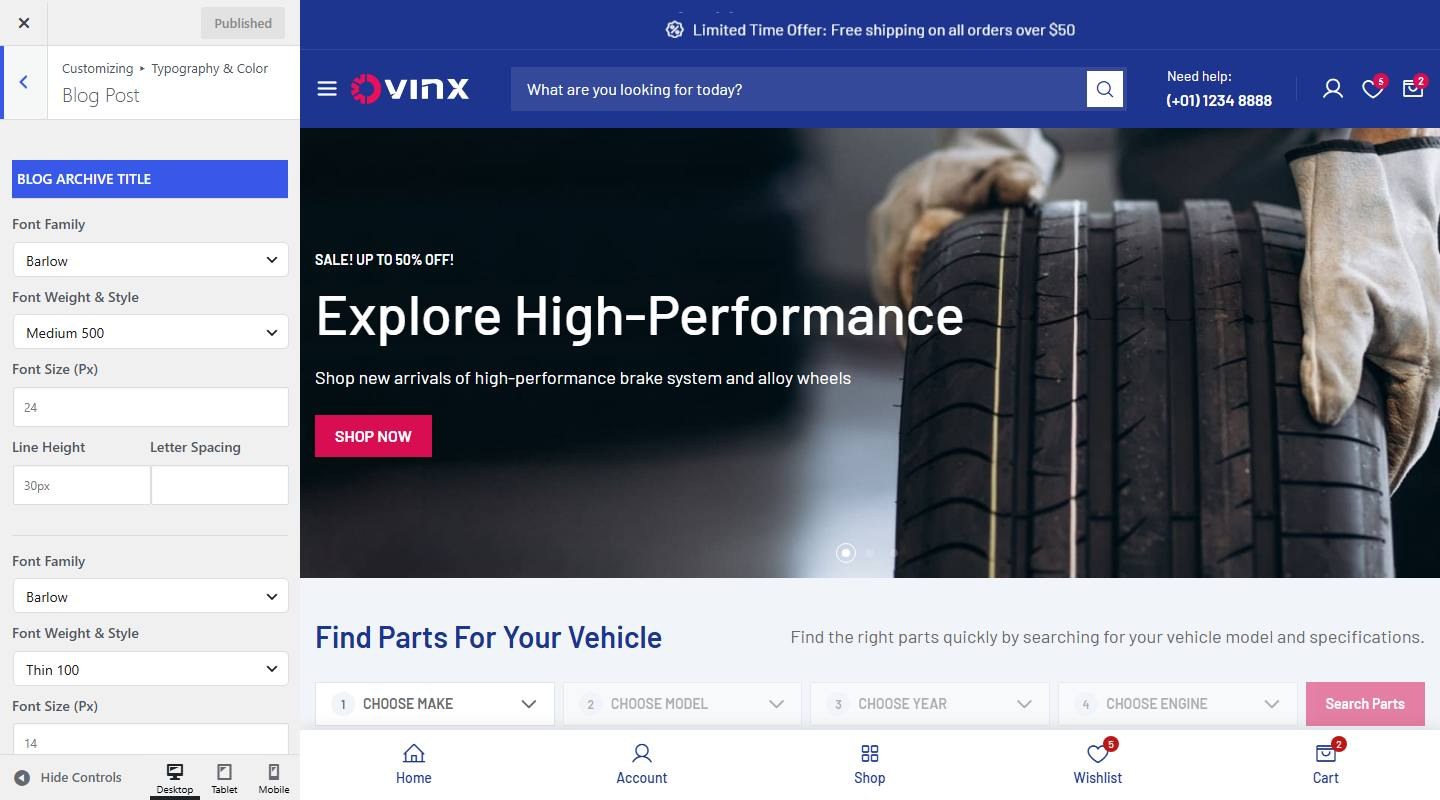

- Blog Archive Title
- Font name/style/sets: Set the font family, weight, size and line height.
- Meta Font name/style/sets: Set the font family, weight, size and line height.
- Read More Button Font name/style/sets: Set the font family, weight, size and line height.
- Blog Single
- Font name/style/sets: Set the font family, weight, size and line height.
Sidebar Widget Title
To customize, go to Dashboard → Appearance → Customize → Typography & Color → Sidebar Widget Title.
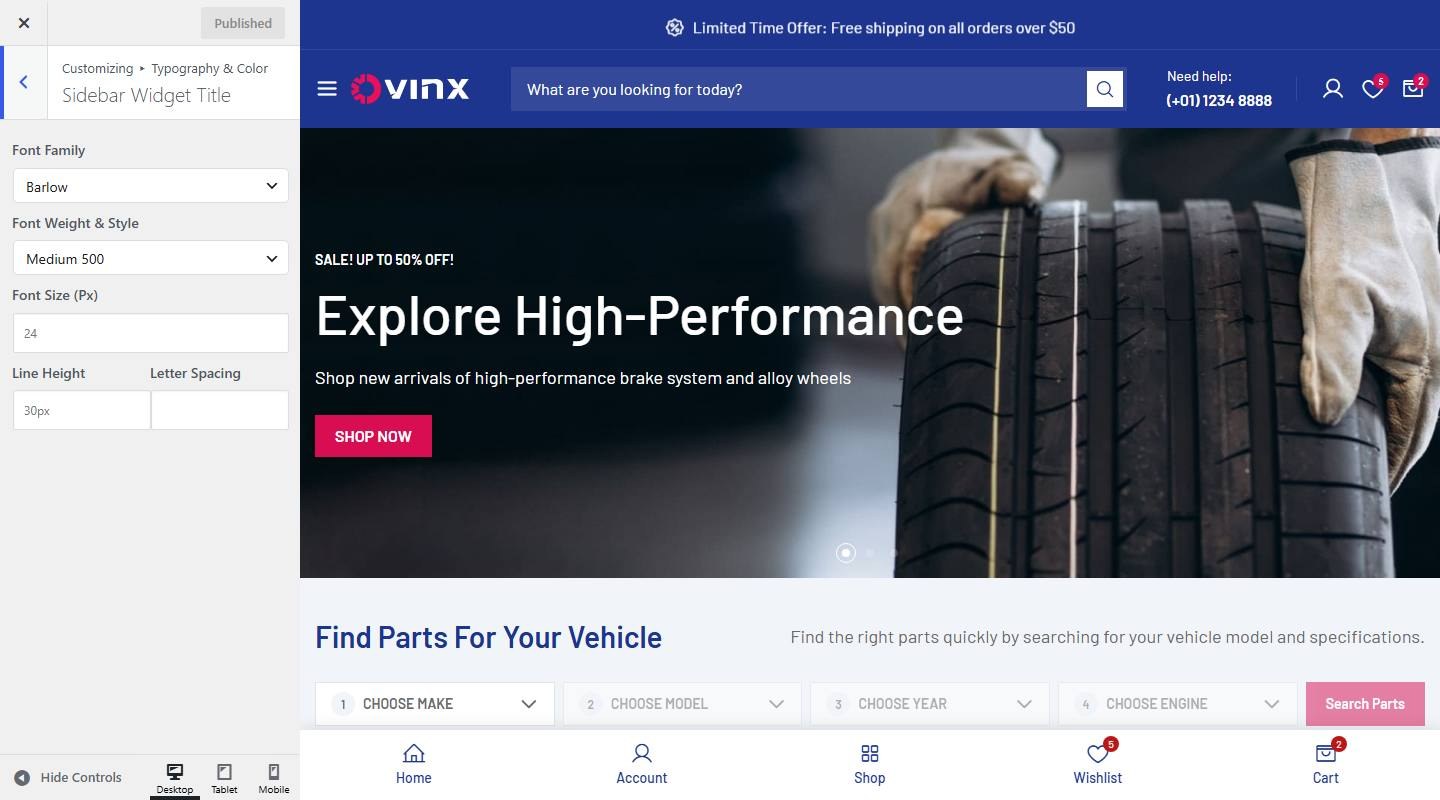

- Font name/style/sets: Set the font family, weight, size and line height.
Footer Widget Title
To customize, go to Dashboard → Appearance → Customize → Typography & Color → Footer Widget Title.
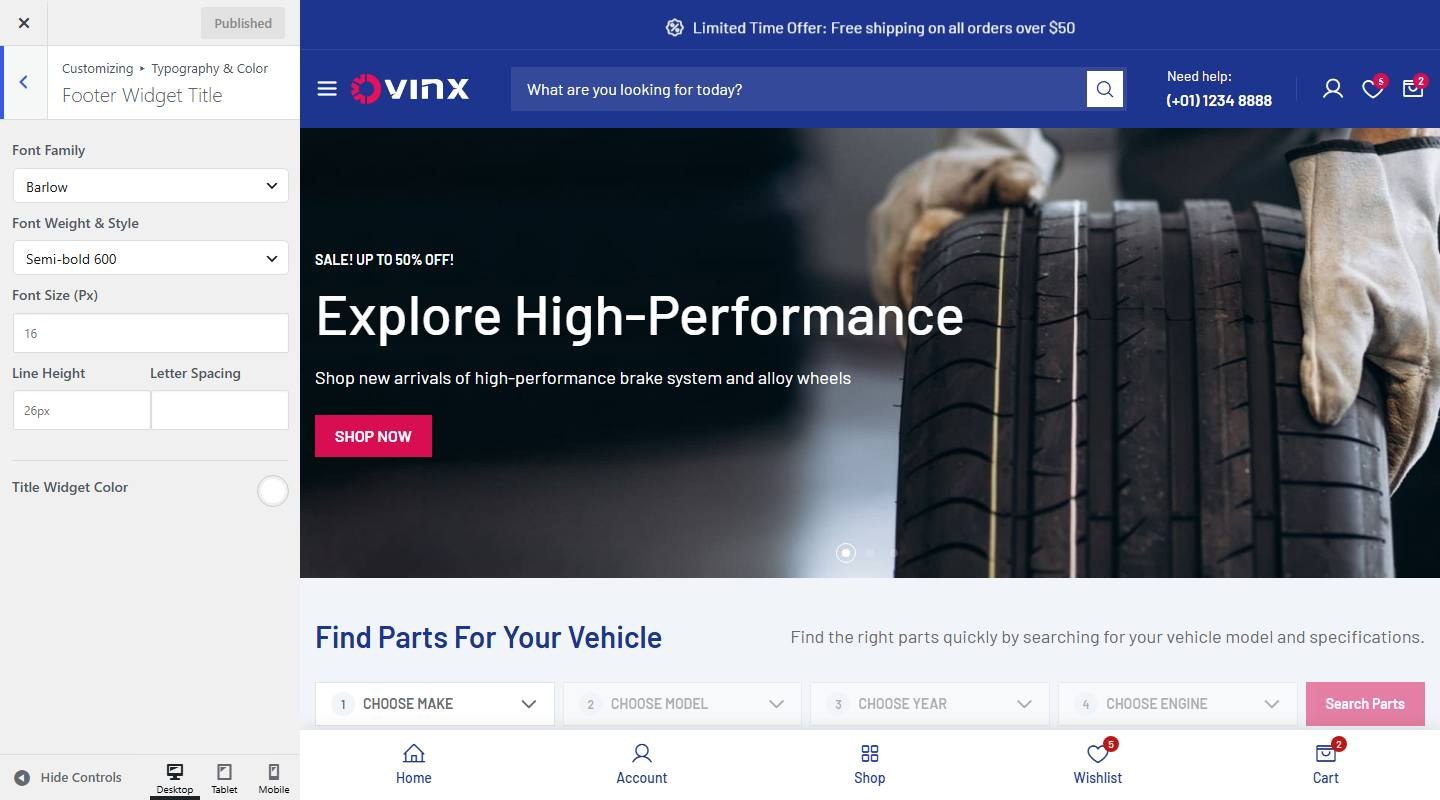

- Font name/style/sets: Set the font family, weight, size and line height.
- Title Widget Color: Pick a color. Leave empty to keep the theme default.
Footer
To customize, go to Dashboard → Appearance → Customize → Typography & Color → Footer.
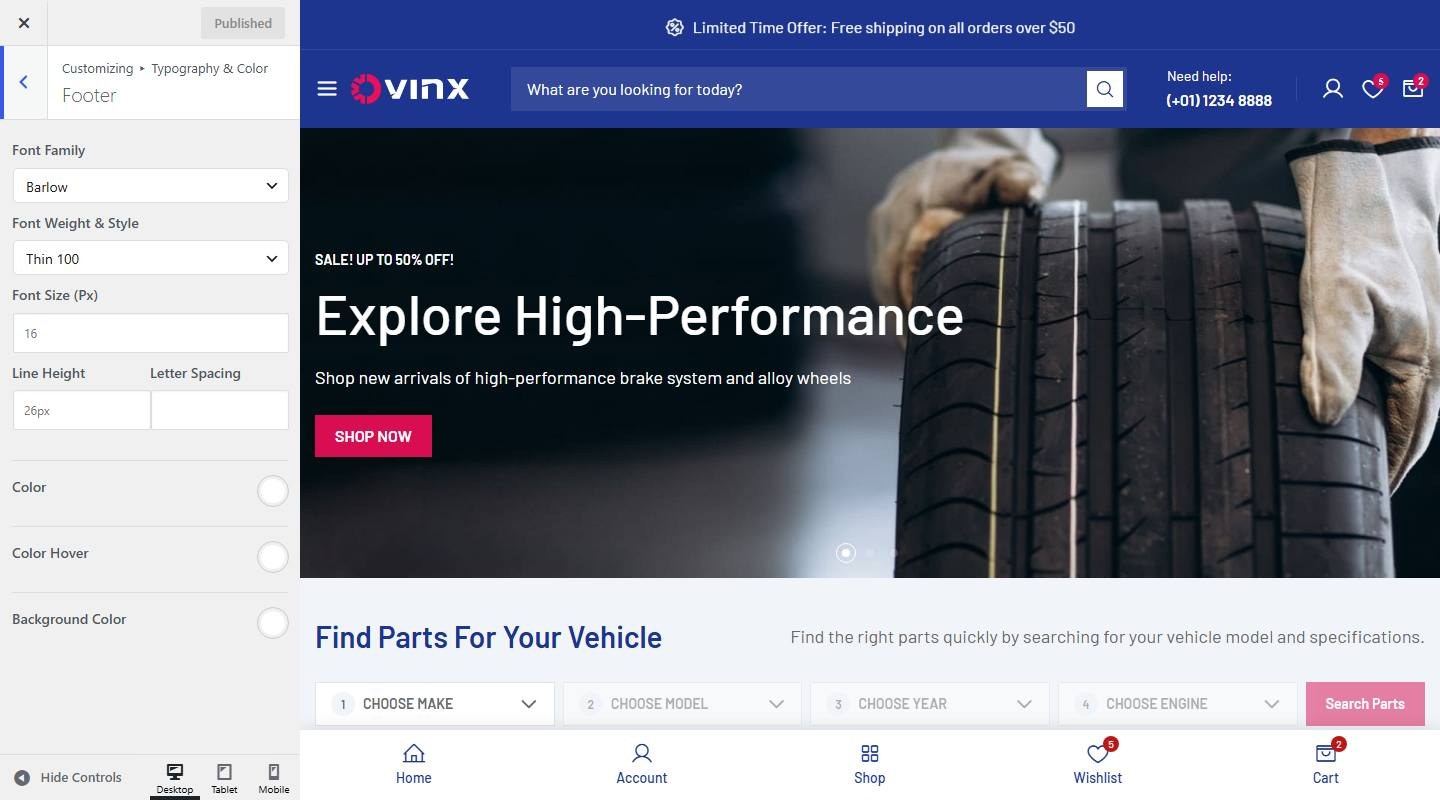

- Font name/style/sets: Set the font family, weight, size and line height.
- Color: Pick a color. Leave empty to keep the theme default.
- Color Hover: Pick a color. Leave empty to keep the theme default.
- Background Color: Pick a color. Leave empty to keep the theme default.
Bottom
To customize, go to Dashboard → Appearance → Customize → Typography & Color → Bottom.
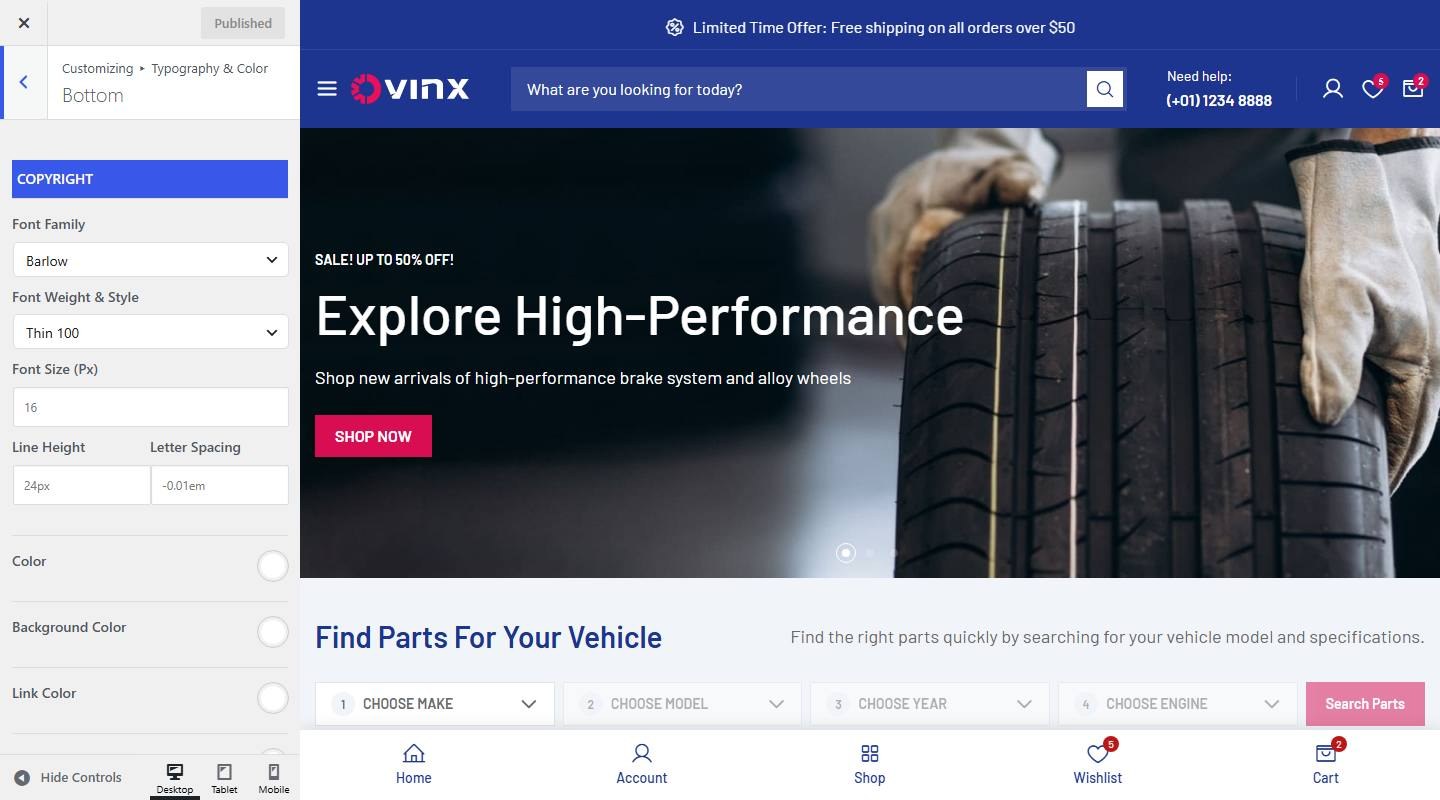

- Copyright
- Font name/style/sets: Set the font family, weight, size and line height.
- Color: Pick a color. Leave empty to keep the theme default.
- Background Color: Pick a color. Leave empty to keep the theme default.
- Link Color: Pick a color. Leave empty to keep the theme default.
- Link Color Hover: Pick a color. Leave empty to keep the theme default.
- Menu Font name/style/sets: Set the font family, weight, size and line height.
Heading Font
To customize, go to Dashboard → Appearance → Customize → Typography & Color → Heading H1 – H6.
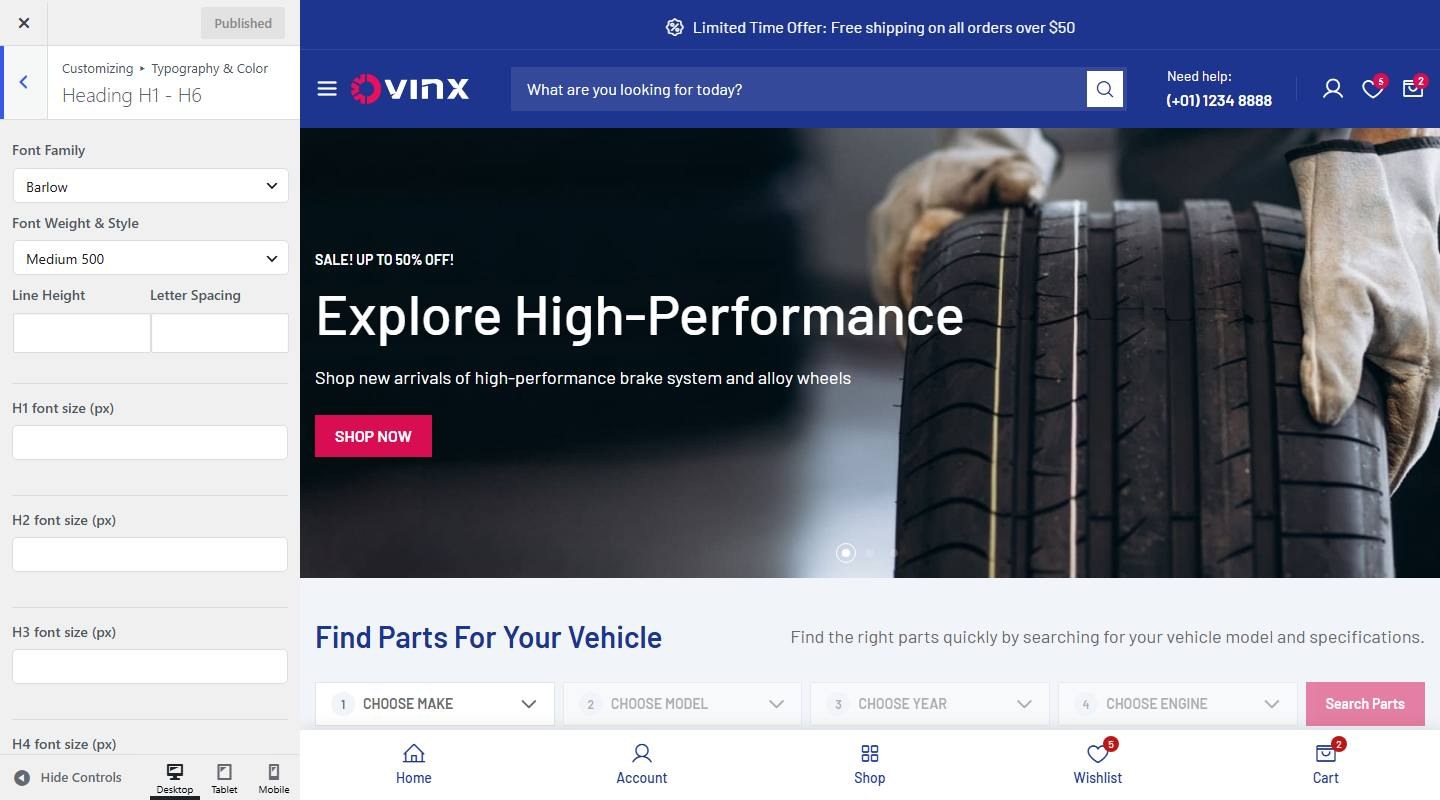

- Font name/style/sets: Set the font family, weight, size and line height.
- H1 font size (px): Set the value.
- H2 font size (px): Set the value.
- H3 font size (px): Set the value.
- H4 font size (px): Set the value.
- H5 font size (px): Set the value.
- H6 font size (px): Set the value.
Button
To customize, go to Dashboard → Appearance → Customize → Typography & Color → Buttons.
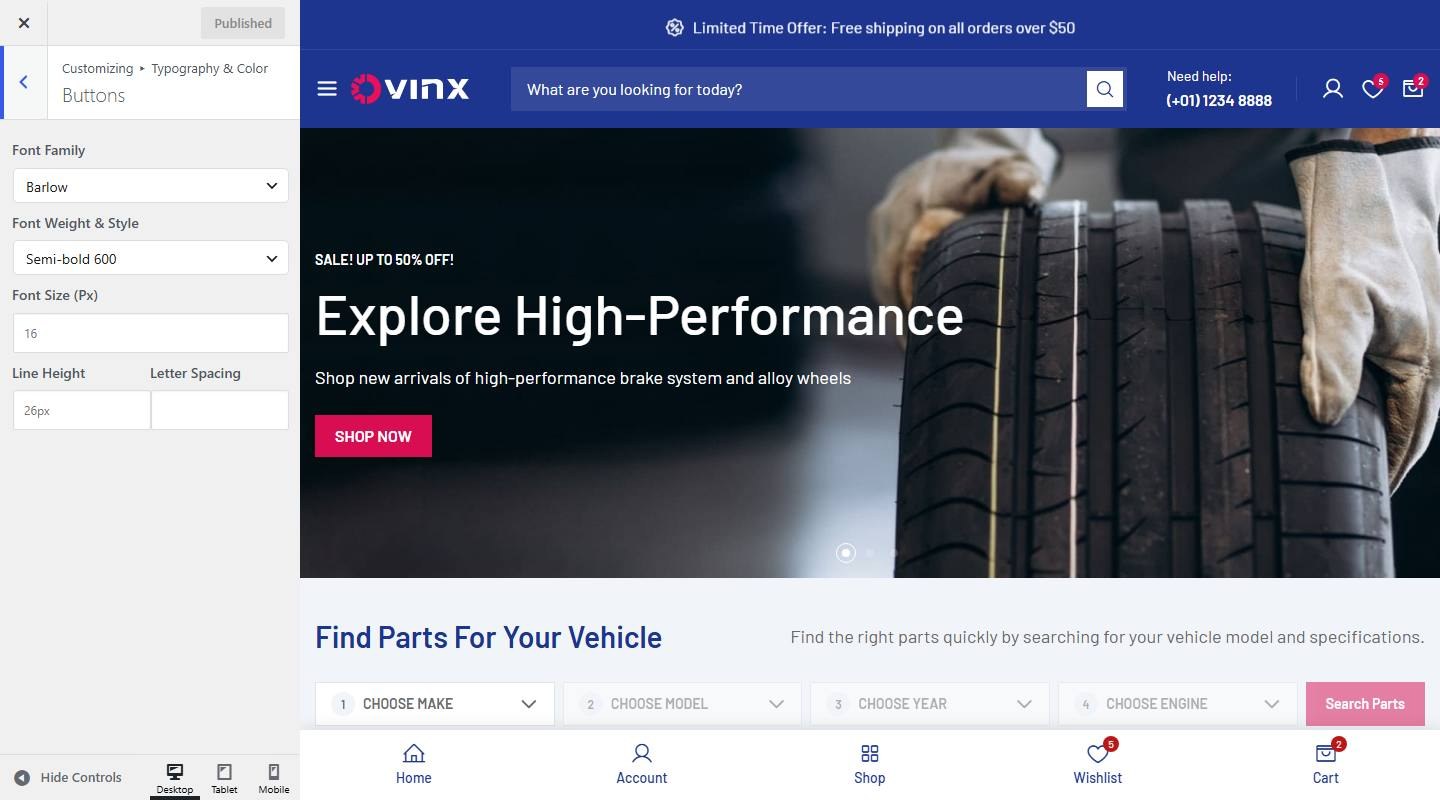

- Font name/style/sets: Set the font family, weight, size and line height.
Pagination
To customize, go to Dashboard → Appearance → Customize → Typography & Color → Pagination.
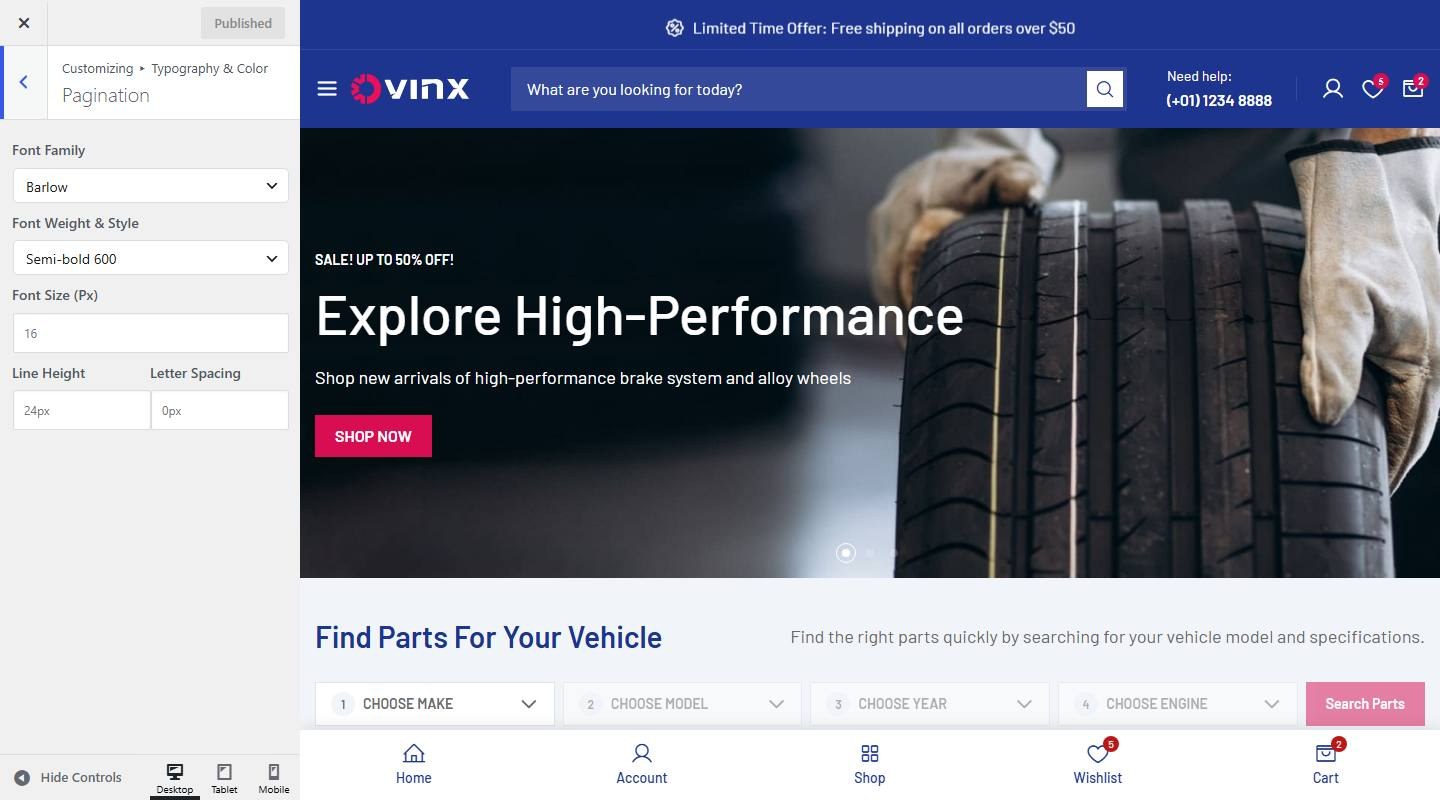

- Font name/style/sets: Set the font family, weight, size and line height.
For the full list of colors, fonts and CSS variables, see Color System and CSS System.
Footer
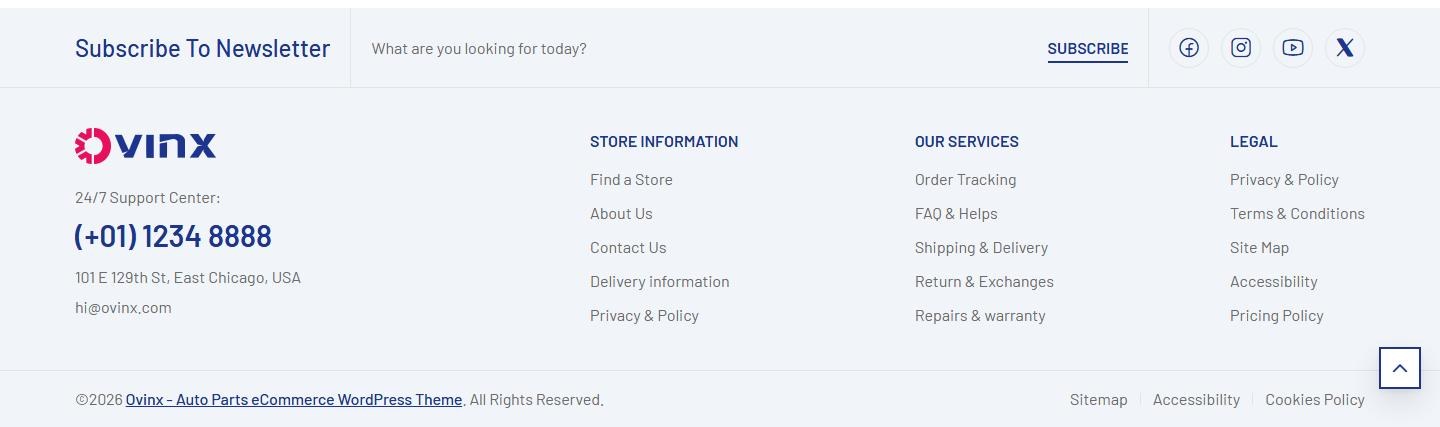
To edit the default footer, navigate to Dashboard > Appearance > Customize > Footer.
Newsletter
To customize, go to Dashboard → Appearance → Customize → Footer → Newsletter.
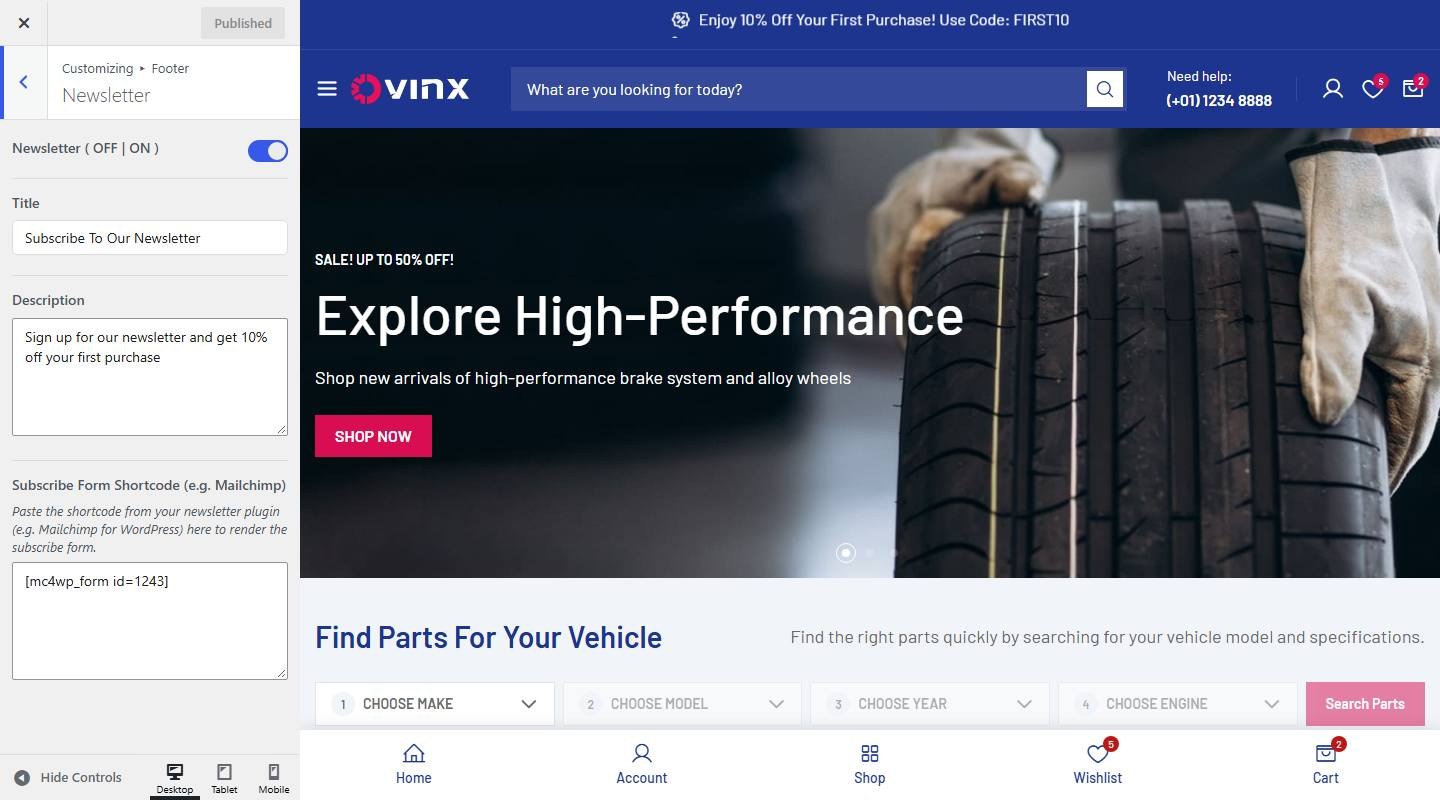

- Newsletter ( OFF | ON ): Turn on or off (demo: on).
- Title: Enter the text (demo: “Subscribe To Our Newsletter”).
- Description: Enter the text (demo: “Sign up for our newsletter and get 10% off your first purchase”).
- Subscribe Form Shortcode (e.g. Mailchimp): Enter the text (demo: “”).
Footer Brand
To customize, go to Dashboard → Appearance → Customize → Footer → Footer Brand.
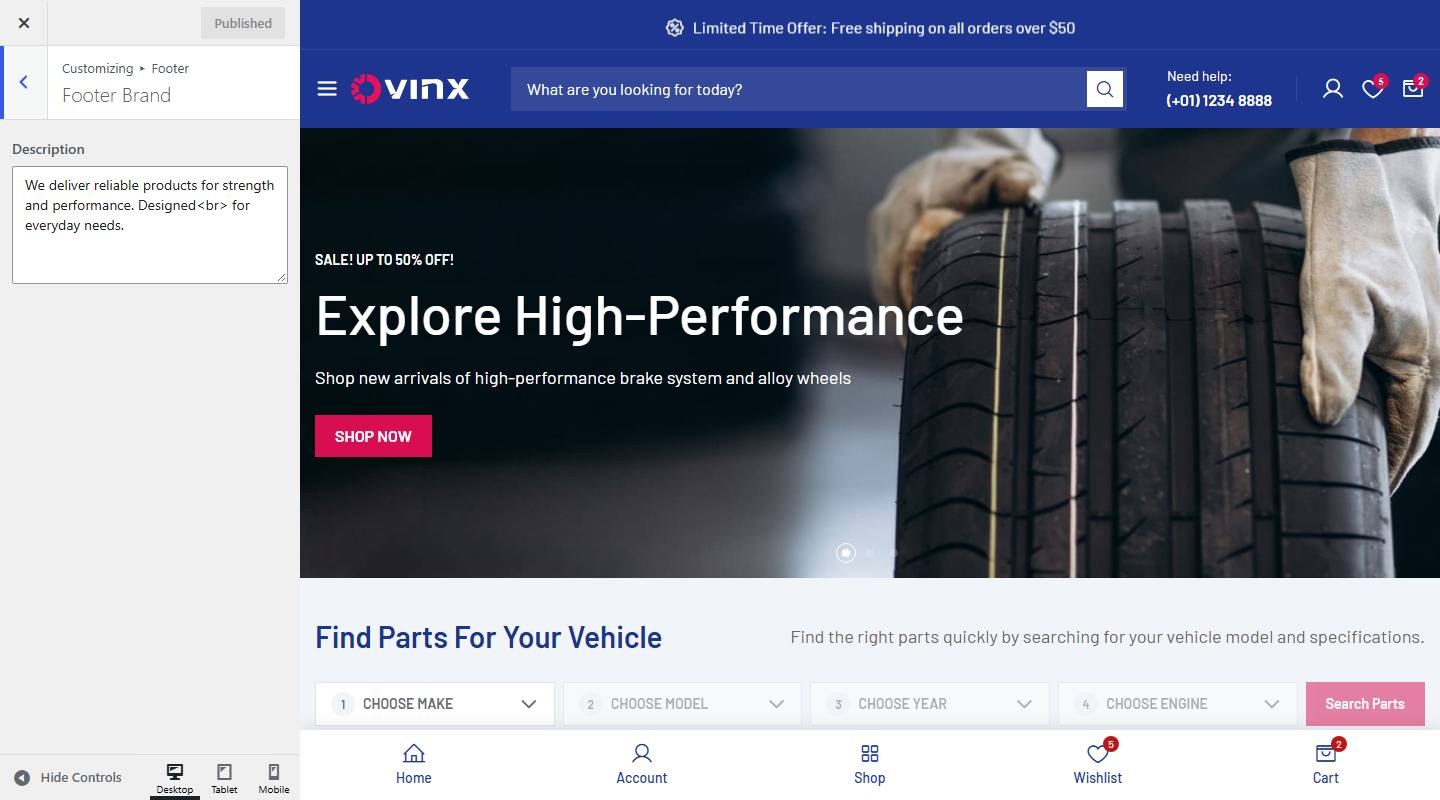

- Description: Enter the text (demo: “We deliver reliable products for strength and performance. Designed fo”).
Footer Contact
To customize, go to Dashboard → Appearance → Customize → Footer → Footer Contact.
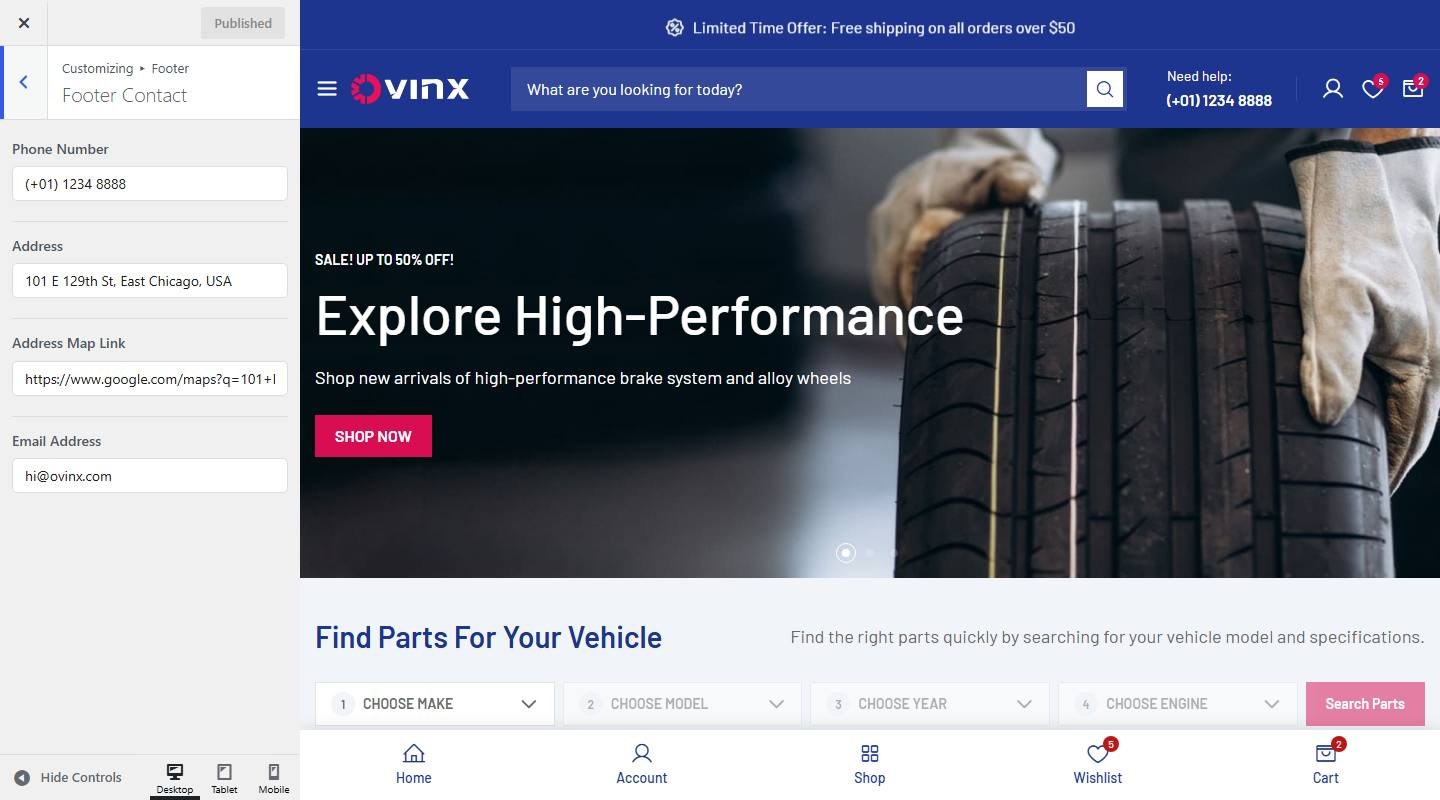

- Phone Number: Enter the text (demo: “(+01) 1234 8888”).
- Address: Enter the text (demo: “101 E 129th St, East Chicago, USA”).
- Address Map Link: Enter the text (demo: “https://www.google.com/maps?q=101+E+129th+St,+East+Chicago,+USA”).
- Email Address: Enter the text (demo: “[email protected]”).
Bottom
To customize, go to Dashboard → Appearance → Customize → Footer → Bottom.
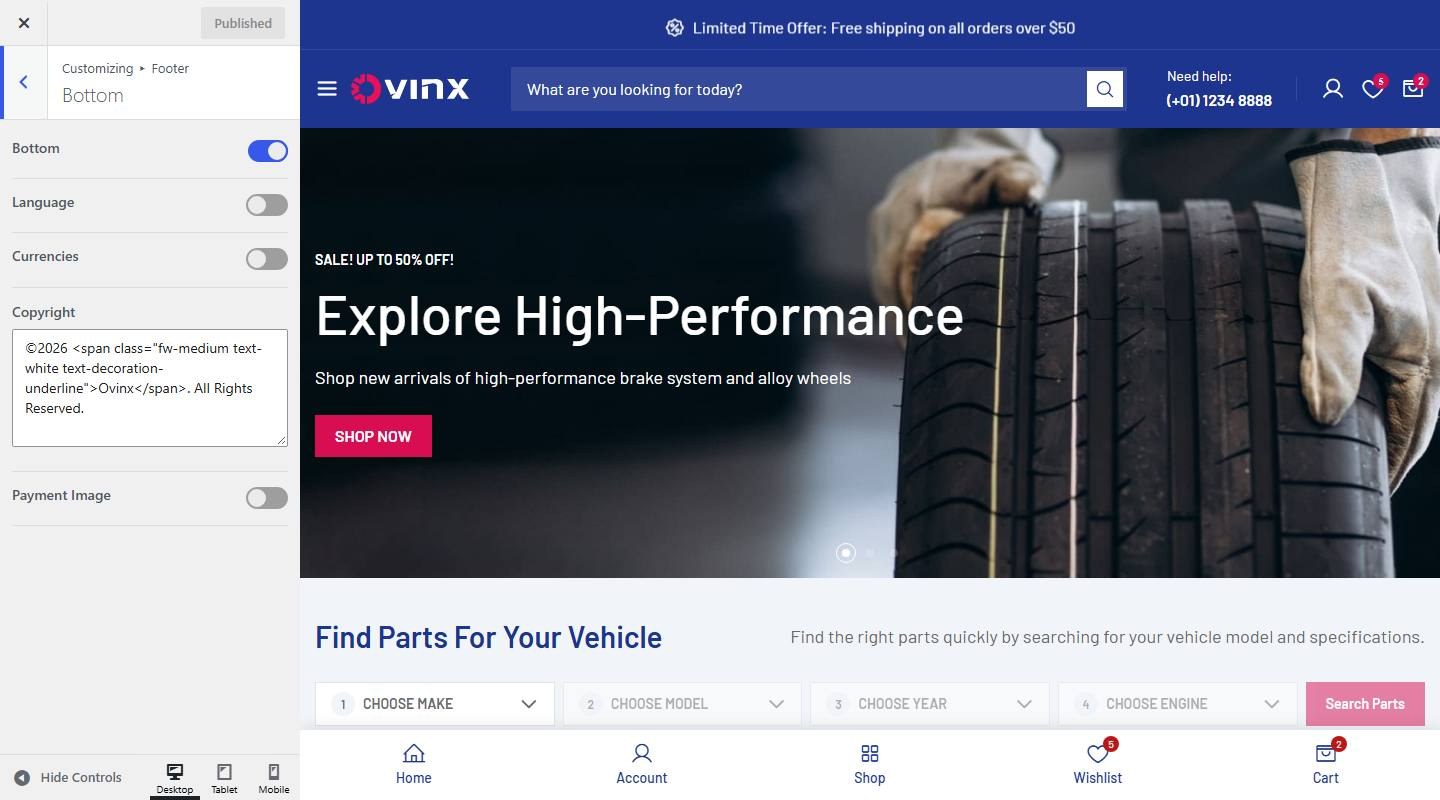

- Bottom: Turn on or off (demo: on).
- Language: Turn on or off (demo: off).
- Currencies: Turn on or off (demo: off).
- Copyright: Enter the text (demo: “©2026 Ovinx. All Rights Reserved.”).
- Payment Image: Turn on or off (demo: off).
- Upload Your Partner Image: Upload or select an image.
Footer Widgets & Menus
Go to Dashboard > Appearance > Widgets to edit the footer widget areas (Footer Widget Area 1 to 4). The footer menus are footer-1, footer-2 and footer-3 in Appearance → Menus.
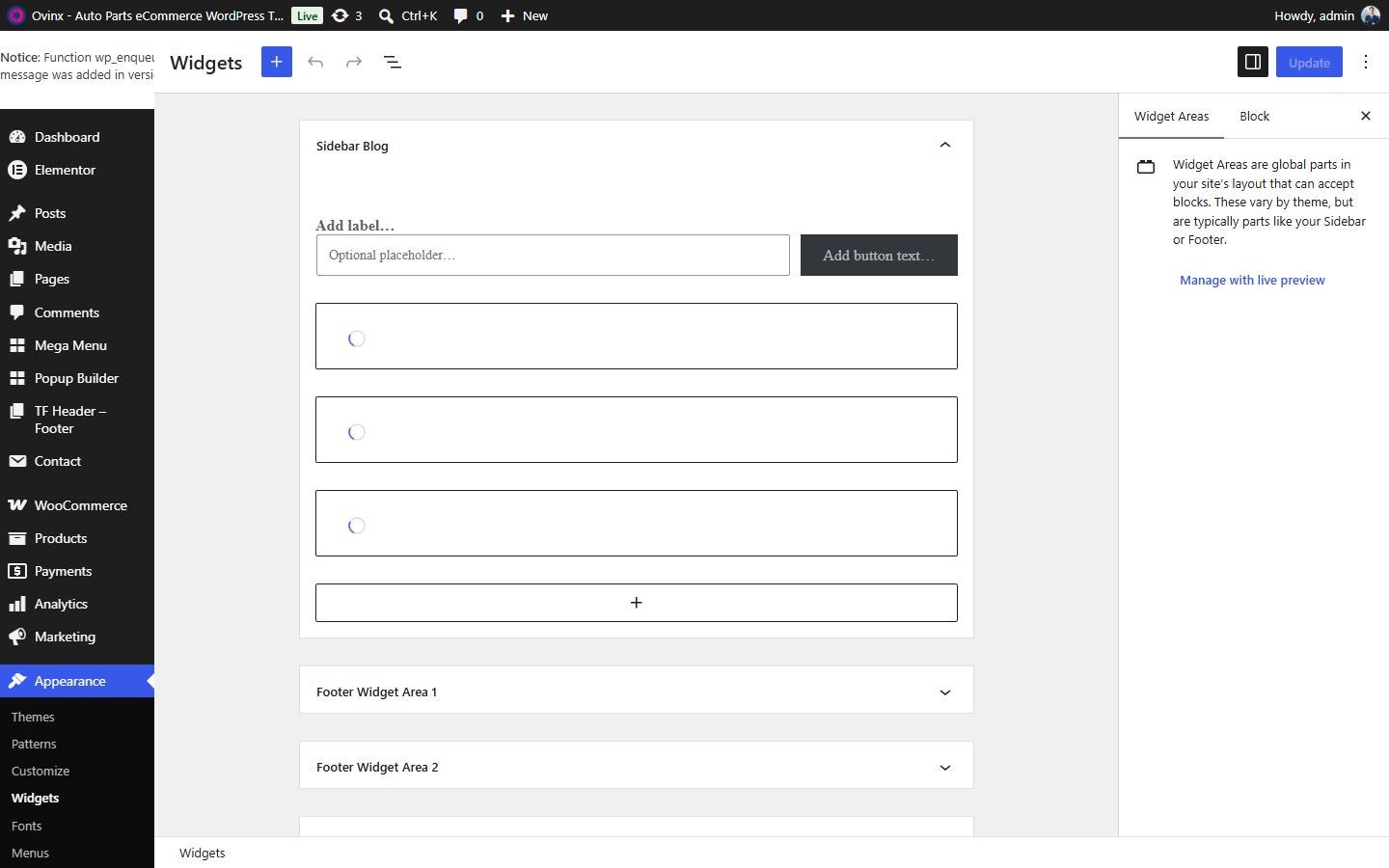

WooCommerce Settings
1. Cart
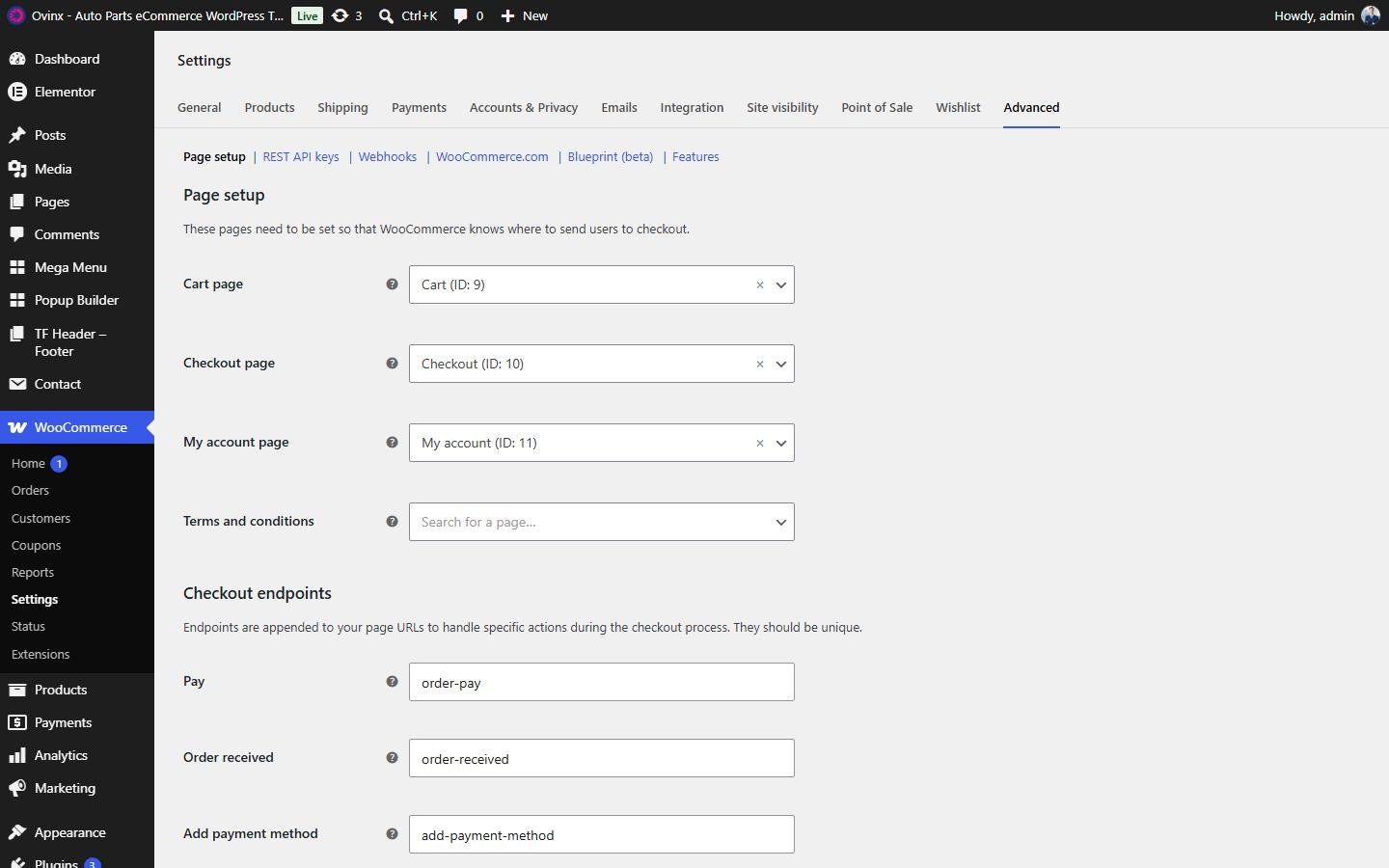
Cart Page
Step 1: From the admin dashboard, navigate to WooCommerce → Settings → Advanced → Page setup.
Step 2: Choose the Cart page and the Checkout page.
Step 3: Click Save changes after finishing your setup.

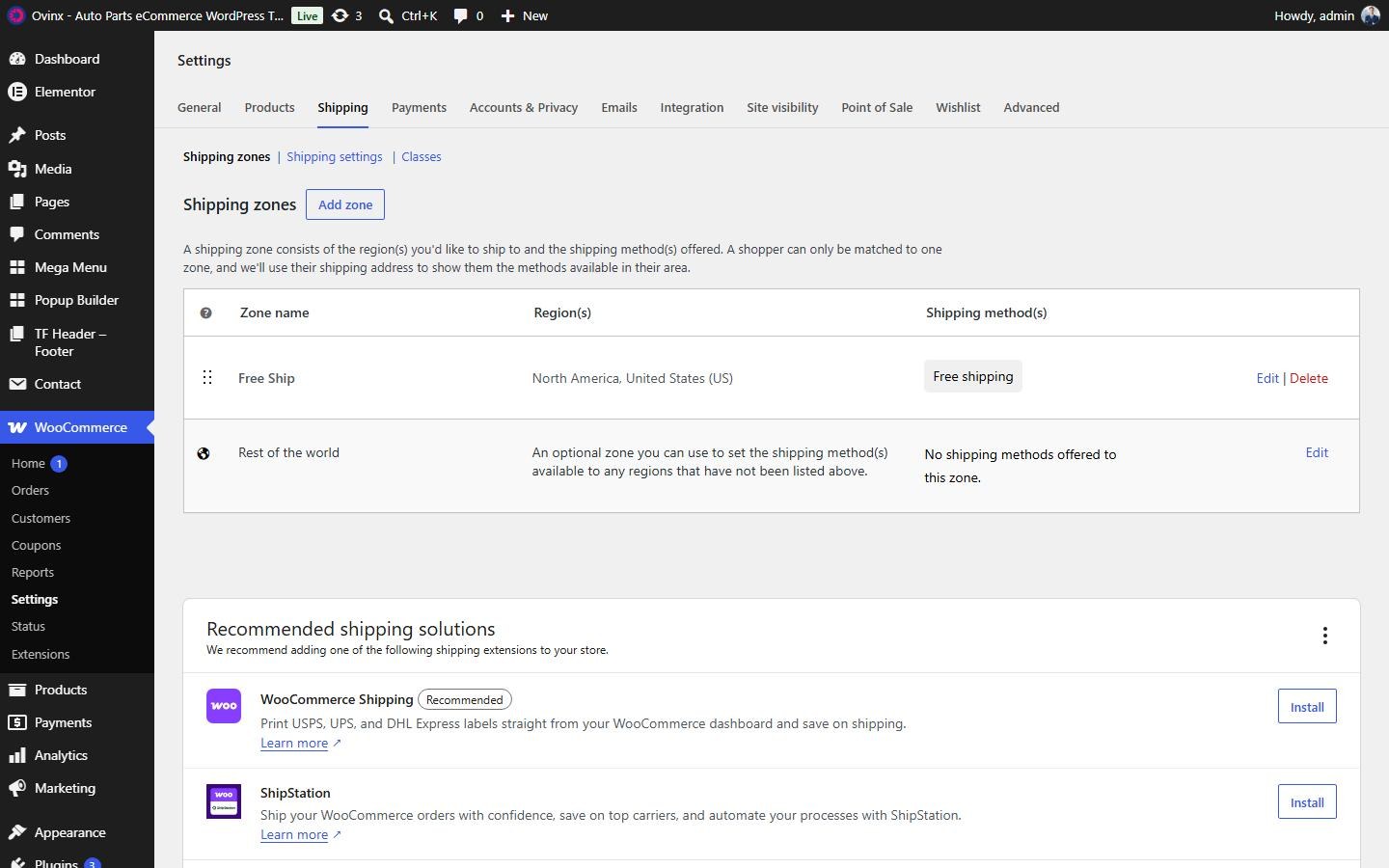
Shipping
Step 1: From the admin dashboard, navigate to WooCommerce → Settings → Shipping.
Step 2: Set up Shipping Zones.
Step 3: Create a Free Shipping method and define the minimum order amount. The Free Shipping Bar in the mini cart uses this amount.

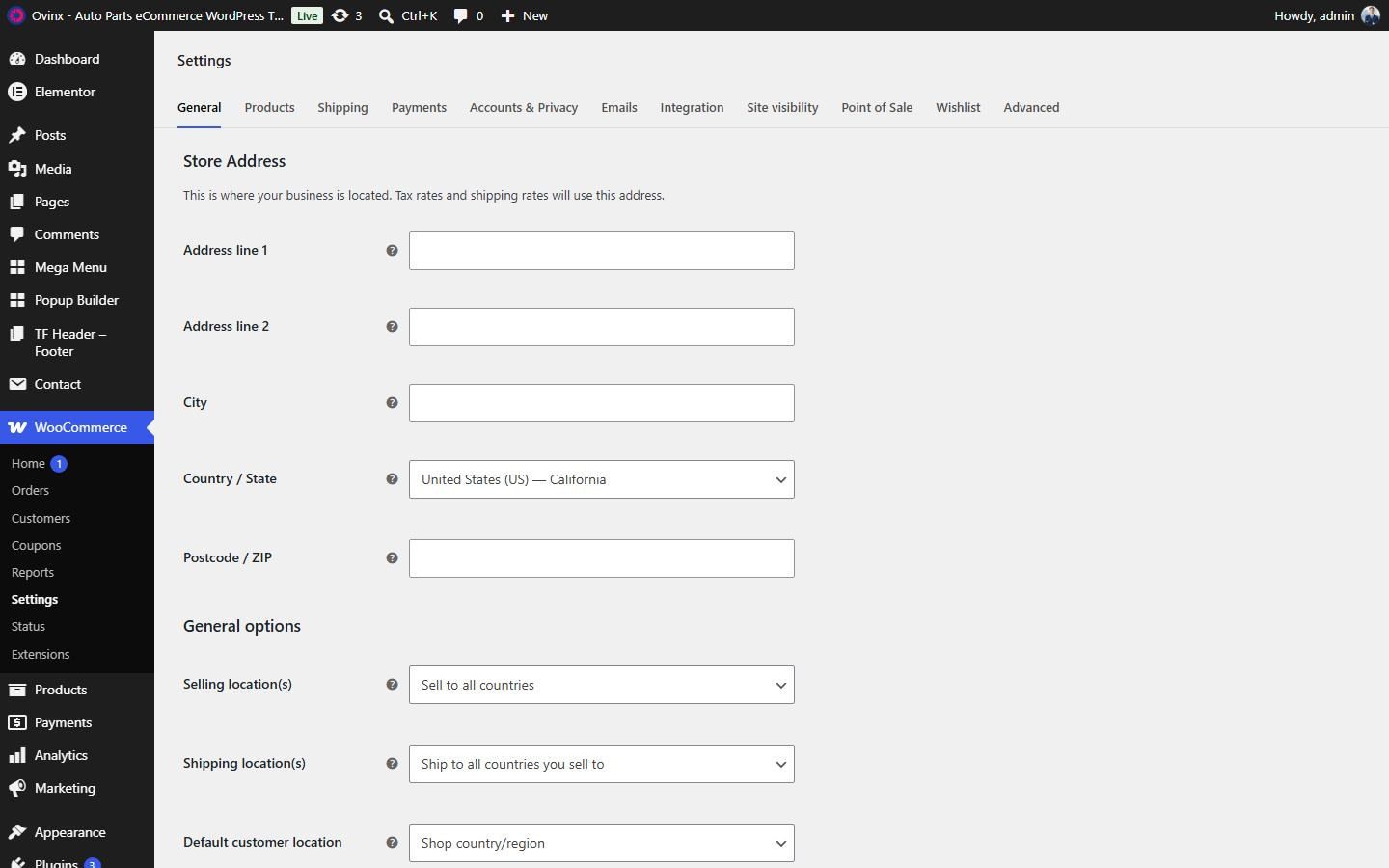
Coupons
To enable coupons in the Mini Cart, Cart Page and Checkout Page, go to WooCommerce → Settings → General and check the Enable coupons option.

2. Order
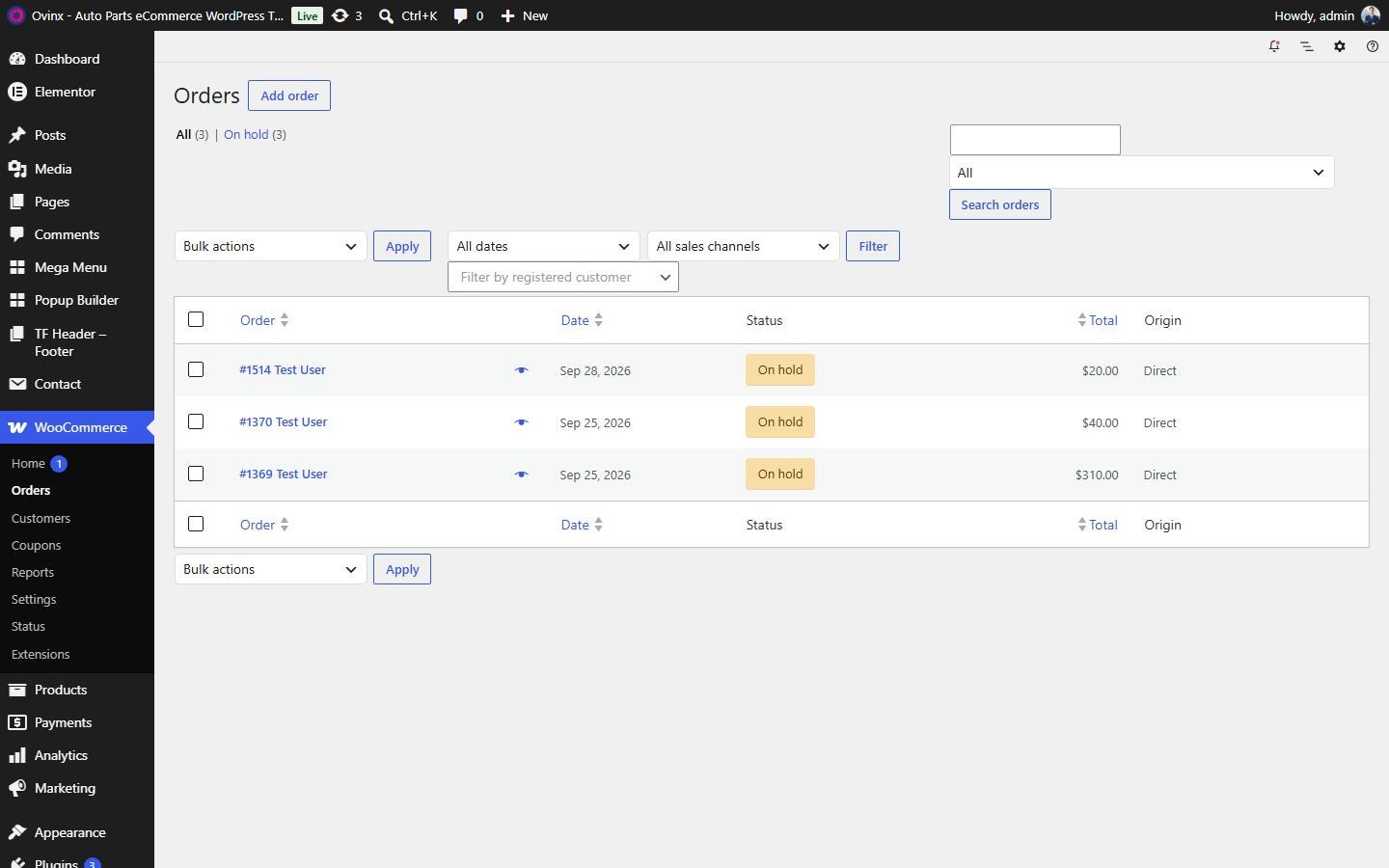
From the admin dashboard, navigate to WooCommerce → Orders. You can view and manage all orders here.

3. Coupons
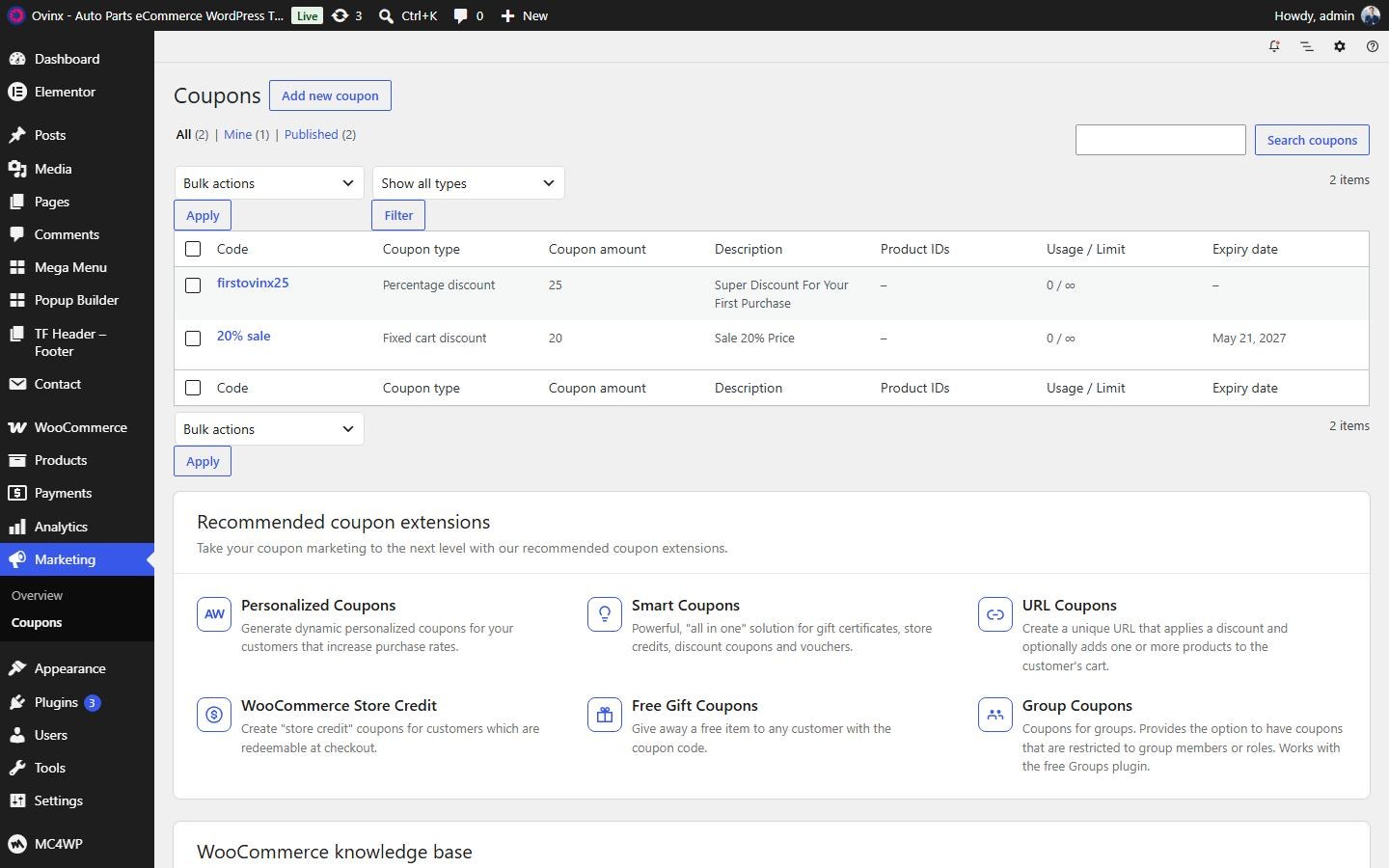
From the admin dashboard, navigate to Marketing → Coupons. Click the Add coupon button to create a new coupon, fill in the required information and click Publish to save it.

4. Top Categories
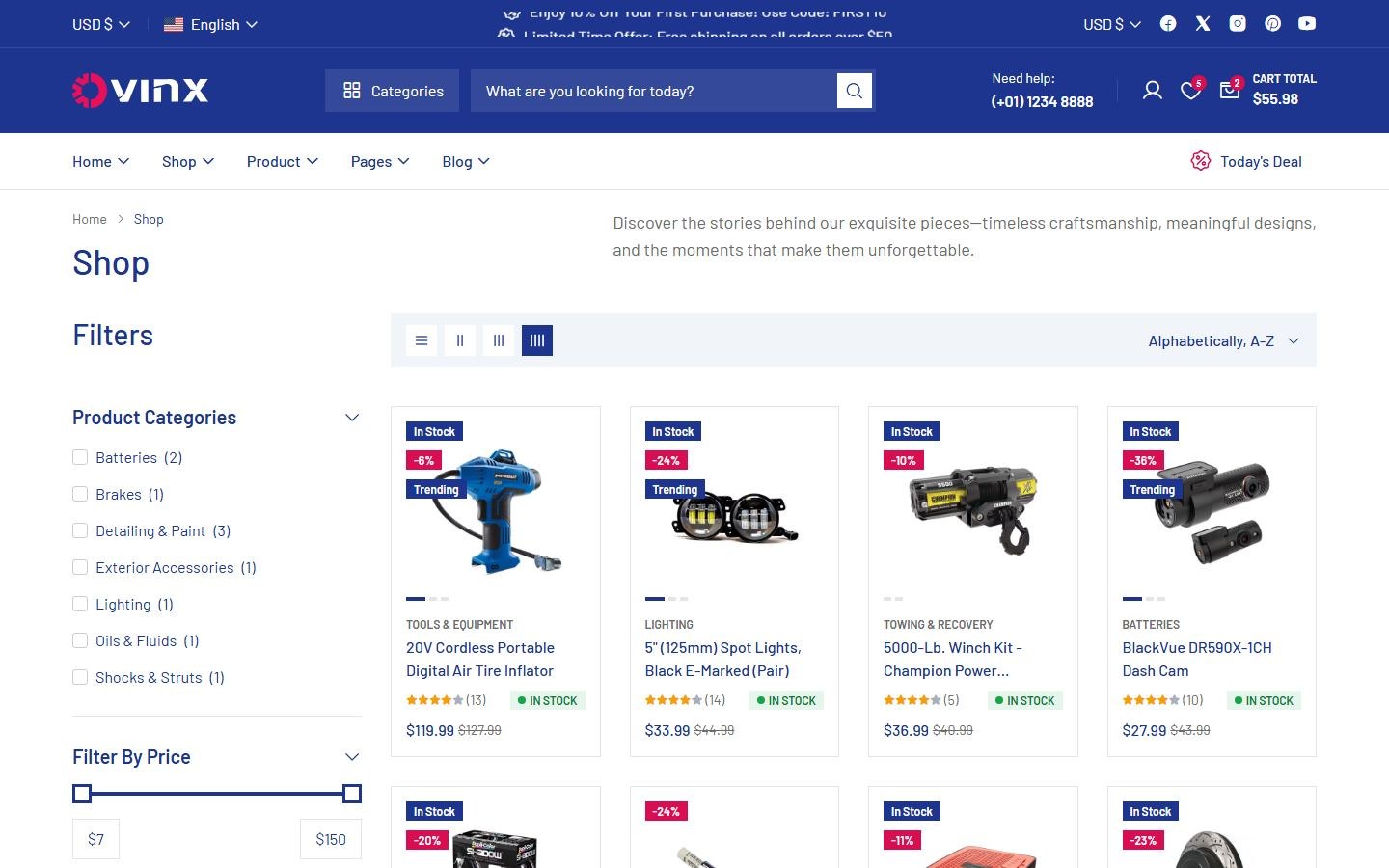
Shows a row of product categories above the products on the shop page. This feature is turned off on the demo.
To enable this feature, go to Customize → Shop → Top Category
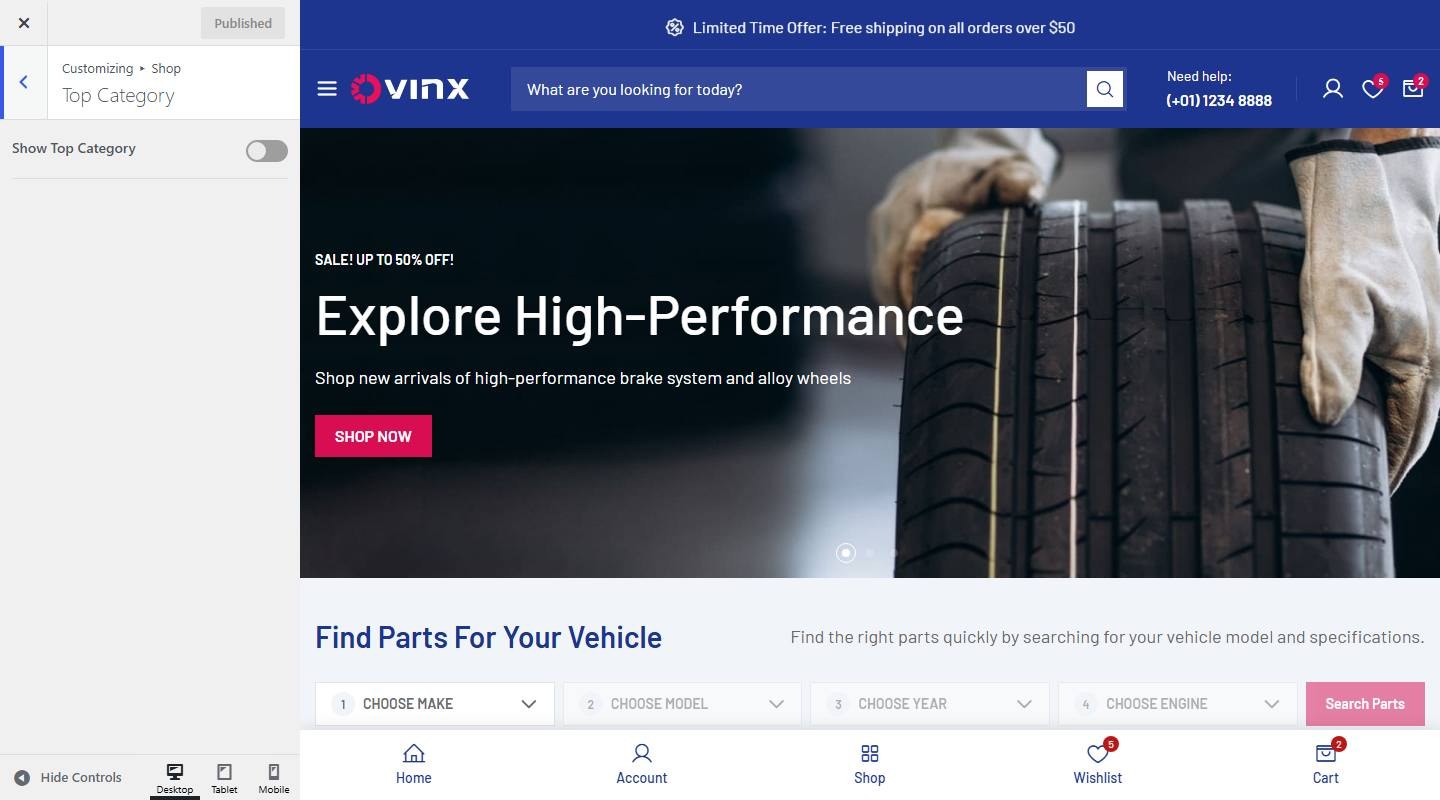

- Show Top Category: Turn on or off (demo: off).
- Orderby Category: Choose one: Name, ID, Count.
- Number Of Category: Enter the text (demo: “6”).
- Columns: Set the number of columns for desktop, tablet and mobile.
5. Shop Page Title


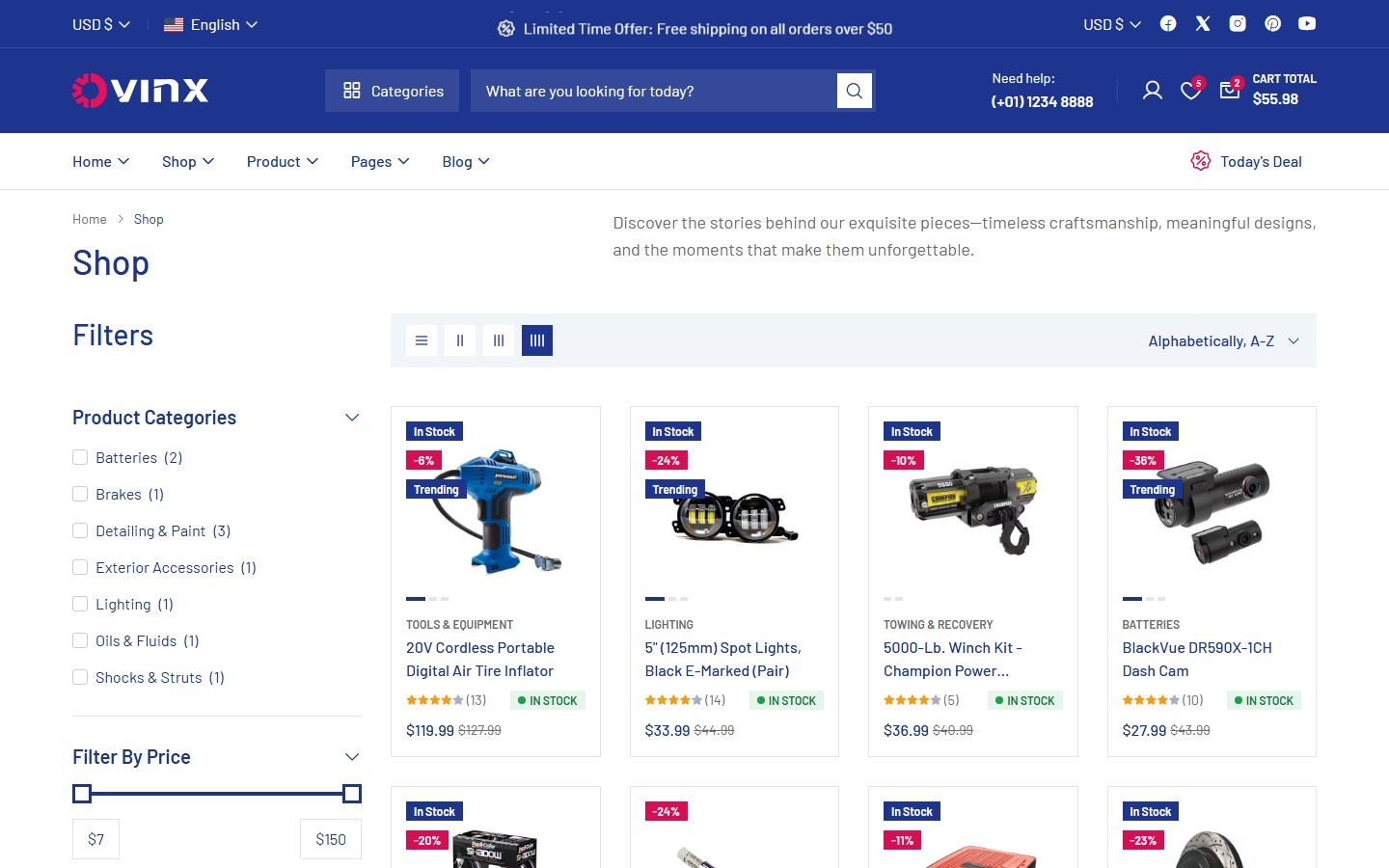
To enable this feature, go to Customize → Shop → Page Tilte
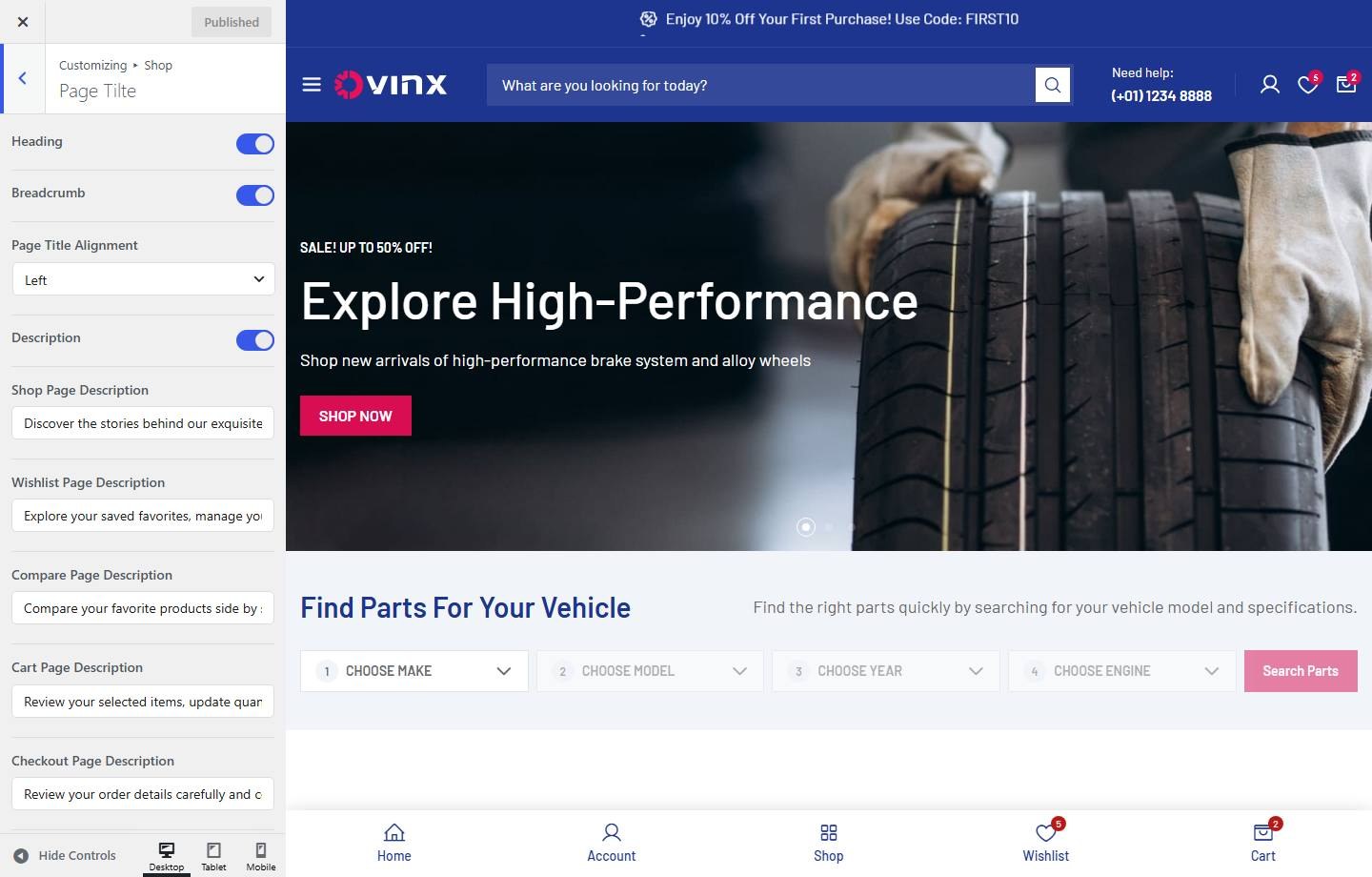

- Heading: Turn on or off (demo: on).
- Breadcrumb: Turn on or off (demo: on).
- Page Title Alignment: Choose one: Left, Center, Right.
- Description: Turn on or off (demo: on).
- Shop Page Description: Enter the text (demo: “Discover the stories behind our exquisite pieces—timeless craftsmanshi”).
- Wishlist Page Description: Enter the text (demo: “Explore your saved favorites, manage your wishlist effortlessly, and k”).
- Compare Page Description: Enter the text (demo: “Compare your favorite products side by side to find the best match for”).
- Cart Page Description: Enter the text (demo: “Review your selected items, update quantities, and get ready for a smo”).
- Checkout Page Description: Enter the text (demo: “Review your order details carefully and complete your purchase securel”).
- Page Title Controls (px): Set the spacing in px.
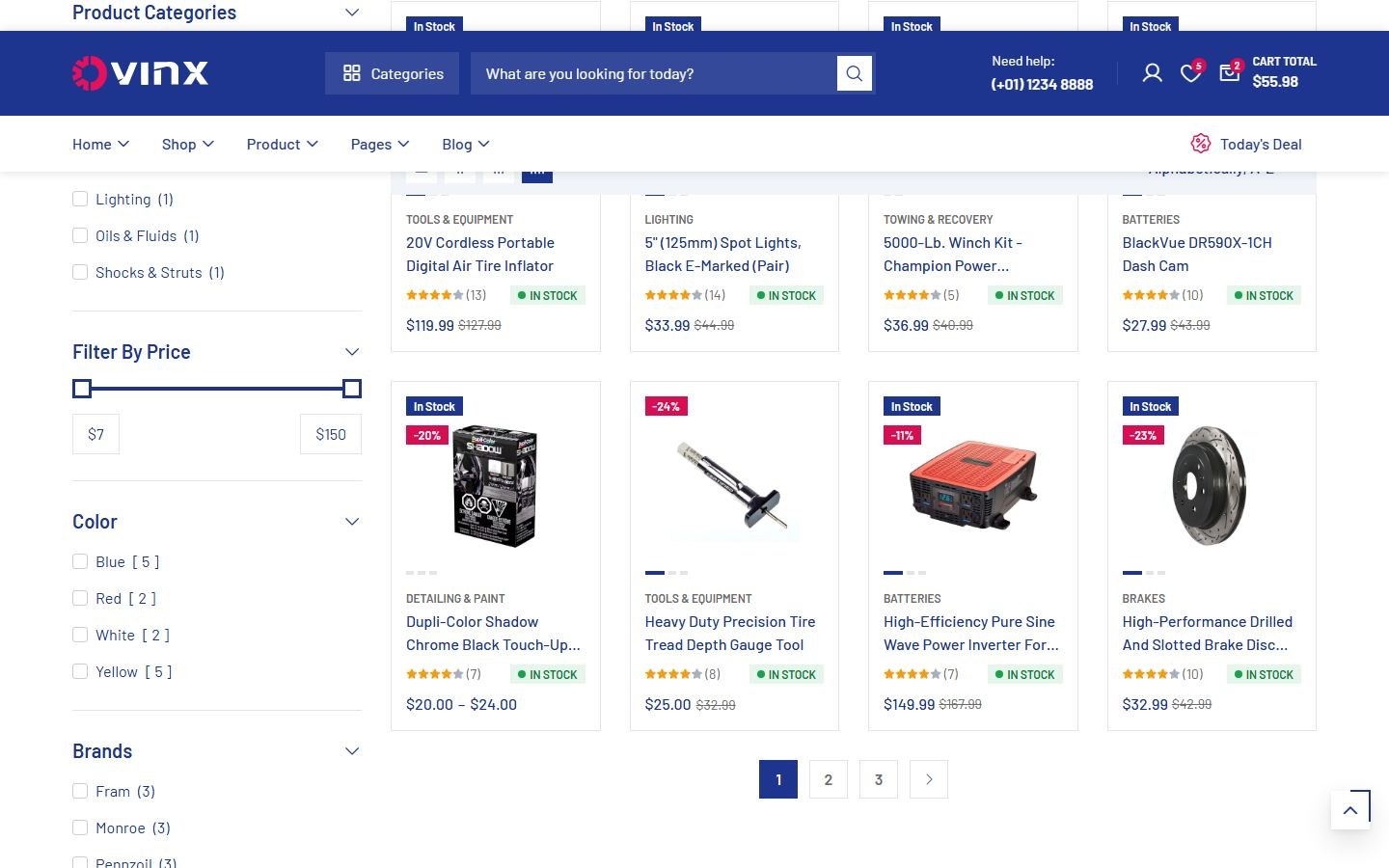
6. Catalog Toolbar


To enable this feature, go to Customize → Shop → Catalog Toolbar
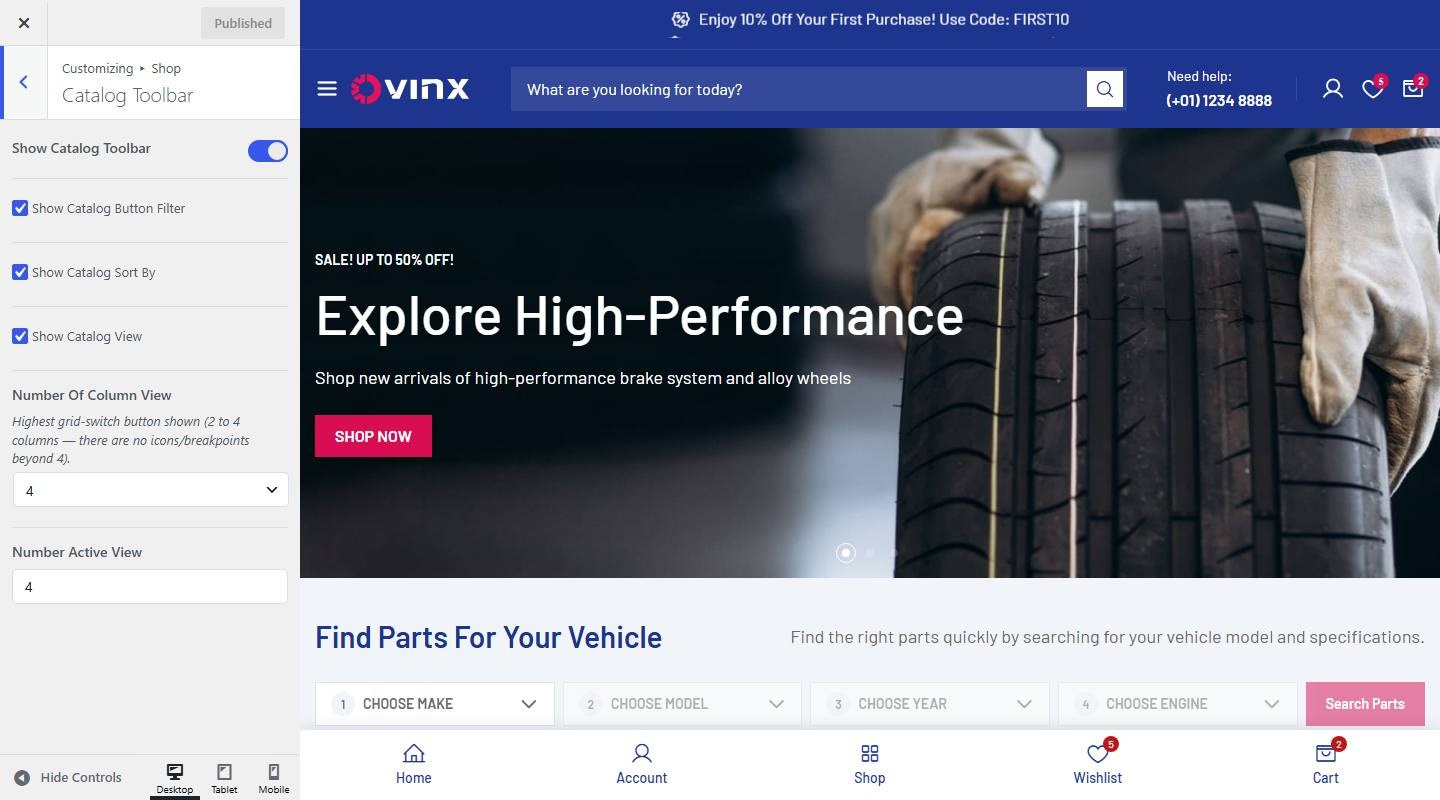

- Show Catalog Toolbar: Turn on or off (demo: on).
- Show Catalog Button Filter: Turn on or off (demo: on).
- Show Catalog Sort By: Turn on or off (demo: on).
- Show Catalog View: Turn on or off (demo: on).
- Number Of Column View: Choose one: 2, 3, 4.
- Number Active View: Enter the text (demo: “4”).
7. Shop Layout
Example with ?sidebar=sidebar-left.


To enable this feature, go to Customize → Shop → Shop Layout
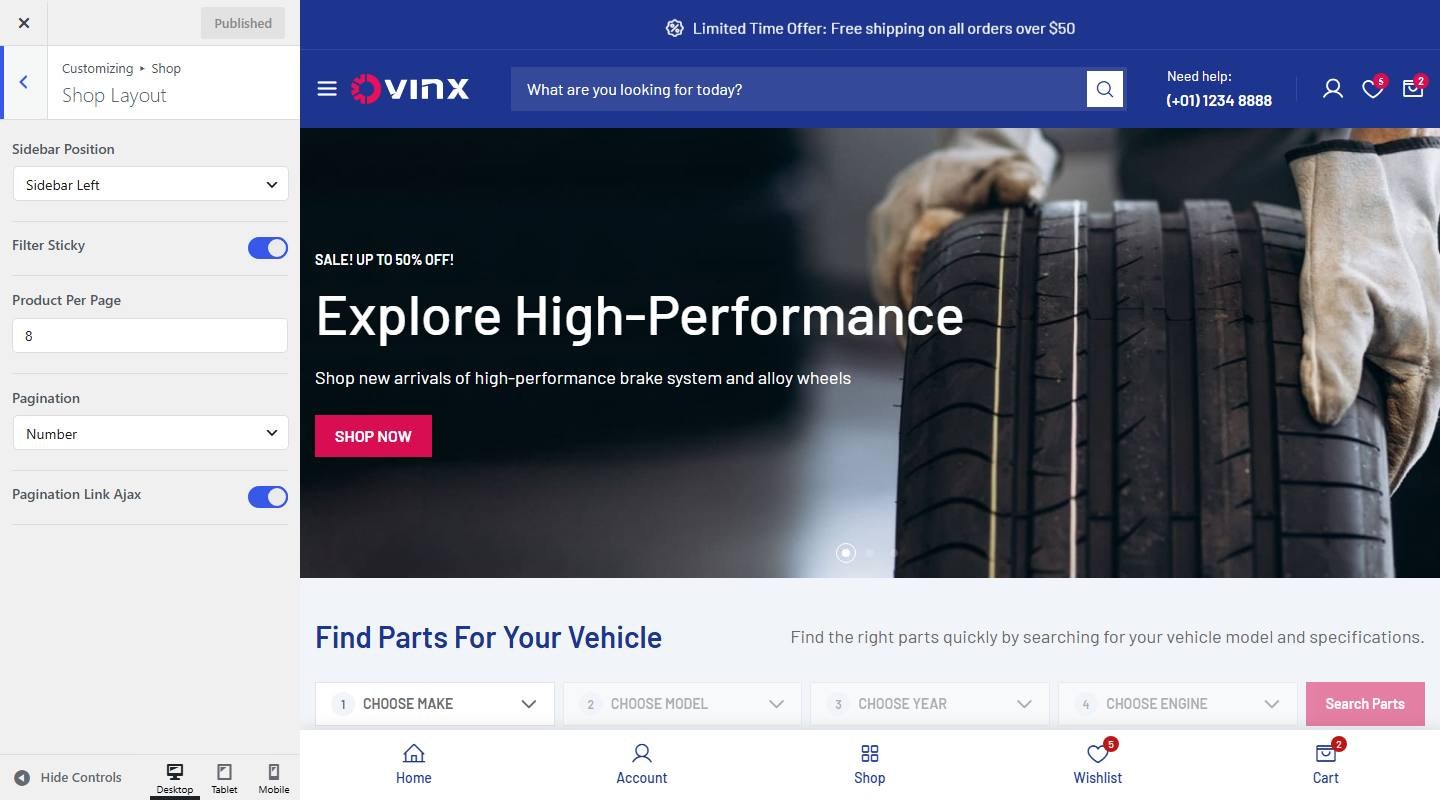

- Sidebar Position: Choose one: Sidebar Right, Sidebar Left, Full Width.
- Filter Sticky: Turn on or off (demo: on).
- Show Apply Filter Button: Turn on or off (demo: off).
- Product Per Page: Enter the text (demo: “8”).
- Pagination: Choose one: Number, Load More, Auto Load.
- Pagination Link Ajax: Turn on or off (demo: on).
- Load More Text: Enter the text (demo: “Load More”).
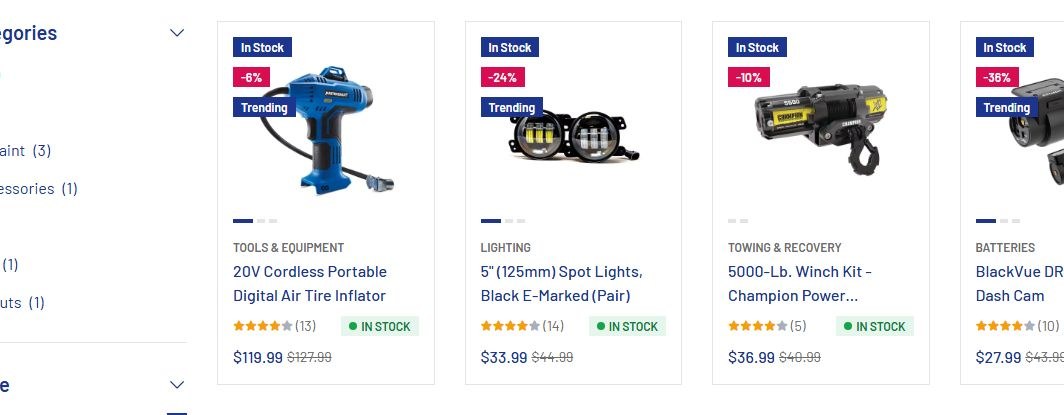
8. Product Card


To enable this feature, go to Customize → Shop → Product Card
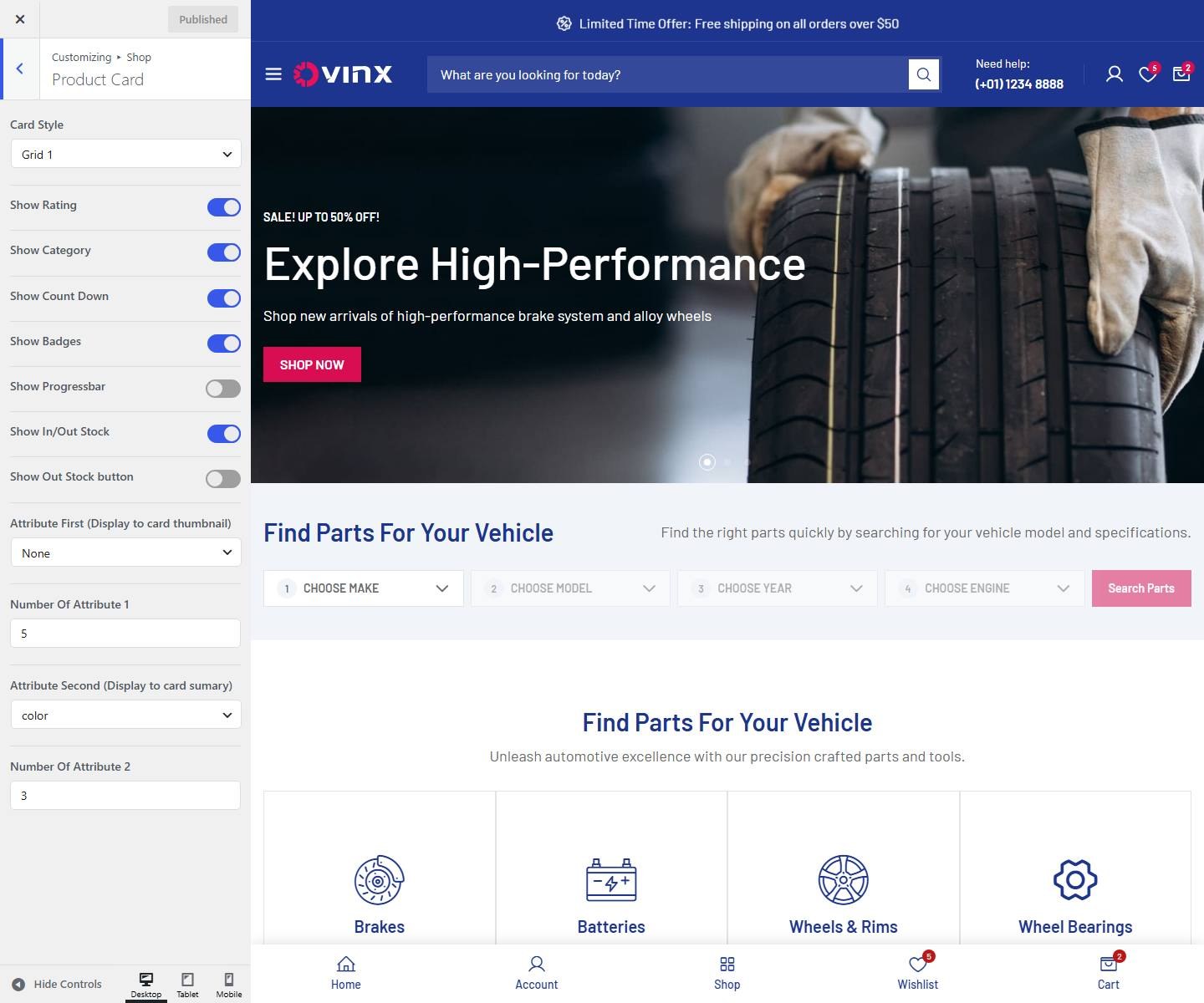

- Card Style: Choose one: Grid 1, Grid 2, Grid 3, Grid 4, List.
- Show Rating: Turn on or off (demo: on).
- Show Category: Turn on or off (demo: on).
- Show Count Down: Turn on or off (demo: on).
- Show Badges: Turn on or off (demo: on).
- Show Progressbar: Turn on or off (demo: off).
- Show In/Out Stock: Turn on or off (demo: on).
- Show Out Stock button: Turn on or off (demo: off).
- Button Text: Enter the text (demo: “Notify Me When Available”).
- Out stock form: Enter the text.
- Attribute First (Display to card thumbnail): Choose one: None, color.
- Number Of Attribute 1: Enter the text (demo: “5”).
- Attribute Second (Display to card sumary): Choose one: None, color.
- Number Of Attribute 2: Enter the text (demo: “3”).
9. Product Badges
Badges appear on the product card, for example In Stock, Sale percent and Trending.
To enable this feature, go to Customize → Shop → Product Badges
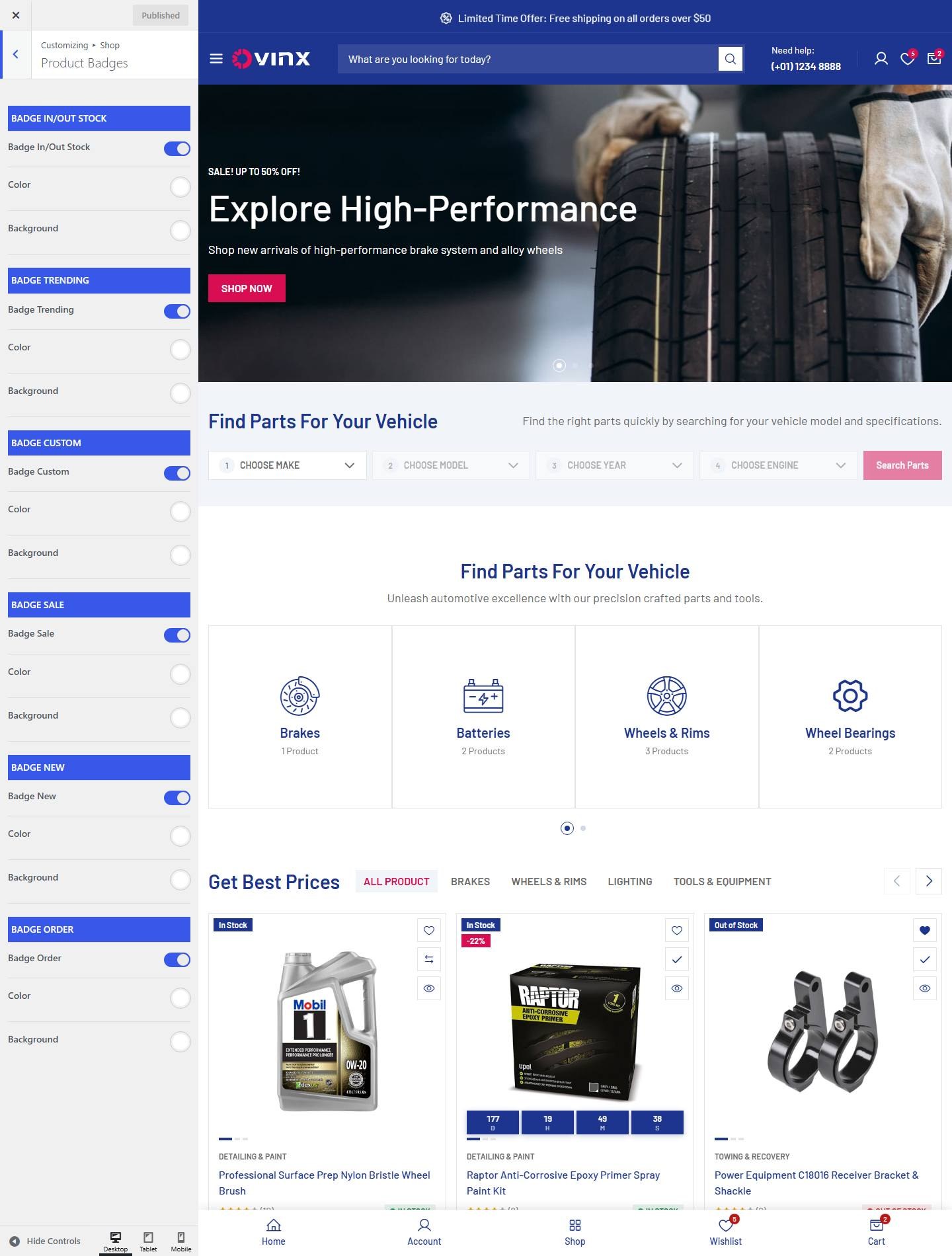

- Badge In/Out Stock
- Badge In/Out Stock: Turn on or off (demo: on).
- Color: Pick a color. Leave empty to keep the theme default.
- Background: Pick a color. Leave empty to keep the theme default.
- Badge Trending
- Badge Trending: Turn on or off (demo: on).
- Color: Pick a color. Leave empty to keep the theme default.
- Background: Pick a color. Leave empty to keep the theme default.
- Badge Custom
- Badge Custom: Turn on or off (demo: on).
- Color: Pick a color. Leave empty to keep the theme default.
- Background: Pick a color. Leave empty to keep the theme default.
- Badge Sale
- Badge Sale: Turn on or off (demo: on).
- Color: Pick a color. Leave empty to keep the theme default.
- Background: Pick a color. Leave empty to keep the theme default.
- Badge New
- Badge New: Turn on or off (demo: on).
- Color: Pick a color. Leave empty to keep the theme default.
- Background: Pick a color. Leave empty to keep the theme default.
- Badge Order
- Badge Order: Turn on or off (demo: on).
- Color: Pick a color. Leave empty to keep the theme default.
- Background: Pick a color. Leave empty to keep the theme default.
10. Mini Cart
Click the cart icon in the header to open the mini cart.
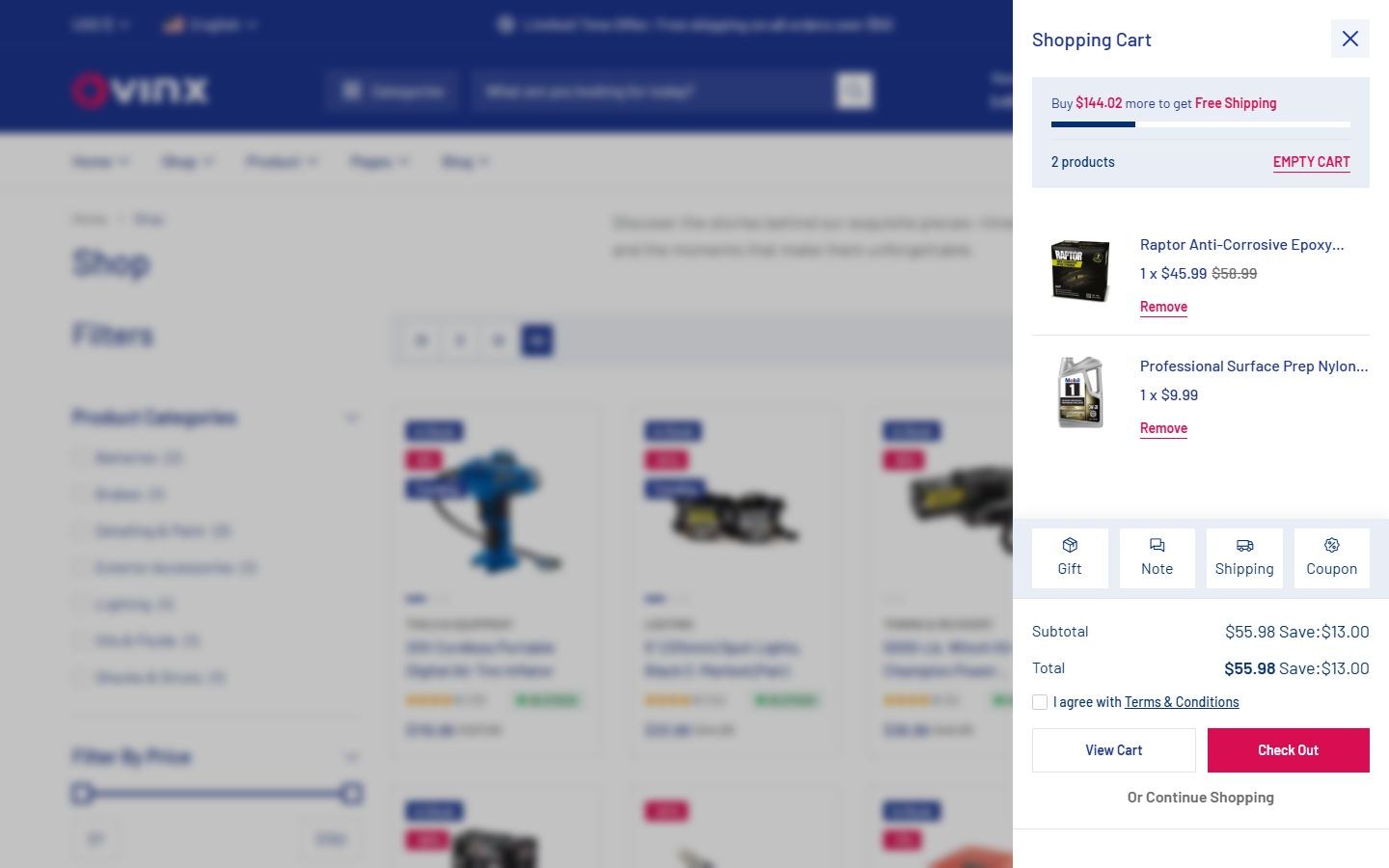

To enable this feature, go to Customize → Shop → Mini Cart
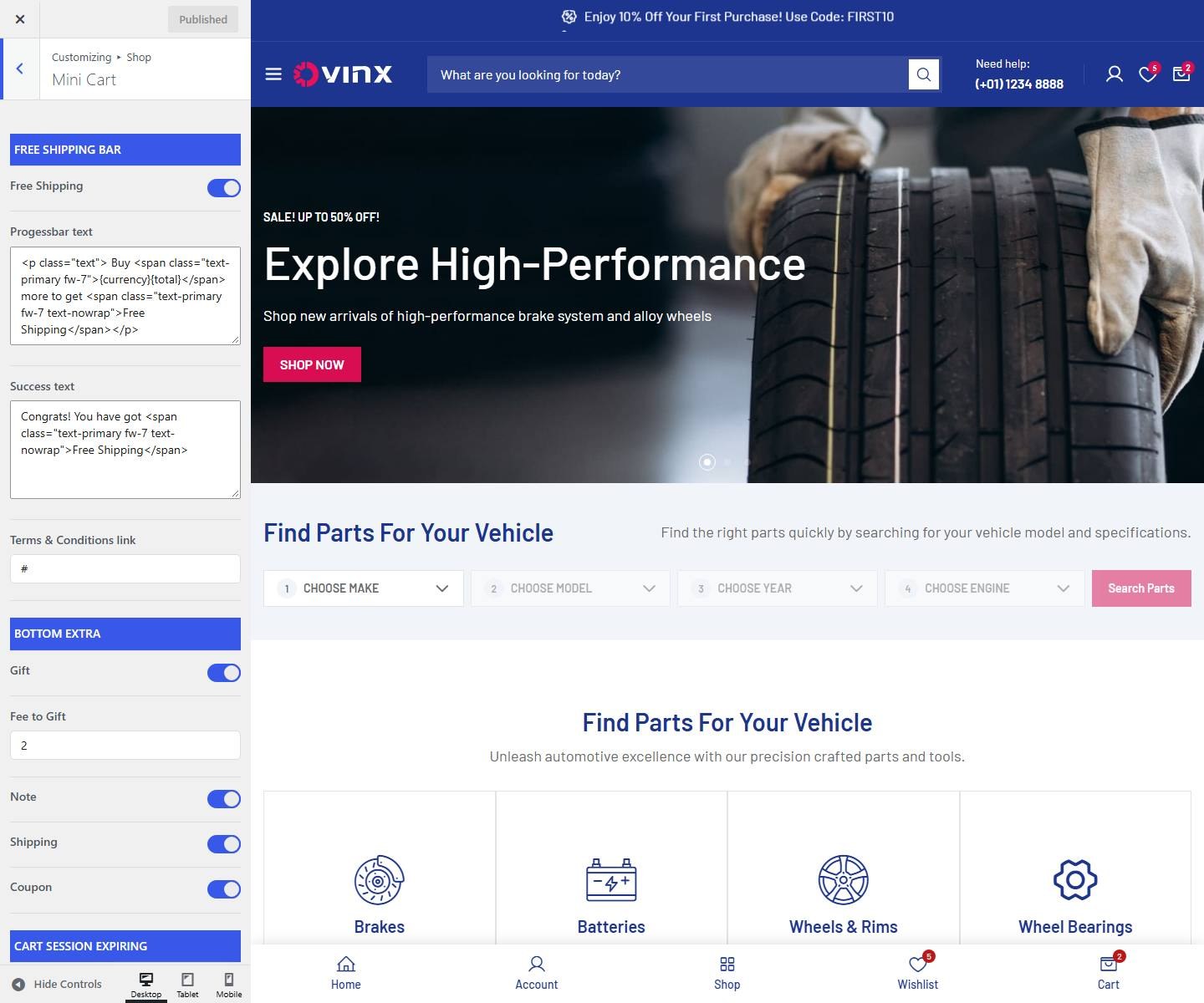

- Free Shipping Bar
- Free Shipping: Turn on or off (demo: on).
- Progessbar text: Enter the text (demo: “Buy {currency}{total} more to get Free Shipping”).
- Success text: Enter the text (demo: “Congrats! You have got Free Shipping”).
- Terms & Conditions link: Enter the text (demo: “#”).
- Bottom Extra
- Gift: Turn on or off (demo: on).
- Fee to Gift: Enter the text (demo: “2”).
- Note: Turn on or off (demo: on).
- Shipping: Turn on or off (demo: on).
- Coupon: Turn on or off (demo: on).
- Cart Session Expiring
- Custom Time: Turn on or off (demo: on).
- Hours: Enter the text (demo: “168”).
11. Live Notification
Pop-up notifications of recent purchases. This feature is turned off on the demo.
To enable this feature, go to Customize → Shop → Live Notification
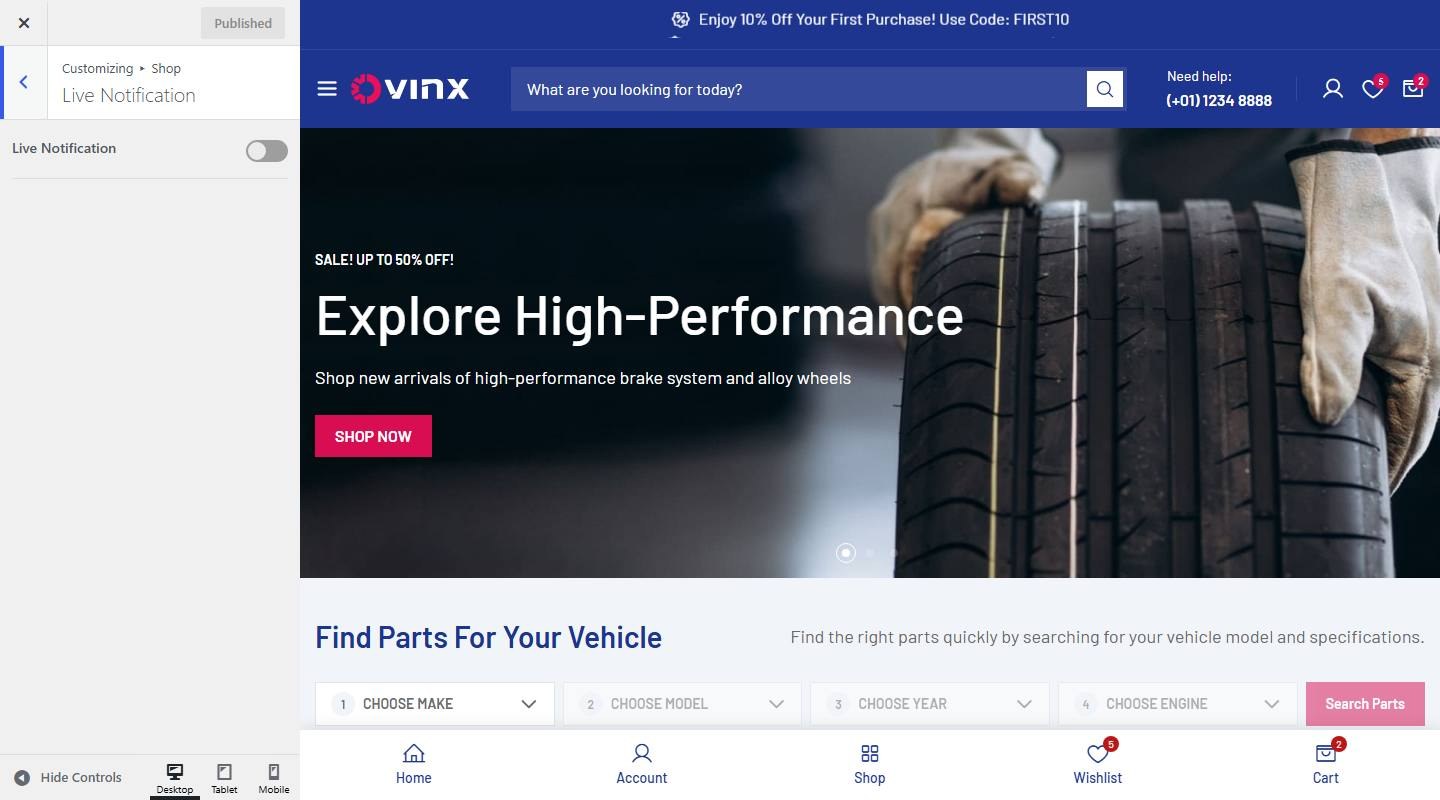

- Live Notification: Turn on or off (demo: off).
- Limit Number Display: Enter the text (demo: “5”).
- Setting Timout (ms): Enter the text (demo: “6000”).
- Setting Inteval (ms): Enter the text (demo: “8000”).
- Get Product From: Choose one: Product Order, Product Type, Product Category.
- Product Type: Choose one: Recent, Featured, Best Selling, Top Rated, Sale.
- Select categories: Choose one: Batteries, Brakes, Detailing & Paint, Exterior Accessories, Lighting, Oils & Fluids, Shocks & Struts, Tools & Equipment, Towing & Recovery, Uncategorized, Wheel Bearings, Wheels & Rims.
12. Cookies
A cookies message with an Accept button. This feature is turned off on the demo.
To enable this feature, go to Customize → Shop → Cookies
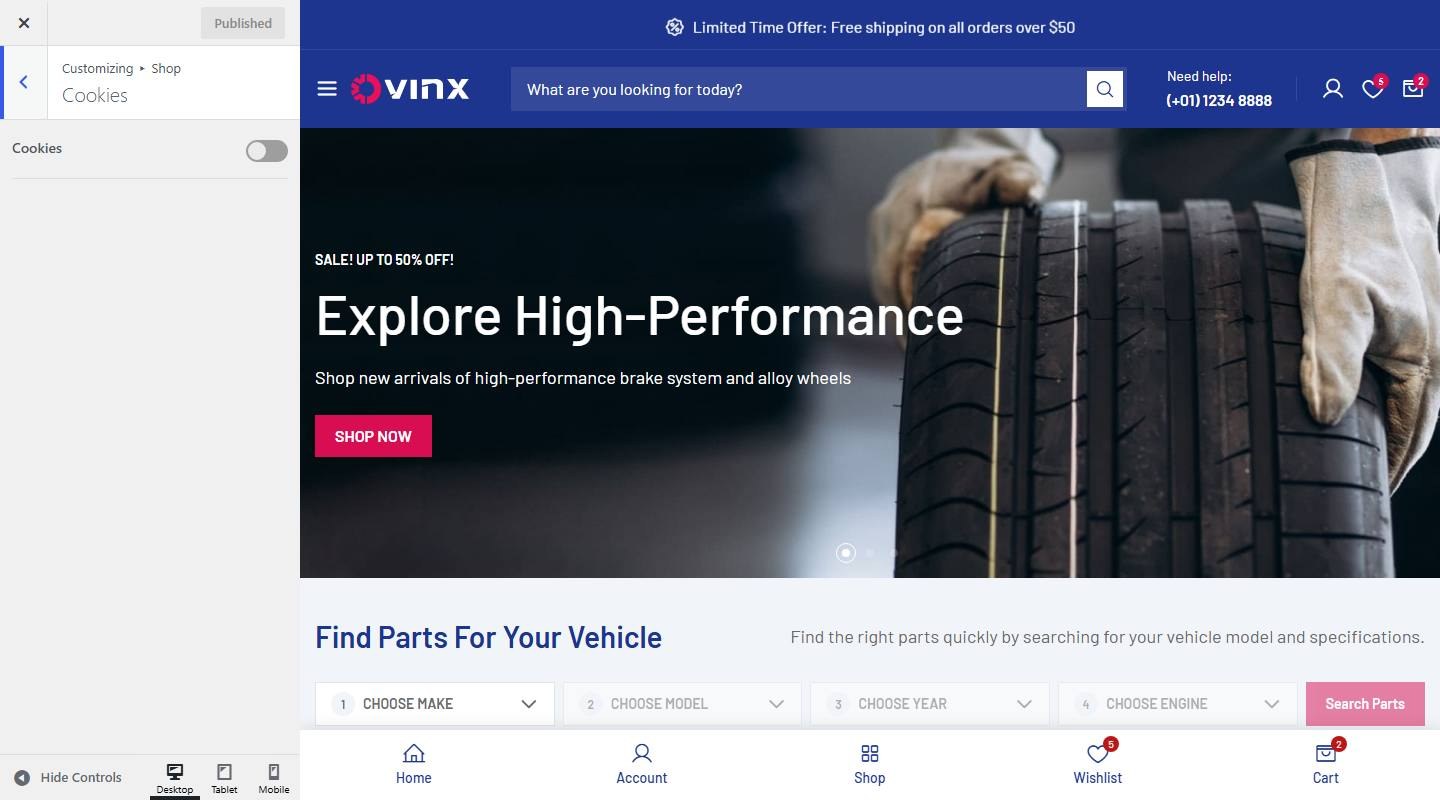

- Cookies: Turn on or off (demo: off).
- Cookies Content: Enter the text (demo: “The cookie settings on this website are set to “allow all cookies” to “).
- Cookies btn Policy: Enter the text (demo: “Privacy Policy”).
- Select page for button link to: Adjust this setting.
- Btn Cookies Accept: Enter the text (demo: “Accept Cookies”).
13. Wishlist & Compare Empty
To enable this feature, go to Customize → Shop → Wishlist & Compare Empty
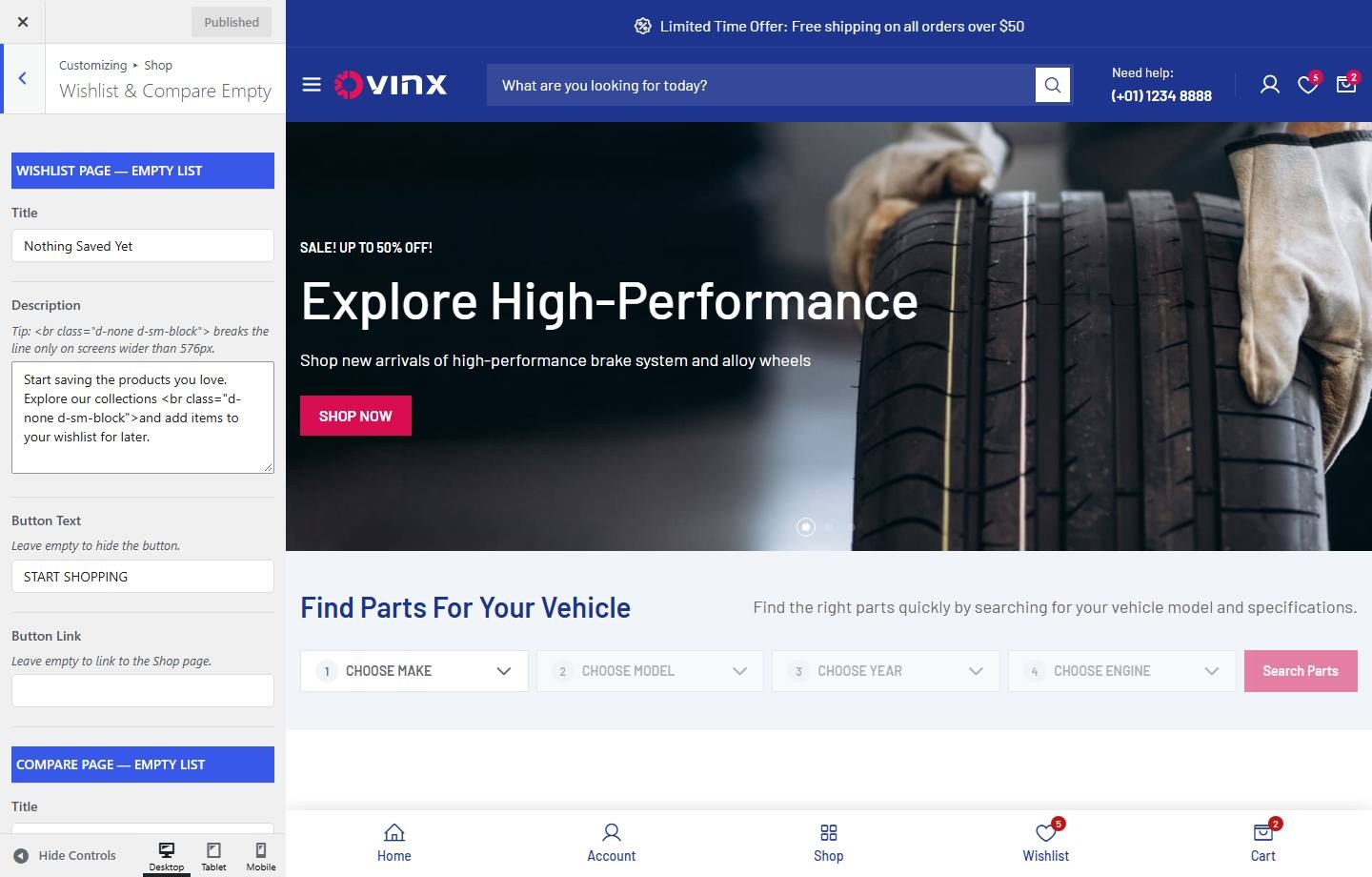

- Wishlist page — empty list
- Title: Enter the text (demo: “Nothing Saved Yet”).
- Description: Enter the text (demo: “Start saving the products you love. Explore our collections and add it”).
- Button Text: Enter the text (demo: “START SHOPPING”).
- Button Link: Enter the text.
- Compare page — empty list
- Title: Enter the text (demo: “Nothing To Compare Yet”).
- Description: Enter the text (demo: “Add two or more products to compare their price, rating and specs side”).
- Button Text: Enter the text (demo: “START SHOPPING”).
- Button Link: Enter the text.
14. Checkout & Thank You Page
To enable this feature, go to Customize → WooCommerce → Checkout
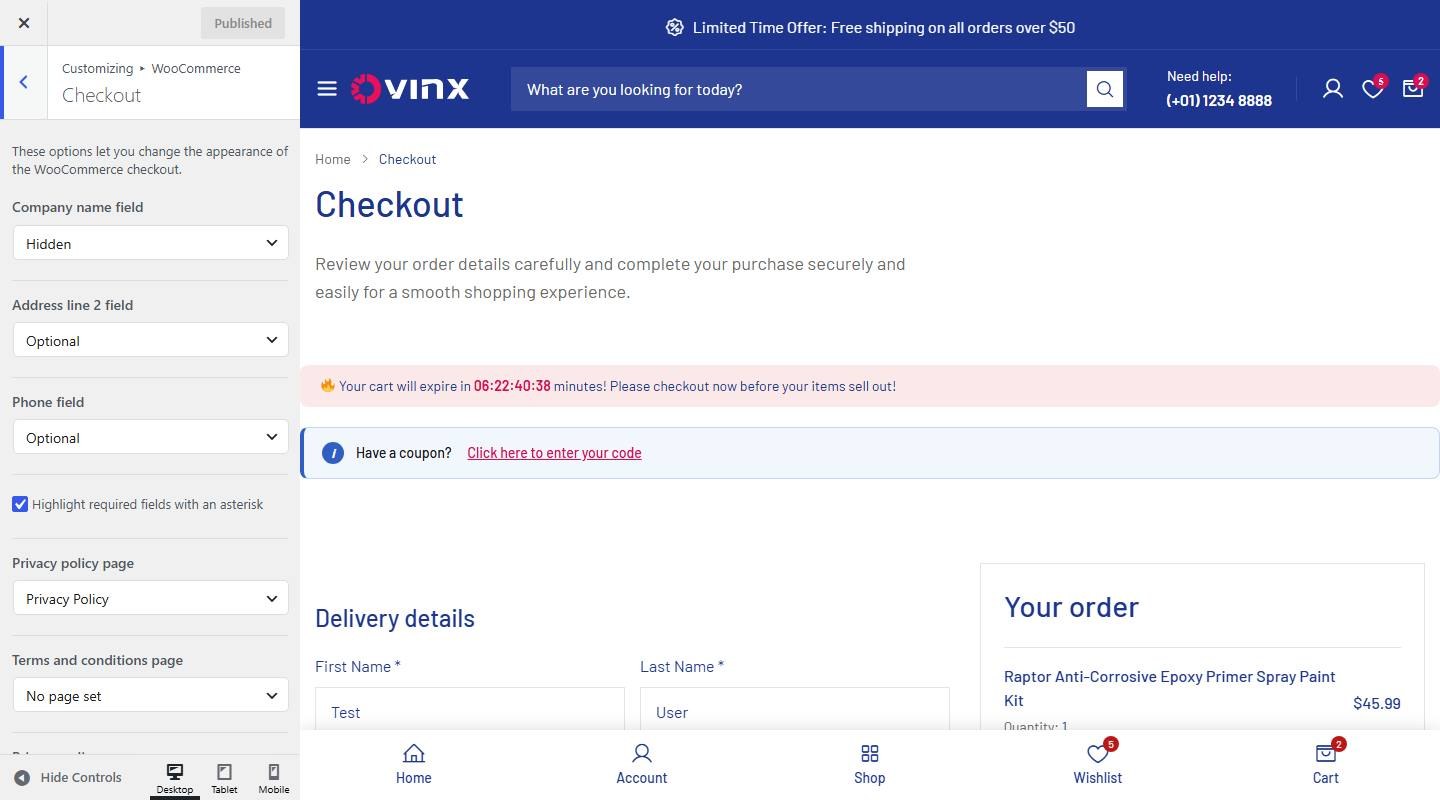

- Company name field: Choose one: Hidden, Optional, Required.
- Address line 2 field: Choose one: Hidden, Optional, Required.
- Phone field: Choose one: Hidden, Optional, Required.
- Highlight required fields with an asterisk: Turn on or off (demo: on).
- Privacy policy page: Choose one: No page set, Blog, Compare, Contact, FAQs, Home 01, Home 02, Home 03, Home 04, Our Store, Privacy & Policy, Privacy Policy.
- Terms and conditions page: Choose one: No page set, Blog, Compare, Contact, FAQs, Home 01, Home 02, Home 03, Home 04, Our Store, Privacy & Policy, Privacy Policy.
- Privacy policy: Enter the text (demo: “Your personal data will be used to process your order, support your ex”).
- Terms and conditions: Enter the text (demo: “I have read and agree to the website [terms]”).
Thank You Page
To customize, go to Dashboard → Appearance → Customize → WooCommerce → Thankyou Page.
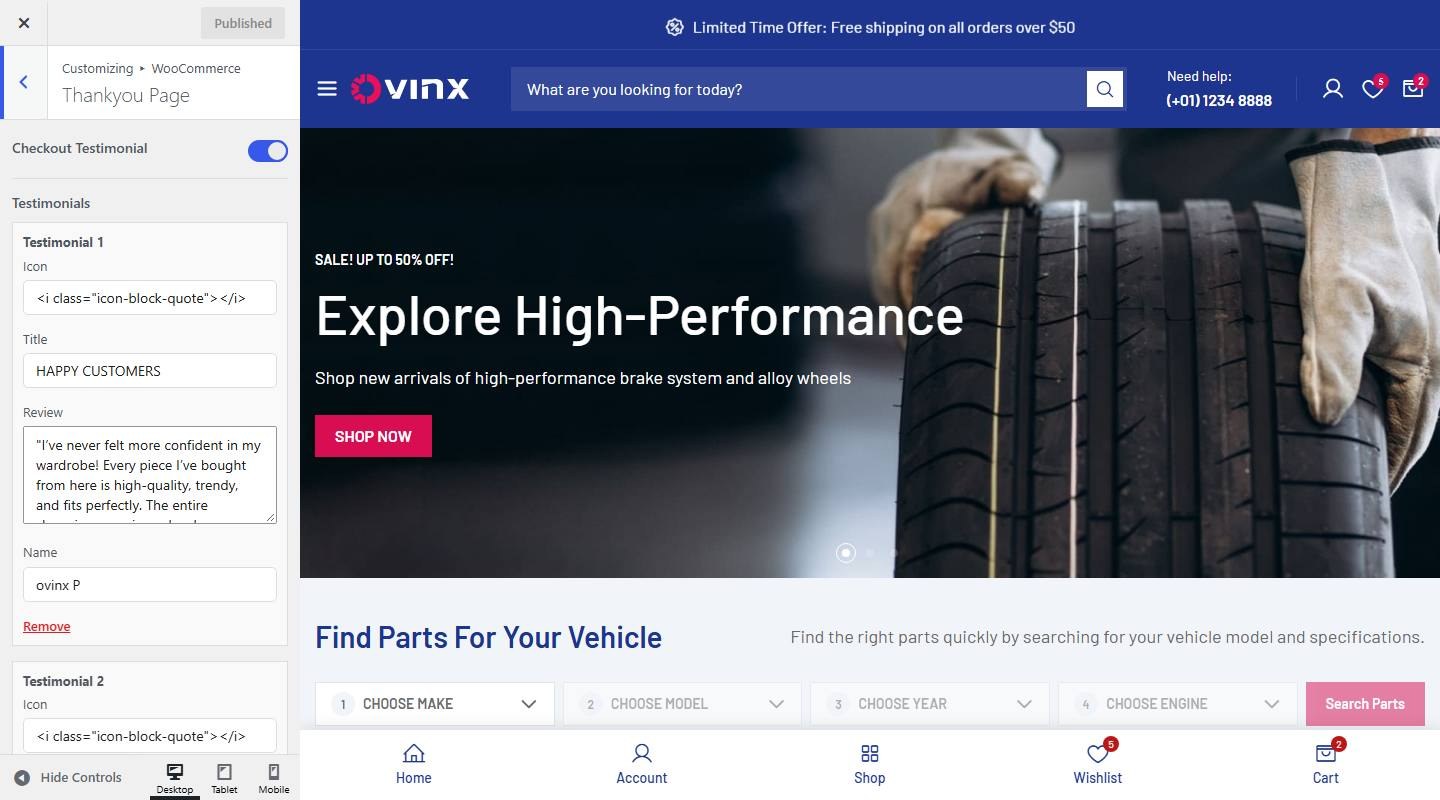

- Checkout Testimonial: Turn on or off (demo: on).
- Testimonials: Adjust this setting.
- Feedback form ( OFF | ON ): Turn on or off (demo: on).
- Content: Enter the text (demo: “Give us a feedback Let us know what you think about the shopping exper”).
Store Notice
To customize, go to Dashboard → Appearance → Customize → WooCommerce → Store Notice.
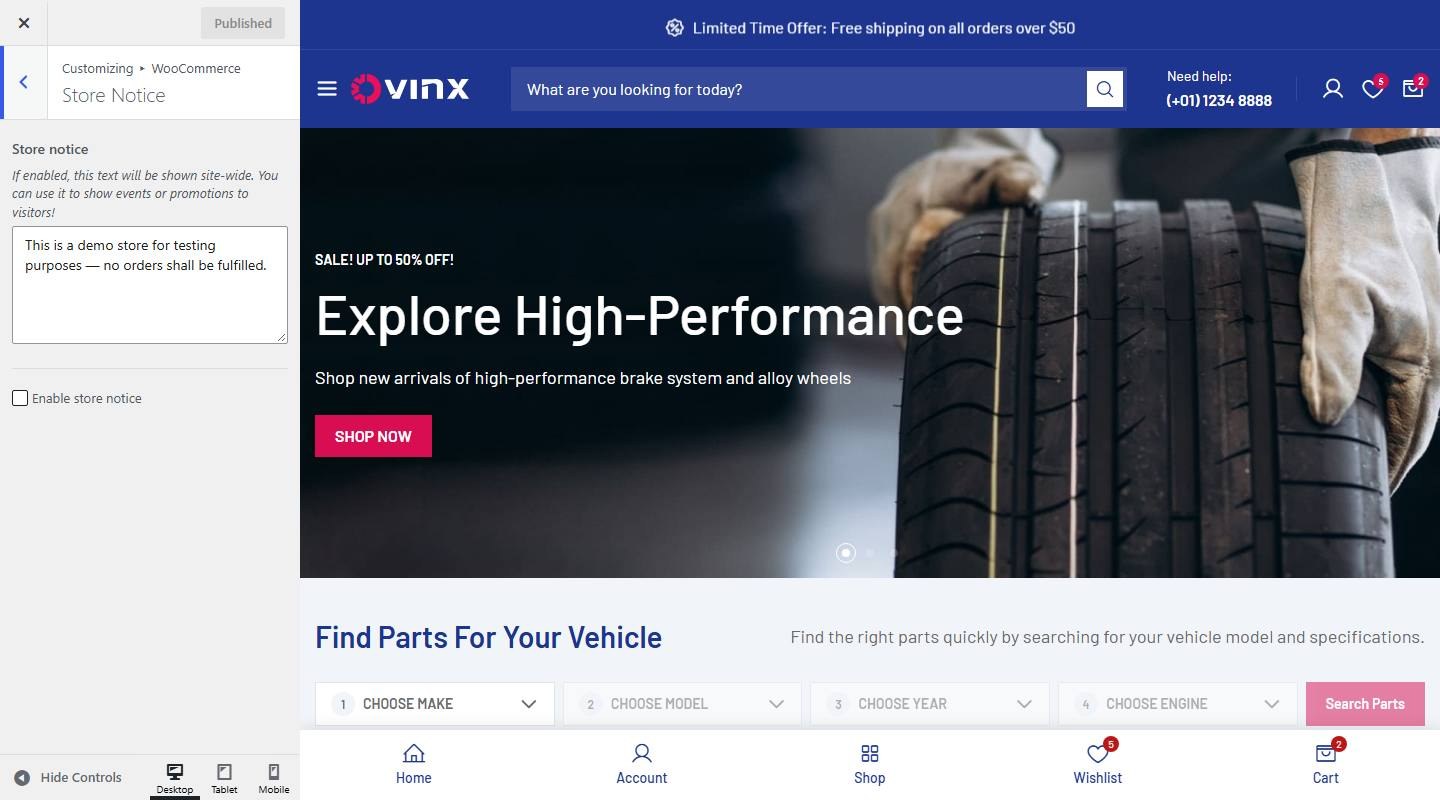

- Store notice: Enter the text (demo: “This is a demo store for testing purposes — no orders shall be fulfill”).
- Enable store notice: Turn on or off (demo: off).

E-commerce Features
1. Sale Countdown Timer


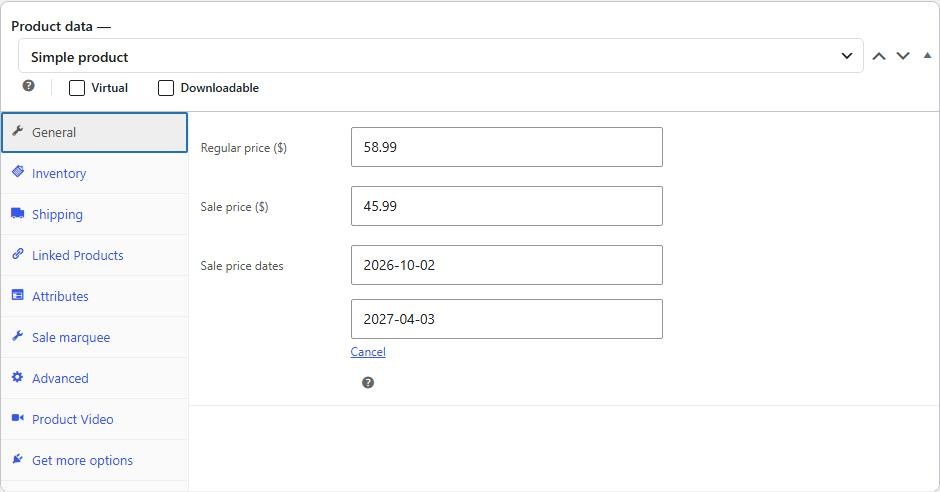
To enable this feature, go to Customize → Single Product → Countdown
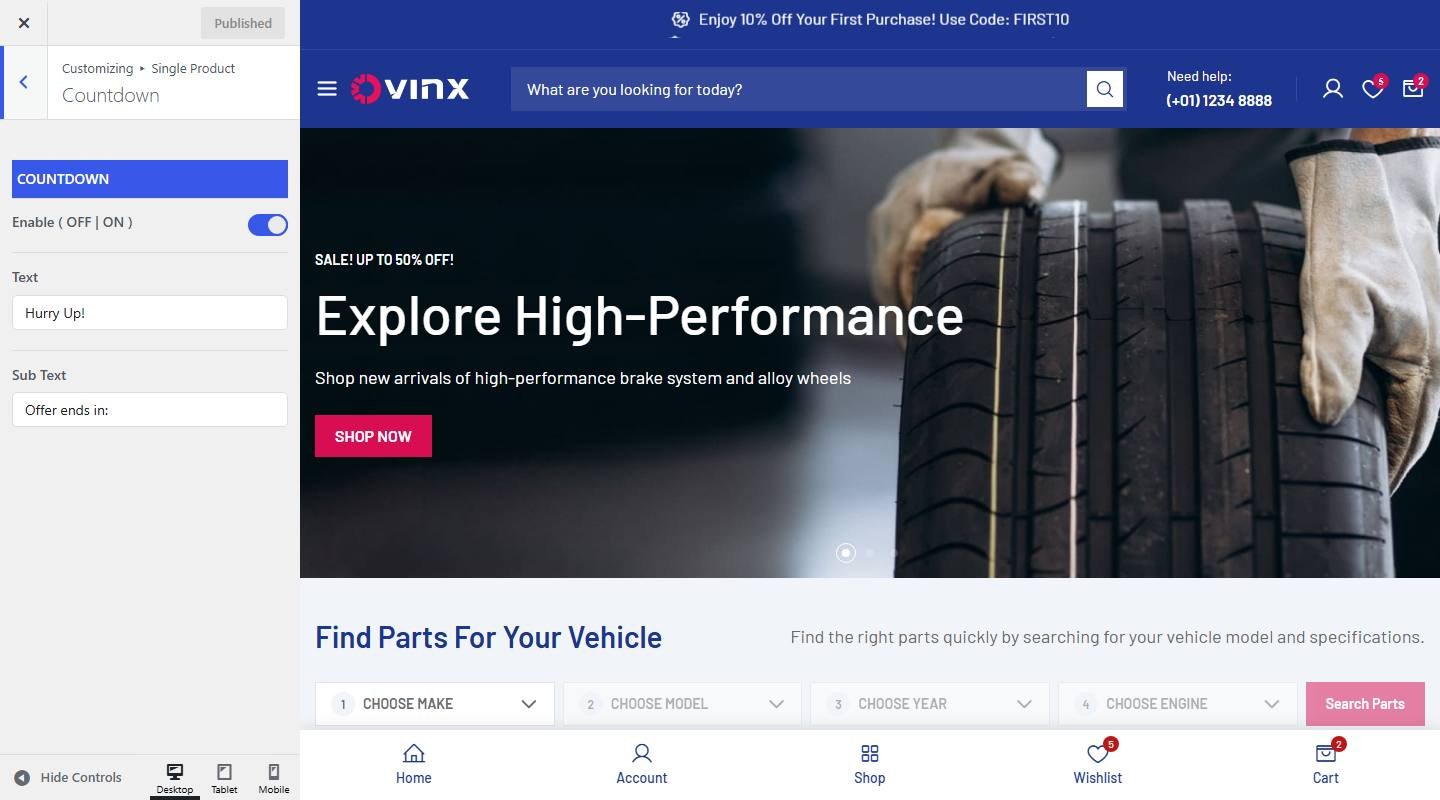

- Countdown
- Enable ( OFF | ON ): Turn on or off (demo: on).
- Text: Enter the text (demo: “Hurry Up!”).
- Sub Text: Enter the text (demo: “Offer ends in:”).
Step 1: From the admin dashboard, navigate to Products → All Products.
Step 2: Select the product you want to apply the sale countdown timer to.
Step 3: In the Product data section, select Simple product (or Variable product).
Step 4: In the General tab, enter the Sale price, then click Schedule and set the Sale price dates (start and end). The countdown counts down to the end date.
Step 5: Click Update.

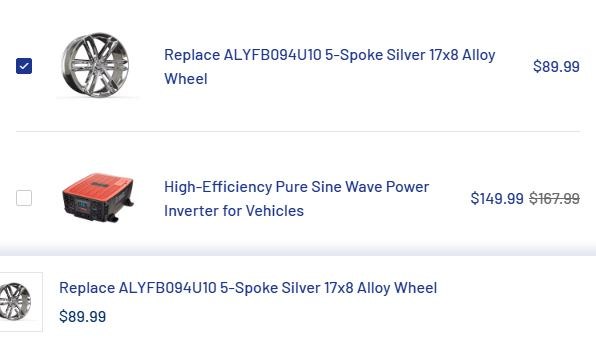
2. Products Frequently Bought Together
You can choose the position (left or right).

To enable this feature, go to Customize → Single Product → Buy Together
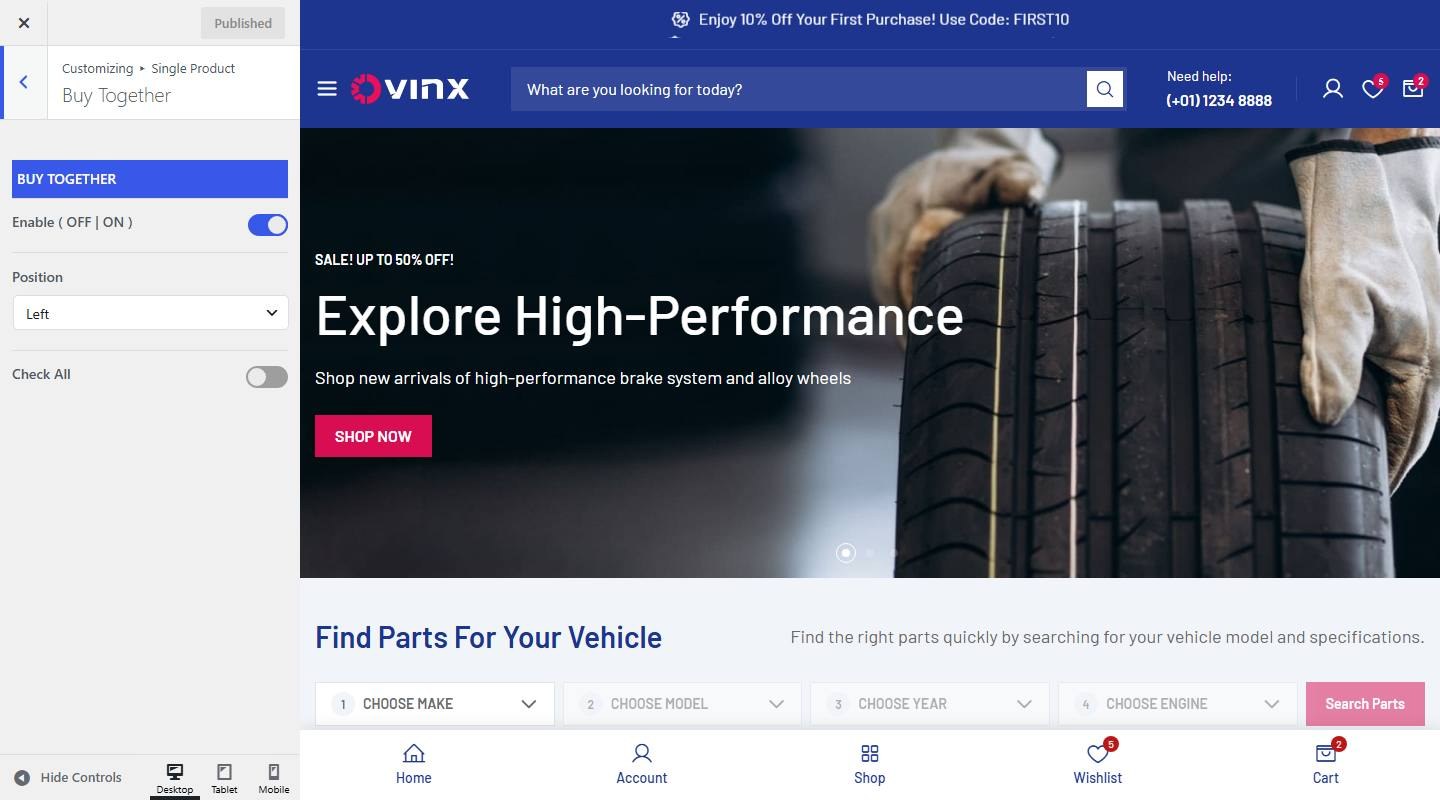

- Buy Together
- Enable ( OFF | ON ): Turn on or off (demo: on).
- Position: Choose one: Left, Right.
- Check All: Turn on or off (demo: off).
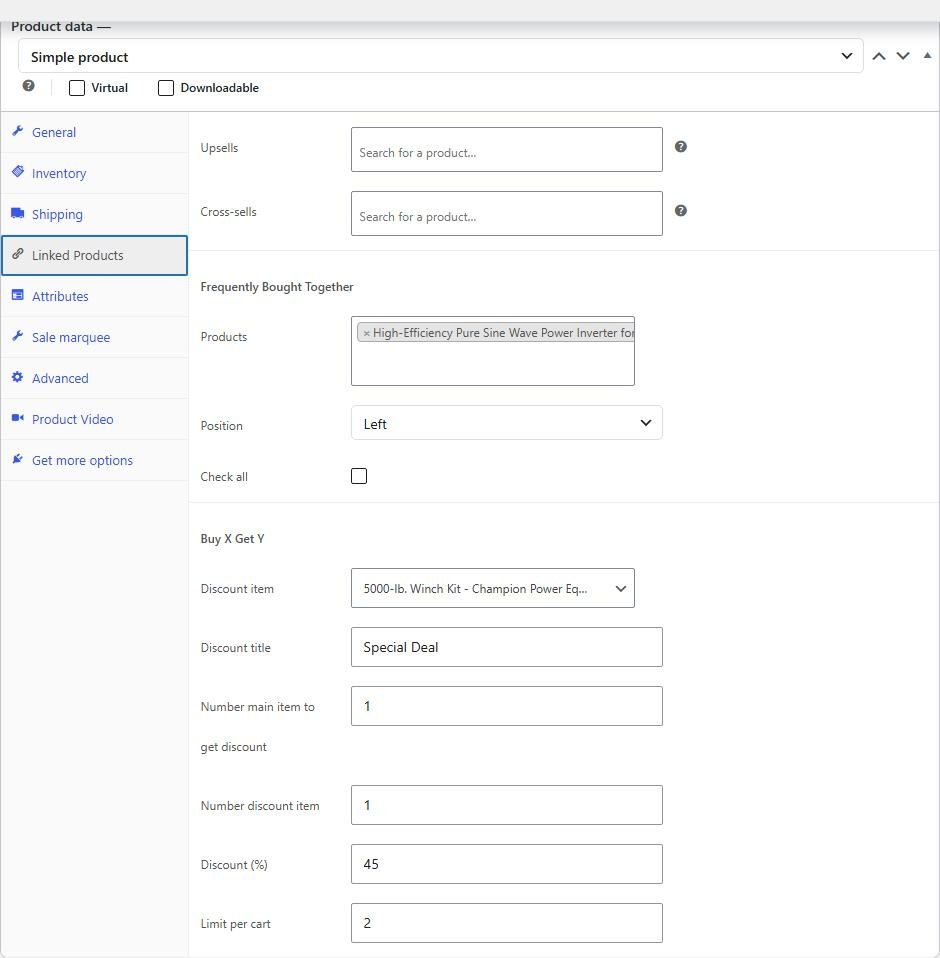
Step 1: Select the product, then go to the Linked Products tab in the Product data section.
Step 2: Search for and add products to this section, then click Update.

3. Product Comparison
This feature uses the WCBoost – Products Compare plugin that comes with the theme. Its settings are in the Customizer under WooCommerce → Products Compare.
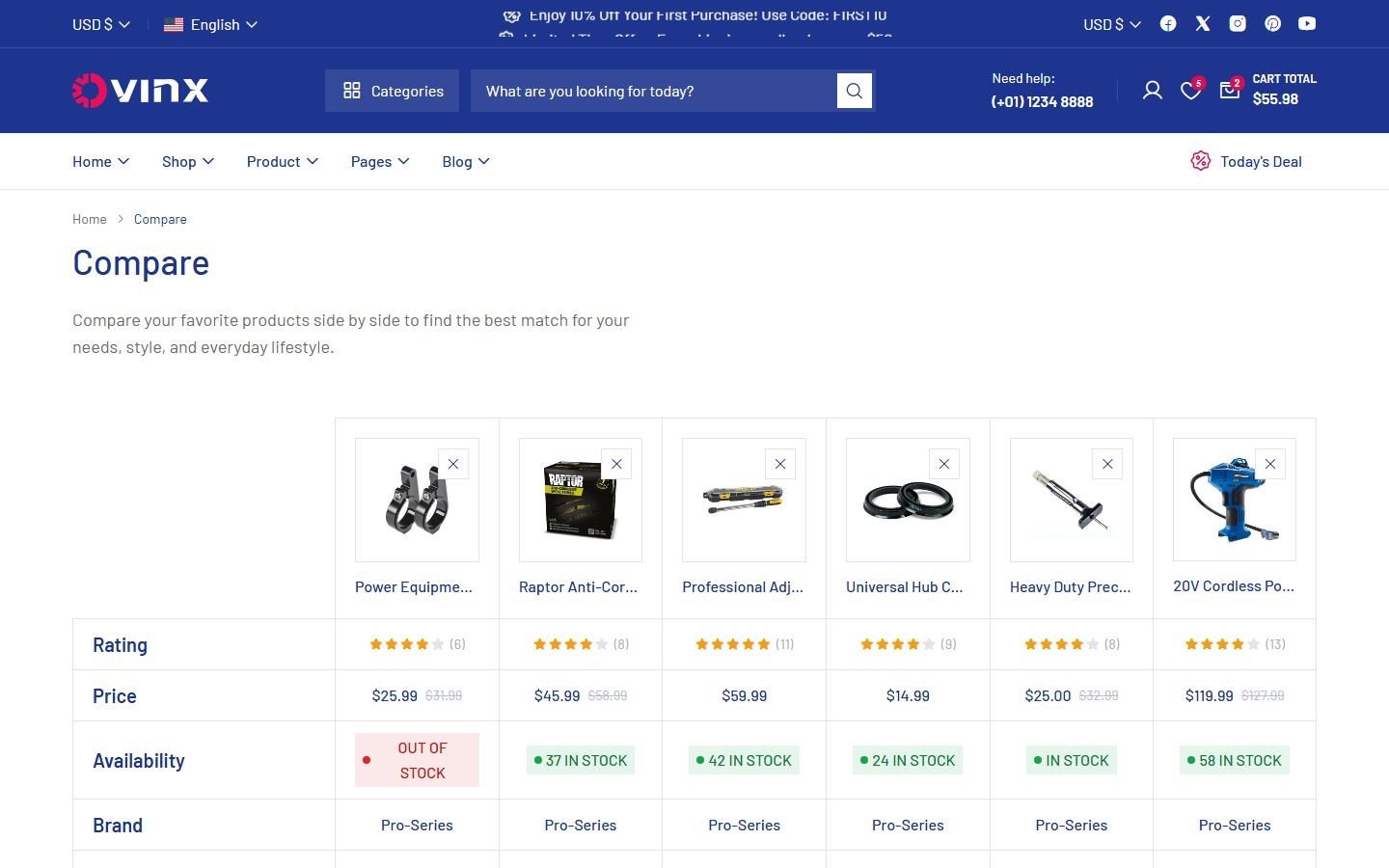

To enable this feature, go to Customize → WooCommerce → Products Compare
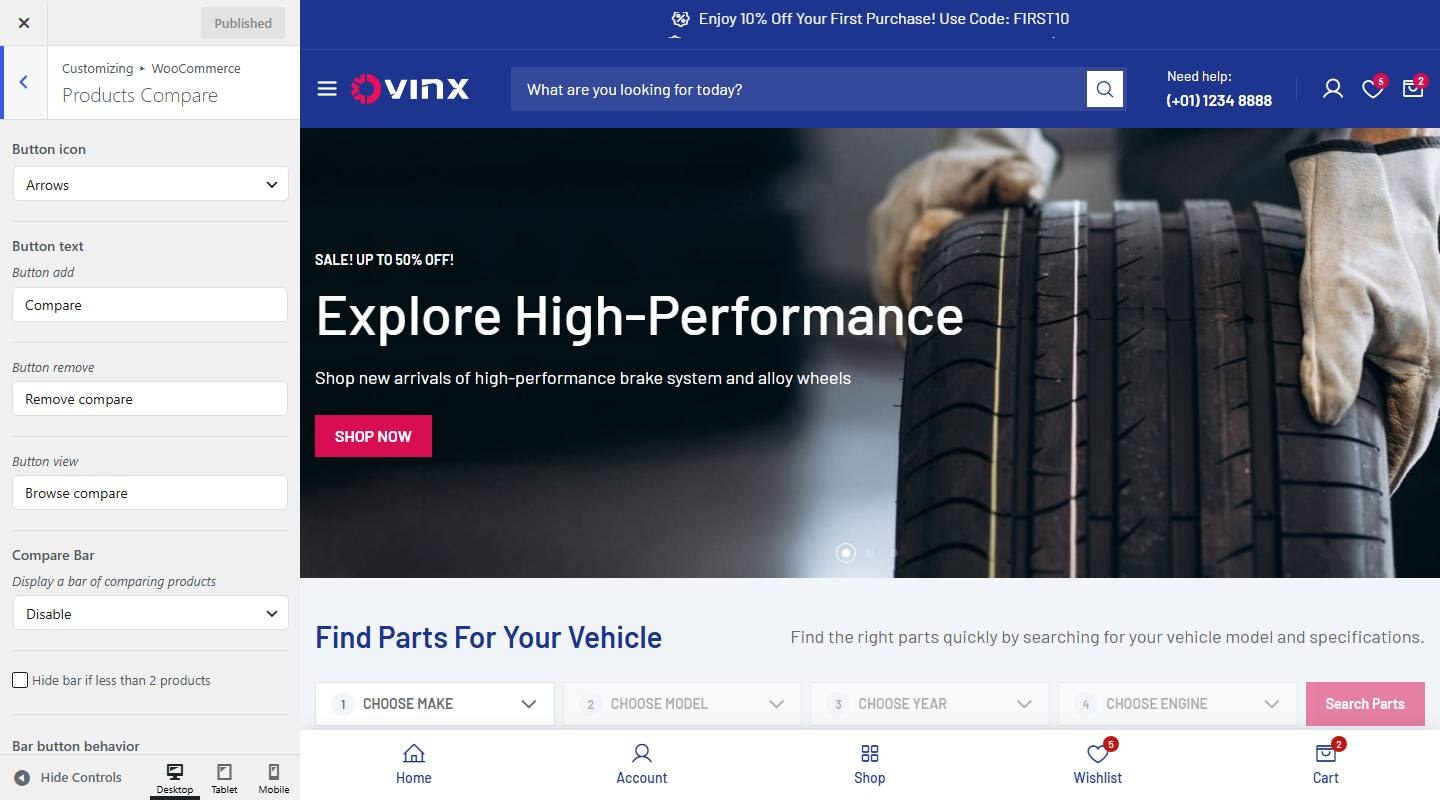

- Button icon: Choose one: No icon, Arrows, Plus, Checkbox, Code compare.
- Button text: Enter the text (demo: “Compare”).
- Compare Bar: Choose one: Disable, Display at bottom.
- Hide bar if less than 2 products: Turn on or off (demo: off).
- Bar button behavior: Choose one: page, popup.
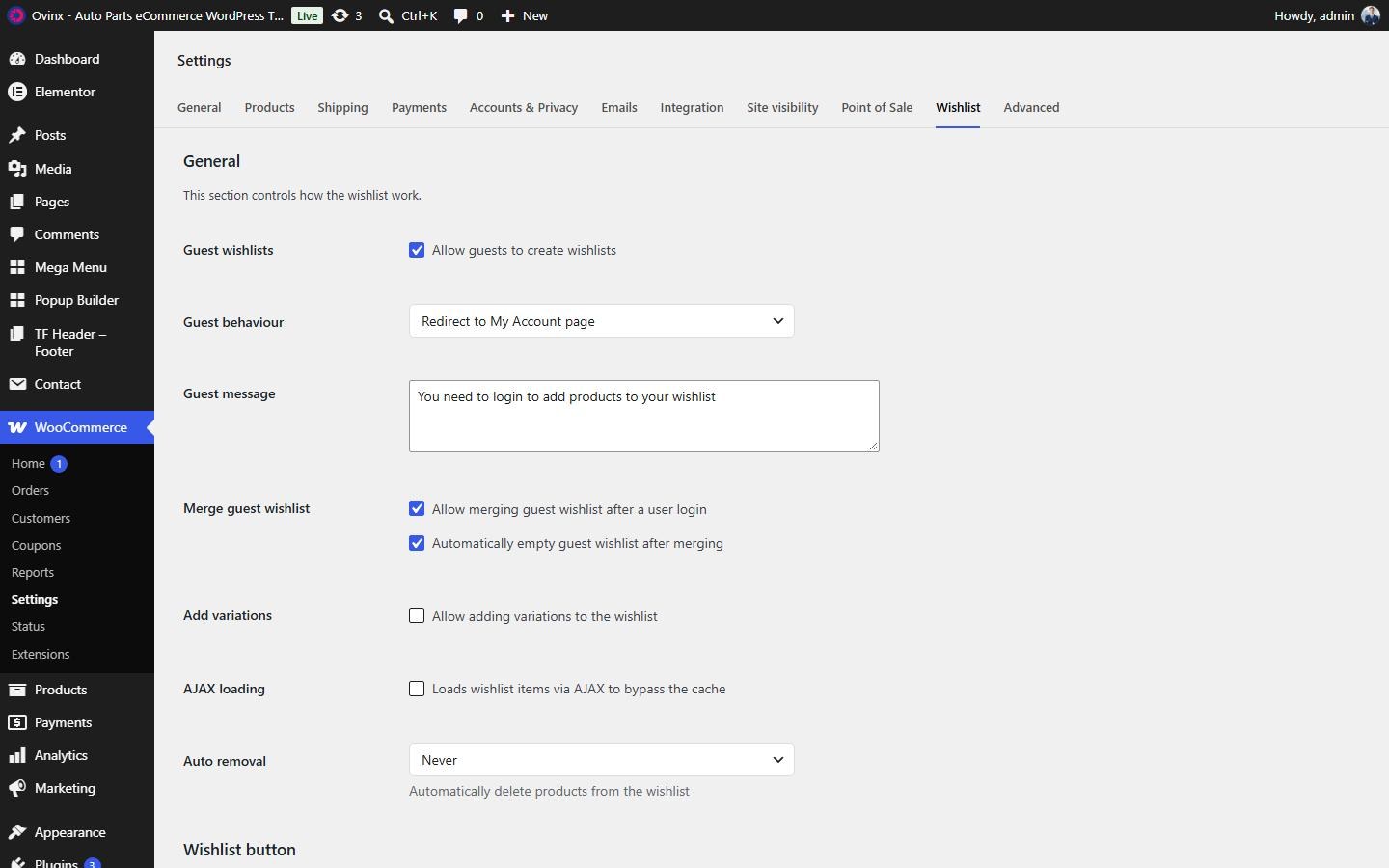
4. Product Wishlist
This feature uses the WCBoost – Wishlist plugin that comes with the theme. A Wishlist tab is available under WooCommerce → Settings.
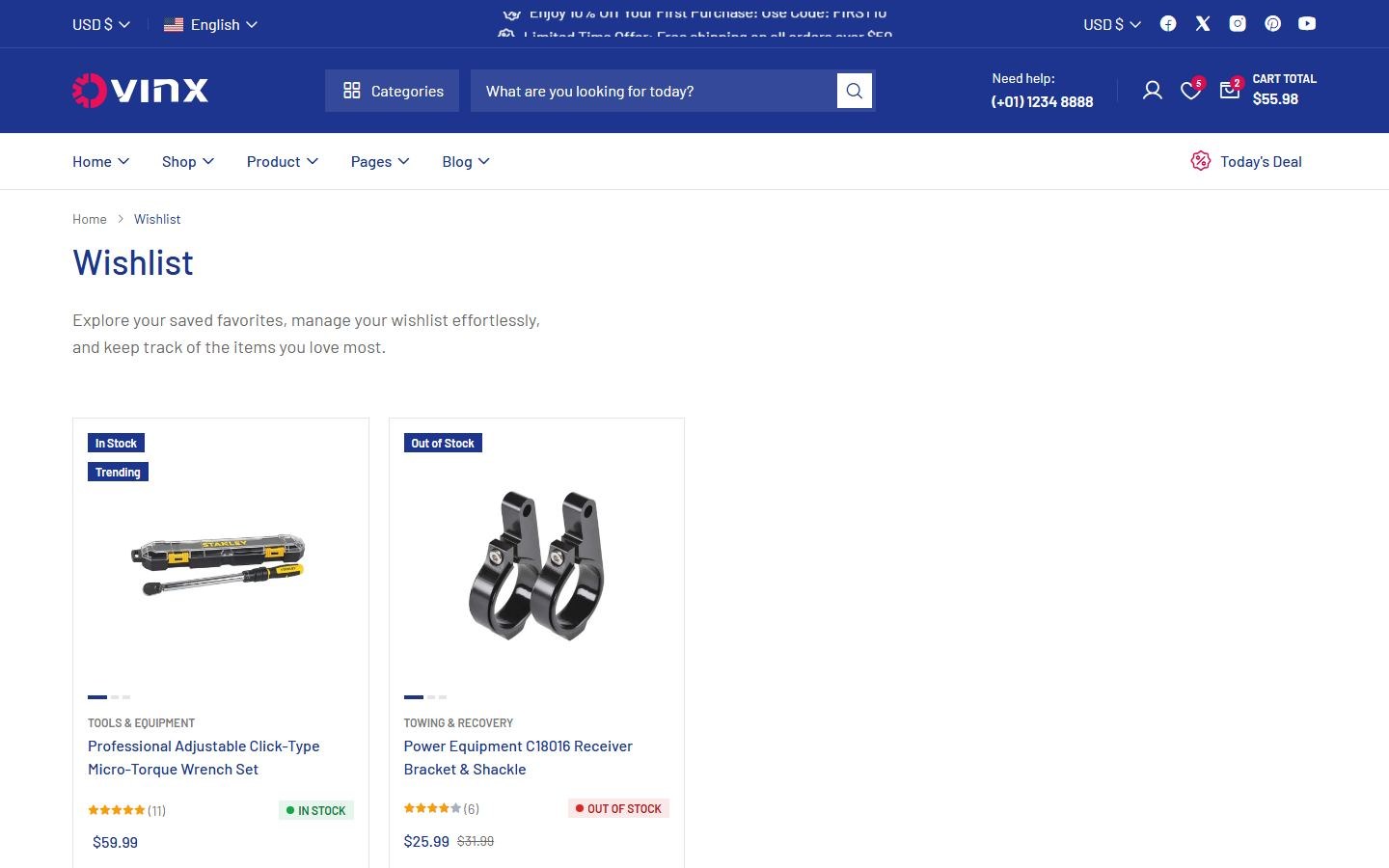

To enable this feature, go to Customize → WooCommerce → Wishlist Button
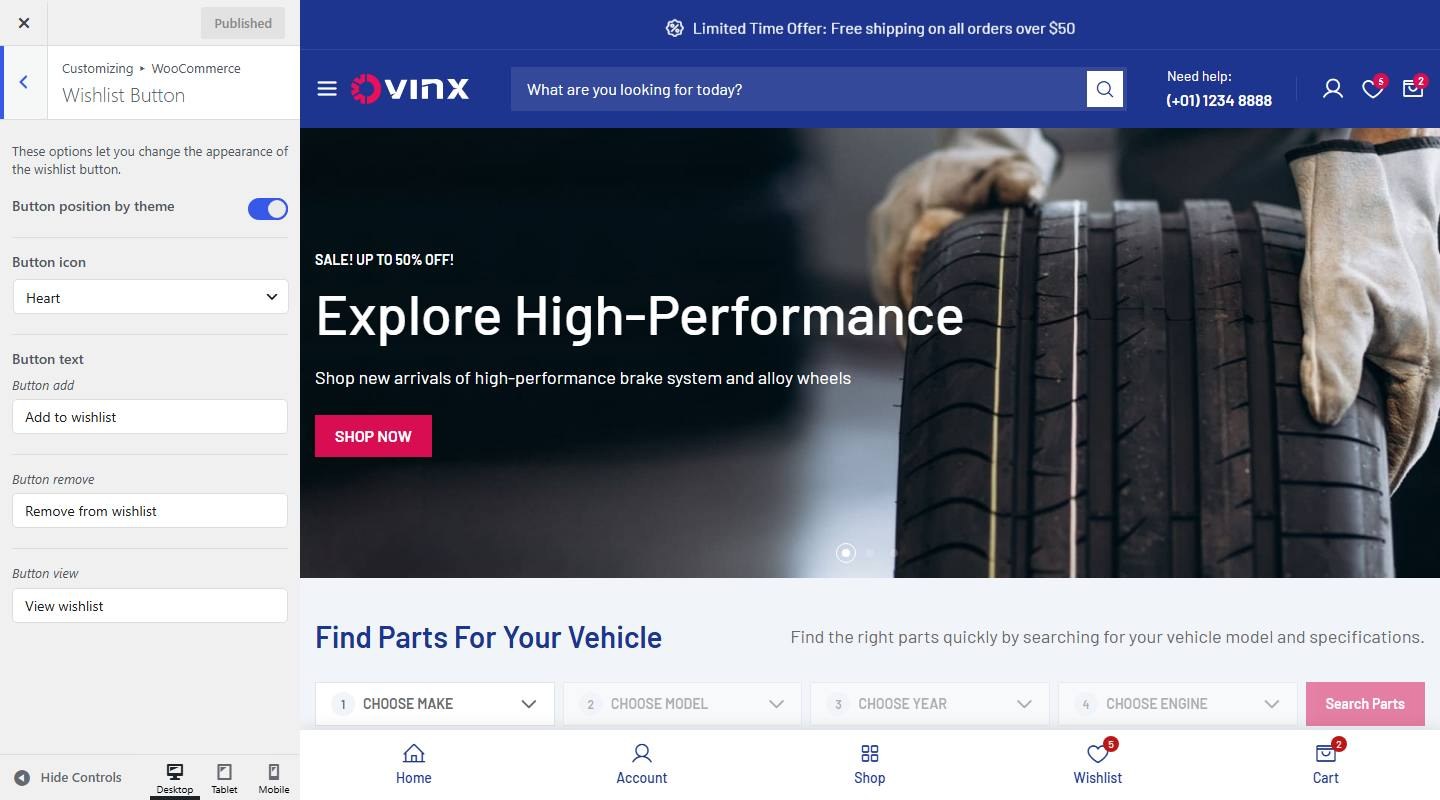

- Button position by theme: Turn on or off (demo: on).
- Button icon: Choose one: No icon, Heart, Star, Bookmark, Custom icon.
- Custom icon: Upload or select an image.
- Button text: Enter the text (demo: “Add to wishlist”).

Wishlist Page
To customize, go to Dashboard → Appearance → Customize → WooCommerce → Wishlist Page.
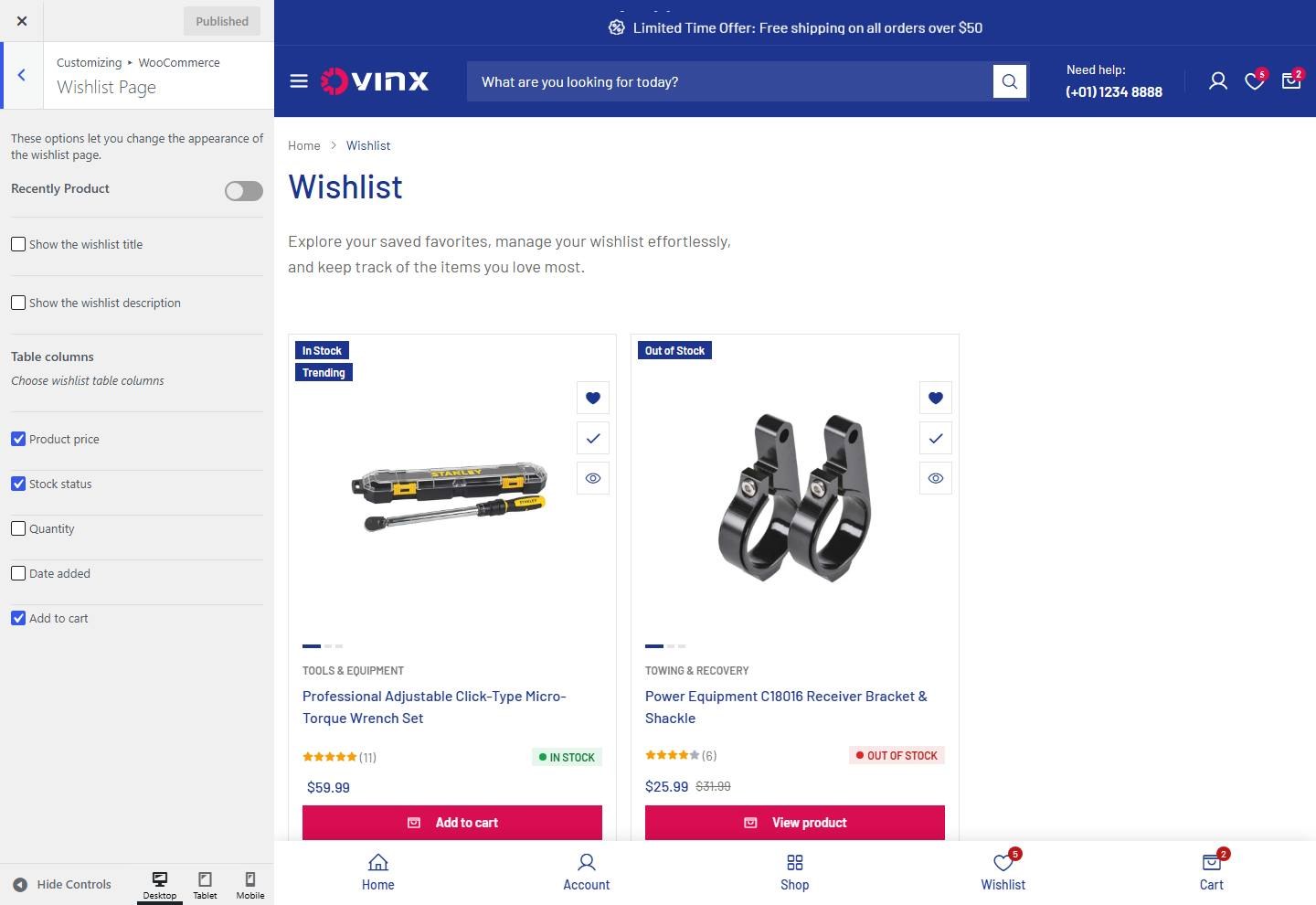

- Recently Product: Turn on or off (demo: off).
- Heading Recently: Enter the text (demo: “Recently Viewed”).
- Limit Product: Enter the text (demo: “5”).
- Columns: Set the number of columns for desktop, tablet and mobile.
- Show the wishlist title: Turn on or off (demo: off).
- Show the wishlist description: Turn on or off (demo: off).
- Product price: Turn on or off (demo: on).
- Stock status: Turn on or off (demo: on).
- Quantity: Turn on or off (demo: off).
- Date added: Turn on or off (demo: off).
- Add to cart: Turn on or off (demo: on).
5. Product Variation Swatches
Note: If you want to display the correct Attribute Type, you must set the Type first. The demo uses color, label, button and image swatches.
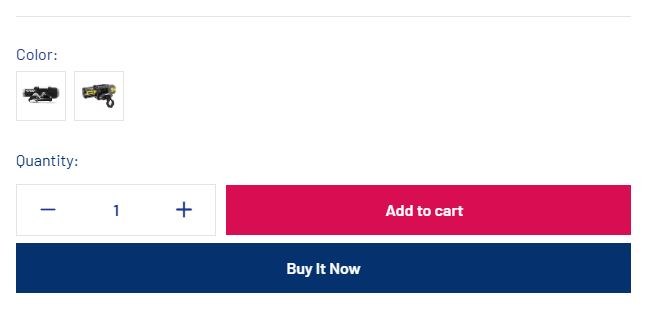
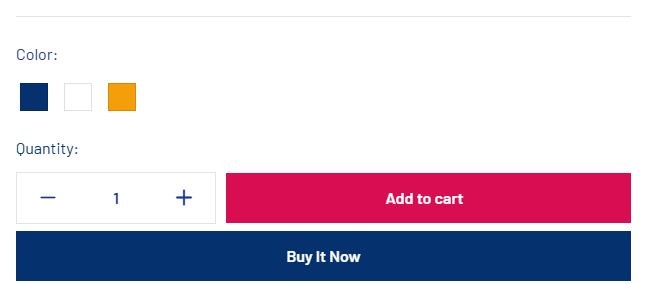
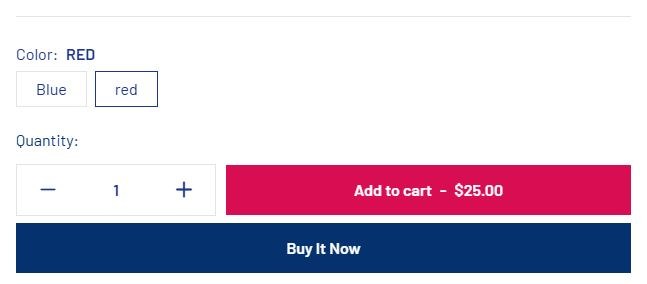


To enable this feature, go to Customize → WooCommerce → Variation Swatches
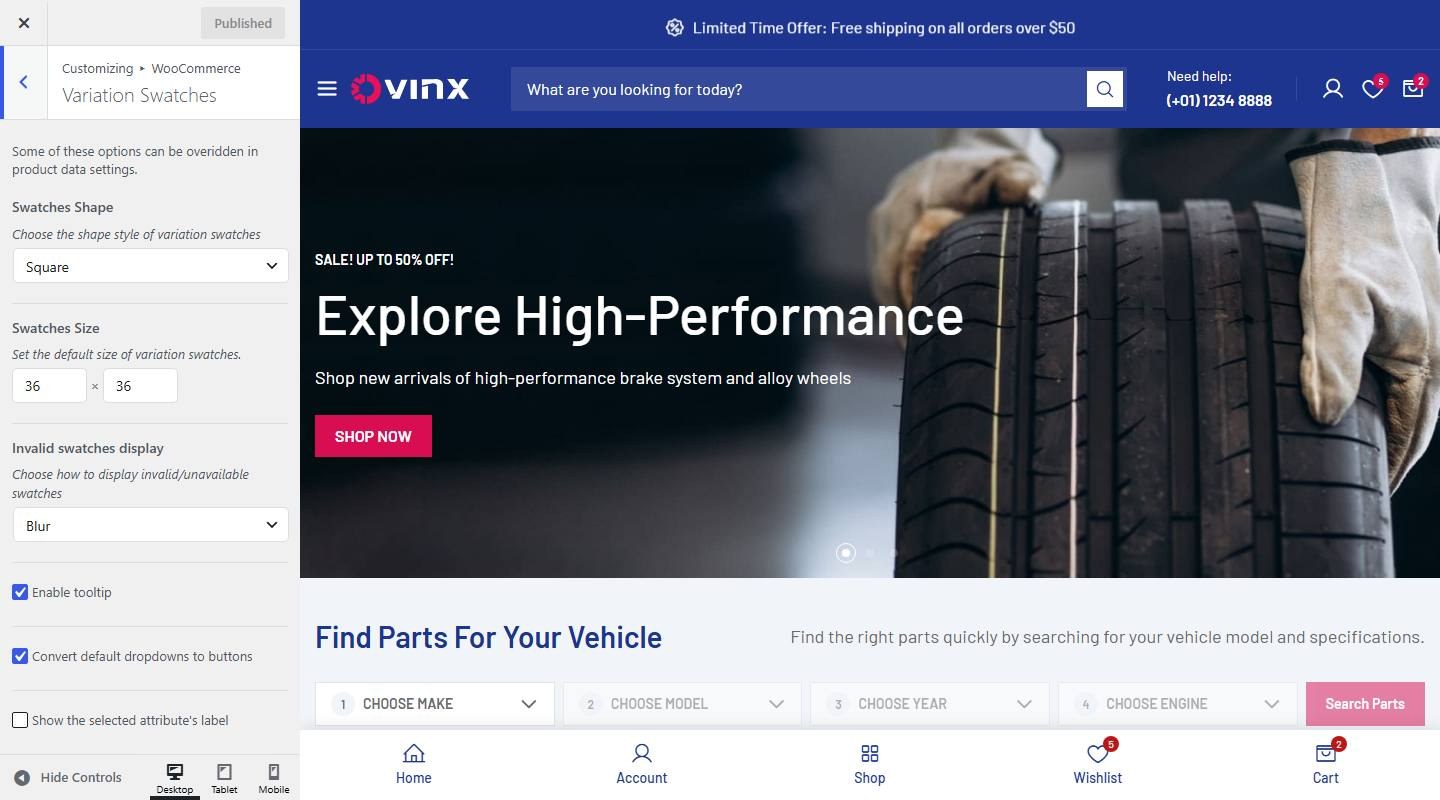

- Swatches Shape: Choose one: Circle, Rounded corners, Square, Radio (Label / Button only).
- Swatches Size: Adjust this setting.
- Invalid swatches display: Choose one: Hide, Blur, Cross out, Line through, Slash, Blur & Cross out, Blur & Line through, Blur & Slash.
- Enable tooltip: Turn on or off (demo: on).
- Convert default dropdowns to buttons: Turn on or off (demo: on).
- Show the selected attribute's label: Turn on or off (demo: off).
Create Variations
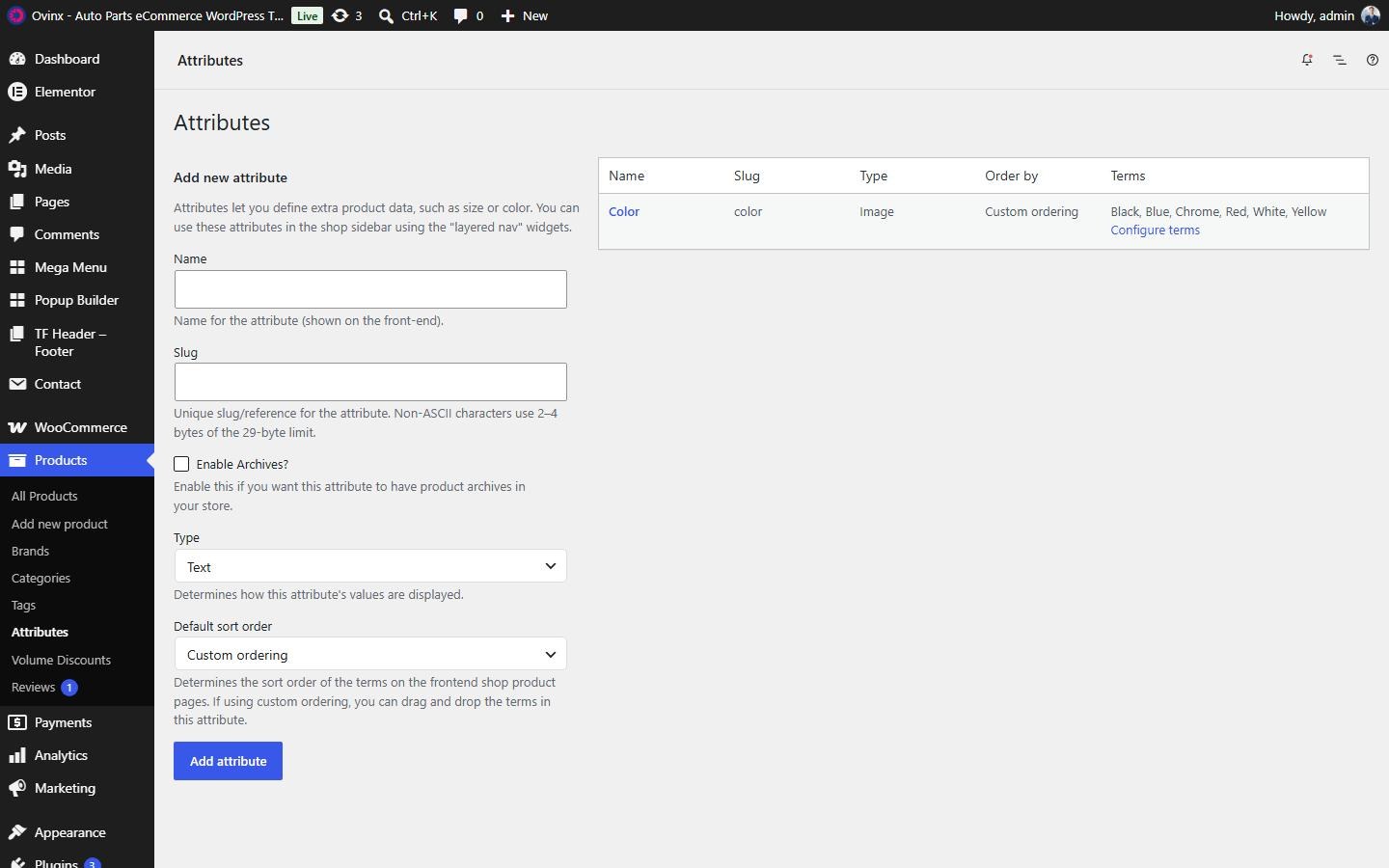
Step 1: From the admin dashboard, navigate to Products → Attributes.
Step 2: Fill in the attribute name (such as Size, Color, Image, etc.).
Step 3: Determine how the attribute values are displayed using Type (Select, Color, Label, Image).
Step 4: Click Add attribute, then click Configure terms to add new terms.

Set Up Variation Swatches for Products
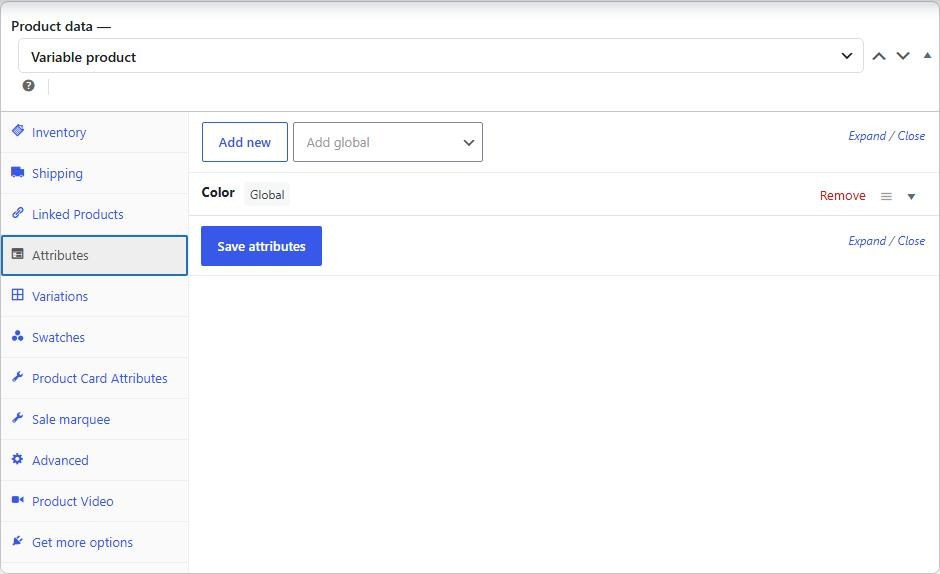
Step 1: Go to Products → All Products and select the product. Choose Variable product as the type.
Step 2: Go to the Attributes tab and add the attribute you created. Check Visible on the product page and Used for variations, then click Save attributes.
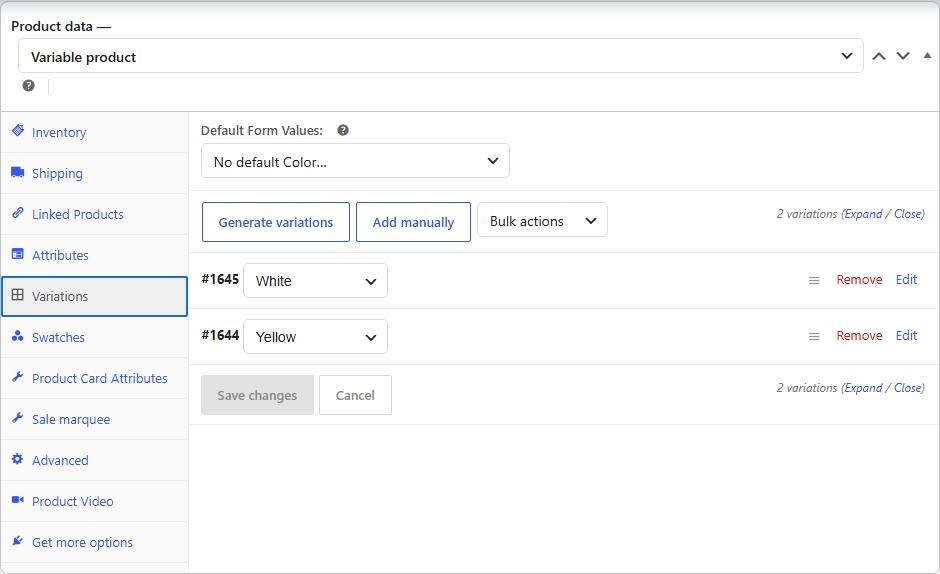
Step 3: Go to the Variations tab, click Generate variations and set the image, price and other details for each variation.
Step 4: Click Save changes and then Update.


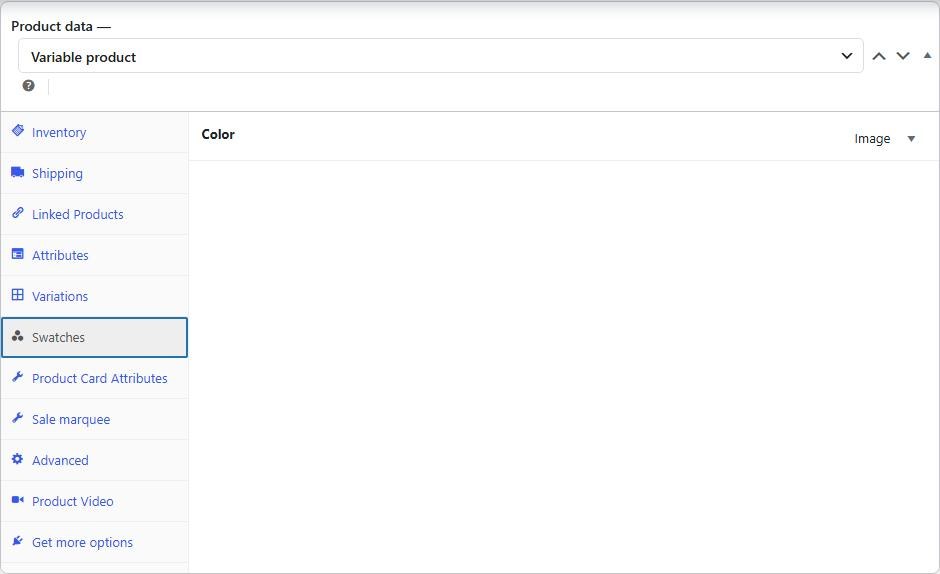
Swatches tab
On a variable product the Swatches tab lists each attribute and lets you choose how it is displayed for this product (the demo shows Color set to Image).

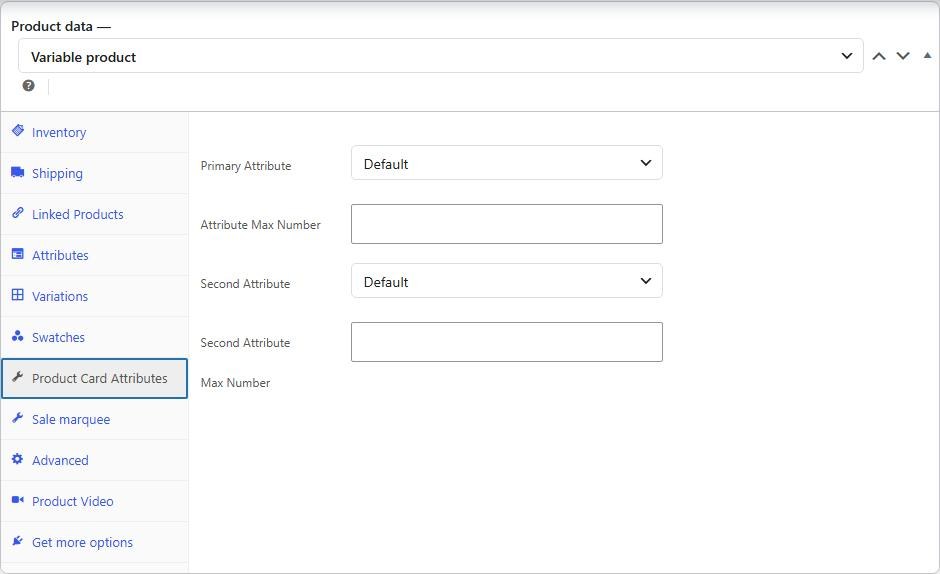
Product Card Attributes
The Product Card Attributes tab sets which attribute is shown on the shop card for this product: Primary Attribute and its Attribute Max Number, then Second Attribute and its max number. Leave Default to follow the Customizer (Shop → Product Card).

6. Product Gallery
Layout, zoom, lightbox, variation gallery, product video and 3D viewer are all set here.
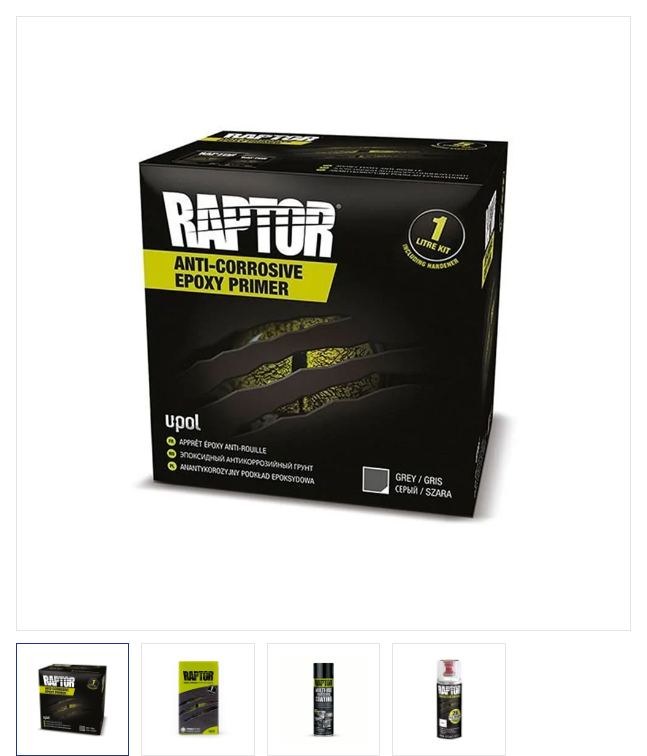

To enable this feature, go to Customize → Single Product → Product Gallery
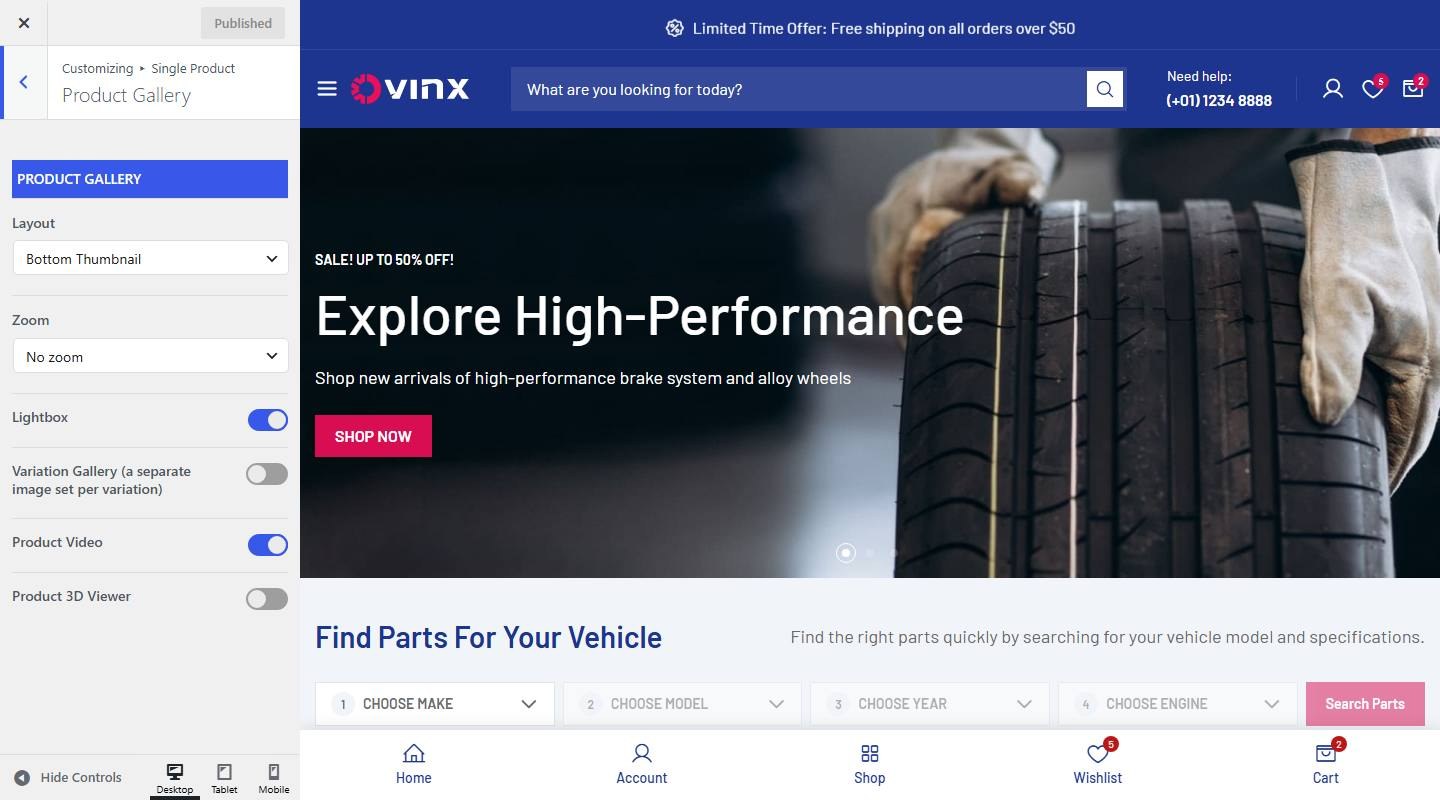

- Product Gallery
- Layout: Choose one: Left Thumbnail, Right Thumbnail, Bottom Thumbnail.
- Zoom: Choose one: No zoom, Inner Zoom, Inner Circle Zoom, External Zoom.
- Lightbox: Turn on or off (demo: on).
- Variation Gallery (a separate image set per variation): Turn on or off (demo: off).
- Product Video: Turn on or off (demo: on).
- Product 3D Viewer: Turn on or off (demo: off).
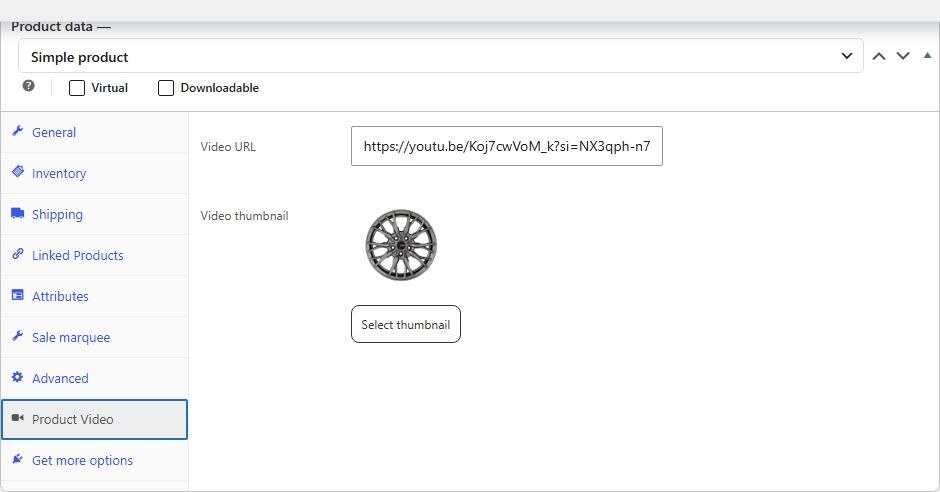
Product Video
Add a video to the gallery: edit the product, open the Product Video tab in the Product data section, enter the Video URL and choose a Video thumbnail (click Select thumbnail), then click Update. Make sure Product Video is on in the Customizer.

7. Visitor Count (People View)
Displays a “people are viewing this right now” message on product pages. The number is random within the range you set.
To enable this feature, go to Customize → Single Product → People View
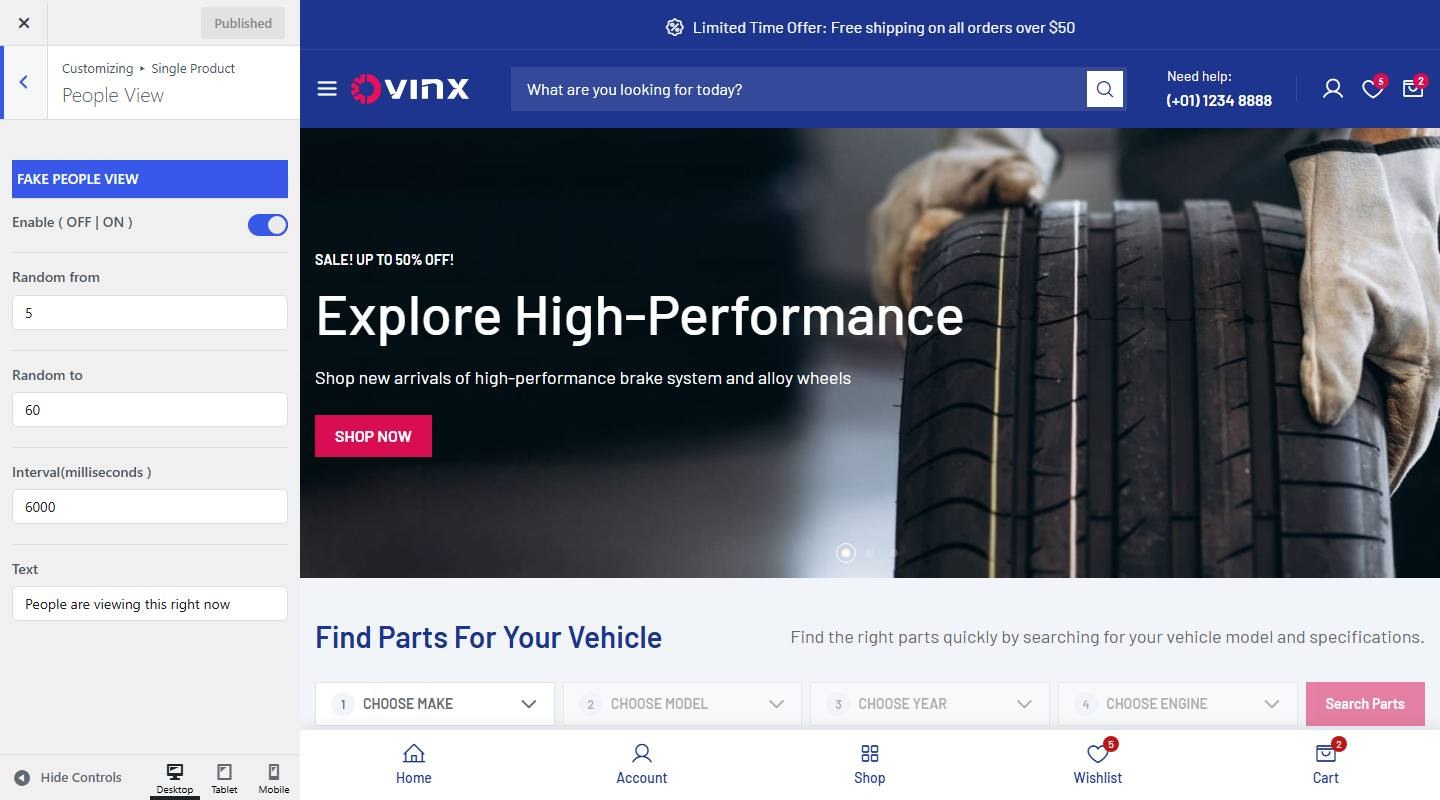

- Fake people view
- Enable ( OFF | ON ): Turn on or off (demo: on).
- Random from: Set the value (demo: 5).
- Random to: Set the value (demo: 60).
- Interval(milliseconds ): Set the value (demo: 6000).
- Text: Enter the text (demo: “People are viewing this right now”).
8. Recent Sales Count
Displays a “sold in last hours” message on product pages. The number is random within the range you set.
To enable this feature, go to Customize → Single Product → Recent Sales Count
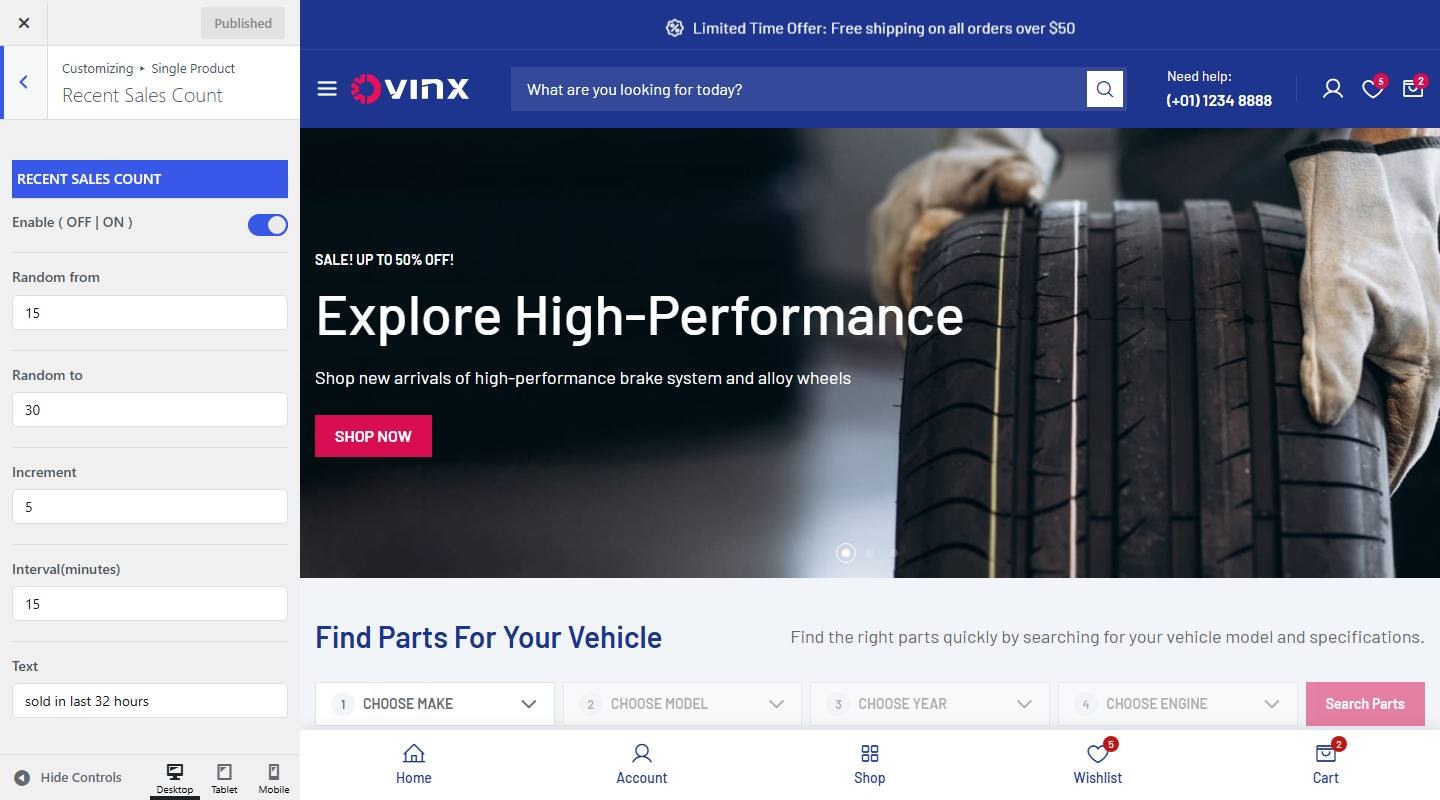

- Recent Sales Count
- Enable ( OFF | ON ): Turn on or off (demo: on).
- Random from: Set the value (demo: 15).
- Random to: Set the value (demo: 30).
- Increment: Set the value (demo: 5).
- Interval(minutes): Set the value (demo: 15).
- Text: Enter the text (demo: “sold in last 32 hours”).
9. Progress Sale
Creates a sense of scarcity with a progress bar of sold items and low stock text.
To enable this feature, go to Customize → Single Product → Progress Sale
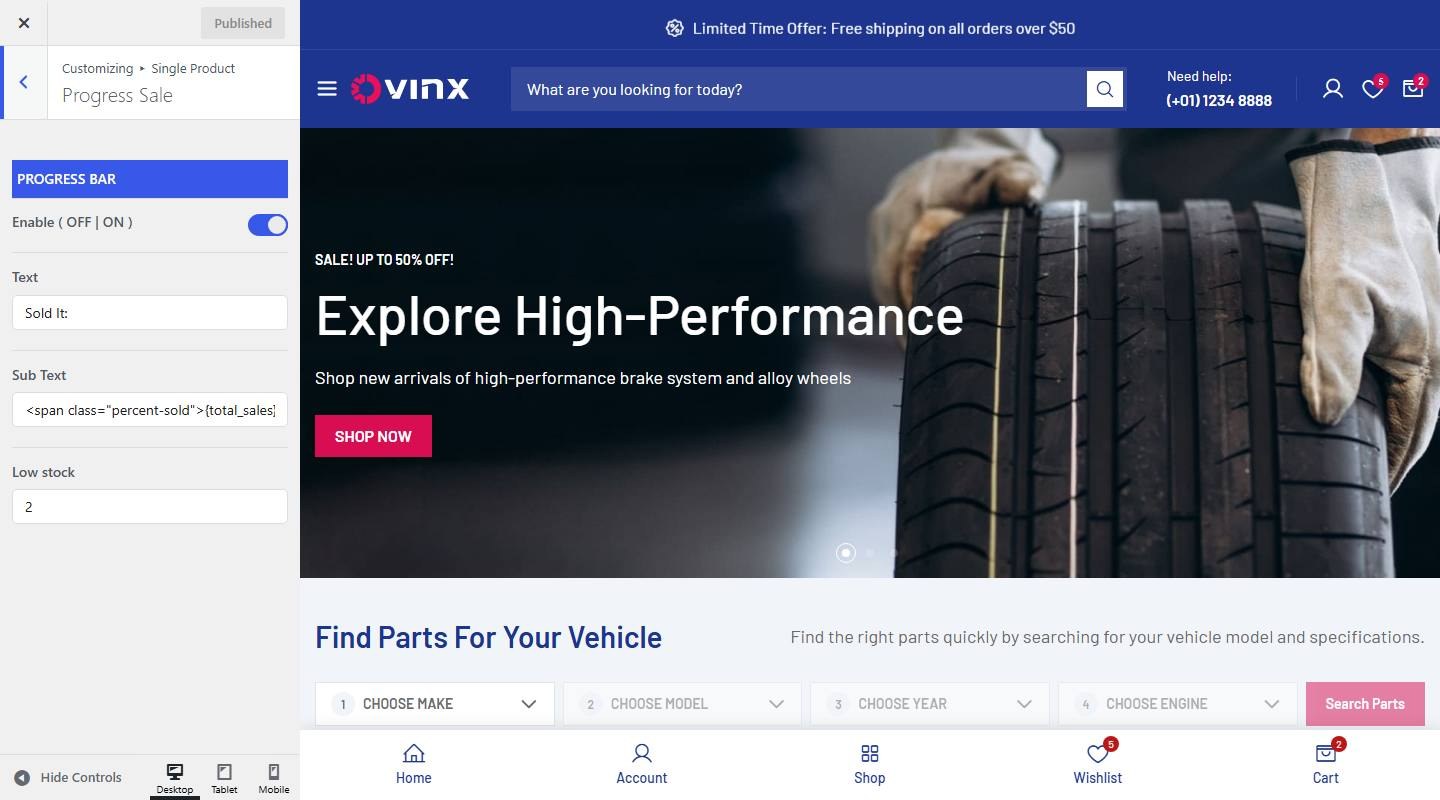

- Progress bar
- Enable ( OFF | ON ): Turn on or off (demo: on).
- Text: Enter the text (demo: “Sold It:”).
- Sub Text: Enter the text (demo: “{total_sales} Sold – Only {count} item(s) left in stock!”).
- Low stock: Set the value (demo: 2).
10. Size Guide
The Size Guide link appears next to the size attribute. This feature is turned off in the Customizer on the demo.


To enable this feature, go to Customize → Single Product → Size Guide
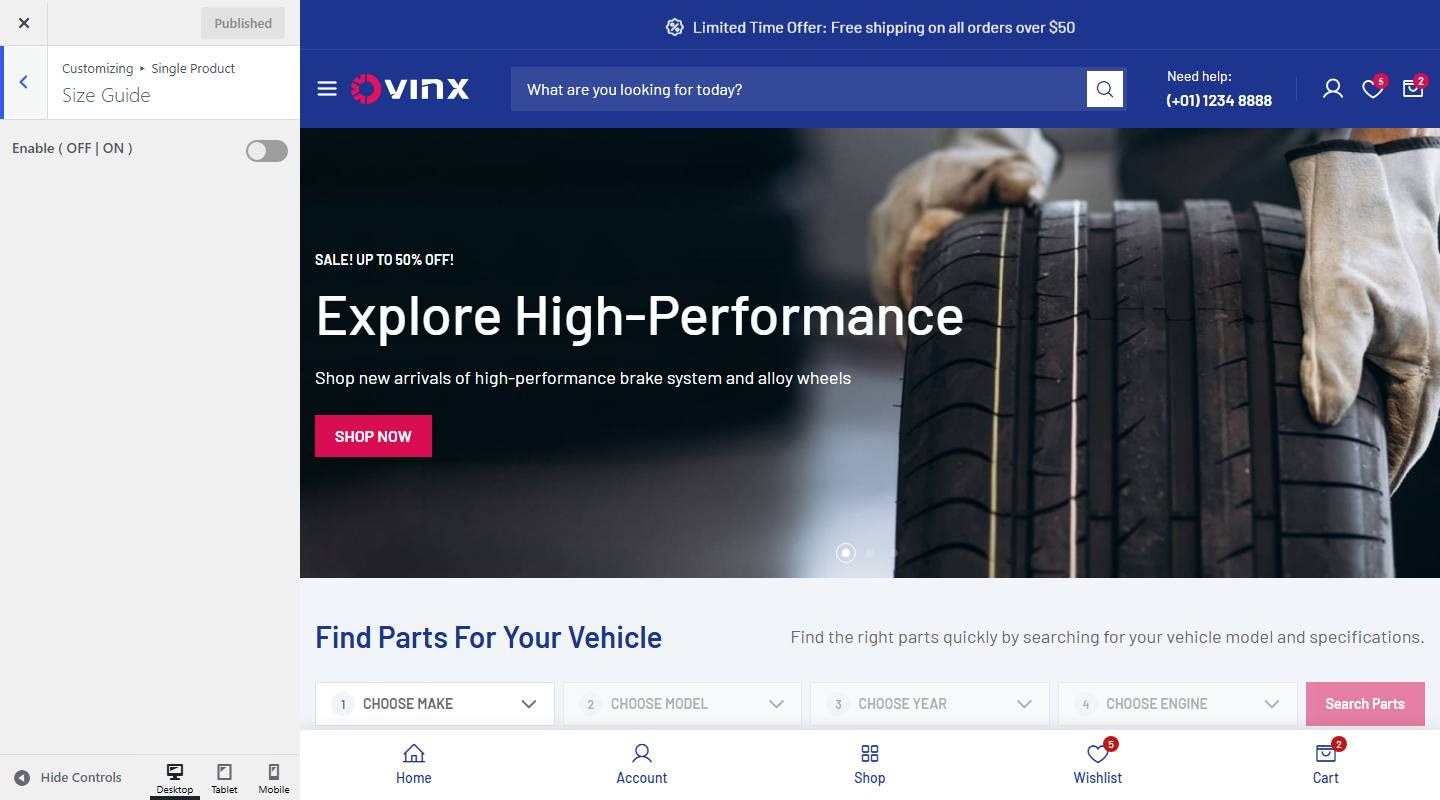

- Enable ( OFF | ON ): Turn on or off (demo: off).
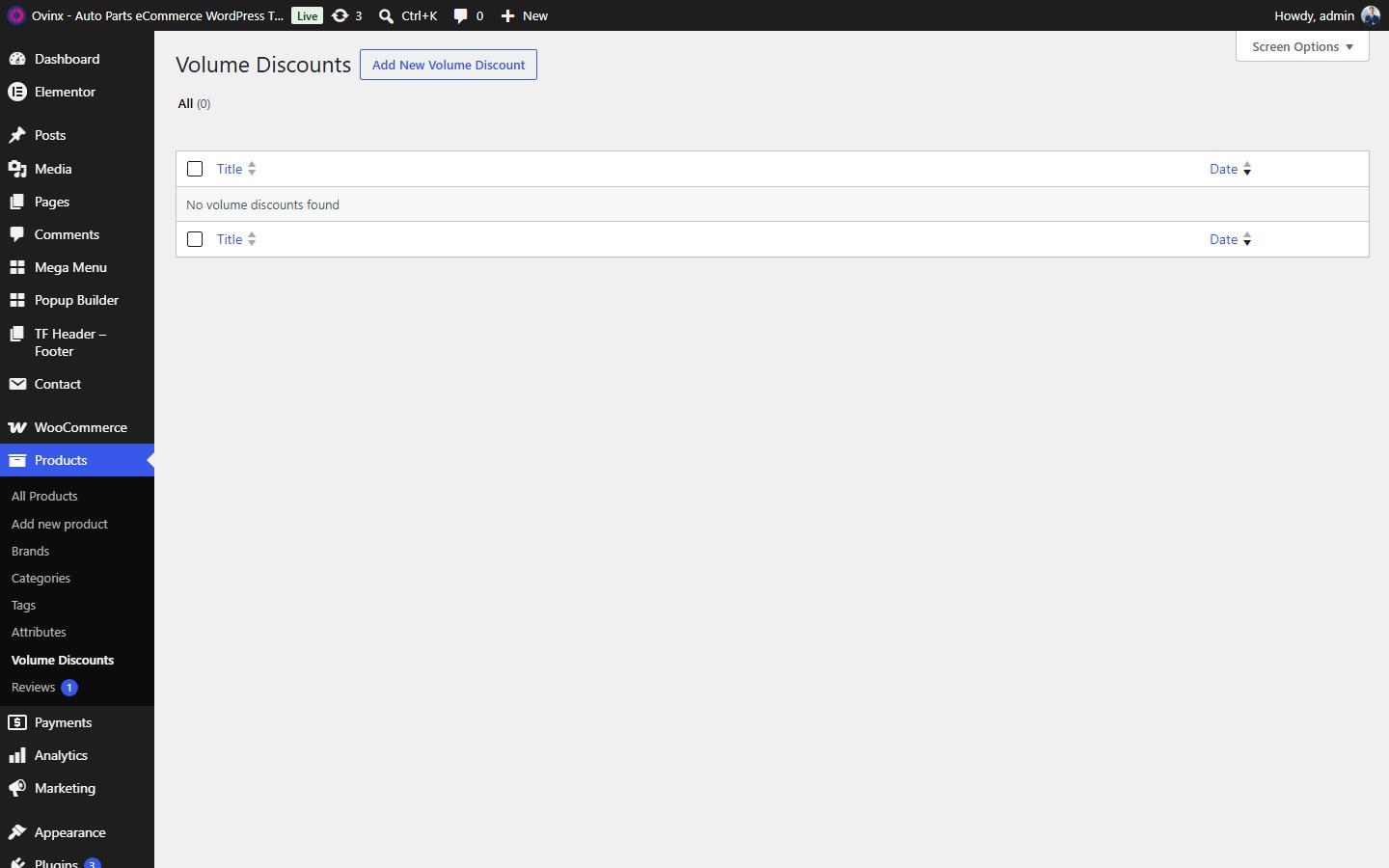
11. Volume Discount
Offer discounts on bulk purchases. Rules are managed in Products → Volume Discounts.
To enable this feature, go to Customize → Single Product → Volume Discount
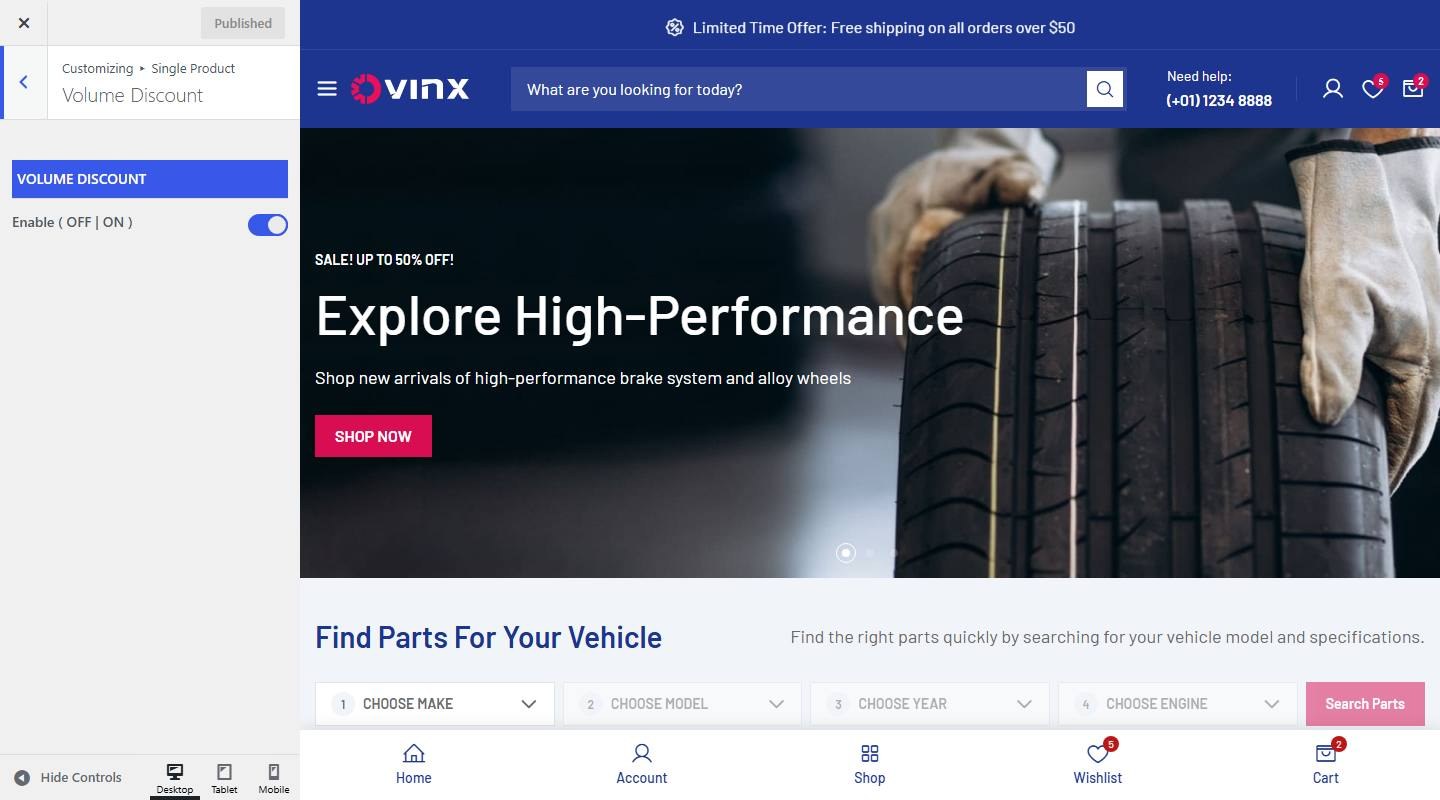

- Volume Discount
- Enable ( OFF | ON ): Turn on or off (demo: on).

12. Buy X Get Y
Run promotions that reward customers with free or discounted items.
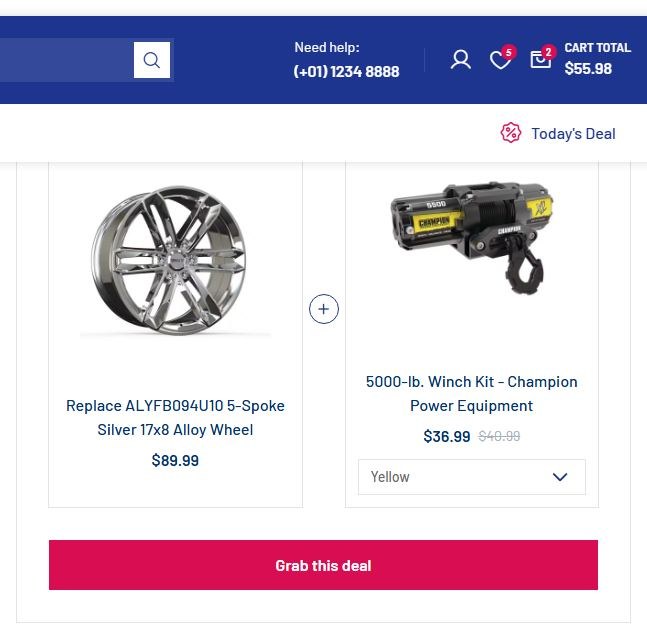

To enable this feature, go to Customize → Single Product → Buy X Get Y
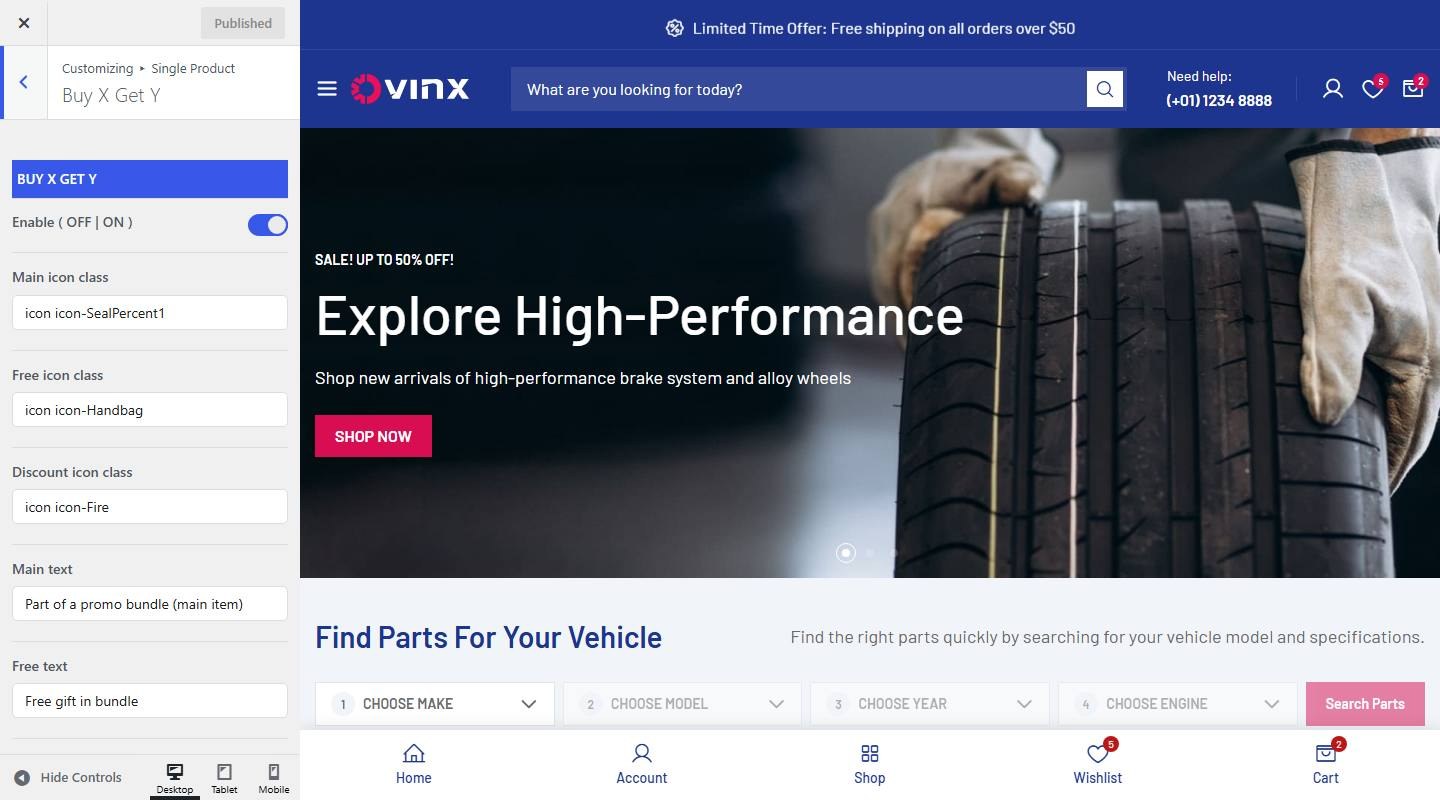

- Buy X Get Y
- Enable ( OFF | ON ): Turn on or off (demo: on).
- Main icon class: Enter the text (demo: “icon icon-SealPercent1”).
- Free icon class: Enter the text (demo: “icon icon-Handbag”).
- Discount icon class: Enter the text (demo: “icon icon-Fire”).
- Main text: Enter the text (demo: “Part of a promo bundle (main item)”).
- Free text: Enter the text (demo: “Free gift in bundle”).
- Discount text: Enter the text (demo: “Discounted item in bundle ({discount}% off)”).
13. Ask A Question
The Ask a question link appears under the add to cart area, next to Add to wishlist.


14. Extra Description
To enable this feature, go to Customize → Single Product → Extra Description
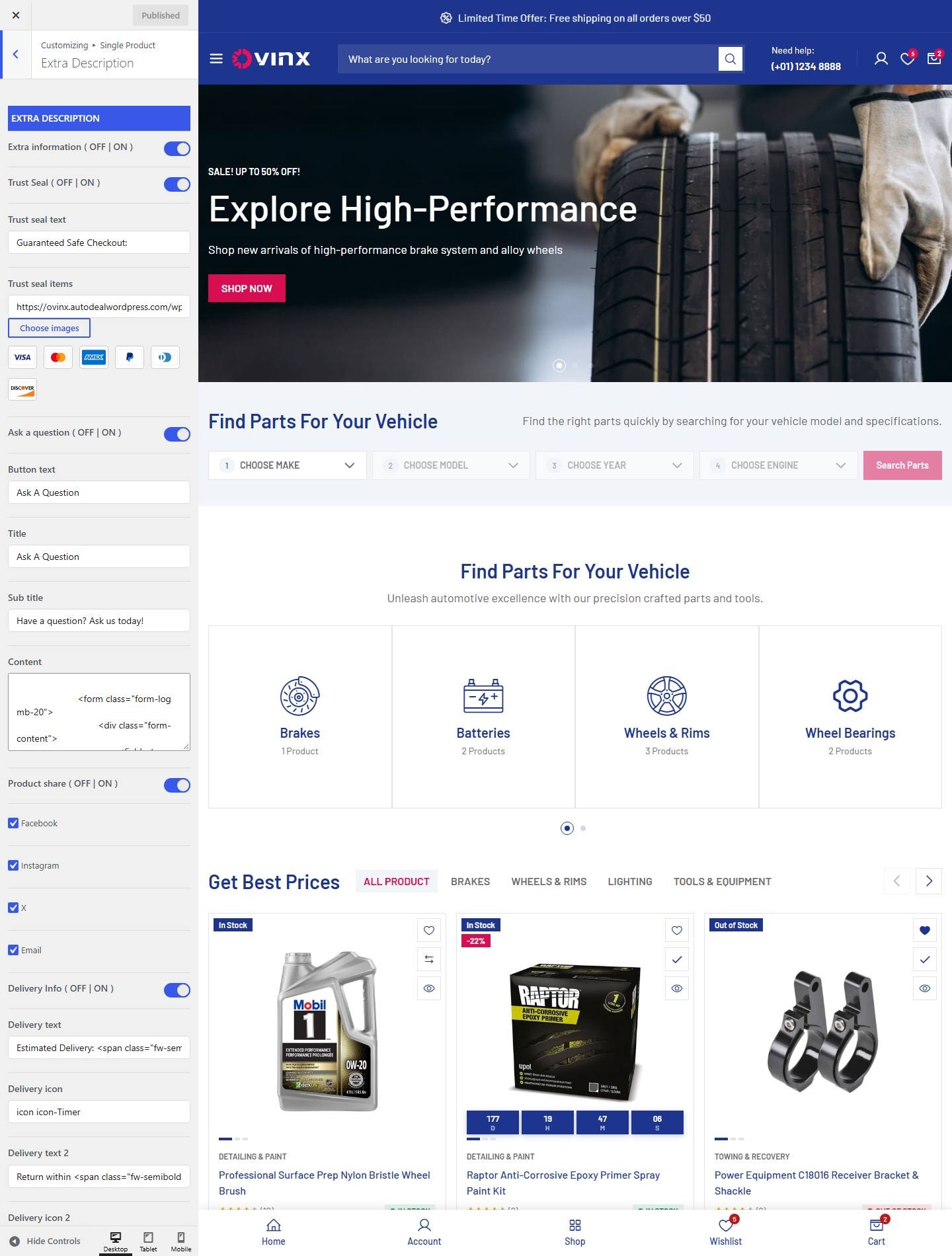

- Extra description
- Extra information ( OFF | ON ): Turn on or off (demo: on).
- Trust Seal ( OFF | ON ): Turn on or off (demo: on).
- Trust seal text: Enter the text (demo: “Guaranteed Safe Checkout:”).
- Trust seal items: Enter the text (demo: “https://ovinx.autodealwordpress.com/wp-content/themes/ovinx/images/pay”).
- Ask a question ( OFF | ON ): Turn on or off (demo: on).
- Button text: Enter the text (demo: “Ask A Question”).
- Title: Enter the text (demo: “Ask A Question”).
- Sub title: Enter the text (demo: “Have a question? Ask us today!”).
- Content: Enter the text (demo: “Your Name* Your Email* Your phone Your Message * Send Message”).
- Product share ( OFF | ON ): Turn on or off (demo: on).
- Facebook: Turn on or off (demo: on).
- Instagram: Turn on or off (demo: on).
- X: Turn on or off (demo: on).
- Email: Turn on or off (demo: on).
- Delivery Info ( OFF | ON ): Turn on or off (demo: on).
- Delivery text: Enter the text (demo: “Estimated Delivery: 12-26 Days (International), 3-6 Days (United State”).
- Delivery icon: Enter the text (demo: “icon icon-Timer”).
- Delivery text 2: Enter the text (demo: “Return within 45 Days of purchase. Duties & taxes are non-refundable.”).
- Delivery icon 2: Enter the text (demo: “icon icon-ArrowClockwise”).
- Delivery text 3: Enter the text.
- Delivery icon 3: Enter the text.
- Delivery text 4: Enter the text.
- Delivery icon 4: Enter the text.
15. Product Options
To enable this feature, go to Customize → Single Product → Single Product Options
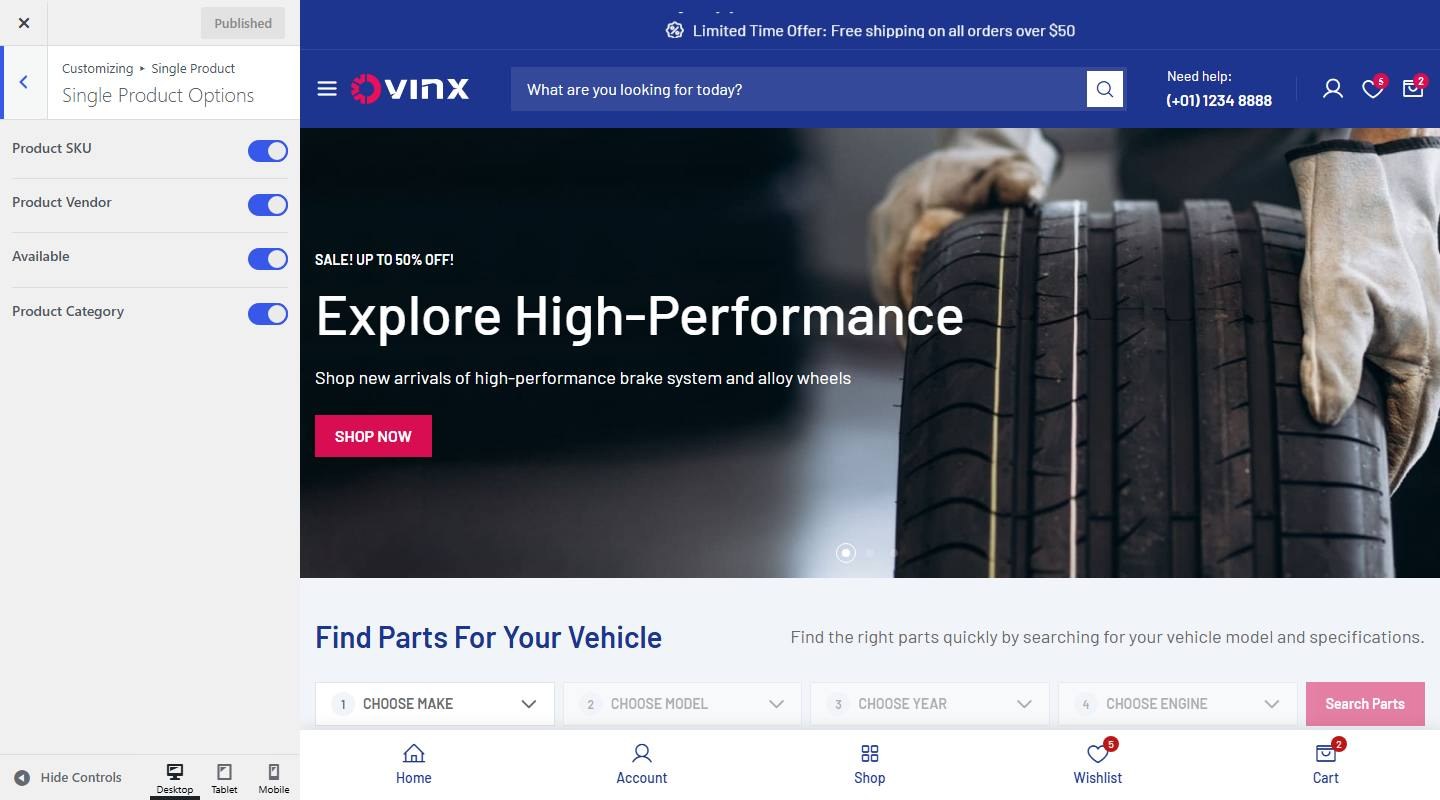

- Product SKU: Turn on or off (demo: on).
- Product Vendor: Turn on or off (demo: on).
- Available: Turn on or off (demo: on).
- Product Category: Turn on or off (demo: on).

16. Product Tab


To enable this feature, go to Customize → Single Product → Product Tabs
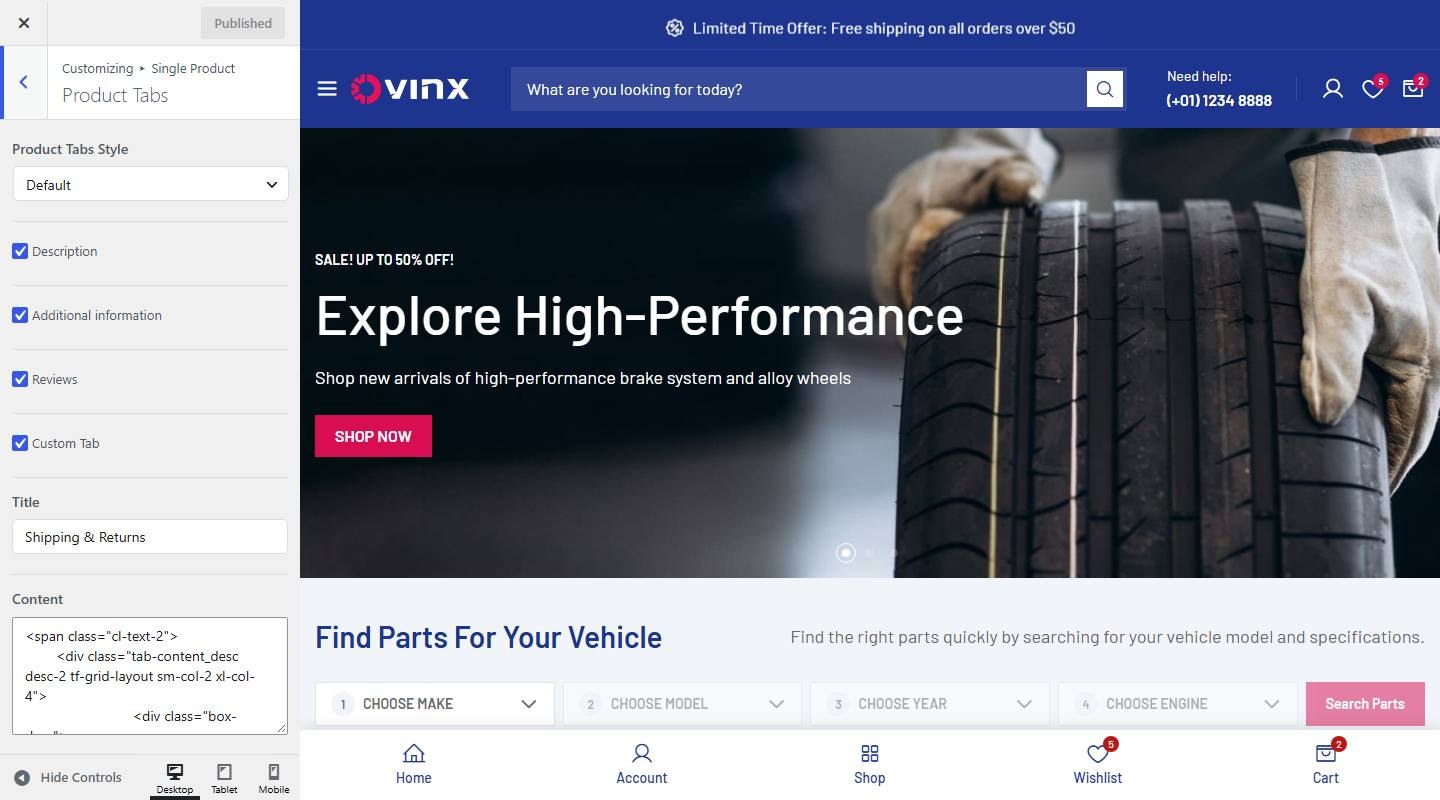

- Product Tabs Style: Choose one: Default, Accordion.
- Description: Turn on or off (demo: on).
- Additional information: Turn on or off (demo: on).
- Reviews: Turn on or off (demo: on).
- Custom Tab: Turn on or off (demo: on).
- Title: Enter the text (demo: “Shipping & Returns”).
- Content: Enter the text (demo: “We’ve got your back Free returns within 14 days (excludes final sale a”).
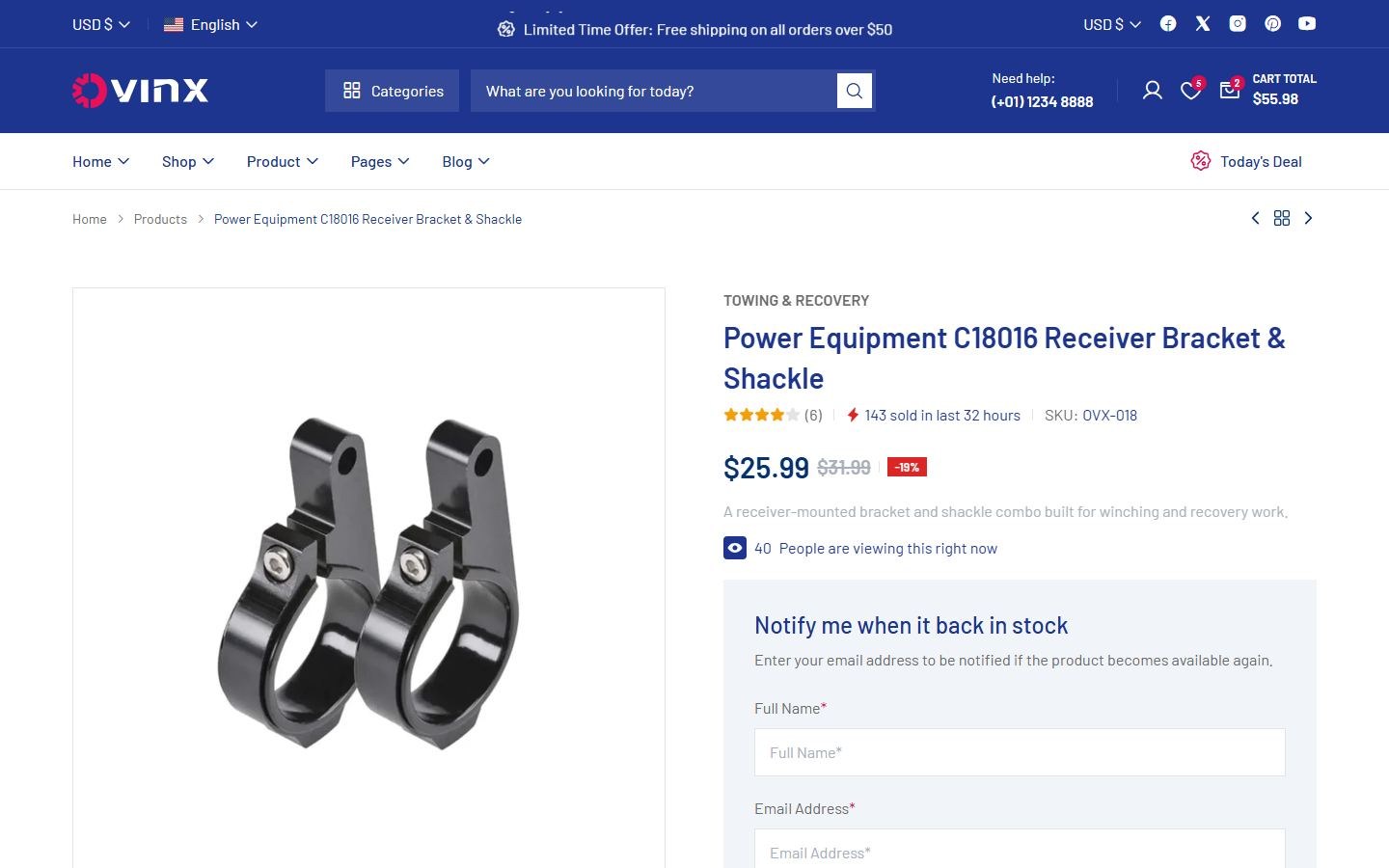
17. Out of Stock Notification


To enable this feature, go to Customize → Single Product → Out Of Stock Notification
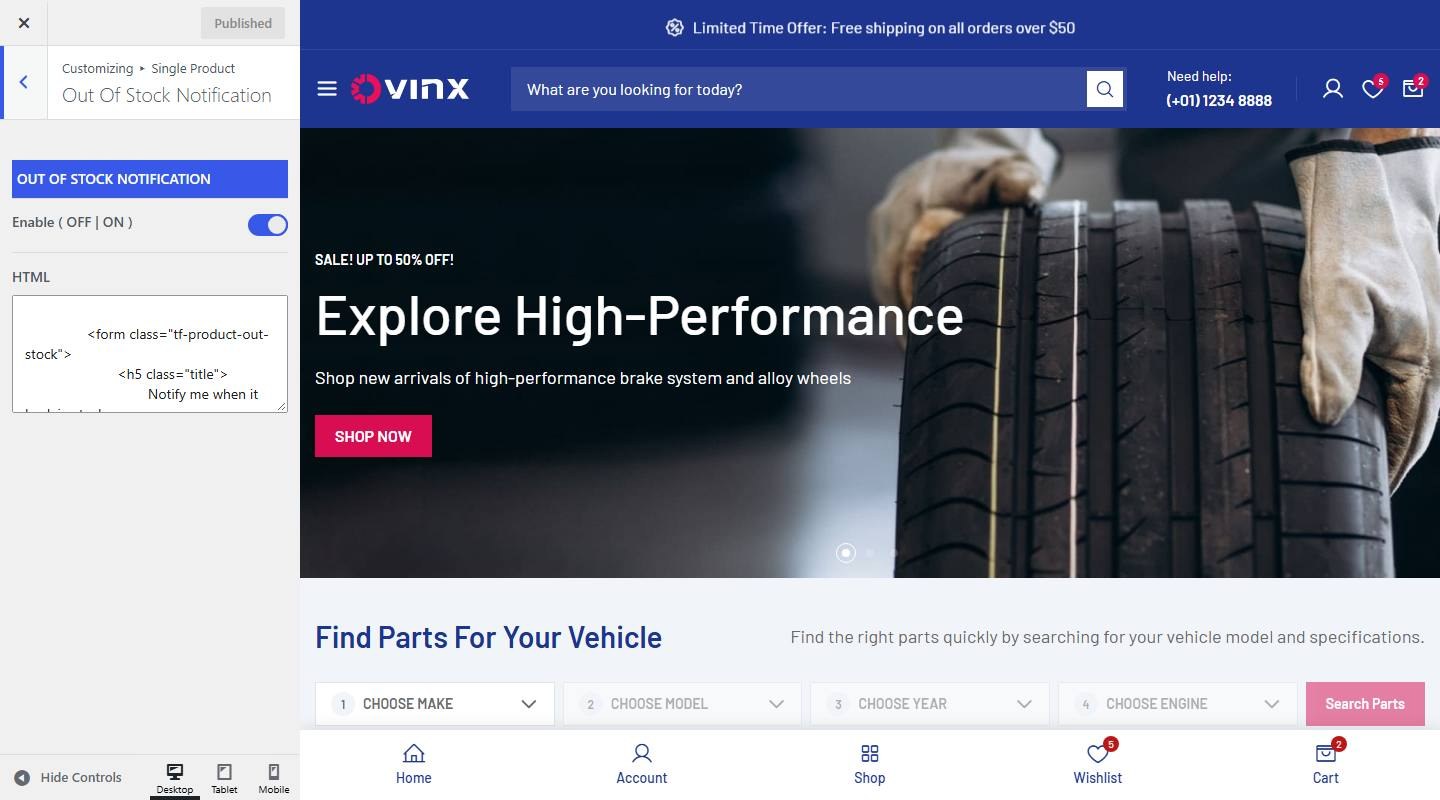

- Out Of Stock Notification
- Enable ( OFF | ON ): Turn on or off (demo: on).
- HTML: Enter the text (demo: “Notify me when it back in stock Enter your email address to be notifie”).
18. Related Products
To enable this feature, go to Customize → Single Product → Related Product
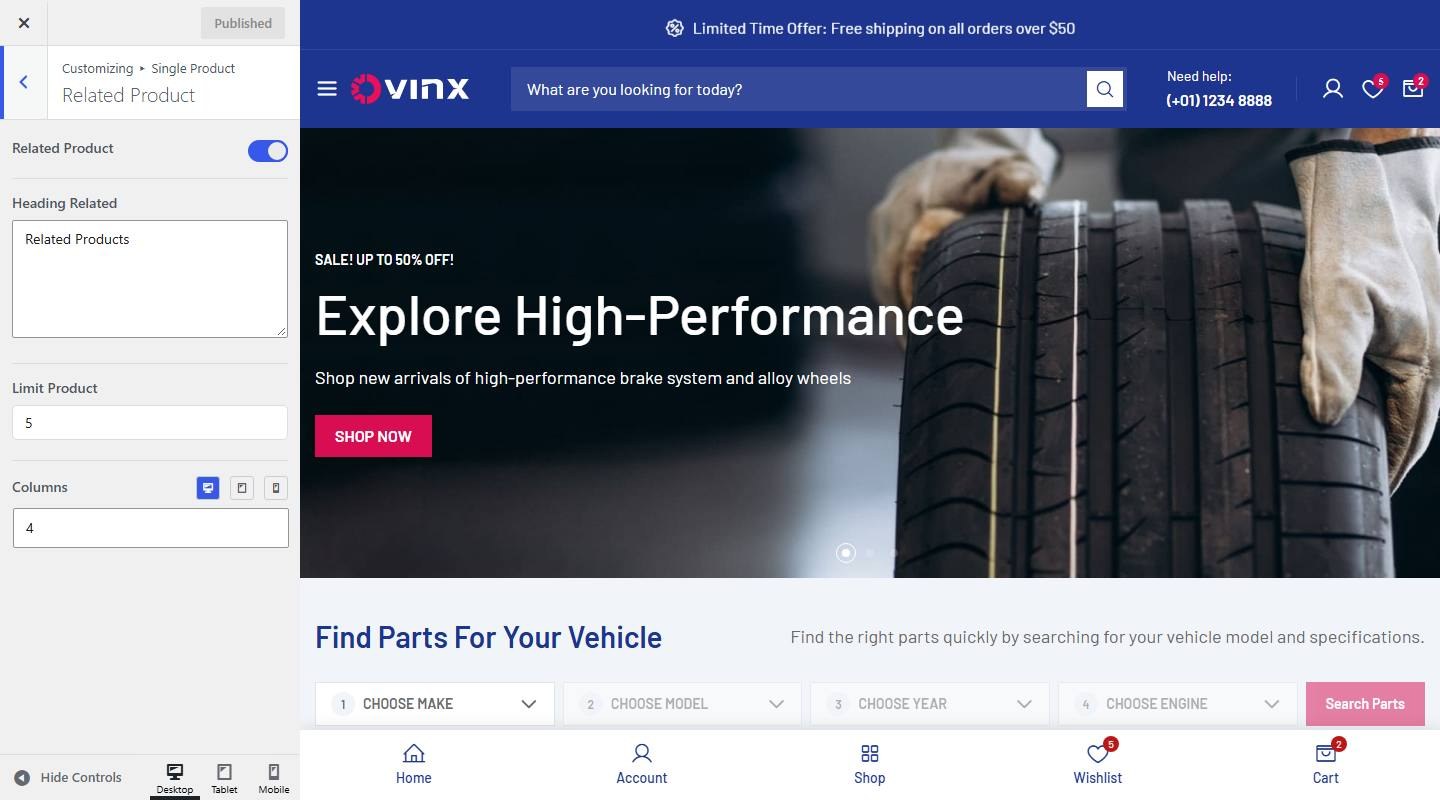

- Related Product: Turn on or off (demo: on).
- Heading Related: Enter the text (demo: “Related Products”).
- Limit Product: Enter the text (demo: “5”).
- Columns: Set the number of columns for desktop, tablet and mobile.
19. Recently Products
To enable this feature, go to Customize → Single Product → Recently Product
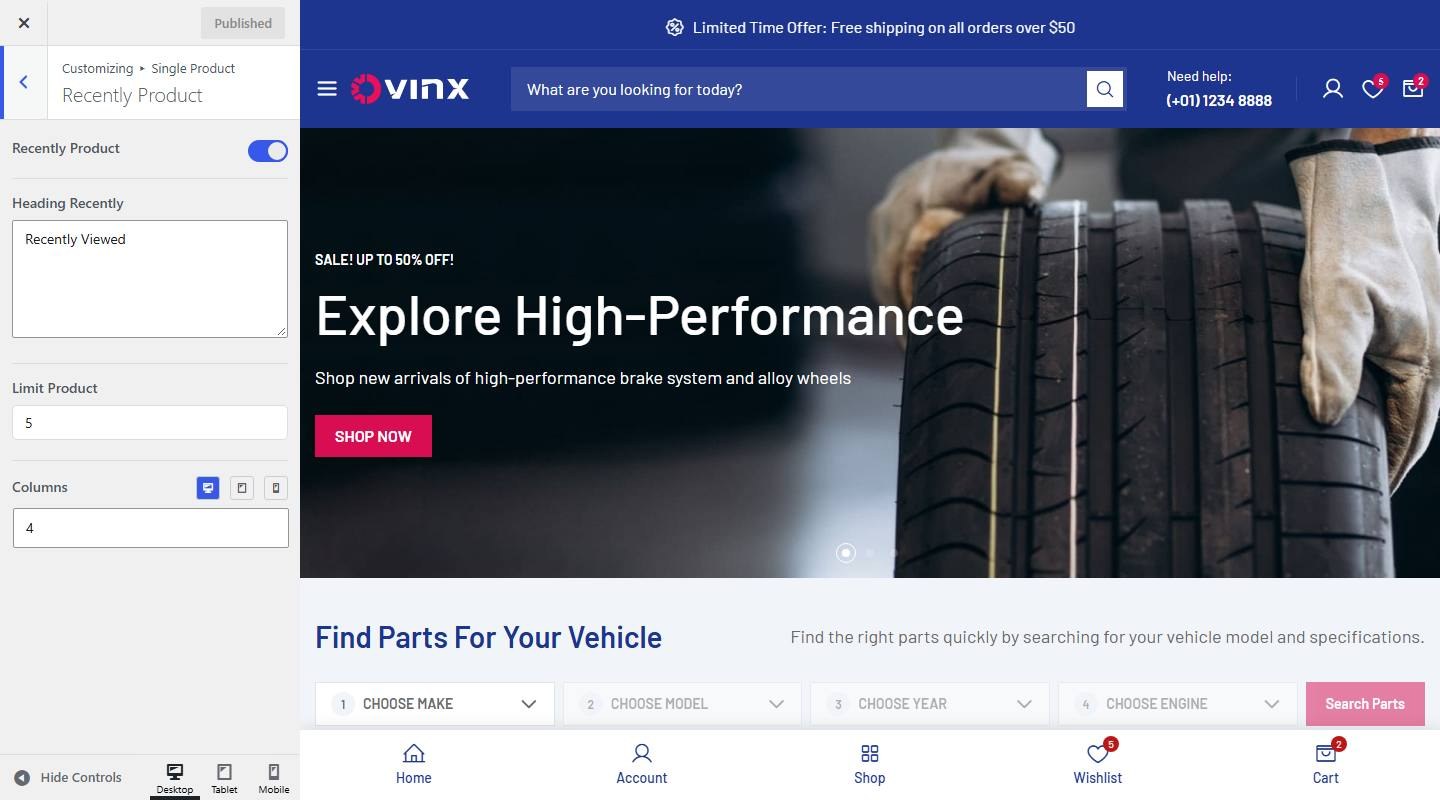

- Recently Product: Turn on or off (demo: on).
- Heading Recently: Enter the text (demo: “Recently Viewed”).
- Limit Product: Enter the text (demo: “5”).
- Columns: Set the number of columns for desktop, tablet and mobile.
20. Up Sell Products
To enable this feature, go to Customize → Single Product → Upsell Product
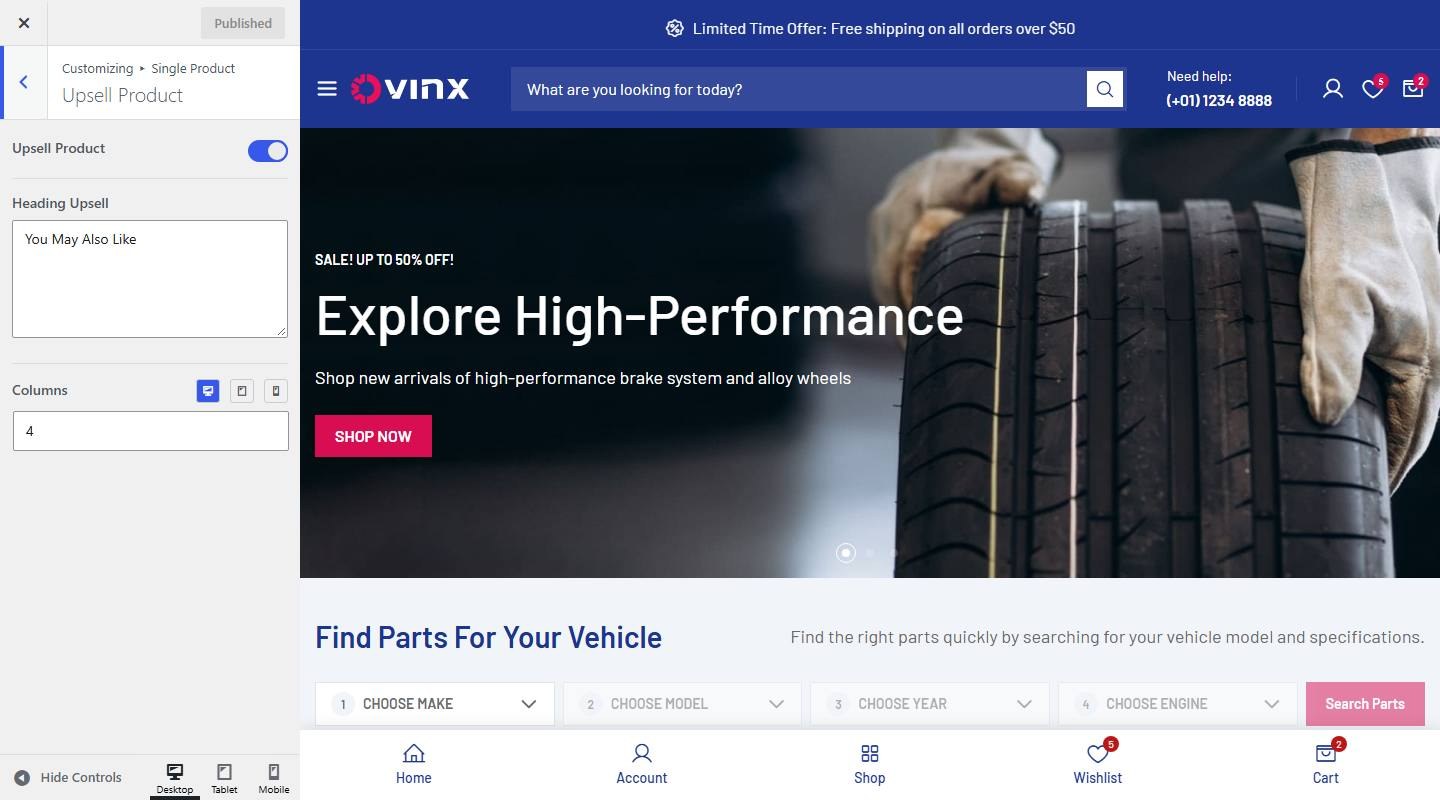

- Upsell Product: Turn on or off (demo: on).
- Heading Upsell: Enter the text (demo: “You May Also Like”).
- Columns: Set the number of columns for desktop, tablet and mobile.
21. Cross-sell Products
To enable this feature, go to Customize → Single Product → Cross Sell Product
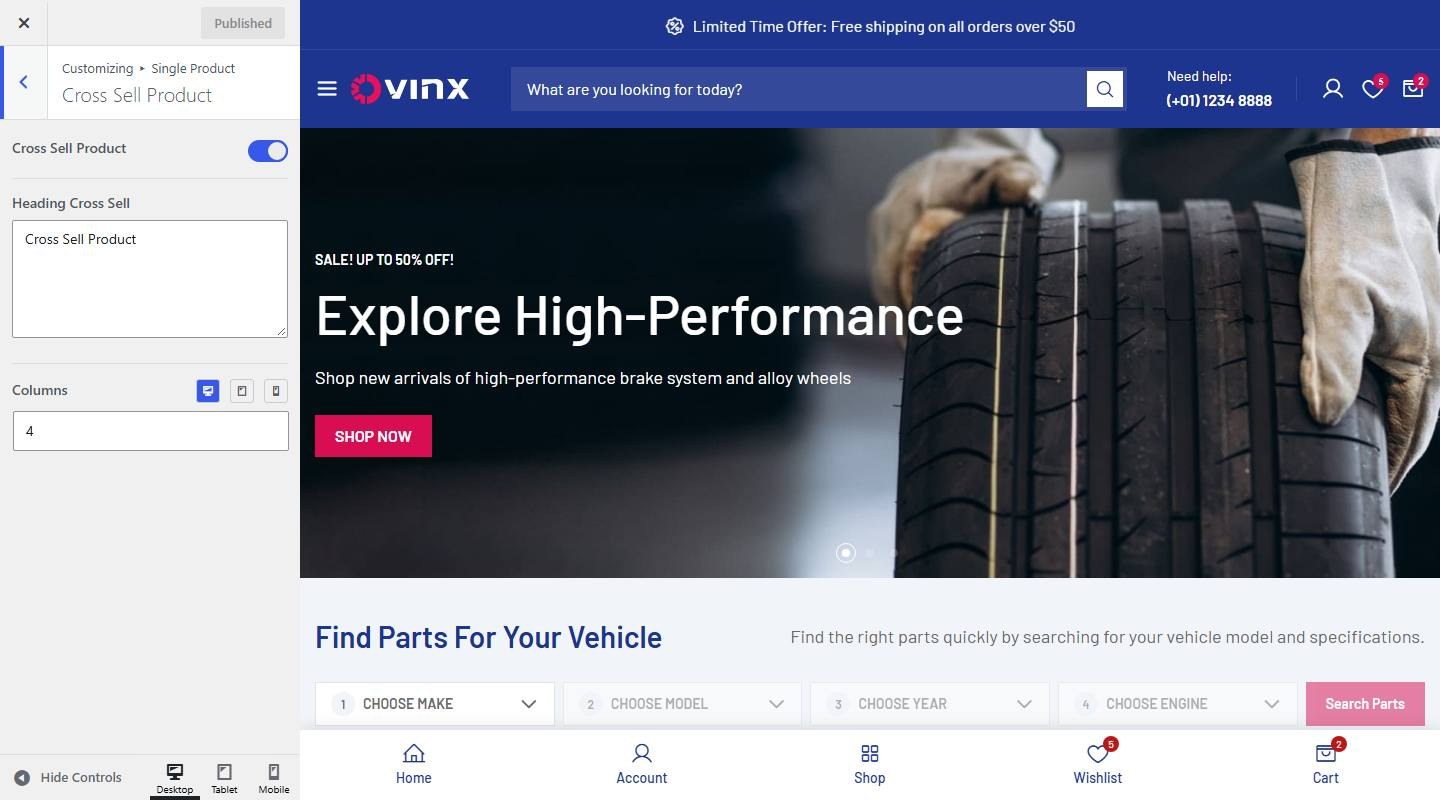

- Cross Sell Product: Turn on or off (demo: on).
- Heading Cross Sell: Enter the text (demo: “Cross Sell Product”).
- Columns: Set the number of columns for desktop, tablet and mobile.
22. Single Product Page Title
To enable this feature, go to Customize → Single Product → Page Title
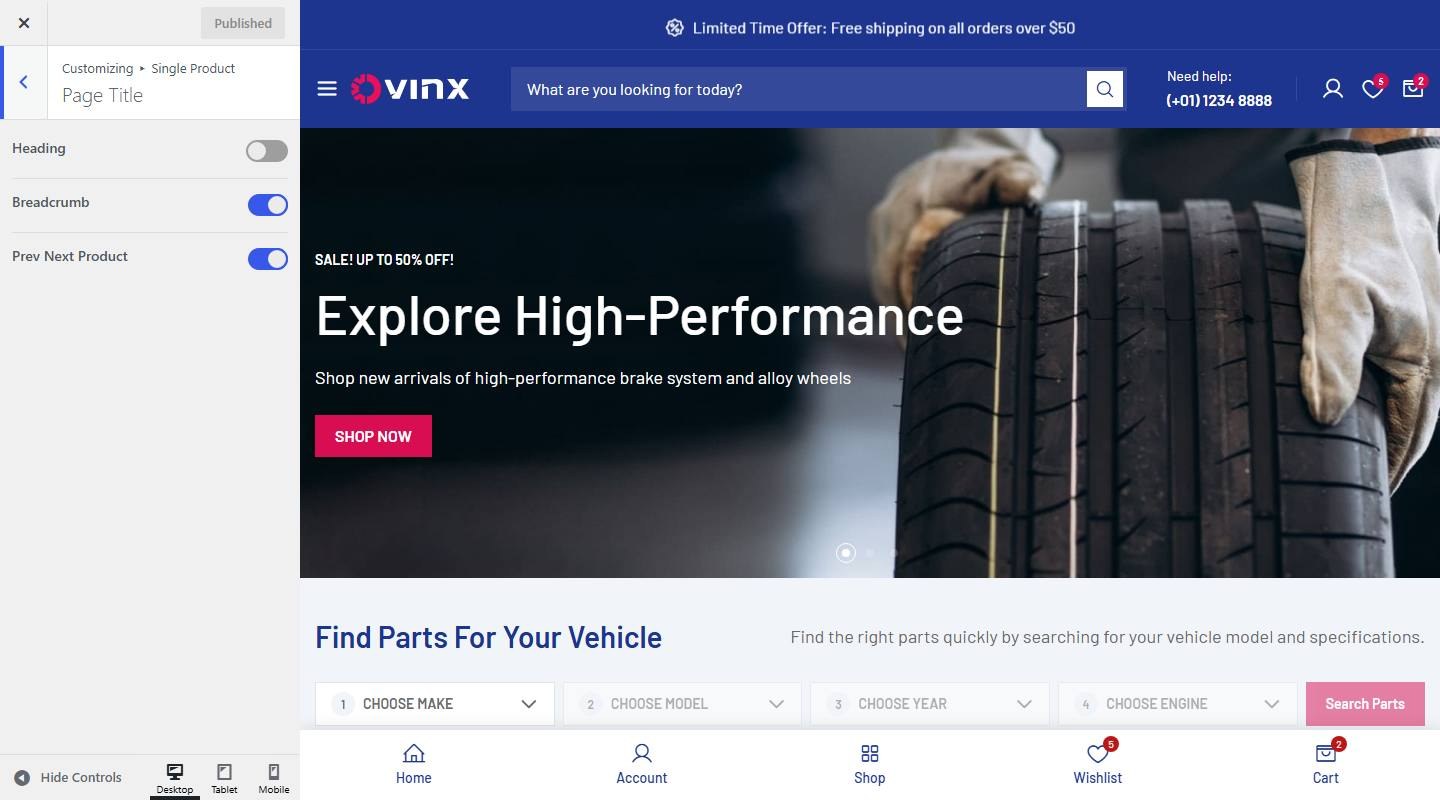

- Heading: Turn on or off (demo: off).
- Breadcrumb: Turn on or off (demo: on).
- Prev Next Product: Turn on or off (demo: on).
23. Sale Marquee
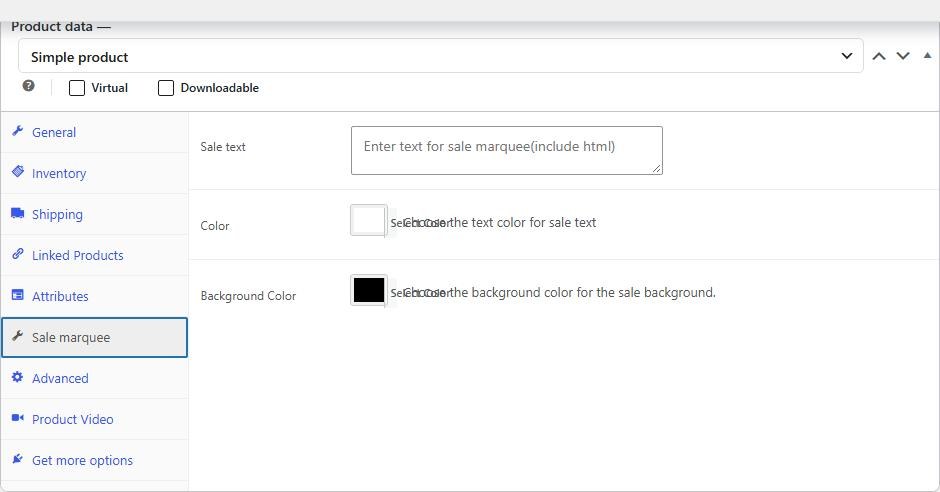
Each product has a Sale marquee tab in the Product data section with three fields: Sale text (HTML allowed), Color (text color) and Background Color.

Mobile
1. Announcement Bar
To enable this feature, go to Customize → Mobile → Announcement Bar
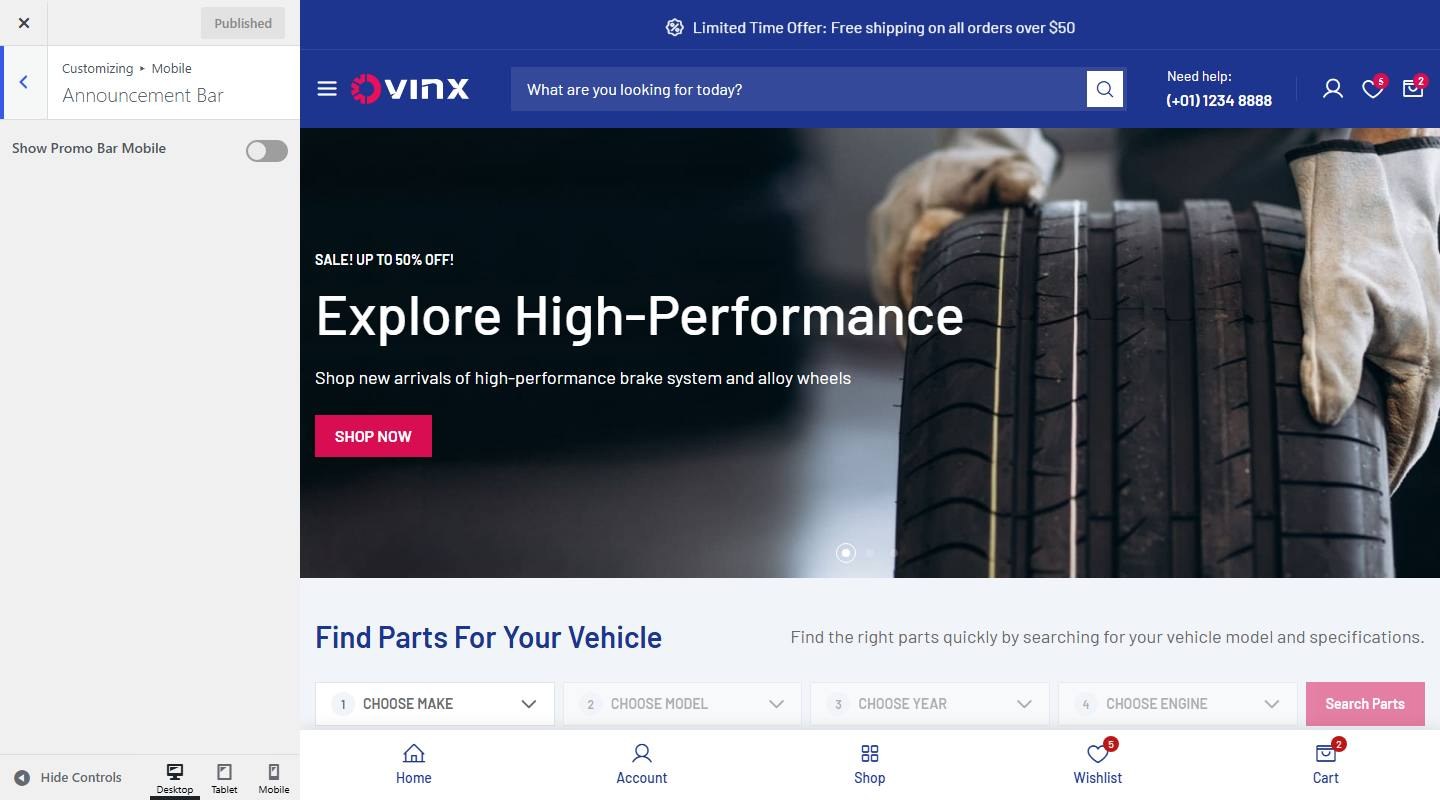

- Show Promo Bar Mobile: Turn on or off (demo: off).
2. Topbar
To enable this feature, go to Customize → Mobile → Topbar Bar
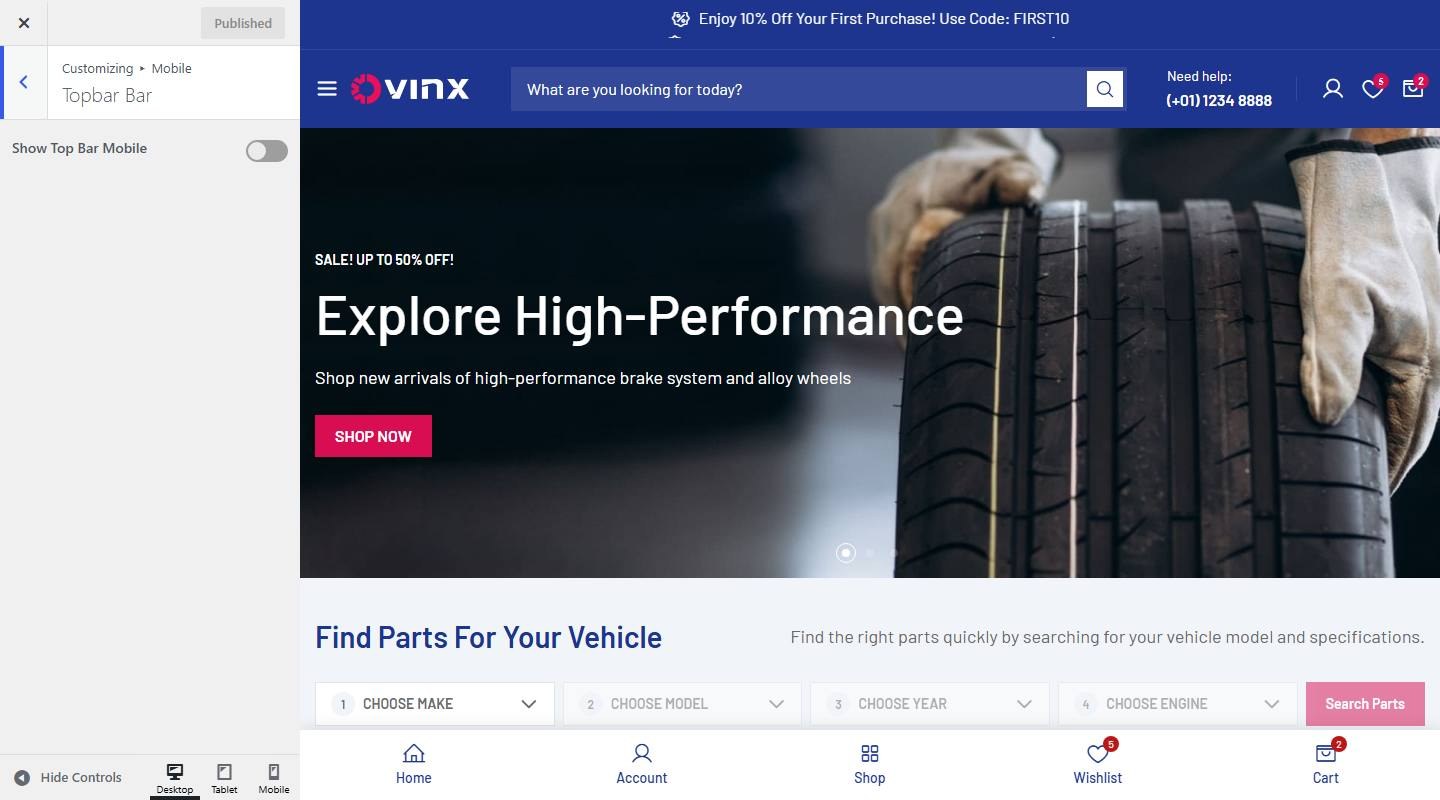

- Show Top Bar Mobile: Turn on or off (demo: off).
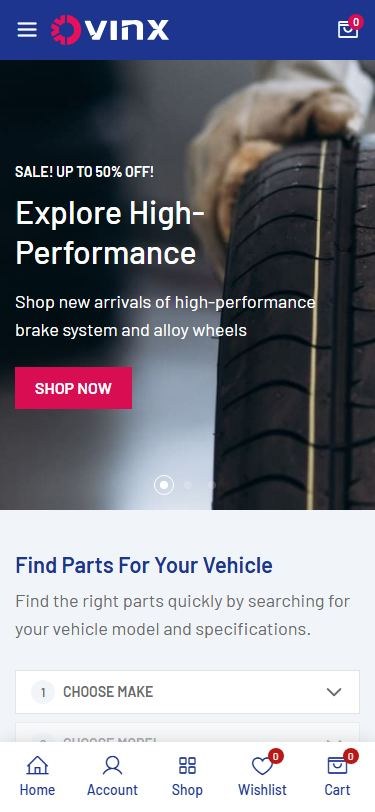
3. Header


To enable this feature, go to Customize → Mobile → Header
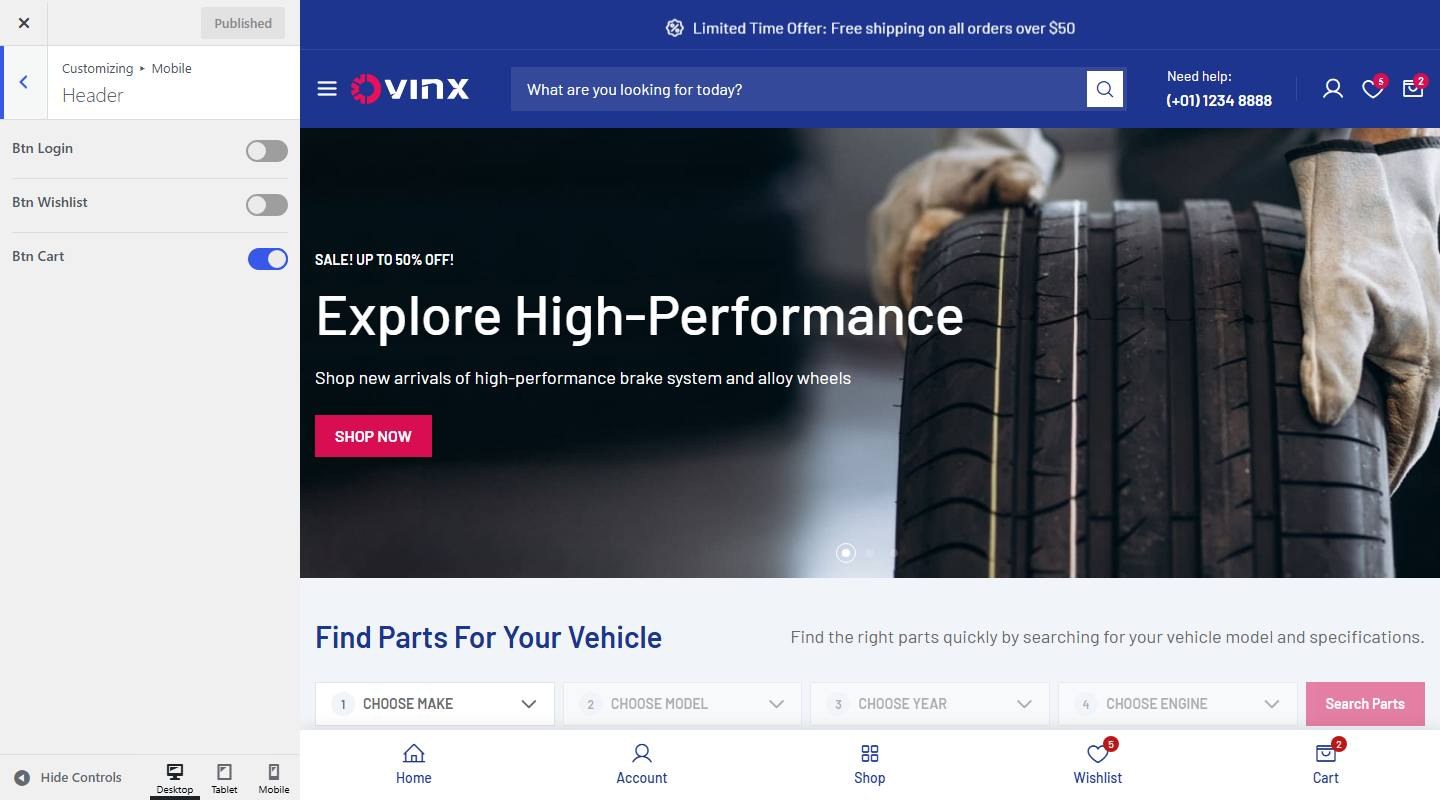

- Btn Login: Turn on or off (demo: off).
- Btn Wishlist: Turn on or off (demo: off).
- Btn Cart: Turn on or off (demo: on).
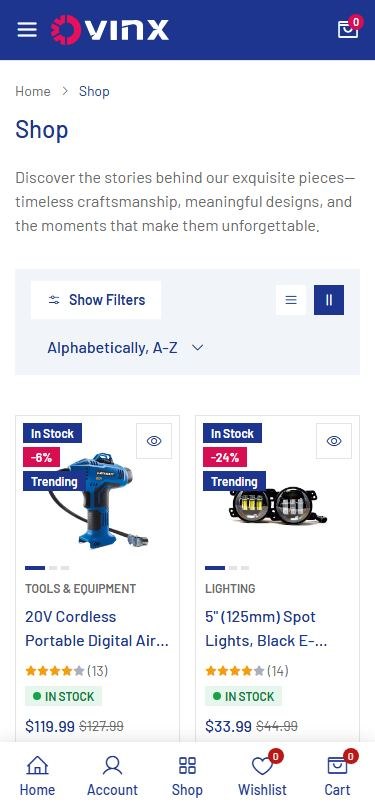
4. Product Card


To enable this feature, go to Customize → Mobile → Product Card
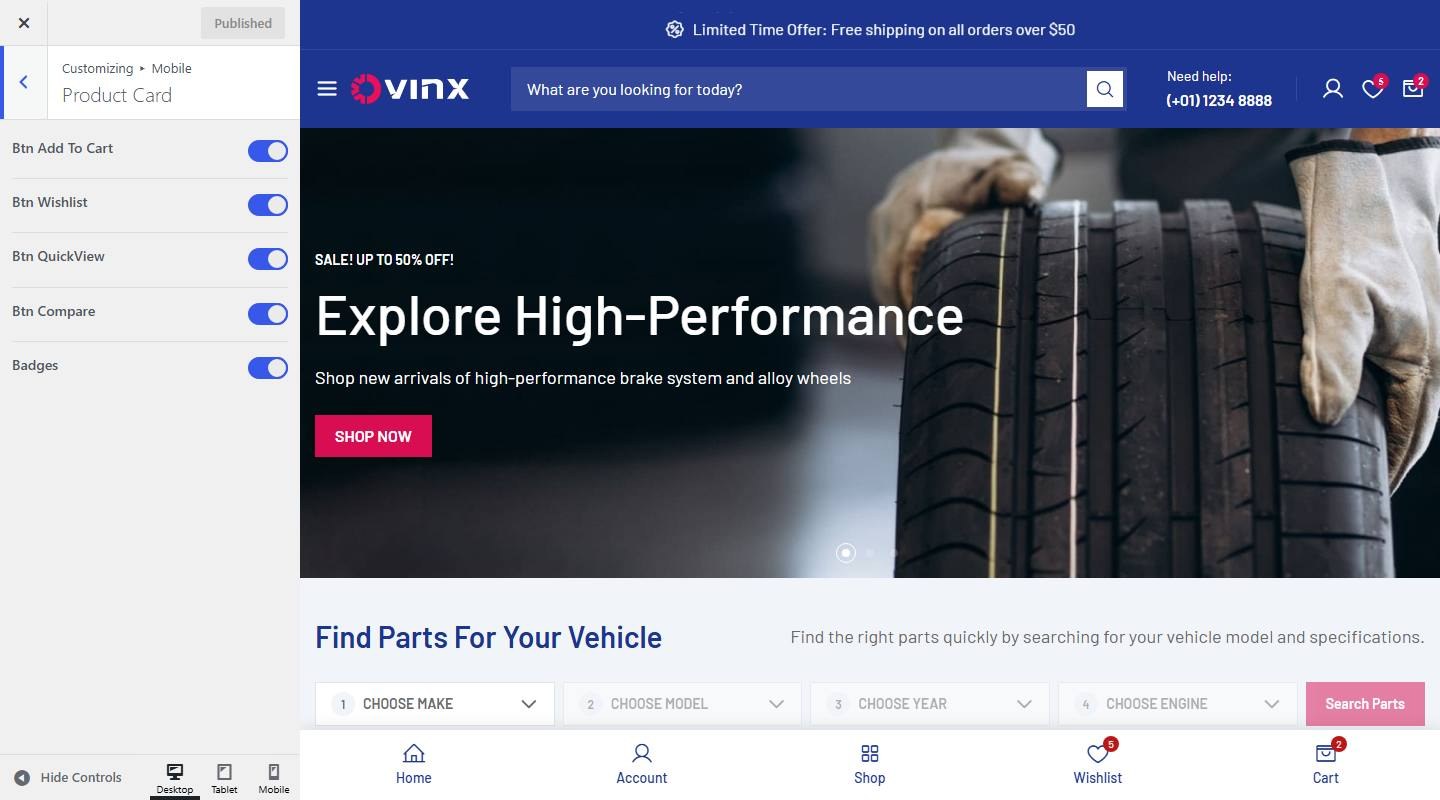

- Btn Add To Cart: Turn on or off (demo: on).
- Btn Wishlist: Turn on or off (demo: on).
- Btn QuickView: Turn on or off (demo: on).
- Btn Compare: Turn on or off (demo: on).
- Badges: Turn on or off (demo: on).
5. Mobile Info
To enable this feature, go to Customize → Mobile → Mobile Infor
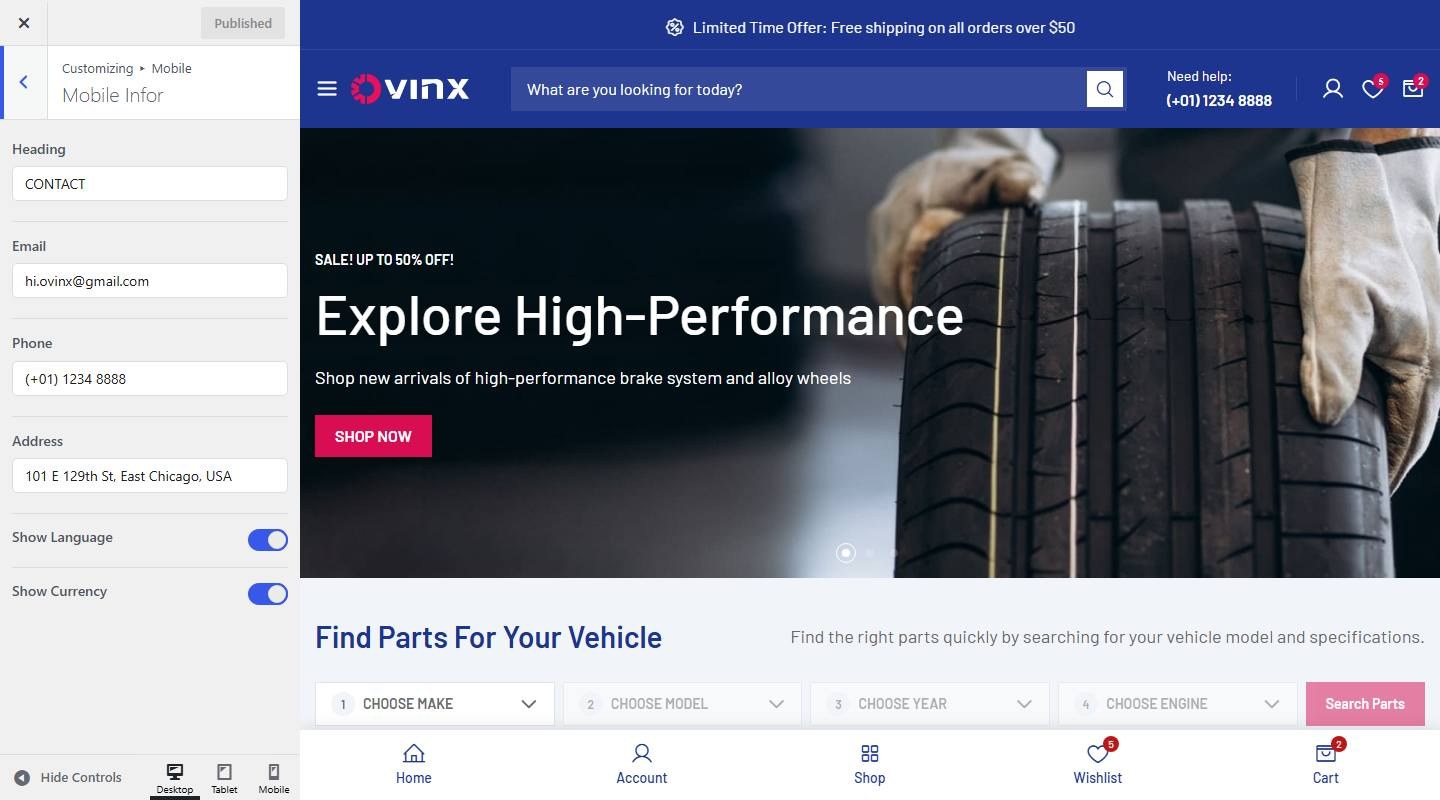

- Heading: Enter the text (demo: “CONTACT”).
- Email: Enter the text (demo: “[email protected]”).
- Phone: Enter the text (demo: “(+01) 1234 8888”).
- Address: Enter the text (demo: “101 E 129th St, East Chicago, USA”).
- Show Language: Turn on or off (demo: on).
- Show Currency: Turn on or off (demo: on).
6. Navbar Mobile
The bottom navigation bar with Home, Account, Shop, Wishlist and Cart.
To enable this feature, go to Customize → Mobile → Navbar Mobile
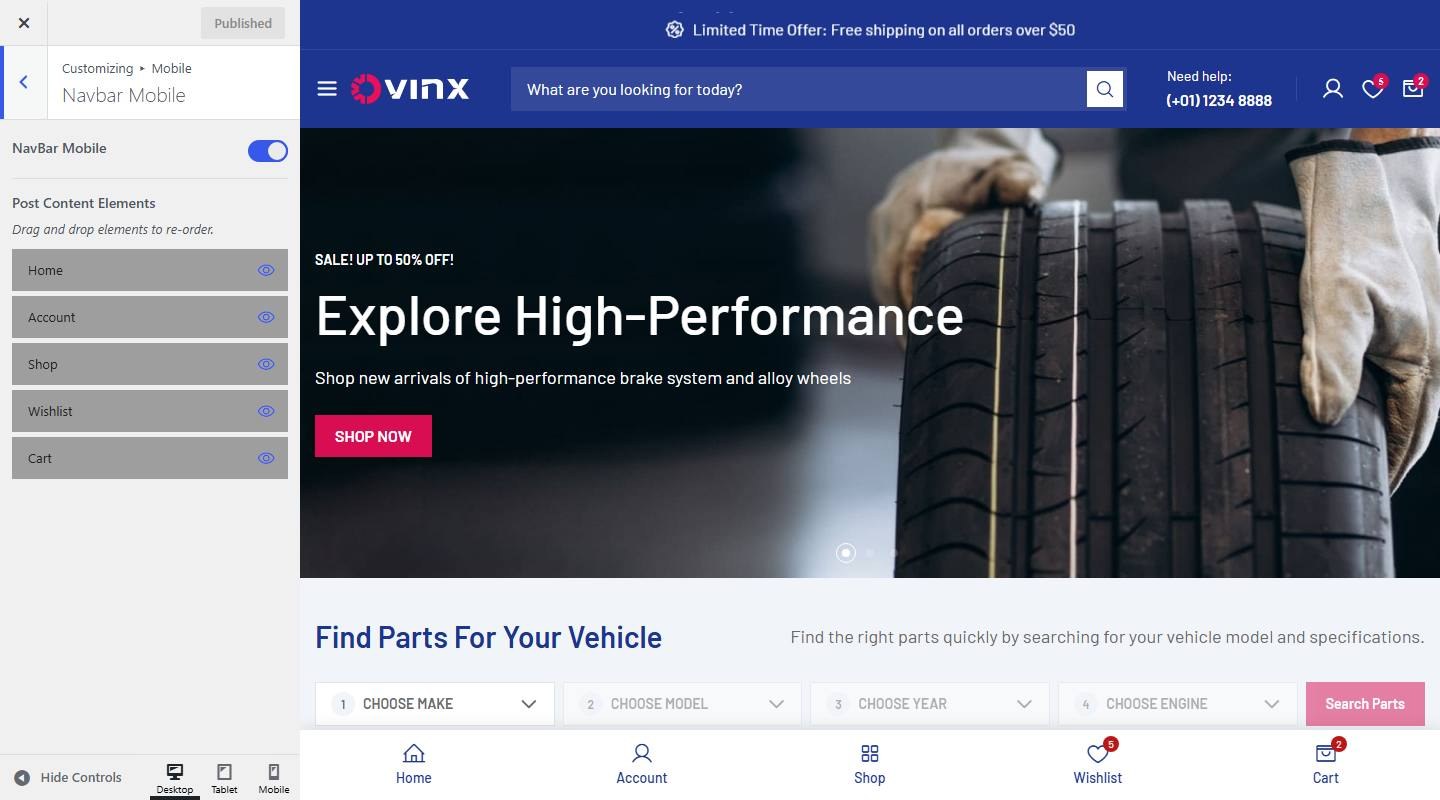

- NavBar Mobile: Turn on or off (demo: on).
- Post Content Elements: Drag and drop to re-order (demo: home,account,shop,wishlist,cart).
Pages & Menus
1. Create a Page
Step 1: Go to Pages in your admin sidebar and click Add New.
Step 2: Enter a page title, then in the Page Attributes box on the right, choose a Template if needed.
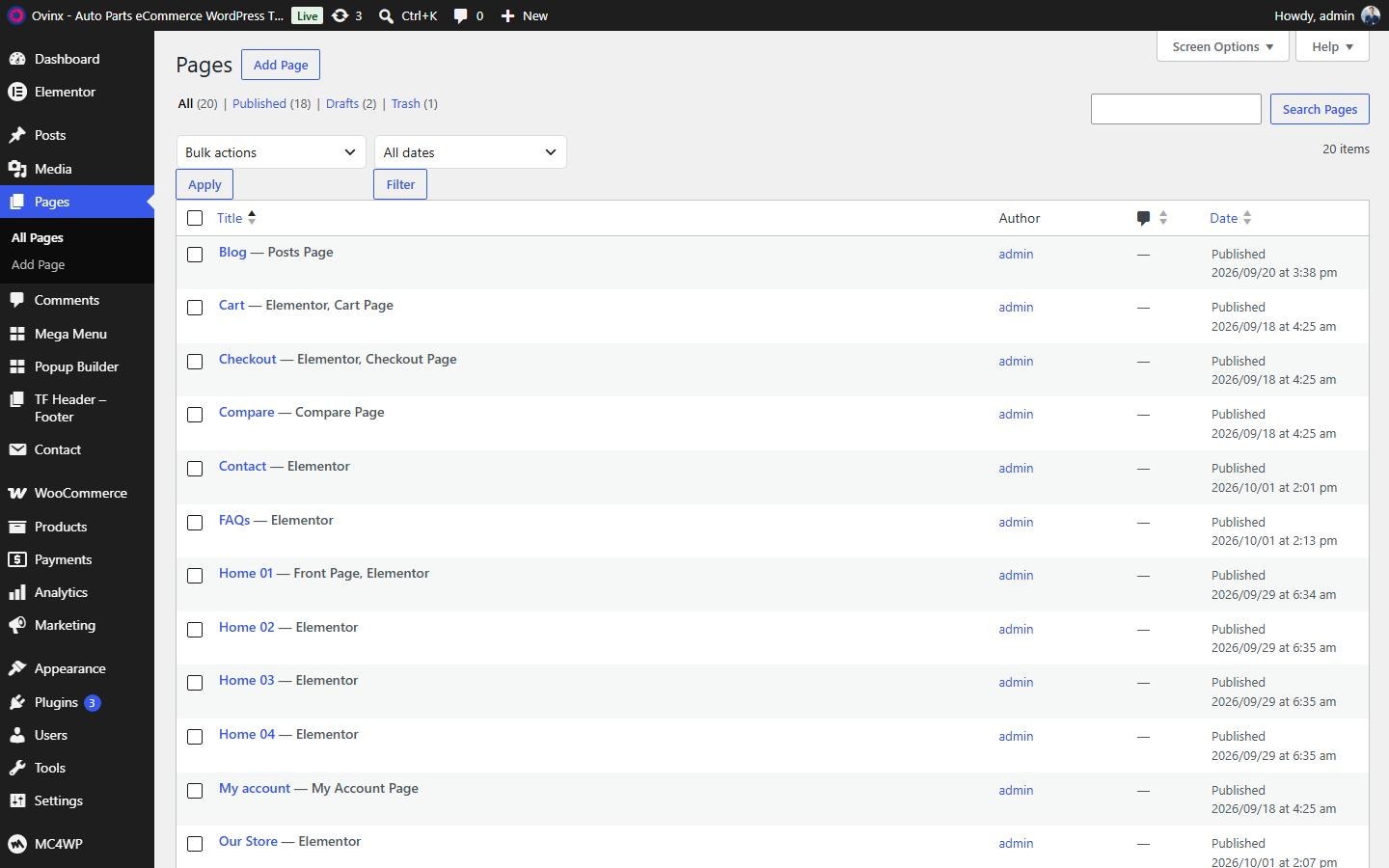

2. Change Page Title
Step 1: Go to Pages → All Pages, hover over the page you want to update, and click Quick Edit.
Step 2: Update the page title and clear the current slug. Click Update to auto-generate a new slug.
You can also modify parent, template, status, etc. For more options, click Edit instead of Quick Edit.
3. Page Options
After creating a page, you can configure display options for it on the front end. Page options override the global Customizer settings for that page. Example: if the default header layout is header-default but you choose another Header Layout in the page options, the page uses the one you chose.
Step 1: Open the page in the editor and click Edit with Elementor.
Step 2: In the top bar of the editor, click the Settings icon (Page Settings).
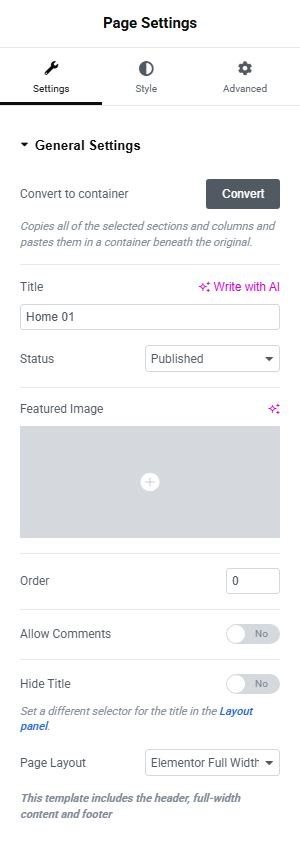
Step 3: The Page Settings panel has the groups General Settings, TF Header, TF Footer, TF Page and TF Page Title. Open the group you want and select your options. Most options are set to Theme Setting, which follows the Customizer.
Step 4: Click Update when finished.
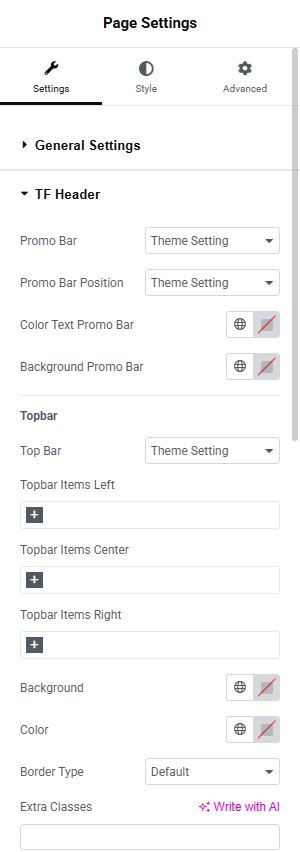
TF Header


- Promo Bar
- Promo Bar Position
- Color Text Promo Bar
- Background Promo Bar
- Topbar
- Top Bar
- Topbar Items Left
- Topbar Items Center
- Topbar Items Right
- Background
- Color
- Extra Classes
- Header
- Header Layout
- Custom Logo
- Header Sticky
- Search Box Input
- Category Menu
- Header Cart
- Header Wishlist
- Header Compare
- Header Login
- Extra Classes
TF Footer
- Footer
- Hide Footer
- Color
- Color Hover Link
- Bottom
- Hide?
- Color
- Extra Classes
TF Page
- Backround Body
- Sidebar Position
- Main Content
TF Page Title
- Hide Page Title
- Page Title Alignment
- Enable Page Title Description
- Page Title Description Content
- Extra Classes
Menus
How to Create a Menu
Step 1: Go to Appearance → Menus in the admin sidebar, then click create a new menu.
Step 2: Enter a name for your menu and click Create Menu.
Step 3: Select the desired items from the left panel, click Add to Menu, then click Save Menu.
Step 4: Under Menu Settings → Display location tick where the menu is used.
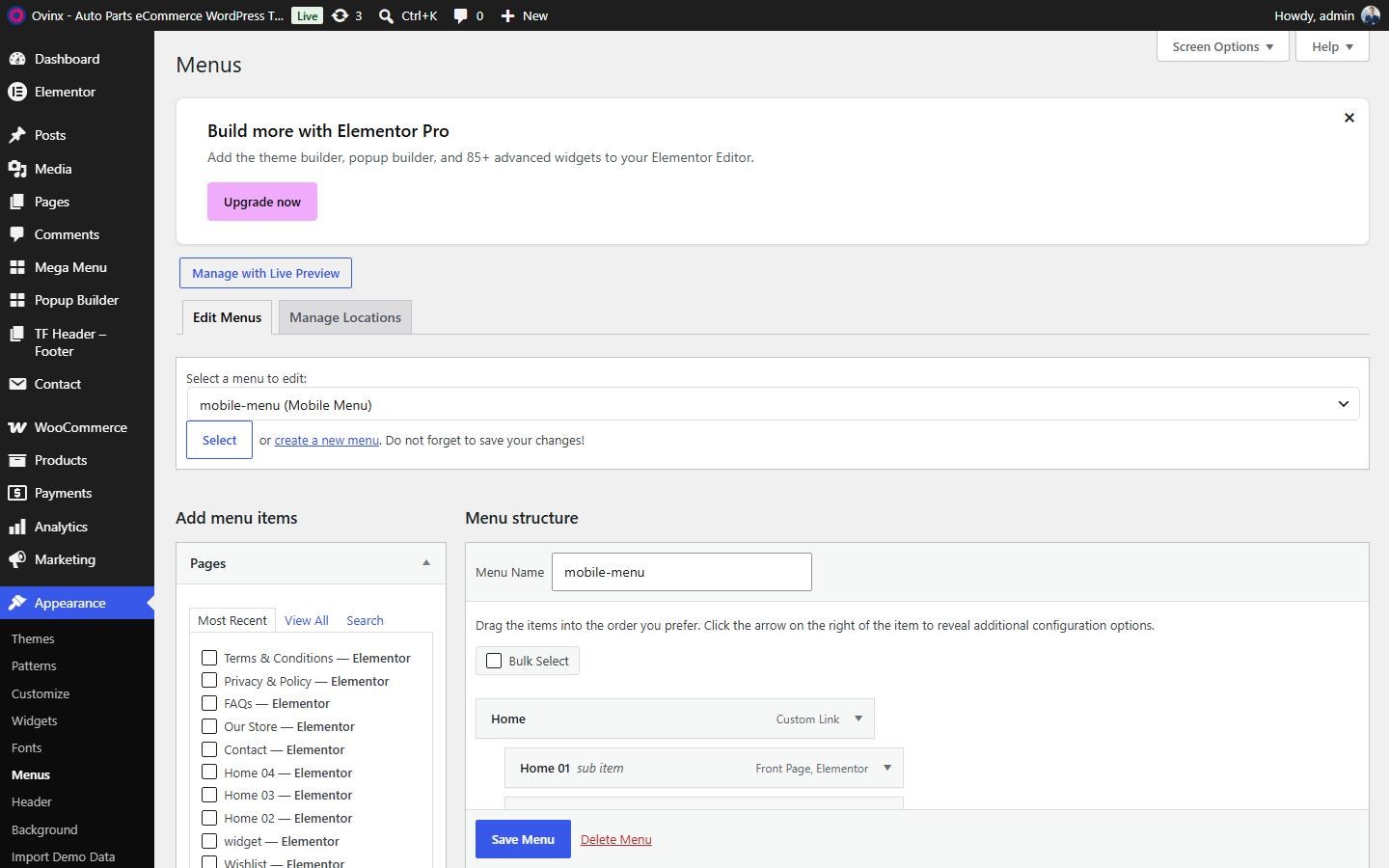

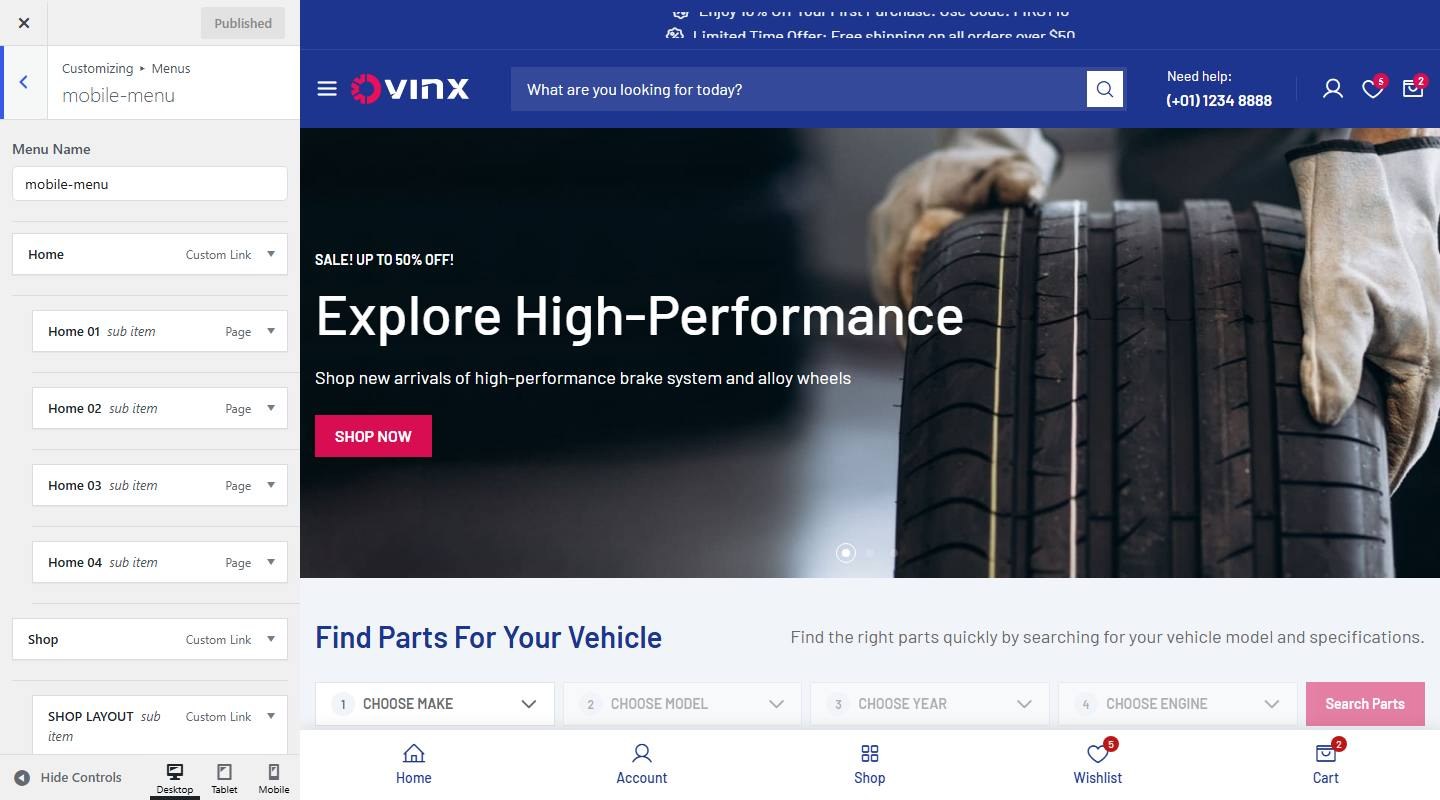
The demo menus: main-menu (desktop), mobile-menu, footer-1, footer-2, footer-3. You can also edit them in the Customizer under Menus.


How to Create a Mega Menu
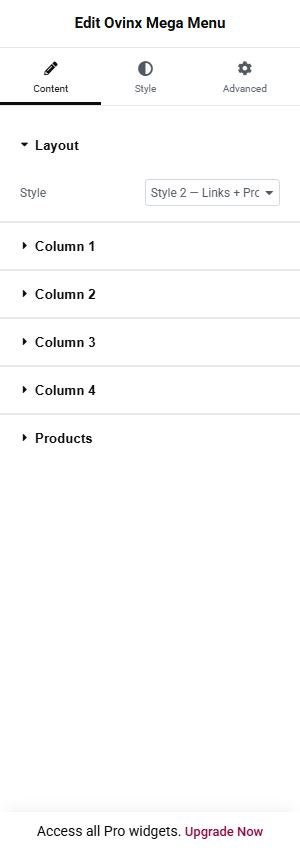
Mega menu templates are managed in the Mega Menu item of the admin sidebar. The demo has the templates Mega Product and mega shop.
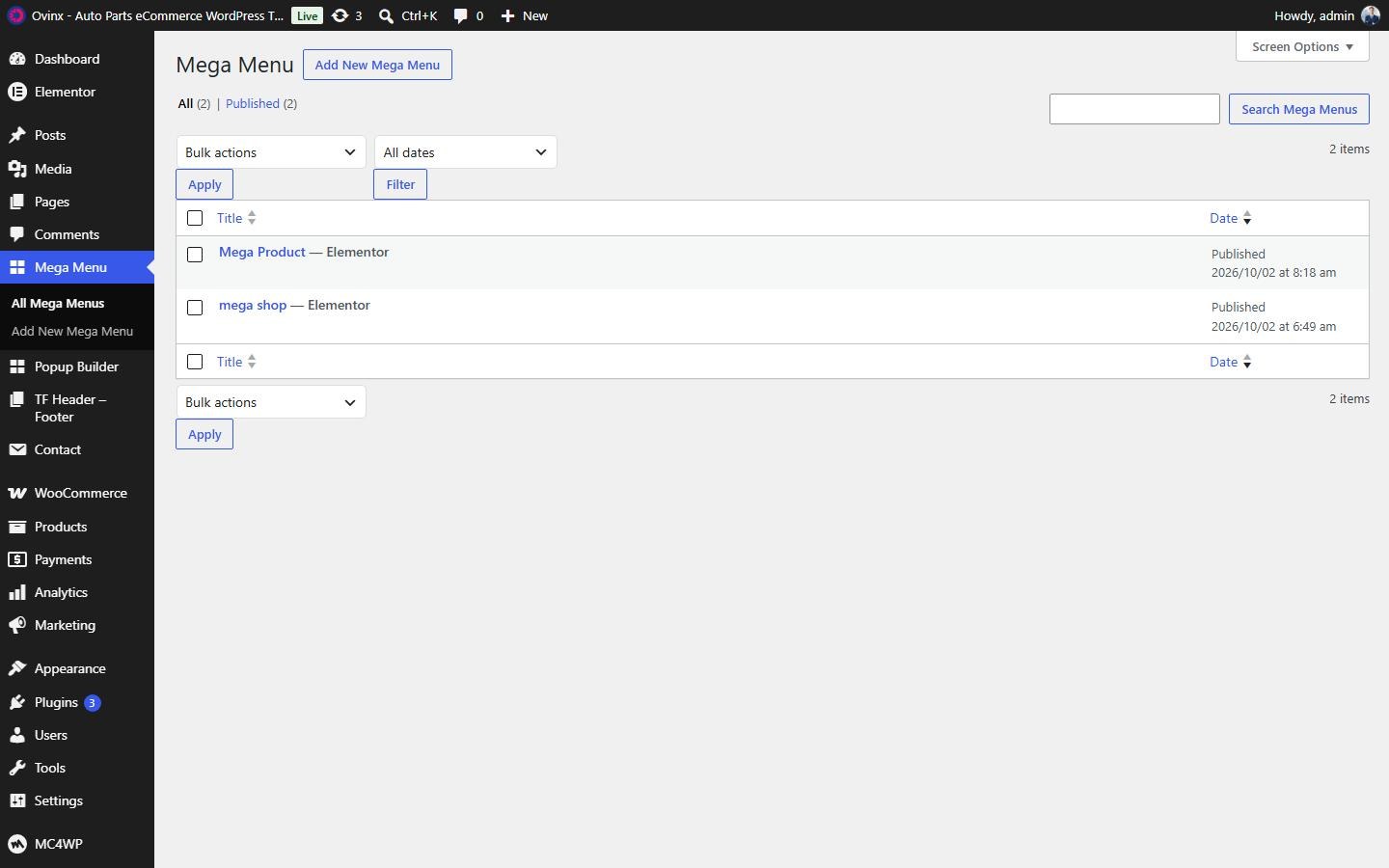

Step 1: Go to Mega Menu → Add New Mega Menu, enter a title and click Edit with Elementor. Build the layout (the Ovinx Mega Menu widget is available) and click Publish.
Step 2: Go to Appearance → Menus, choose the menu (for example main-menu) and click the arrow of the menu item that should open the mega menu.
Step 3: Tick Enable Mega Menu, then set the options below and choose the template in Select Mega Menu.
Step 4: Click Save Menu.
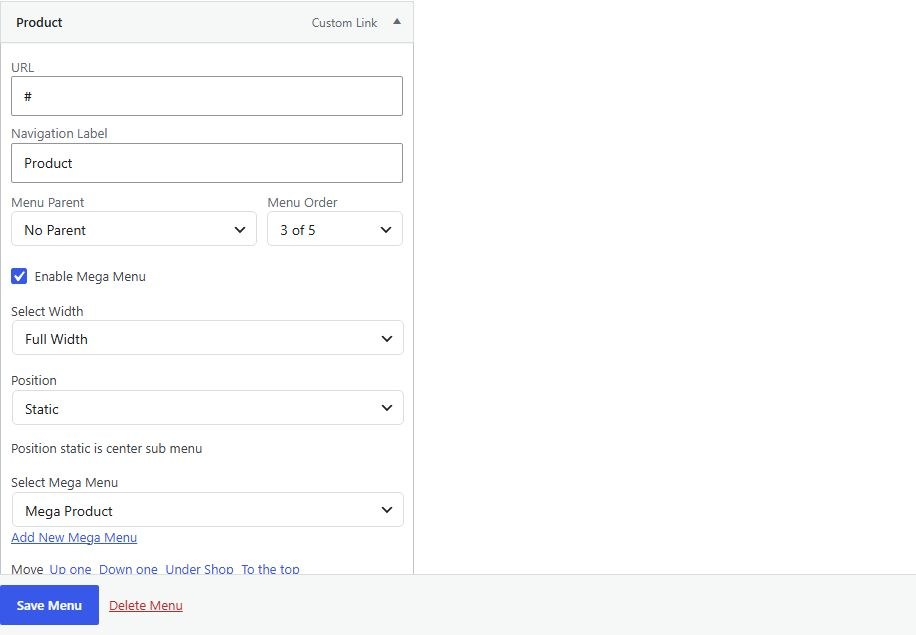

- Enable Mega Menu: Turn the mega menu on for this item.
- Select Width: Choose Full Width or Custom Width.
- Enter Custom Width (px): Width in px when Custom Width is chosen.
- Position: Choose Static or Relative.
- Left Offset (px or %): Move the mega menu horizontally.
- Select Mega Menu: Choose the template to show (demo: Mega Product, mega shop).
Blog Post
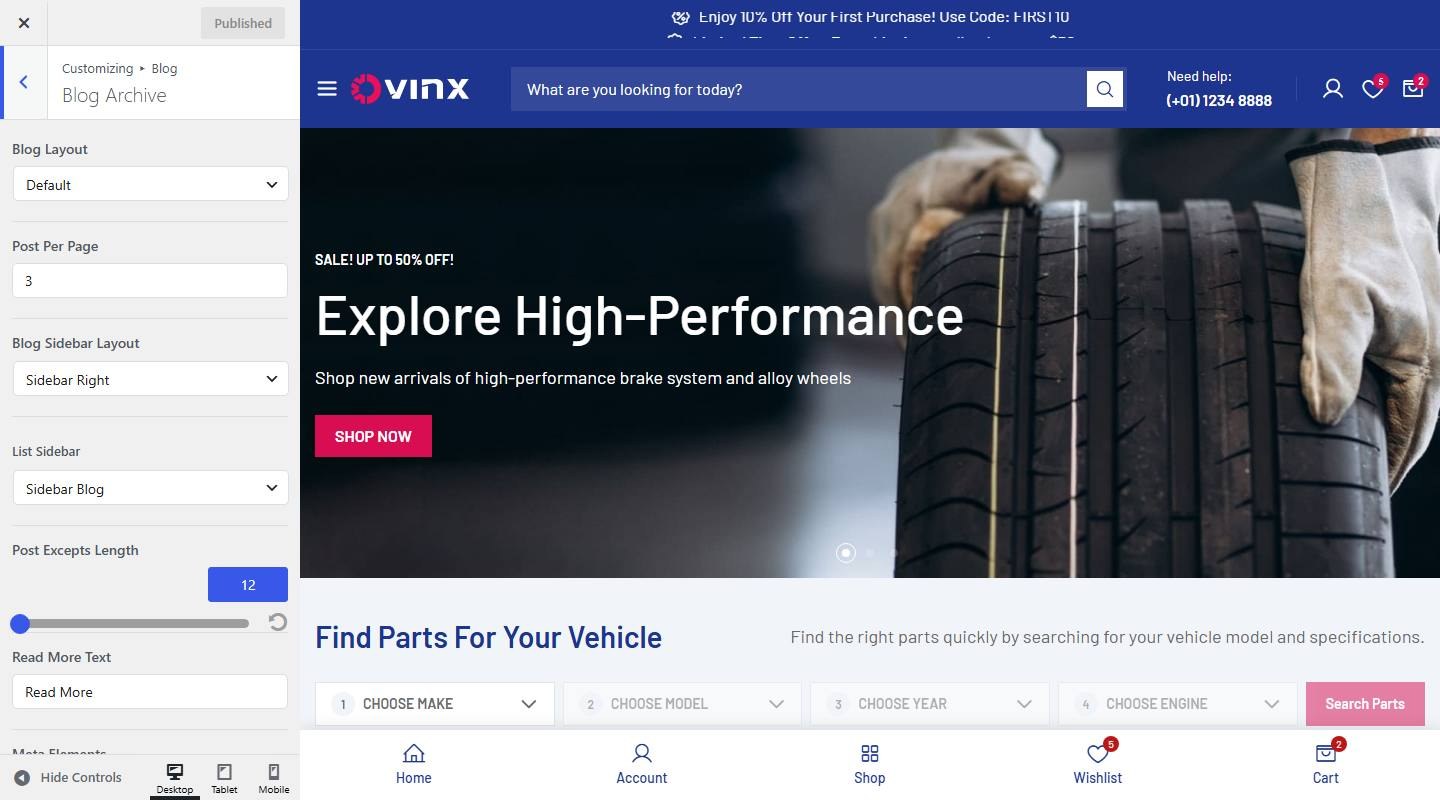
To customize posts, go to Dashboard → Appearance → Customize → Blog.
Blog Archive


- Blog Layout: Choose one: Default, Grid.
- Post Per Page: Enter the text (demo: “3”).
- Blog Sidebar Layout: Choose one: Full Width, Sidebar Left, Sidebar Right.
- List Sidebar: Choose one: Sidebar Blog, Footer Widget Area 1, Footer Widget Area 2, Footer Widget Area 3, Footer Widget Area 4, Sidebar Shop, After Sidebar Shop, Sidebar Single Shop.
- Post Excepts Length: Set the value (demo: 12).
- Read More Text: Enter the text (demo: “Read More”).
- Meta Elements: Drag and drop to re-order (demo: date,author,category).
- Pagination Style: Choose one: Page & Numeric, Numeric, Pager (Prev/Next only), Load More.
Blog Single


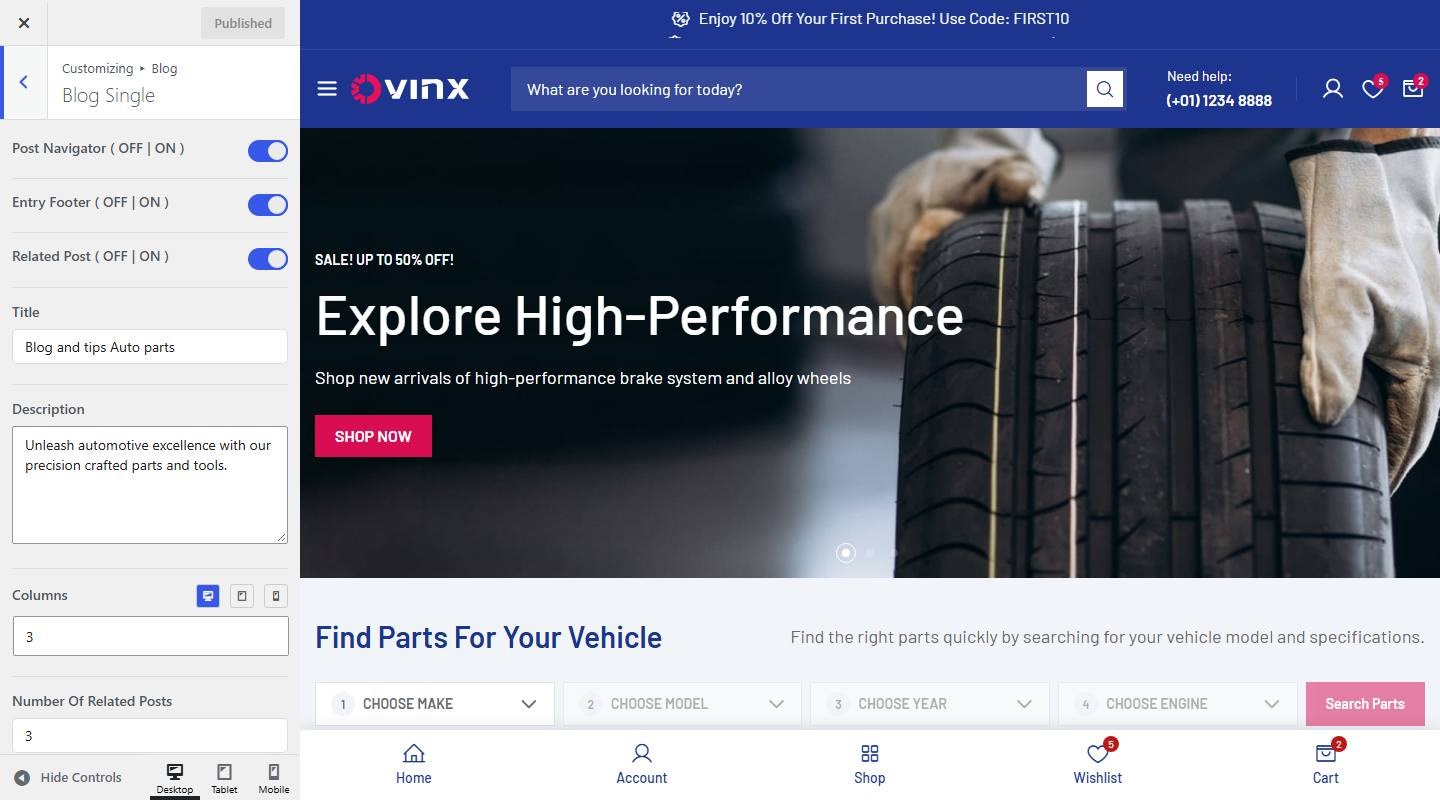
- Post Navigator ( OFF | ON ): Turn on or off (demo: on).
- Entry Footer ( OFF | ON ): Turn on or off (demo: on).
- Related Post ( OFF | ON ): Turn on or off (demo: on).
- Title: Enter the text (demo: “Blog and tips Auto parts”).
- Description: Enter the text (demo: “Unleash automotive excellence with our precision crafted parts and too”).
- Columns: Set the number of columns for desktop, tablet and mobile.
- Number Of Related Posts: Enter the text (demo: “3”).
Ovinx Addons
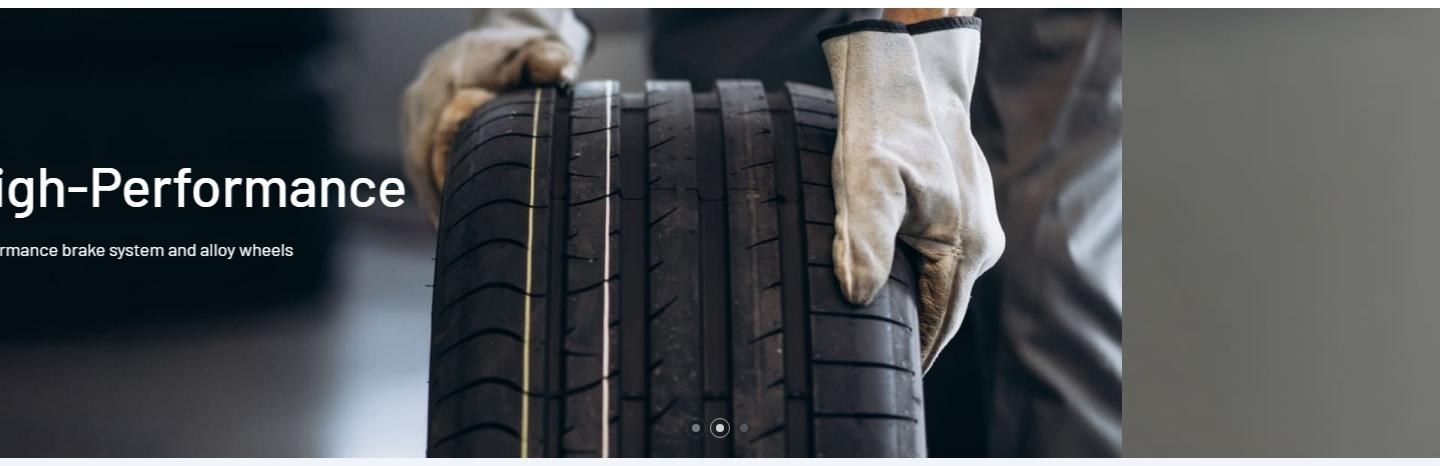
To use the Ovinx widgets, edit or create a page, choose Edit with Elementor and look for the Ovinx widgets in the Elementor panel (search “Ovinx”). The images show the widget on the demo and its settings panel in the Elementor editor. Descriptions come from reading the widget code; a verified tag means that changing the option in the Elementor editor preview changed the widget output (tested on a staging copy, nothing saved), and not confirmed in preview means no change was seen (the option may need another setting turned on, apply only to a specific item, or need real content). It is not a confirmed defect. Options with no tag were not tested (repeater item fields, media, icons). Style options are summarized by group because each widget has hundreds of typography, color and spacing controls.
Ovinx Slideshow


Renders a Swiper-based fade slideshow of image slides, each with an optional tag, title, description and a call-to-action button. In Style 2 it can sit next to a sidebar that lists top WooCommerce product categories or shows a product search filter (dropdowns plus a button that targets the shop page); intended for home page hero banners.
Add it with Edit with Elementor → Ovinx widgets → Ovinx Slideshow, then customize it in the Content and Style tabs.
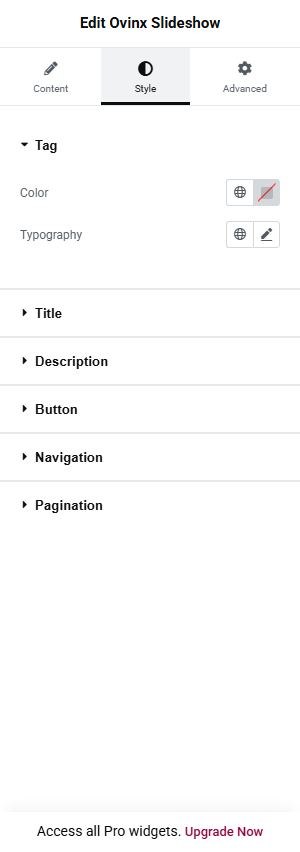


Content tab
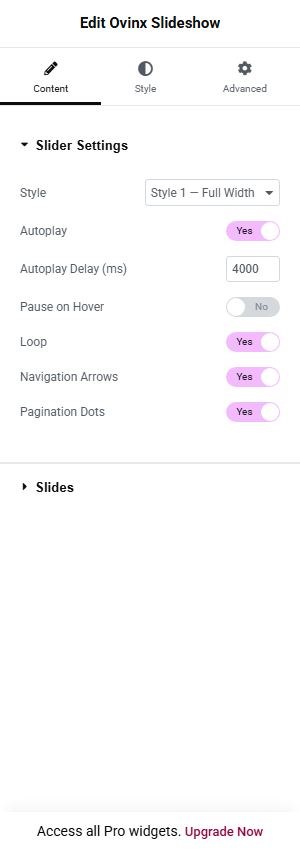
Slider Settings
- Style: Chooses the layout: ‘Style 1 — Full Width’ (full-width slides, content inside container/row, white tag and title), ‘Style 2 — Compact with Sidebar’ (compact slides with primary-colored tag, dark title, optional sidebar) or ‘Style 3 — Full Width Carousel Peek’ (wrapped in overflow-hidden, centered slides with neighbouring slides peeking: preview 1.3, 1.48091 on xl). verified
- Sidebar: Only for Style 2: ‘None’ shows only the slider, ‘Category List’ puts a list of product categories in a left column (3/12 width, hidden below lg) with the slider at 9/12, ‘Product Search Filter’ puts the vehicle/parts filter panel in a 4/12 column with the slider at 8/12 (slide title switches to h2, filter panel is placed first on small screens via flex-wrap-reverse). not confirmed in preview
- Number of Categories: Maximum number of product categories listed in the category sidebar (default 9, min 1, max 20). not confirmed in preview
- Autoplay: Turns slide autoplay on/off (sent to the swiper as data-auto). verified
- Autoplay Delay (ms): Time between automatic slide changes in milliseconds (sent as data-delay, default 4000). verified
- Pause on Hover: When on, autoplay pauses while the pointer is over the slider (data-pause-hover). verified
- Loop: Enables endless looping of slides (data-loop). verified
- Navigation Arrows: Shows previous/next arrow buttons; positioned with class pst-3 and style-3 when a sidebar is shown, otherwise pst-1 inside a full-width container. verified
- Pagination Dots: Shows pagination bullets under the slider; gets class style-white for every style except Style 2. verified
Slides
- Slides: Repeater with one entry per slide; nothing is rendered at all if the list is empty. Sub-fields: ‘Image’ (slide background/picture, with an Image Size group control; placeholder image by default), ‘Tag’ (small label above the title, plain text), ‘Title’ (heading; basic HTML allowed), ‘Description’ (paragraph under the title; basic HTML allowed), ‘Button Text’ (label of the CTA button, button omitted if empty), ‘Button Link’ (URL and attributes of the CTA button, falls back to ‘#’ when empty).
Product Search Filter
- Title: Heading of the product search filter panel (shown only when Style 2 + Sidebar = Product Search Filter); rendered as escaped plain text in an h4. not confirmed in preview
- Description: Paragraph under the filter panel title (plain text, escaped). not confirmed in preview
- Search Fields: Repeater of dropdowns in the filter panel (numbered 1, 2, 3…). Sub-fields: ‘Label’ (dropdown caption, default ‘Choose Option’), ‘Options From’ (source of the options: Product Categories, Product Brand, Product Tags or Product Attribute; all non-empty terms of that taxonomy are listed), ‘Attribute’ (which WooCommerce attribute taxonomy to use; only visible when Options From = Product Attribute).
- Button Text: Text of the filter submit button; the button is not rendered if empty. It carries data-shop-url pointing to the WooCommerce shop page. not confirmed in preview
- Bottom Note: Small caption under the filter panel (plain text, escaped). not confirmed in preview
Good to know
- Defaults: Style 1, autoplay yes (4000 ms), pause on hover off, loop yes, arrows yes, dots yes; one default slide (‘SALE! UP TO 50% OFF!’ / ‘Explore High-Performance’).
- ‘Sidebar’, ‘Number of Categories’ and the whole ‘Product Search Filter’ section are only visible when Style = Style 2 (and Sidebar = Category List / Product Search Filter respectively); render() also ignores sidebar_type unless style is style-2.
- Category sidebar queries taxonomy product_cat (hide_empty, ordered by product count desc, excludes the default WooCommerce category) and outputs nothing if there are no terms, so it needs WooCommerce categories with products.
- Search filter dropdown options and the shop URL depend on WooCommerce (wc_get_page_id falls back to home_url when WooCommerce functions are missing; brand source needs the product_brand taxonomy, otherwise the dropdown has no options). The actual filtering on click is done by JavaScript (slider-core / theme script): Not confirmed from code.
- Slide images without a media-library ID (e.g. the placeholder) are output as a lazy-loaded img with the generic alt text ‘Image’.
- Each slide’s title is rendered as h1 (h2 when Sidebar = Product Search Filter), so a multi-slide slideshow outputs several h1 elements on the page.
- Slider markup passes an empty data-effect and uses the class slider_effect_fade; the fade behavior itself comes from the JS/CSS: Not confirmed from code.
Style tab
Style groups: Tag, Title, Description, Button, Category Sidebar, Product Search Filter, Navigation, Pagination. Each group sets typography, colors, spacing and borders for that part of the widget.
Ovinx Check Fit (Find Parts For Your Vehicle)


Renders a ‘Find Parts For Your Vehicle’ search panel: a heading, optional description, a row of numbered dropdowns filled with WooCommerce terms (categories, brands, tags or attributes) and a submit button that points to the shop page. Used as a standalone vehicle/parts finder section.
Add it with Edit with Elementor → Ovinx widgets → Ovinx Check Fit, then customize it in the Content and Style tabs.
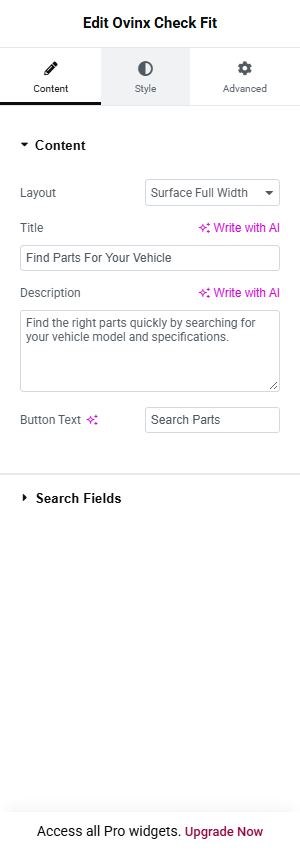
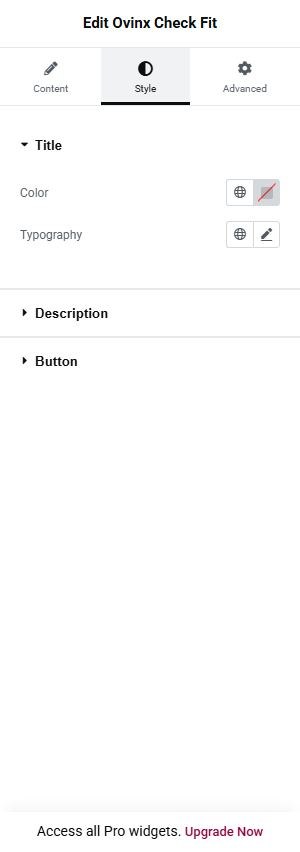
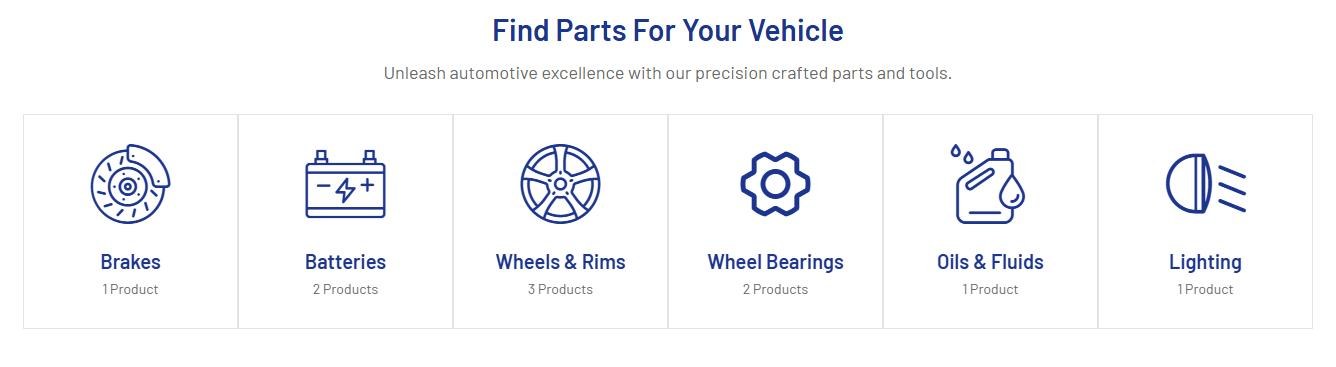

Content tab
Content
- Layout: ‘Surface Full Width’ renders a full-width section with a surface background and the heading as a p styled as h4; ‘Boxed Card — Heading Inside’ puts heading and dropdowns together in one boxed content-wrap (h4 heading); ‘Boxed Card — Heading Outside’ adds the style-2 class and puts the h4 heading above a separate box that wraps only the dropdowns. verified
- Title: Heading text (escaped plain text); the heading block is omitted when both Title and Description are empty. verified
- Description: Paragraph under the heading (escaped plain text). verified
- Button Text: Label of the submit button; the button is not rendered when empty. It carries data-shop-url set to the WooCommerce shop page permalink. verified
Search Fields
- Options From: Choose: Product Categories, Product Brand, Product Tags, Product Attribute.
- Attribute: Choose: Color.
- Show Terms With No Products: Turn on or off.
- Select Levels: Repeater list. Each item has: Label.
Item fields and related settings
- Search Fields: Repeater of dropdowns, numbered in order. Sub-fields: ‘Label’ (dropdown caption, default ‘Choose Option’), ‘Options From’ (Product Categories, Product Brand, Product Tags or Product Attribute; all non-empty terms of the taxonomy become options), ‘Attribute’ (WooCommerce attribute taxonomy; only visible when Options From = Product Attribute).
Good to know
- Defaults: layout Surface, title ‘Find Parts For Your Vehicle’, button ‘Search Parts’, four default fields (Choose Make / Model / Year / Engine) all sourced from Product Categories, so by default all four dropdowns list the same categories.
- Each dropdown carries a data-query-var (product_cat, product_brand, product_tag or filter_pa_xxx) and option values are term slugs (category/brand/tag) or term IDs (attribute); the click/redirect behavior is done by JavaScript (slider-core is the declared script dependency): Not confirmed from code.
- Depends on WooCommerce: attribute list comes from wc_get_attribute_taxonomies(), shop URL from wc_get_page_id(‘shop’); the Product Brand source only has options if the product_brand taxonomy exists, otherwise that dropdown is empty.
- If the repeater is empty, only the heading and button are rendered (no dropdowns).
Style tab
Style groups: Title, Description, Button. Each group sets typography, colors, spacing and borders for that part of the widget.
Ovinx Category Product


Shows WooCommerce product categories (or a brand grid in Style 3) with a section heading, mostly inside a Swiper carousel. Use it for home-page category/brand strips; category name, link and product count are pulled live from the linked product_cat term.
Add it with Edit with Elementor → Ovinx widgets → Ovinx Category Product, then customize it in the Content and Style tabs.

Content tab
Heading
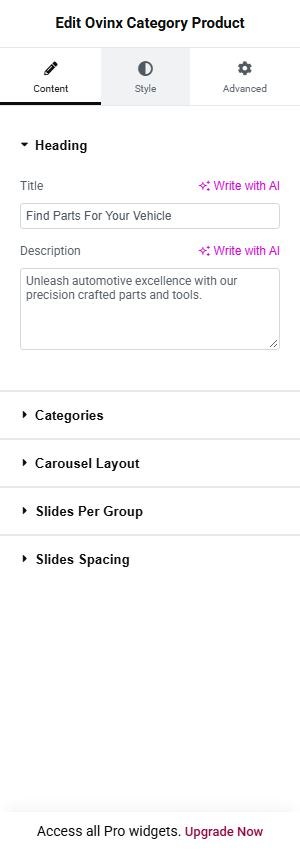
- Title: Heading text above the items (h4 .s-title in Style 4, a p.s-title.h4 in other styles); hidden entirely when empty. The whole Heading section is not shown for Style 5. verified
- Description: Paragraph under the centered heading; shown only when Style is not Style 4, and not rendered when empty. verified
- View All Button Text: Text of the ‘view all’ line button next to the title in Style 4 (default ‘VIEW ALL PRODUCTS’); only rendered if a View All Link URL is set. not confirmed in preview
- View All Link: URL (with external/nofollow options via add_link_attributes) of the Style 4 ‘view all’ button; without a URL the button is not output.
Categories
- Style: Chooses layout: Style 1 – Icon (icon + name + count), Style 2 – Image (round/square category image, name, count), Style 3 – Brand Grid (non-carousel grid of typed brand name/link/image), Style 4 – Image + View All (like Style 2 with ‘View all’ heading, larger 160px image, optional sale-badge card, line pagination), Style 5 – Image Card (portrait 242×340 image with tag, name and button overlaid, no heading). verified
- Show Product Count: Toggles the ‘%s Product(s)’ line under the category name; hidden for Styles 3 and 5 (default Yes). verified
- Button Text: Label of the button on each Style 5 card, linking to the category page (default ‘VIEW ALLS’); if empty the button is omitted. not confirmed in preview
- Category Items: Repeater of carousel slides (hidden in Style 3); each row renders one slide, and rows with no Product Category chosen render nothing. Sub-fields: Icon = icon shown in Style 1 only; Product Category = the product_cat term whose name, link and count are used; Card Type = Normal (image/icon) or Sale Badge (Style 2/4 only, shows percent and label instead of an image, name/count get text-primary class); Custom Image = optional image for Style 2/4/5 overriding the category WooCommerce thumbnail (shown only when Card Type is not Sale); Tag Text = small label above the name in Style 5 only; Sale Percent Text = big text of the sale badge (default ‘15%’); Sale Label = second line of the sale badge (default ‘OFF’).
- Brand Items: Repeater used only by Style 3; each row becomes a linked brand tile in a responsive grid (2/3/4/6 columns). Sub-fields: Name = brand text under the logo (omitted if empty); Link = tile URL (falls back to ‘#’, opens in new tab if external is set); Image = brand logo (placeholder by default, 80×80).
Carousel Layout
- Items — Desktop (≥1440px): Slides visible in the carousel at 1440px and up (output as data-laptop); Styles other than 3 only. verified
- Items — Laptop (≥1200px): Slides visible from 1200px (output as data-preview). verified
- Items — Tablet (≥768px): Slides visible from 768px (output as data-tablet). verified
- Items — Mobile (≥575px): Slides visible from 575px (output as data-mobile-sm). verified
- Items — Small Mobile (<575px): Slides visible below 575px (output as data-mobile). verified
Slides Per Group
- Slide Per Group: Number of slides that move at once when the visitor clicks next/previous or swipes at this screen size (Swiper “slidesPerGroup”).
- Group — Small Mobile (<575px): Number of slides that move at once when the visitor clicks next/previous or swipes at this screen size (Swiper “slidesPerGroup”).
- Group — Mobile (≥575px): Number of slides that move at once when the visitor clicks next/previous or swipes at this screen size (Swiper “slidesPerGroup”).
- Group — Tablet (≥768px): Number of slides that move at once when the visitor clicks next/previous or swipes at this screen size (Swiper “slidesPerGroup”).
- Group — Laptop (≥1200px): Number of slides that move at once when the visitor clicks next/previous or swipes at this screen size (Swiper “slidesPerGroup”).
- Group — Desktop (≥1440px): Number of slides that move at once when the visitor clicks next/previous or swipes at this screen size (Swiper “slidesPerGroup”).
Slides Spacing
- Spacing: Choose: Design default, Custom per breakpoint.
- Spacing — Small Mobile (<575px): Set the number.
- Spacing — Mobile (≥575px): Set the number.
- Spacing — Tablet (≥768px): Set the number.
- Spacing — Laptop (≥1200px): Set the number.
- Spacing — Desktop (≥1440px): Set the number.
Good to know
- Defaults: Style = Style 1 (Icon), Show Product Count = Yes, carousel items 6/5/4/3/2 (desktop to small mobile), six default Category Items with icons but no Product Category selected, so nothing renders until categories are chosen.
- If every item yields no output (no categories chosen), render() returns without any markup; same for Style 3 when no brand has a name or image.
- Requires WooCommerce product_cat terms; Product Category options are built from get_terms(product_cat, hide_empty=false).
- Section Heading is hidden for Style 5; View All fields only show for Style 4; Description hidden for Style 4; Brand Items only for Style 3; Carousel Layout section hidden for Style 3.
- Category name, link and product count always come from the real term; only the Sale Badge text is typed. Image fallback order: Custom Image, term thumbnail, placeholder.
- Style 3 default brand rows have a placeholder image and no name, so they still render as placeholder tiles.
- render_brand_item() also reads a legacy ‘product_brand’ key (term id) that is not a declared control; it is only a backward-compatibility fallback for old saved data.
- Pagination: dots in Styles 1 and 2 (dots hidden on xl for Style 2), line pagination in Style 4, none in Style 5.
- Loads Swiper assets (themesflat-swiper, slider-core).
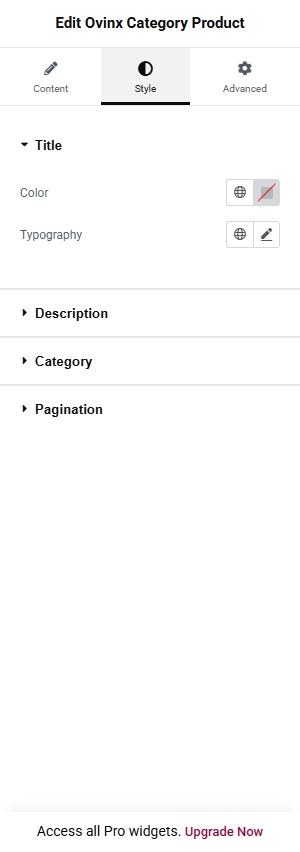
Style tab
Style groups: Title, Description, View All Button, Category, Pagination. Each group sets typography, colors, spacing and borders for that part of the widget.
Ovinx Banner


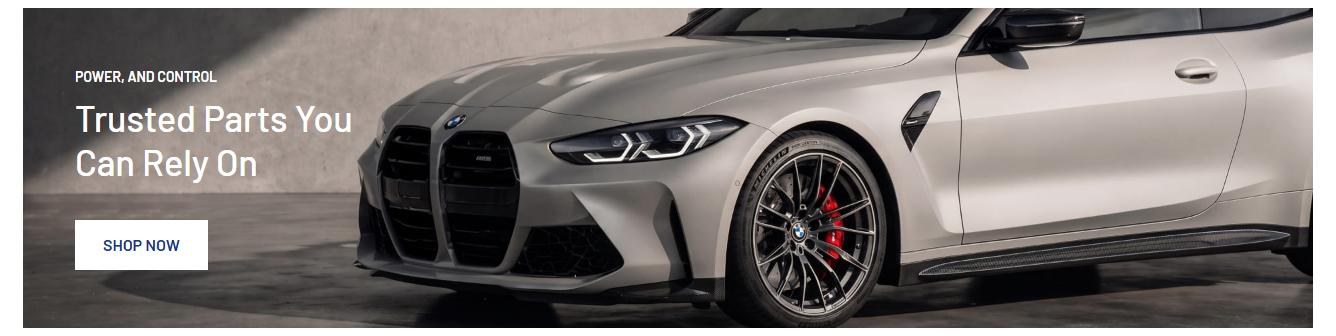
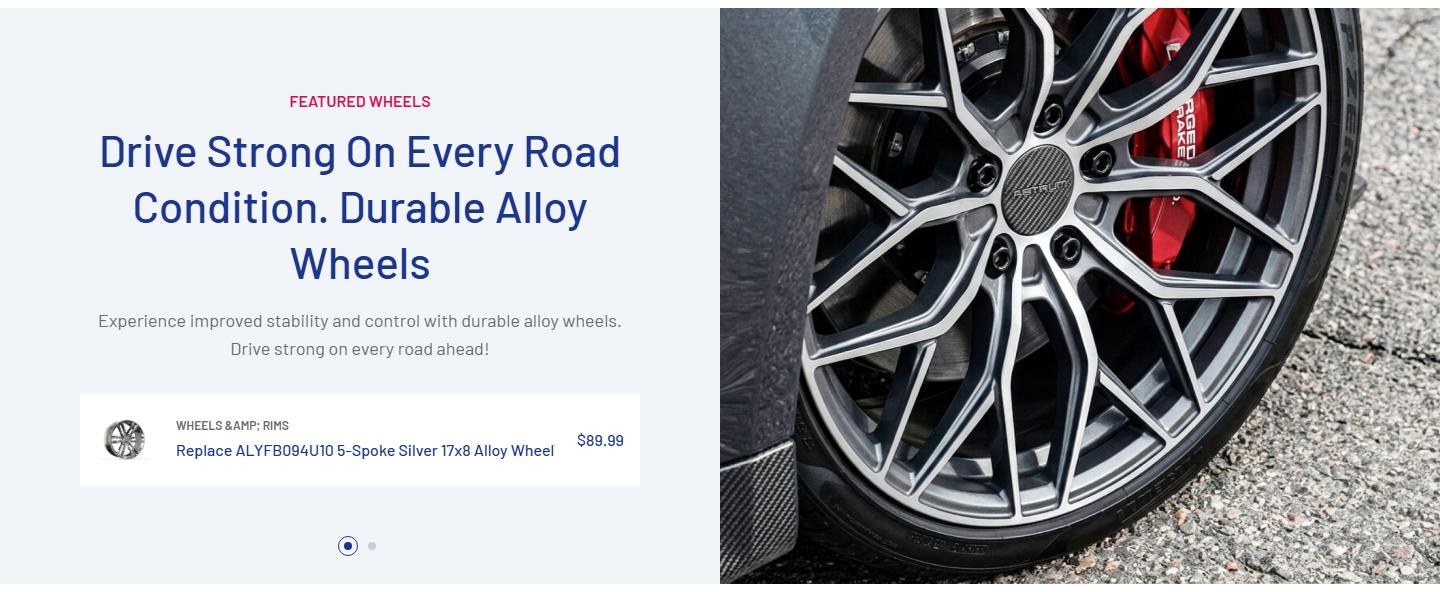
Renders a single wide promotional banner: a background image with a mini title, title, optional WooCommerce price (Style 2) and a call-to-action button. Used for image-based promo strips inside a container.
Add it with Edit with Elementor → Ovinx widgets → Ovinx Banner, then customize it in the Content and Style tabs.

Content tab
Banner
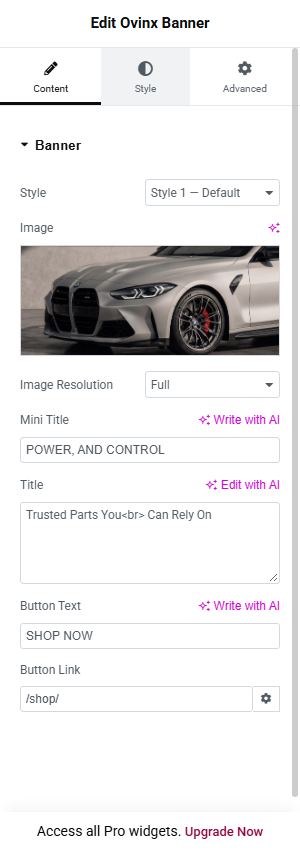
- Style: ‘Style 1 — Default’ shows white mini title and title with a white-variant button (btn-white-2); ‘Style 2 — With Price’ wraps the banner in themesFlat, uses a primary-colored mini title, normal title color, normal button, and can show a product price. verified
- Image: Banner image (placeholder by default); uses the Image Size group control for media-library images, otherwise a plain lazy-loaded img with alt ‘Image’.
- Image Resolution: Elementor image size: choose a registered size (Thumbnail, Medium, Large, Full) or Custom. not confirmed in preview
- Image Dimension: Width and height in px, used when Image Resolution is set to Custom.
- Mini Title: Small line above the title (escaped text); omitted when empty. verified
- Title: Banner heading as h3; basic HTML is allowed (wp_kses_post); omitted when empty. verified
- Button Text: Label of the CTA button; the button is omitted when empty. verified
- Button Link: URL and attributes of the CTA button; falls back to ‘#’ when empty.
- Product (for Price): Only for Style 2: selects a published product whose price (sale/regular via the theme’s tfwc_price()) is printed between the title and the button.
Good to know
- Nothing is rendered when both Image URL and Title are empty.
- ‘Product (for Price)’ is visible only when Style = Style 2; the dropdown options are all published products (posts_per_page -1), which can be slow in the editor on large catalogs.
- The price block requires WooCommerce (wc_get_product) and the theme function tfwc_price(); if either is missing, a fatal error is possible since there is no function_exists check: Not confirmed from code that this can occur in practice.
- Price is only shown when a product is selected; in Style 1 the product setting is hidden and ignored.
Style tab
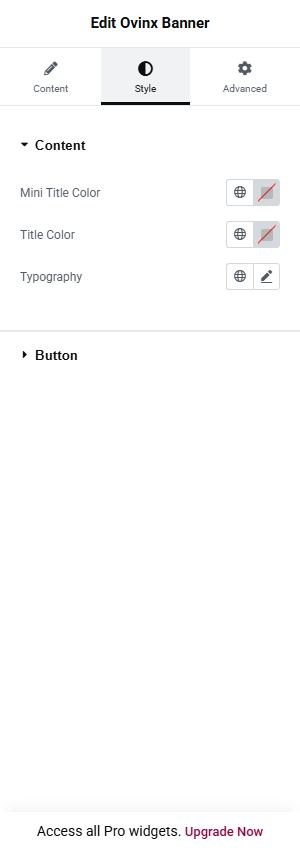
Style groups: Content, Button. Each group sets typography, colors, spacing and borders for that part of the widget.
Ovinx Banner Feature


A multi-style feature banner. Style 1 is a thumbnails carousel: a thumbs swiper beside a main swiper whose slides have a mini title, title, description and a featured WooCommerce product card. Styles 2 and 3 are a single split banner with text and button on one side and an image (Style 2 also a full product card) on the other.
Add it with Edit with Elementor → Ovinx widgets → Ovinx Banner Feature, then customize it in the Content and Style tabs.

Content tab
Slides
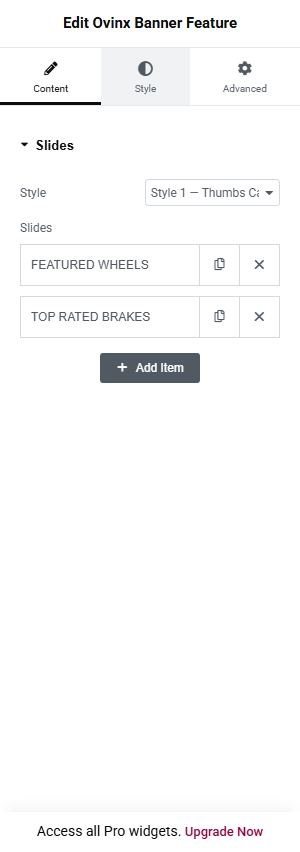
- Style: ‘Style 1 — Thumbs Carousel’ renders the thumbs + main slider from the Slides repeater; ‘Style 2 — Single Banner + Product’ renders a static split banner with text on the left and an image plus a real product card on the right; ‘Style 3 — Split Image (No Product)’ renders the same split banner but with the image column first and no product card. verified
- Slides: Style 1 only: repeater with one entry per slide (nothing rendered if empty; default is two entries). Sub-fields: ‘Thumbnail Image’ (image shown in the thumbs slider, with Image Size group control), ‘Mini Title’ (small highlighted line, escaped text), ‘Title’ (h2, basic HTML allowed), ‘Description’ (paragraph, escaped text), ‘Featured Product’ (product shown as a card with image, first category name, linked product name and price under the text).
- Title: Styles 2 and 3 only: h3 heading of the left text column (escaped plain text). not confirmed in preview
- Description: Styles 2 and 3 only: paragraph under the heading in the text column (escaped plain text). not confirmed in preview
- Button Text: Styles 2 and 3 only: label of the white CTA button; button omitted when empty. not confirmed in preview
- Button Link: Styles 2 and 3 only: URL and attributes of the CTA button; falls back to ‘#’ when empty.
- Image: Styles 2 and 3 only: image in the right/image column (placeholder by default), with Image Size group control for media-library images.
- Image Resolution: Elementor image size: choose a registered size (Thumbnail, Medium, Large, Full) or Custom. not confirmed in preview
- Image Dimension: Width and height in px, used when Image Resolution is set to Custom.
- Featured Product: Style 2 only (top-level control, separate from the repeater field of the same label): product rendered as a full theme product card (forced to product style 1, with wishlist, compare, quick view, add to cart as provided by the theme) next to the image.
Good to know
- ‘Title’, ‘Description’, ‘Button Text’, ‘Button Link’, ‘Image’ and ‘Featured Product’ (top-level) appear only for the styles listed in their conditions; ‘Slides’ appears only for Style 1.
- Style 1 has no autoplay, loop, or navigation toggles; arrows and pagination dots are always rendered. The slide behavior depends on the JS (themesflat-swiper, slider-core) and the class names sw-thumb / sw-main-thumb: Not confirmed from code.
- Style 1 product block shows the product’s thumbnail image, the first product_cat term name in upper case, the product name linking to its permalink and tfwc_price() output; it is skipped when no product is selected.
- Style 2 returns without output when Title, Description and Featured Product are all empty; Style 3 returns without output when Title, Description and Image URL are all empty.
- Requires WooCommerce and theme helpers (wc_get_product, tfwc_price, tfwc_get_template_part) for the product parts; the product dropdowns list all published products, which may be heavy on large catalogs.
- Style 2 product card rendering removes other product-style hooks and sets $_POST[‘product_style’] = ‘style-1’ as a side effect during the page request.
- In Style 1, Mini Title and Description are escaped with esc_html while Title permits HTML via wp_kses_post.
Style tab
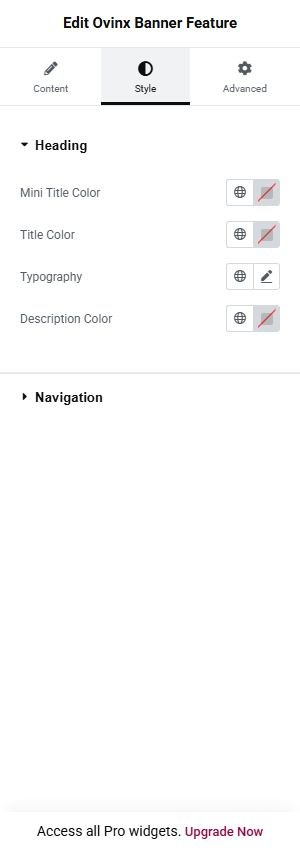
Style groups: Heading, Navigation, Banner Text. Each group sets typography, colors, spacing and borders for that part of the widget.
Ovinx Product Tabs


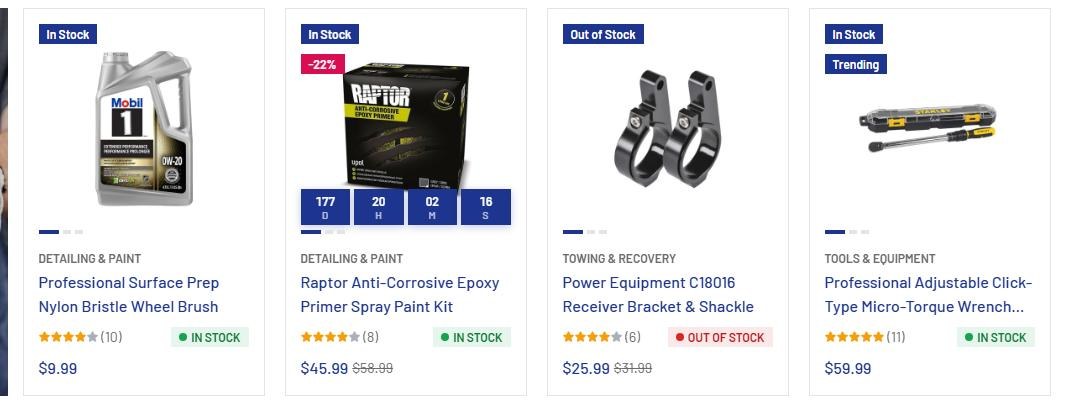
Shows a heading plus a row of tab buttons, where each tab is its own Swiper carousel of real WooCommerce product cards, with one shared pair of prev/next arrows in the heading. Use it for a ‘best prices / featured’ section where visitors switch between product groups (for example by category). Only the first tab is queried on page load; other tabs load via AJAX when clicked or hovered.
Add it with Edit with Elementor → Ovinx widgets → Ovinx Product Tabs, then customize it in the Content and Style tabs.

Content tab
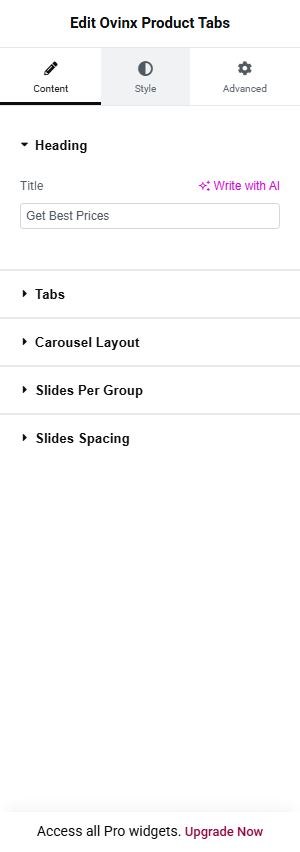
Heading
- Title: Heading text shown at the left of the section header (escaped); the heading text is not output when empty. Default ‘Get Best Prices’. verified
Tabs
- Tab Items: Repeater defining the tabs; one tab per row, and if there is only one row no tab buttons are shown. Row title in the editor is the Tab Label. Default is a single row ‘All Product’.
Carousel Layout
- Items — Desktop (≥1440px): Number of product cards visible per slide view at 1440px and wider (output as data-laptop on the Swiper). Default 5. verified
- Items — Laptop (≥1200px): Cards visible at 1200px and wider (data-preview). Default 4. verified
- Items — Tablet (≥768px): Cards visible at 768px and wider (data-tablet). Default 3. verified
- Items — Mobile (≥575px): Cards visible at 575px and wider (data-mobile-sm). Default 2. verified
- Items — Small Mobile (<575px): Cards visible below 575px (data-mobile). Default 2. verified
Slides Per Group
- Slide Per Group: Number of slides that move at once when the visitor clicks next/previous or swipes at this screen size (Swiper “slidesPerGroup”).
- Group — Small Mobile (<575px): Number of slides that move at once when the visitor clicks next/previous or swipes at this screen size (Swiper “slidesPerGroup”).
- Group — Mobile (≥575px): Number of slides that move at once when the visitor clicks next/previous or swipes at this screen size (Swiper “slidesPerGroup”).
- Group — Tablet (≥768px): Number of slides that move at once when the visitor clicks next/previous or swipes at this screen size (Swiper “slidesPerGroup”).
- Group — Laptop (≥1200px): Number of slides that move at once when the visitor clicks next/previous or swipes at this screen size (Swiper “slidesPerGroup”).
- Group — Desktop (≥1440px): Number of slides that move at once when the visitor clicks next/previous or swipes at this screen size (Swiper “slidesPerGroup”).
Slides Spacing
- Spacing: Choose: Design default, Custom per breakpoint.
- Spacing — Small Mobile (<575px): Set the number.
- Spacing — Mobile (≥575px): Set the number.
- Spacing — Tablet (≥768px): Set the number.
- Spacing — Laptop (≥1200px): Set the number.
- Spacing — Desktop (≥1440px): Set the number.
Item fields and related settings
- Tab Label: Repeater sub-field: text of the tab button (shown uppercase via CSS class, escaped). Default ‘All Product’.
- Categories (empty = all products): Repeater sub-field: multi-select of product categories (by term ID); adds a product_cat tax_query for that tab, empty means products from every category.
- Number of Products: Repeater sub-field: posts_per_page for that tab’s query (min 1, max 20, default 8; falls back to 8 if empty/0).
- Order By: Repeater sub-field: Date / Title / Random map to the WP_Query orderby of the same name; Price sorts by meta_value_num on _price.
- Order: Repeater sub-field: Descending (DESC) or Ascending (ASC) sort direction for that tab.
Good to know
- Requires WooCommerce and the theme functions tfwc_get_template_part(); each slide is the theme’s wc_get_template_part(‘content’,’product’) card forced to Style 1 regardless of the Customizer product style.
- Only tab index 0 is queried/rendered at load; other tabs render a skeleton placeholder with the query serialized in data-tf-tab-query and are loaded by AJAX action wp_ajax_ovinx_load_product_tab (nonce ‘tfwc_nonce’). The AJAX handler whitelists order_by/order, clamps count to 1-20 and items to 1-8.
- If the first tab returns no products, its pane is skipped entirely (continue), while its tab button is still marked active; the other tabs remain as placeholders.
- Tab buttons (and the vertical separator) only render when there is more than one tab; the prev/next arrows are always rendered in the heading.
- Pagination dots are rendered with class d-xl-none (hidden at xl and above); there is no show/hide control for arrows or dots, autoplay or loop.
- Widget renders nothing if tab_items is empty. Carousel gaps are fixed (data-space 15/15/20).
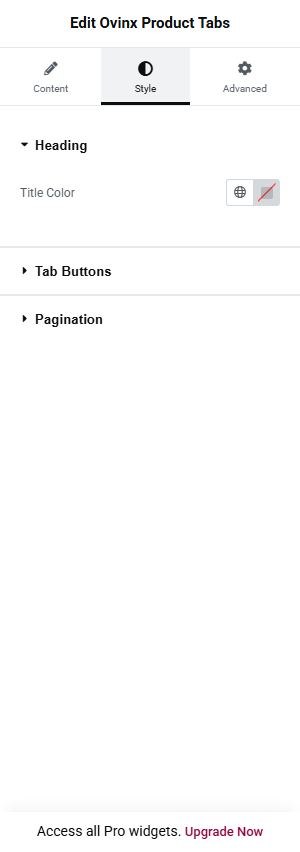
Style tab
Style groups: Heading, Tab Buttons, Pagination. Each group sets typography, colors, spacing and borders for that part of the widget.
Ovinx Product Carousel


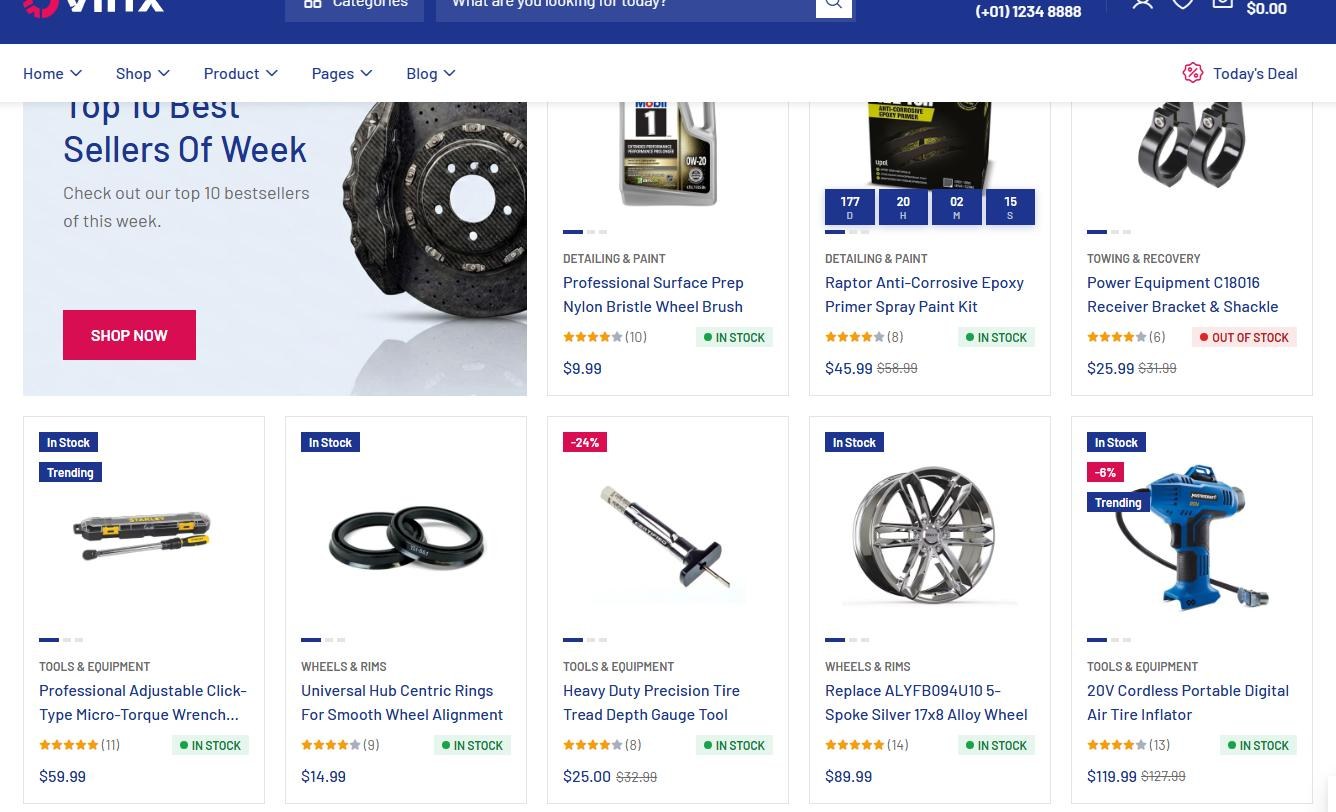
A single-row (or grid) Swiper carousel of real WooCommerce product cards with an optional heading, ‘View All’ link and arrows. It can also show a promo banner (countdown card or image card) as the first slide. Use it for generic product rows such as best sellers or deals of the week.
Add it with Edit with Elementor → Ovinx widgets → Ovinx Product Carousel, then customize it in the Content and Style tabs.

Content tab
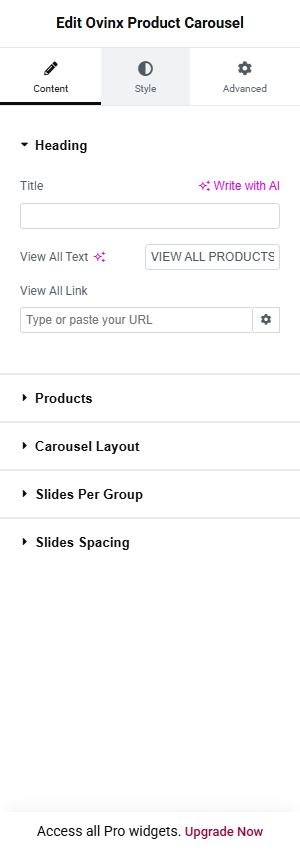
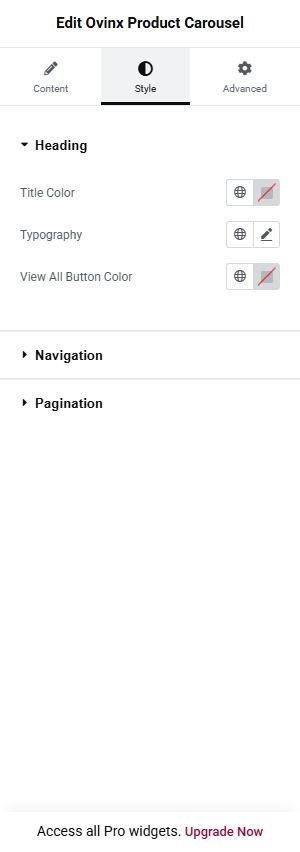
Heading
- Title: Heading text (h4.s-title, escaped); no default. Heading block is hidden if no title, no View All link and arrows off. verified
- View All Text: Label of the View All button (default ‘VIEW ALL PRODUCTS’); the button only renders when View All Link has a URL. not confirmed in preview
- View All Link: URL (with Elementor link attributes) for the View All button; empty = no button.
Products
- Categories (empty = all products): Multi-select of product categories (term ID) to restrict the query; empty = all.
- Number of Products: How many products to query (1-20, default 8). verified
- Order By: Date / Title / Random (WP_Query orderby) or Price (numeric sort on _price). verified
- Order: Descending or Ascending. verified
Carousel Layout
- Layout: Carousel — Single Row (default): one Swiper row. Grid — Multi-row on Tablet/Desktop, Carousel on Mobile: adds data-grid rows with layout-prd_2row class and data-grid-mobile=1 so phones stay single row. Carousel + Promo Banner (Countdown) as first slide: prepends a promo slide before the products. verified
- Grid Rows (Tablet/Desktop): Number of rows (2-3, default 2) output as data-grid; only shown when Layout = Grid. not confirmed in preview
- Items — Desktop (≥1440px): Cards visible at 1440px+ (data-laptop). Default 5. verified
- Items — Laptop (≥1200px): Cards visible at 1200px+ (data-preview). Default 4. verified
- Items — Tablet (≥768px): Cards visible at 768px+ (data-tablet). Default 3. verified
- Items — Mobile (≥575px): Cards visible at 575px+ (data-mobile-sm). Default 2. verified
- Items — Small Mobile (<575px): Cards visible below 575px (data-mobile). Default 2. verified
- Show Navigation Arrows: Shows prev/next arrows inside the heading when Yes (default Yes). verified
- Show Pagination Dots: Renders the dots container (class d-xl-none, so hidden at xl and above) when Yes (default Yes). verified
- Autoplay: Adds data-auto=true when Yes (default No). verified
- Autoplay Delay (ms): Delay between auto slides (min 500, default 3000); only shown when Autoplay = Yes. not confirmed in preview
- Loop: Adds data-loop=true for infinite looping when Yes (default No). verified
Slides Per Group
- Slide Per Group: Number of slides that move at once when the visitor clicks next/previous or swipes at this screen size (Swiper “slidesPerGroup”).
- Group — Small Mobile (<575px): Number of slides that move at once when the visitor clicks next/previous or swipes at this screen size (Swiper “slidesPerGroup”).
- Group — Mobile (≥575px): Number of slides that move at once when the visitor clicks next/previous or swipes at this screen size (Swiper “slidesPerGroup”).
- Group — Tablet (≥768px): Number of slides that move at once when the visitor clicks next/previous or swipes at this screen size (Swiper “slidesPerGroup”).
- Group — Laptop (≥1200px): Number of slides that move at once when the visitor clicks next/previous or swipes at this screen size (Swiper “slidesPerGroup”).
- Group — Desktop (≥1440px): Number of slides that move at once when the visitor clicks next/previous or swipes at this screen size (Swiper “slidesPerGroup”).
Slides Spacing
- Spacing: Choose: Design default, Custom per breakpoint.
- Spacing — Small Mobile (<575px): Set the number.
- Spacing — Mobile (≥575px): Set the number.
- Spacing — Tablet (≥768px): Set the number.
- Spacing — Laptop (≥1200px): Set the number.
- Spacing — Desktop (≥1440px): Set the number.
Promo Banner Slide
- Promo Banner Style: Countdown Card renders .banner-cd-v01 (hidden below 768px via md-d-none) with optional countdown; Image Card renders .banner-v03 with white text overlay, visible on mobile, no countdown. Only shown when Layout = Promo. not confirmed in preview
- Mini Title: Small label above the promo title (default ‘FOR HIGH-PERFORMANCE’); Promo layout only. not confirmed in preview
- Title: Heading text (h4.s-title, escaped); no default. Heading block is hidden if no title, no View All link and arrows off. verified
- Button Text: Promo slide button label (default ‘Shop Now’); Promo layout only. not confirmed in preview
- Button Link: URL for the promo button; falls back to ‘#’ when empty; Promo layout only.
- Image: Promo slide image (default Elementor placeholder); Promo layout only.
- Countdown Mode: Fixed end date/time uses the end date field; Repeat daily restarts the countdown every day at a start time for a set duration. Only shown for Promo layout with Countdown Card style. not confirmed in preview
- Daily Start Time: Site-timezone time (H:i, default 00:00) when the daily countdown restarts; shown only in Repeat daily mode.
- Duration (hours): Length of the daily countdown window (0.5-24, default 12); after it ends the countdown shows zeros until the next start; Repeat daily mode only. not confirmed in preview
- Countdown End Date/Time: Fixed end datetime of the countdown; empty hides the countdown; shown only in Fixed mode.
Item fields and related settings
- Space Between Slides: Gap in px between slides (0-100, default 20), applied to all breakpoints; hidden when Layout = Grid, where spacing is forced to 0.
Good to know
- Requires WooCommerce and theme tfwc_* functions; cards are the theme’s content-product template forced to Style 1.
- If the query returns no products the whole widget, including heading, outputs nothing.
- The promo slide counts as one of the ‘Items’ per view; in Countdown Card style it is hidden under 768px (md-d-none).
- Daily mode: if the current time is before today’s start, yesterday’s window is used; the countdown value is computed server-side and passed in data-timer (seconds) to js-countdown-core.
- Heading, View All Link and arrows: the View All button only appears when a URL is entered; the ‘line-primary’ class is added only for Promo layout with Image Card style.
- Pagination dots hidden at xl and above (d-xl-none); two ‘Title’ labels exist (heading and promo).
Style tab
Style groups: Heading, Navigation, Pagination. Each group sets typography, colors, spacing and borders for that part of the widget.
Ovinx Product Banner Grid


A static CSS grid where the first cell is a promo banner (image, tag, title, description, button) spanning two columns, followed by real WooCommerce product cards. No slider. Use for a ‘Product Grid’ section with a featured collection banner next to products.
Add it with Edit with Elementor → Ovinx widgets → Ovinx Product Banner Grid, then customize it in the Content and Style tabs.
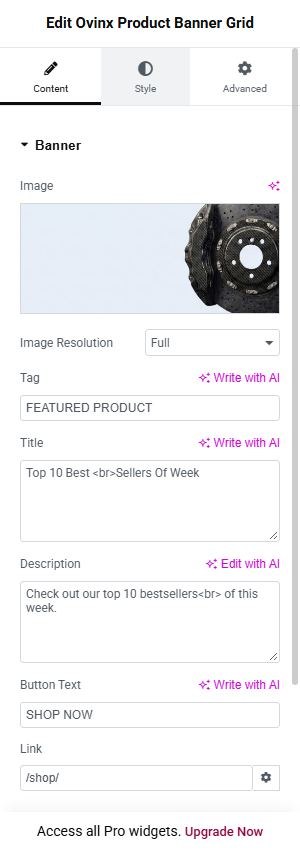
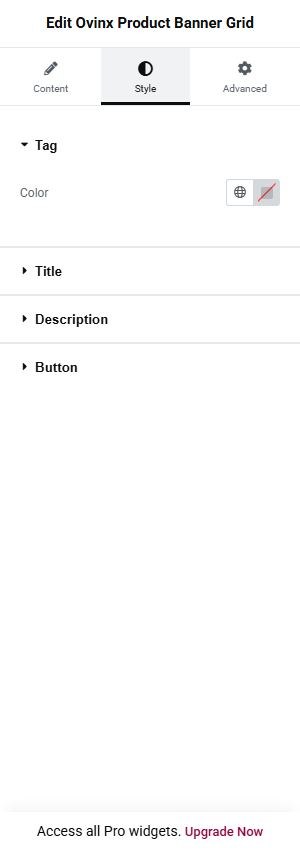
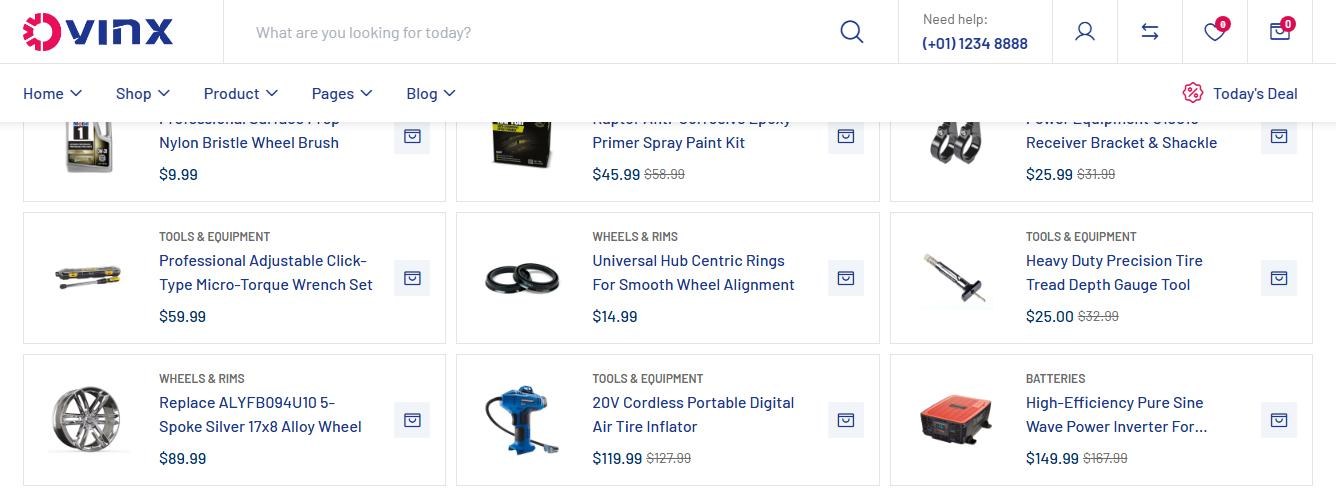

Content tab
Banner
- Image: Banner image (default Elementor placeholder), rendered inside a link to the banner URL.
- Image Resolution: Elementor image size: choose a registered size (Thumbnail, Medium, Large, Full) or Custom. not confirmed in preview
- Image Dimension: Width and height in px, used when Image Resolution is set to Custom.
- Tag: Small highlighted label in the banner (default ‘FEATURED PRODUCT’, escaped). verified
- Title: Banner heading (h3); textarea whose HTML is filtered with wp_kses_post, so tags like <br> are allowed. Default ‘Top 10 Best <br>Sellers Of Week’. verified
- Description: Banner paragraph; textarea filtered with wp_kses_post. Default ‘Check out our top 10 bestsellers <br>of this that.’ verified
- Button Text: Label of the banner button (default ‘SHOP NOW’); button omitted when empty. verified
- Link: URL used for both the image link and the button; falls back to ‘#’ if empty.
Products
- Categories (empty = all products): Multi-select product categories (term ID) restricting products; empty = all.
- Number of Products: How many product cards follow the banner (1-20, default 8). verified
- Order By: Date / Title / Random (WP_Query orderby) or Price (numeric sort by _price). verified
- Order: Descending or Ascending. verified
Good to know
- The Image Size group control (name banner_image_size, label from Elementor, default ‘full’) is also in the Banner section; it only takes effect when the chosen image has an attachment ID (media library). With the default placeholder (no ID) a plain img is output.
- Grid classes are fixed: tf-col-2 md-col-3 lg-col-4 xl-col-5; the banner spans 2 columns (wd-2-cols) and is hidden at lg only (d-lg-none d-xl-block, i.e. shown below 992px and at 1200px+).
- The first product card gets extra classes d-md-none d-lg-flex via a post_class filter (hidden at md only), per code comment to balance the grid.
- Banner and products are both optional: the widget renders nothing only if both are empty; products are skipped silently if the query is empty.
- Requires WooCommerce; product cards are the theme’s content-product template forced to Style 1. The widget has no slider-core dependency.
Style tab
Style groups: Tag, Title, Description, Button. Each group sets typography, colors, spacing and borders for that part of the widget.
Ovinx Product Tab Grid


Shows a heading and optional tab buttons where each tab is a plain CSS grid of compact horizontal product cards (image, category, name, price, square add-to-cart icon). No Swiper, arrows or dots. Use for a ‘Featured Products’ block with several product groups; non-first tabs are loaded by AJAX.
Add it with Edit with Elementor → Ovinx widgets → Ovinx Product Tab Grid, then customize it in the Content and Style tabs.
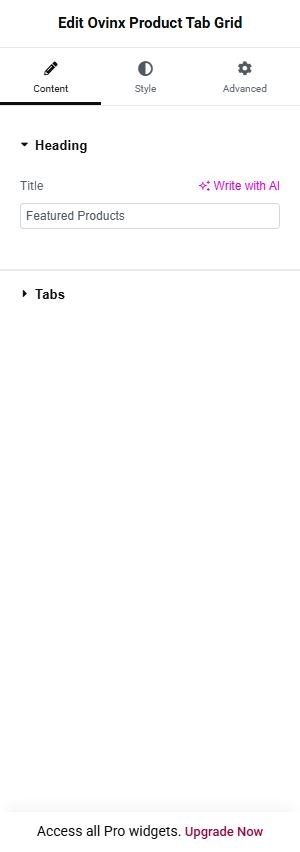
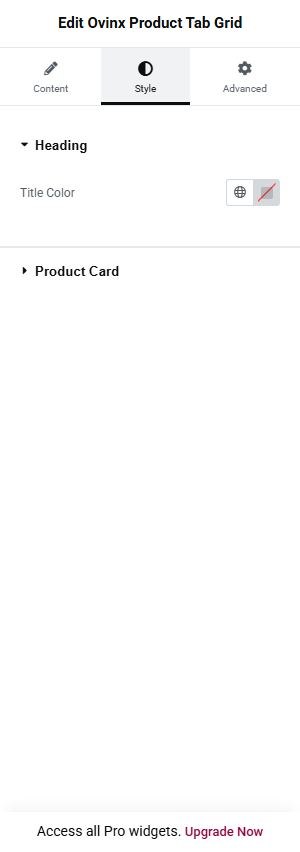
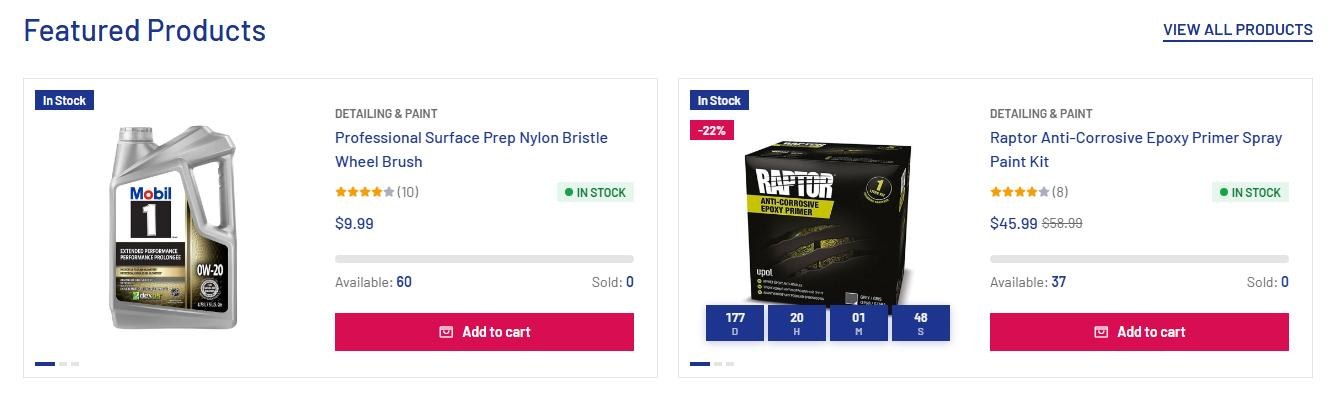

Content tab
Heading
- Title: Heading (h4, escaped) above the grid; omitted if empty. Default ‘Featured Products’. verified
Tabs
- Tab Items: Repeater defining tabs; with only one row no tab buttons are rendered. Default is one row ‘All Product’.
Item fields and related settings
- Tab Label: Repeater sub-field: text of the tab button (uppercase via CSS, escaped). Default ‘All Product’.
- Categories (empty = all products): Repeater sub-field: multi-select categories (term ID) restricting that tab’s products; empty = all.
- Number of Products: Repeater sub-field: how many products for that tab (1-20, default 8, falls back to 8 if empty).
- Order By: Repeater sub-field: Date / Title / Random use the same WP_Query orderby; Price sorts numerically by _price meta.
- Order: Repeater sub-field: Descending or Ascending.
Good to know
- Grid classes are fixed: tf-grid-layout tf-col-1 md-col-2 xl-col-3 gap-10 (1 column on small, 2 at md, 3 at xl); there is no column-count control.
- Cards are hand-built from real product data (permalink, name, thumbnail, first product category, get_price_html via wp_kses_post, add_to_cart_url); no wishlist/compare/quickview/rating/sale badge.
- Add-to-cart link carries product_type_<type> class and data-product_id so variable products open the Quick Add popup (per code comment); behaviour of that JS is not confirmed from this file.
- Only the first tab renders at load; other tabs use AJAX action wp_ajax_ovinx_load_product_tab_grid (nonce ‘tfwc_nonce’, whitelisted order_by/order, count clamped 1-20).
- If first tab returns no products its pane is skipped (but its button stays marked active). Widget returns nothing if tab_items is empty.
- Heading wrapper appears only if there is a title or more than one tab.
Style tab
Style groups: Heading, Product Card. Each group sets typography, colors, spacing and borders for that part of the widget.
Ovinx Product List Carousel


A Swiper carousel of wide horizontal product cards (image left, info right) with sale badge, actions, swatches, rating, price, a stock progress bar and a static ADD TO CART button. Use it for a ‘Featured Products’ list; dots only, no arrows.
Add it with Edit with Elementor → Ovinx widgets → Ovinx Product List Carousel, then customize it in the Content and Style tabs.
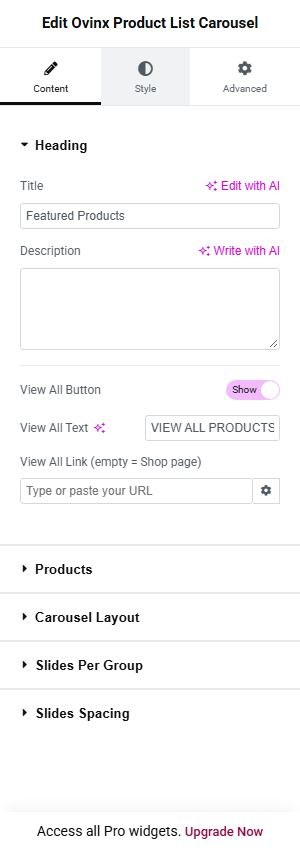
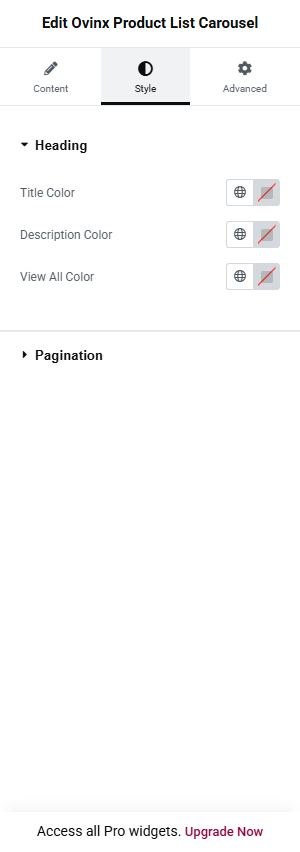
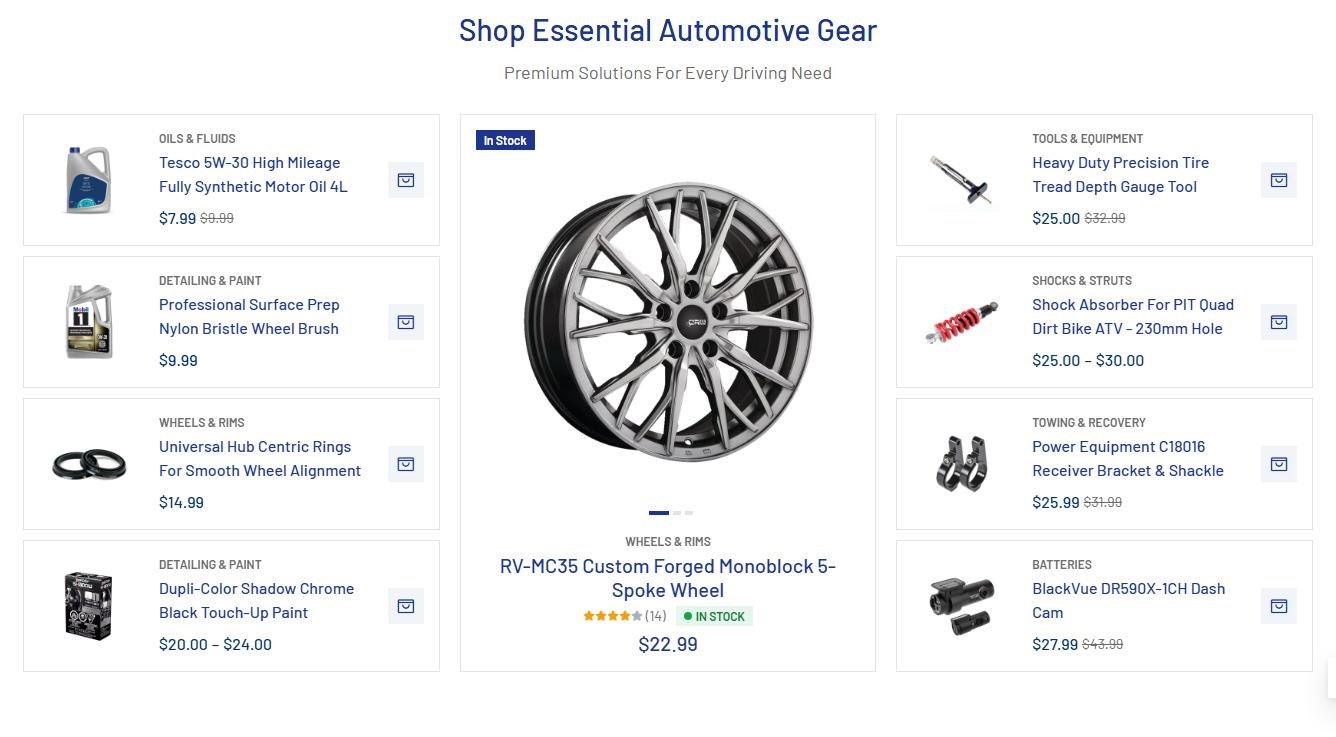

Content tab
Heading
- Title: Heading h4.s-title (escaped); no default. verified
- Description: Paragraph under/next to the title (p.s-desc, escaped plain text). verified
- View All Button: Show/Hide switch (default off); when Show, heading switches to type-2 layout (title left, button right) instead of the centered heading. verified
- View All Text: Button label (default ‘VIEW ALL PRODUCTS’); only shown when View All Button = Show. verified
- View All Link (empty = Shop page): Button URL; if empty it uses the WooCommerce shop page permalink; only shown when View All Button = Show.
Products
- Categories (empty = all products): Multi-select product categories (term ID) to restrict products; empty = all.
- Number of Products: How many products to query (1-20, default 6). verified
- Order By: Date / Title / Random (WP_Query orderby) or Price (numeric sort by _price). verified
- Order: Descending or Ascending. verified
Carousel Layout
- Items — Desktop (≥1440px): Cards visible at 1440px+ (data-laptop); max 4, default 2. verified
- Items — Laptop (≥1200px): Cards visible at 1200px+ (data-preview); max 4, default 2. verified
- Items — Tablet (≥768px): Cards visible at 768px+ (data-tablet); max 4, default 1. verified
- Items — Mobile (≥575px): Cards visible at 575px+ (data-mobile-sm); max 4, default 1. verified
- Items — Small Mobile (<575px): Cards visible below 575px (data-mobile); max 4, default 1. verified
Slides Per Group
- Slide Per Group: Number of slides that move at once when the visitor clicks next/previous or swipes at this screen size (Swiper “slidesPerGroup”).
- Group — Small Mobile (<575px): Number of slides that move at once when the visitor clicks next/previous or swipes at this screen size (Swiper “slidesPerGroup”).
- Group — Mobile (≥575px): Number of slides that move at once when the visitor clicks next/previous or swipes at this screen size (Swiper “slidesPerGroup”).
- Group — Tablet (≥768px): Number of slides that move at once when the visitor clicks next/previous or swipes at this screen size (Swiper “slidesPerGroup”).
- Group — Laptop (≥1200px): Number of slides that move at once when the visitor clicks next/previous or swipes at this screen size (Swiper “slidesPerGroup”).
- Group — Desktop (≥1440px): Number of slides that move at once when the visitor clicks next/previous or swipes at this screen size (Swiper “slidesPerGroup”).
Slides Spacing
- Spacing: Choose: Design default, Custom per breakpoint.
- Spacing — Small Mobile (<575px): Set the number.
- Spacing — Mobile (≥575px): Set the number.
- Spacing — Tablet (≥768px): Set the number.
- Spacing — Laptop (≥1200px): Set the number.
- Spacing — Desktop (≥1440px): Set the number.
Item fields and related settings
- Space Between Slides: Gap in px between slides (0-100, default 20) at every breakpoint.
Good to know
- Requires WooCommerce and tfwc_* theme functions; each card is the real content-product template (Style 1) with a post_class filter adding ‘product-style_list-3’.
- During render the widget temporarily replaces the ‘tfwc_progressbar’ hook (priority 45) with its own stock progress bar and restores it afterwards. The bar and Available/Sold numbers only print for products that manage stock; percentage = sold / (stock + total sales).
- A one-time inline <style> forces .box-action_add (ADD TO CART) to be always visible inside .tf-product-list-carousel.
- If no products match the filters the widget outputs nothing (heading too). Heading is hidden if title, description and View All are all off/empty.
- Pagination dots always shown (no d-xl-none); pagination data attributes are fixed (1/1/2/2); no arrows, autoplay or loop controls.
Style tab
Style groups: Heading, Pagination. Each group sets typography, colors, spacing and borders for that part of the widget.
Ovinx Product Showcase Slider


A fixed three-slide Swiper: a vertical list of compact product cards on the left, one full featured product card in the middle, and another vertical list on the right. Use for a ‘Shop Essential Automotive Gear’ showcase section.
Add it with Edit with Elementor → Ovinx widgets → Ovinx Product Showcase Slider, then customize it in the Content and Style tabs.
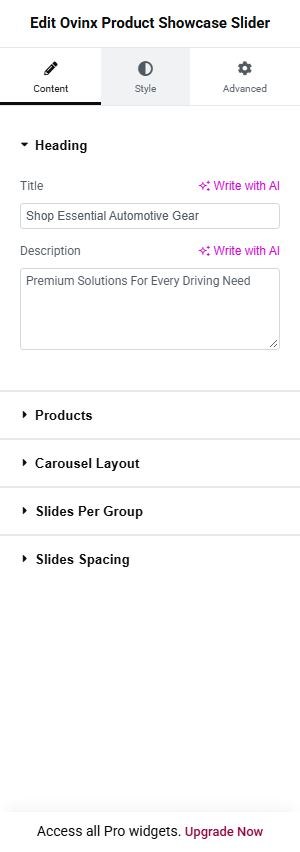
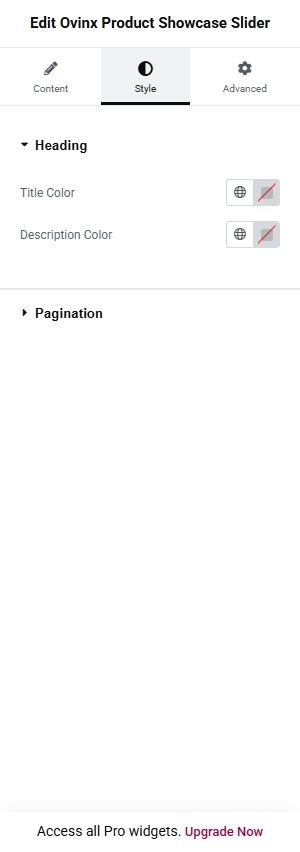
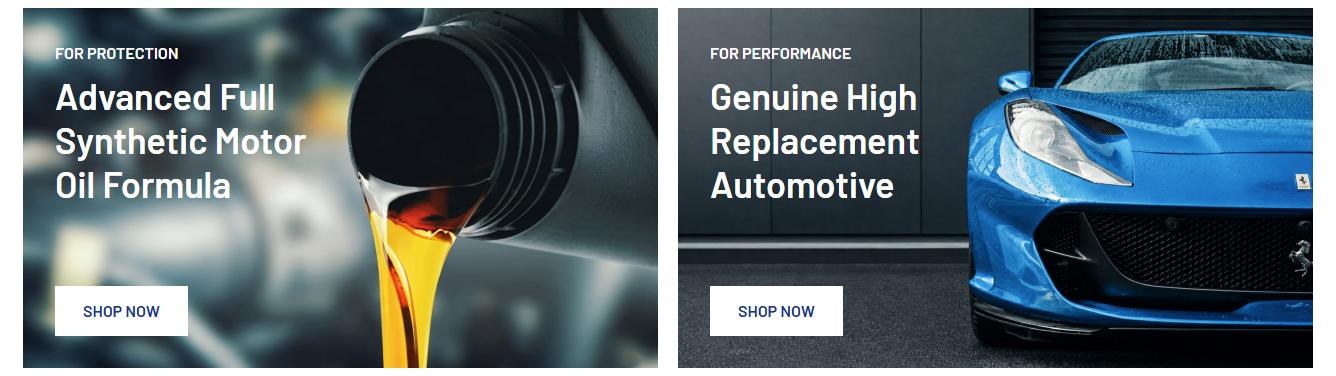

Content tab
Heading
- Title: Centered heading (h4.s-title, escaped). Default ‘Shop Essential Automotive Gear’. verified
- Description: Centered sub-text (p.s-desc, escaped). Default ‘Premium Solutions For Every Driving Need’. verified
Products
- Categories (empty = all products): Multi-select product categories (term ID) restricting the query; empty = all.
- Order By: Date / Title / Random (WP_Query orderby) or Price (numeric sort by _price). verified
- Order: Descending or Ascending. verified
- Items per List (left/right): N (1-10, default 4): the query fetches 2N+1 products; the first N go to the left list, product N+1 becomes the middle full card, the rest (up to N) go to the right list. verified
Carousel Layout
- Items — Desktop (≥1440px): Slides visible at 1440px+ (data-laptop). Default 3. verified
- Items — Laptop (≥1200px): Slides visible at 1200px+ (data-preview). Default 3. verified
- Items — Tablet (≥768px): Slides visible at 768px+ (data-tablet). Default 2. verified
- Items — Mobile (≥575px): Slides visible at 575px+ (data-mobile-sm). Default 1. verified
- Items — Small Mobile (<575px): Slides visible below 575px (data-mobile). Default 1. verified
Slides Per Group
- Slide Per Group: Number of slides that move at once when the visitor clicks next/previous or swipes at this screen size (Swiper “slidesPerGroup”).
- Group — Small Mobile (<575px): Number of slides that move at once when the visitor clicks next/previous or swipes at this screen size (Swiper “slidesPerGroup”).
- Group — Mobile (≥575px): Number of slides that move at once when the visitor clicks next/previous or swipes at this screen size (Swiper “slidesPerGroup”).
- Group — Tablet (≥768px): Number of slides that move at once when the visitor clicks next/previous or swipes at this screen size (Swiper “slidesPerGroup”).
- Group — Laptop (≥1200px): Number of slides that move at once when the visitor clicks next/previous or swipes at this screen size (Swiper “slidesPerGroup”).
- Group — Desktop (≥1440px): Number of slides that move at once when the visitor clicks next/previous or swipes at this screen size (Swiper “slidesPerGroup”).
Slides Spacing
- Spacing: Choose: Design default, Custom per breakpoint.
- Spacing — Small Mobile (<575px): Set the number.
- Spacing — Mobile (≥575px): Set the number.
- Spacing — Tablet (≥768px): Set the number.
- Spacing — Laptop (≥1200px): Set the number.
- Spacing — Desktop (≥1440px): Set the number.
Good to know
- There is no ‘Number of Products’ control; the count is derived from Items per List (2N+1).
- Widget outputs nothing (not even the heading) if the query returns fewer than N+1 products, or if the left list or middle card ends up empty. The right slide is omitted if there are no remaining products.
- The middle slide has class lg-d-none (hidden below 992px per code comment) and uses the real content-product card (Style 1) with an extra ‘card-s2’ class; side cards are hand-built compact cards (image, category, name, price, square add-to-cart icon).
- Pagination dots always rendered; slide spacing fixed (data-space 15/20/20); no arrows, autoplay or loop options.
- Requires WooCommerce and theme tfwc_* functions.
Style tab
Style groups: Heading, Pagination. Each group sets typography, colors, spacing and borders for that part of the widget.
Ovinx Collection Banner


Renders a two-column grid of image banners, each with a tag, title and a button, all linking to the same URL. Use it for promotional collection tiles on the home page.
Add it with Edit with Elementor → Ovinx widgets → Ovinx Collection Banner, then customize it in the Content and Style tabs.
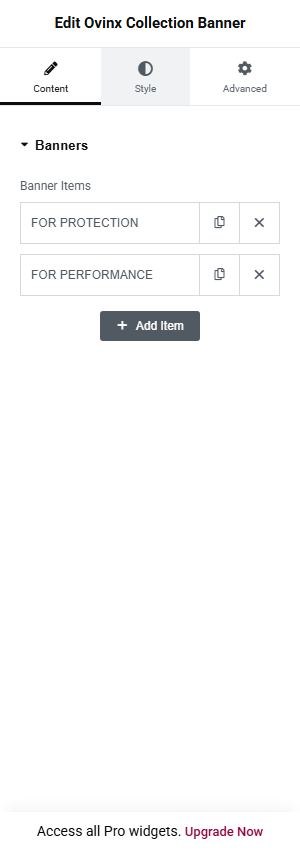
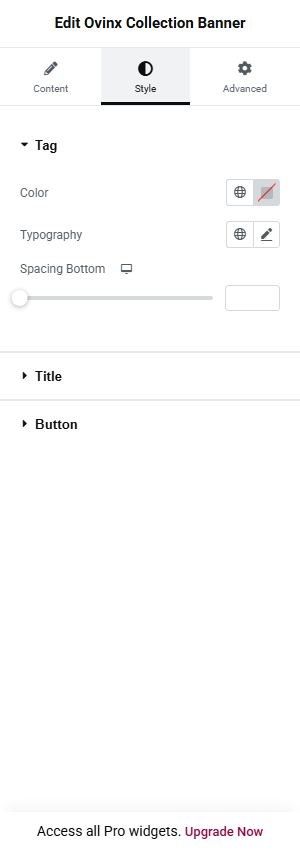
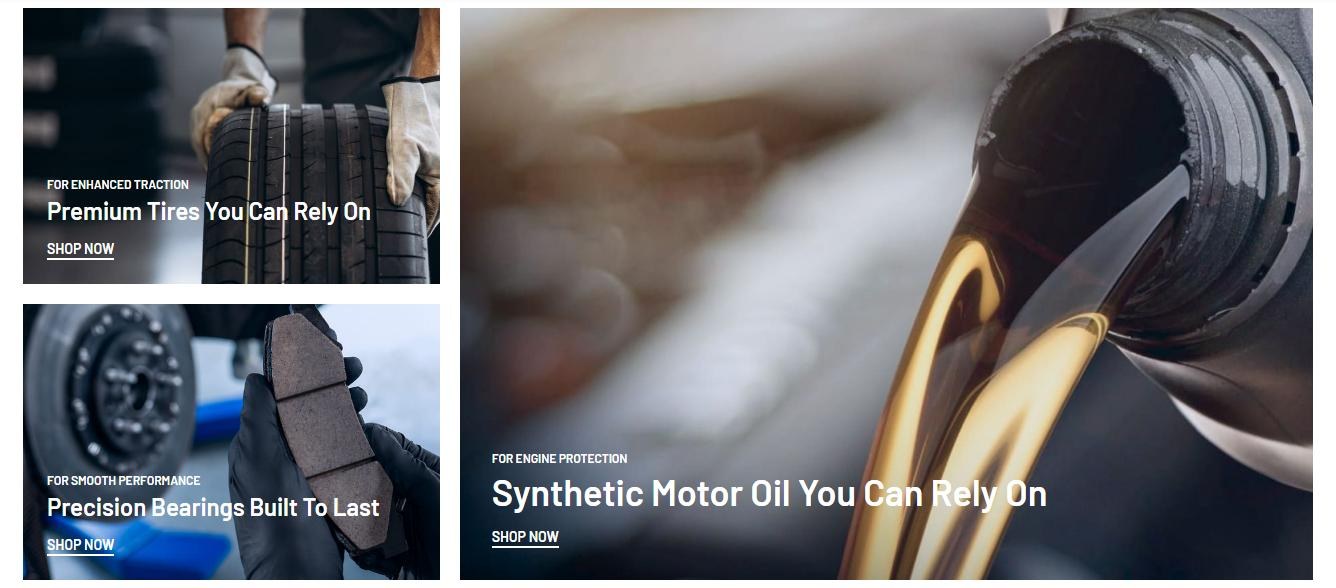

Content tab
Banners
- Banner Items: Repeater; each row renders one banner card in a grid of 2 columns from the sm breakpoint. A row is skipped if it has neither image URL nor title. Sub-fields are listed below.
Item fields and related settings
- Image: Banner background image inside a link; placeholder by default. (repeater sub-field)
- Image Size: Elementor Group_Control_Image_Size (name image_size, label generated by Elementor, not in plugin source); picks the attachment size for the banner image when the image is from the media library. (repeater sub-field)
- Tag: Small bold white label above the title (default ‘FOR PROTECTION’); omitted when empty. (repeater sub-field)
- Tags Color: Per-banner color override for the tag (CSS with !important on that item). (repeater sub-field)
- Title: Banner heading (h3), textarea output through wp_kses_post so allowed HTML such as <br> works; omitted when empty. (repeater sub-field)
- Title Color: Per-banner color override for the title (!important). (repeater sub-field)
- Button Text: Label of the white button on the card (default ‘SHOP NOW’); button omitted when empty. (repeater sub-field)
- Link: URL for the image link and the button of that banner; falls back to ‘#’ when empty. (repeater sub-field)
Good to know
- Default: two banner rows (‘Advanced Full Synthetic Motor Oil Formula’ and ‘Genuine High Replacement Automotive’), both tag ‘FOR PROTECTION’, button ‘SHOP NOW’.
- Image alt text: for media-library images Elementor’s own alt handling is used; for URL-only images (e.g. placeholder) alt is the generic string ‘Image’.
- The same link attributes are applied to the image link and the button (two anchors per card).
- Style-tab controls (tag/title typography, spacing, button colors) exist but are not content options.
- No external plugin dependency.
Style tab
Style groups: Tag, Title, Button. Each group sets typography, colors, spacing and borders for that part of the widget.
Ovinx Grid Banner


Renders a fixed three-slot asymmetric banner grid: items 1 and 2 stacked on the left and item 3 spanning the right column at double height. Each slot has an image, tag, title and a line-style button.
Add it with Edit with Elementor → Ovinx widgets → Ovinx Grid Banner, then customize it in the Content and Style tabs.
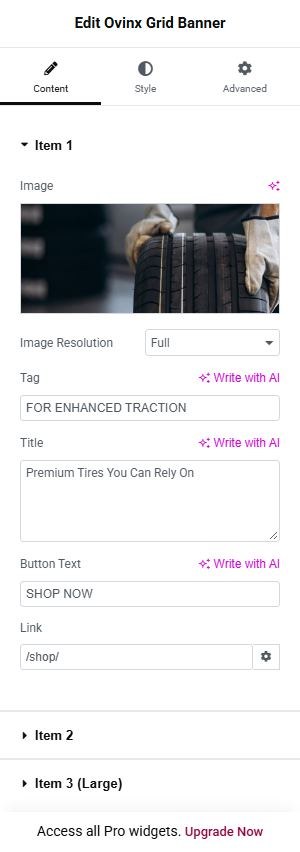
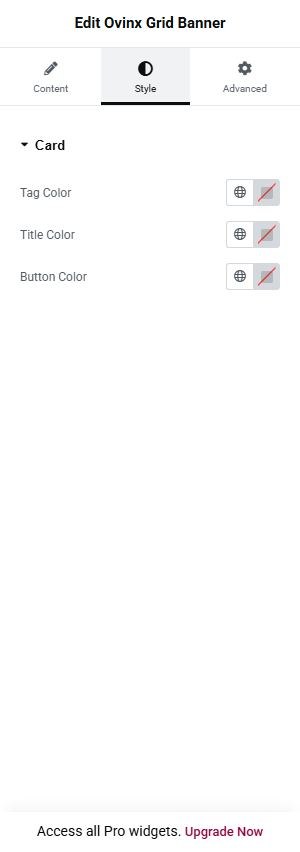
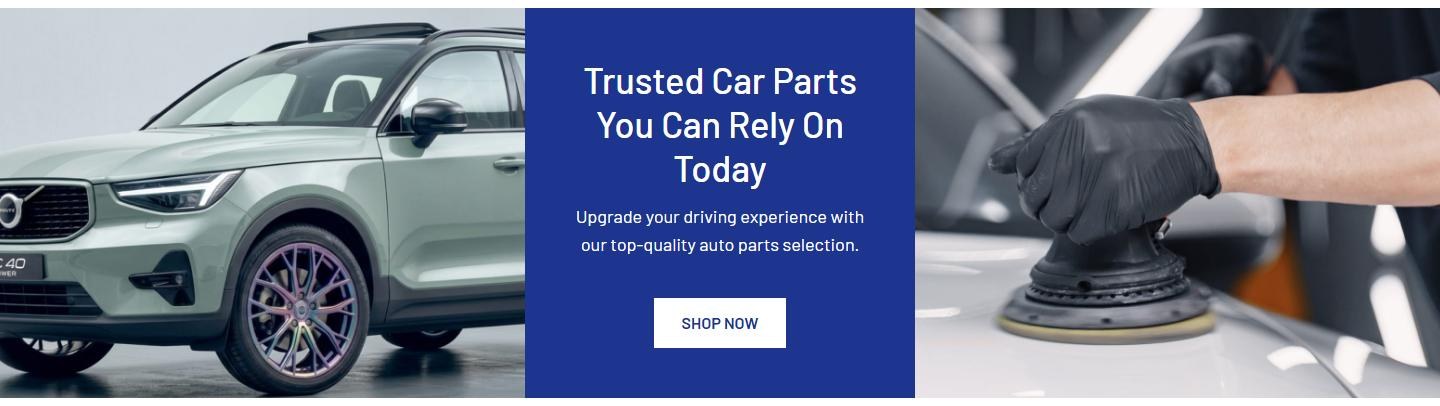

Content tab
Item 1
- Image: Background image of the slot (placeholder by default); one per Item 1, Item 2 and Item 3 (Large) section.
- Image Resolution: Elementor image size: choose a registered size (Thumbnail, Medium, Large, Full) or Custom. not confirmed in preview
- Image Dimension: Width and height in px, used when Image Resolution is set to Custom.
- Tag: Small white label above the title (default ‘FOR ENHANCED TRACTION’ for all three); omitted when empty. verified
- Title: Slot heading rendered as a link (h5 for items 1-2, h3 for item 3) through wp_kses_post; defaults ‘Premium Tires You Can Rely On’ (items 1, 2) and ‘Synthetic Motor Oil You Can Rely On’ (item 3); omitted when empty. verified
- Button Text: Label of the white underlined button (default ‘SHOP NOW’); omitted when empty. verified
- Link: URL used by the image link, the title link and the button of that slot; falls back to ‘#’ when empty.
Item 2
- Image: Background image of the slot (placeholder by default); one per Item 1, Item 2 and Item 3 (Large) section.
- Image Resolution: Elementor image size: choose a registered size (Thumbnail, Medium, Large, Full) or Custom. not confirmed in preview
- Image Dimension: Width and height in px, used when Image Resolution is set to Custom.
- Tag: Small white label above the title (default ‘FOR ENHANCED TRACTION’ for all three); omitted when empty. verified
- Title: Slot heading rendered as a link (h5 for items 1-2, h3 for item 3) through wp_kses_post; defaults ‘Premium Tires You Can Rely On’ (items 1, 2) and ‘Synthetic Motor Oil You Can Rely On’ (item 3); omitted when empty. verified
- Button Text: Label of the white underlined button (default ‘SHOP NOW’); omitted when empty. verified
- Link: URL used by the image link, the title link and the button of that slot; falls back to ‘#’ when empty.
Item 3 (Large)
- Image: Background image of the slot (placeholder by default); one per Item 1, Item 2 and Item 3 (Large) section.
- Image Resolution: Elementor image size: choose a registered size (Thumbnail, Medium, Large, Full) or Custom. not confirmed in preview
- Image Dimension: Width and height in px, used when Image Resolution is set to Custom.
- Tag: Small white label above the title (default ‘FOR ENHANCED TRACTION’ for all three); omitted when empty. verified
- Title: Slot heading rendered as a link (h5 for items 1-2, h3 for item 3) through wp_kses_post; defaults ‘Premium Tires You Can Rely On’ (items 1, 2) and ‘Synthetic Motor Oil You Can Rely On’ (item 3); omitted when empty. verified
- Button Text: Label of the white underlined button (default ‘SHOP NOW’); omitted when empty. verified
- Link: URL used by the image link, the title link and the button of that slot; falls back to ‘#’ when empty.
Item fields and related settings
- Image Size: Elementor Group_Control_Image_Size per slot (names item1_image_size, item2_image_size, item3_image_size; label generated by Elementor); selects attachment size for library images.
Good to know
- Controls are in three separate content sections labelled ‘Item 1’, ‘Item 2’ and ‘Item 3 (Large)’; control ids are prefixed item1_/item2_/item3_.
- A slot is skipped if it has neither image URL nor title; if all slots are empty nothing is rendered.
- Only item 3 gets the extra ‘style-2’ class and larger h3 title.
- Style tab has only three shared colors (Tag, Title, Button) applied to all slots.
- For URL-only images the alt text is the generic ‘Image’.
- Image fixed layout (3 slots, not a repeater) is by design per the code comment.
Style tab
Style groups: Card. Each group sets typography, colors, spacing and borders for that part of the widget.
Ovinx Two Image Banner


Renders a full-width three-column banner: left image, a colored center panel with title, description and button, and right image. Use it as a promotional split banner.
Add it with Edit with Elementor → Ovinx widgets → Ovinx Two Image Banner, then customize it in the Content and Style tabs.
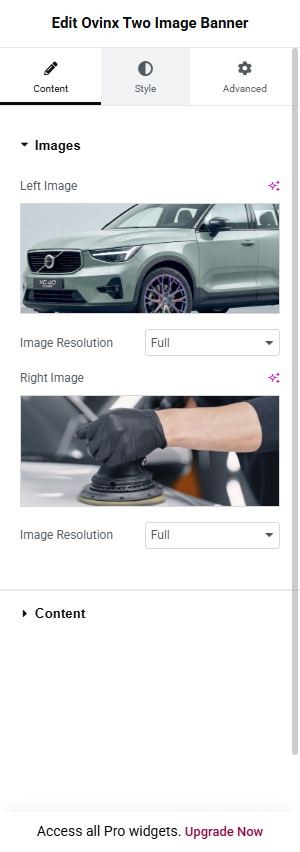
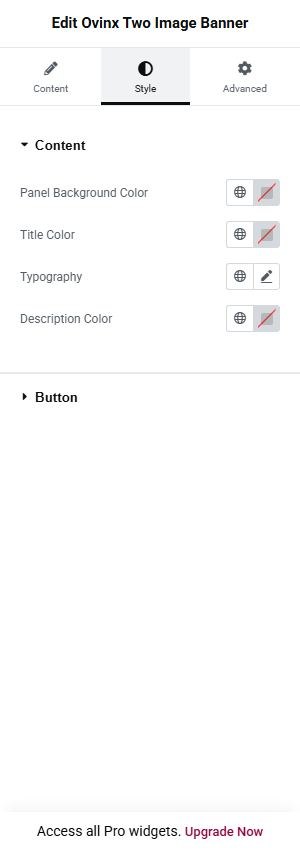


Content tab
Images
- Left Image: Image in the left column (placeholder by default).
- Image Resolution: Elementor image size: choose a registered size (Thumbnail, Medium, Large, Full) or Custom. not confirmed in preview
- Image Dimension: Width and height in px, used when Image Resolution is set to Custom.
- Right Image: Image in the right column (placeholder by default).
- Image Resolution: Elementor image size: choose a registered size (Thumbnail, Medium, Large, Full) or Custom. not confirmed in preview
- Image Dimension: Width and height in px, used when Image Resolution is set to Custom.
Content
- Title: Center panel heading (h3, white) output via wp_kses_post so basic HTML is allowed; omitted when empty (default ‘Trusted Car Parts You Can Rely On Today’). verified
- Description: Paragraph under the title, escaped plain text; omitted when empty (default ‘Upgrade your driving experience with our top-quality auto parts selection.’). verified
- Button Text: Label of the button in the center panel (default ‘SHOP NOW’); button omitted when empty. verified
- Button Link: URL of the button; falls back to ‘#’ when empty.
Item fields and related settings
- Image Size: Elementor Group_Control_Image_Size for the left image (name image_left_size; label generated by Elementor).
- Image Size: Elementor Group_Control_Image_Size for the right image (name image_right_size; label generated by Elementor).
Good to know
- The widget is skipped entirely only if left image URL, right image URL and title are all empty.
- Markup has no container/themesFlat wrapper (bare full-bleed row), per code comment.
- Panel background, title/description colors and button colors are Style-tab controls only.
- For URL-only images the alt text is the generic ‘Image’.
Style tab
Style groups: Content, Button. Each group sets typography, colors, spacing and borders for that part of the widget.
Ovinx Banner Sale Coupon


Shows a promo bar with the discount amount derived from a real WooCommerce coupon, a title, a description and a button that displays the coupon code and copies it to the clipboard when clicked. Use it to advertise a coupon.
Add it with Edit with Elementor → Ovinx widgets → Ovinx Banner Sale Coupon, then customize it in the Content and Style tabs.
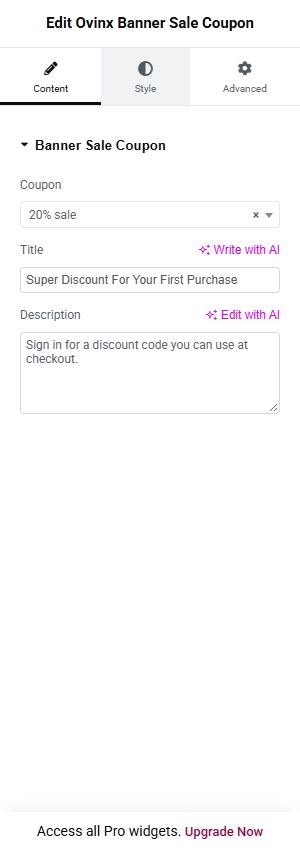
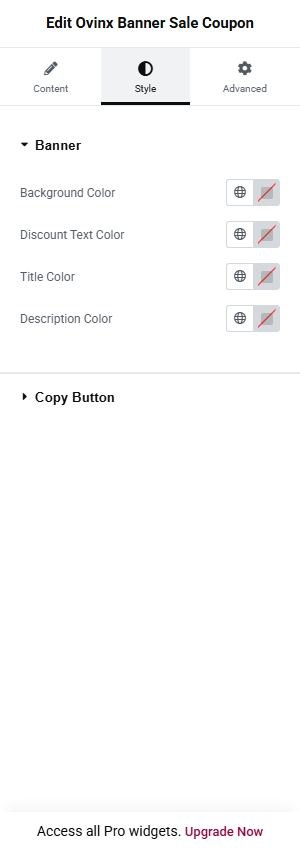
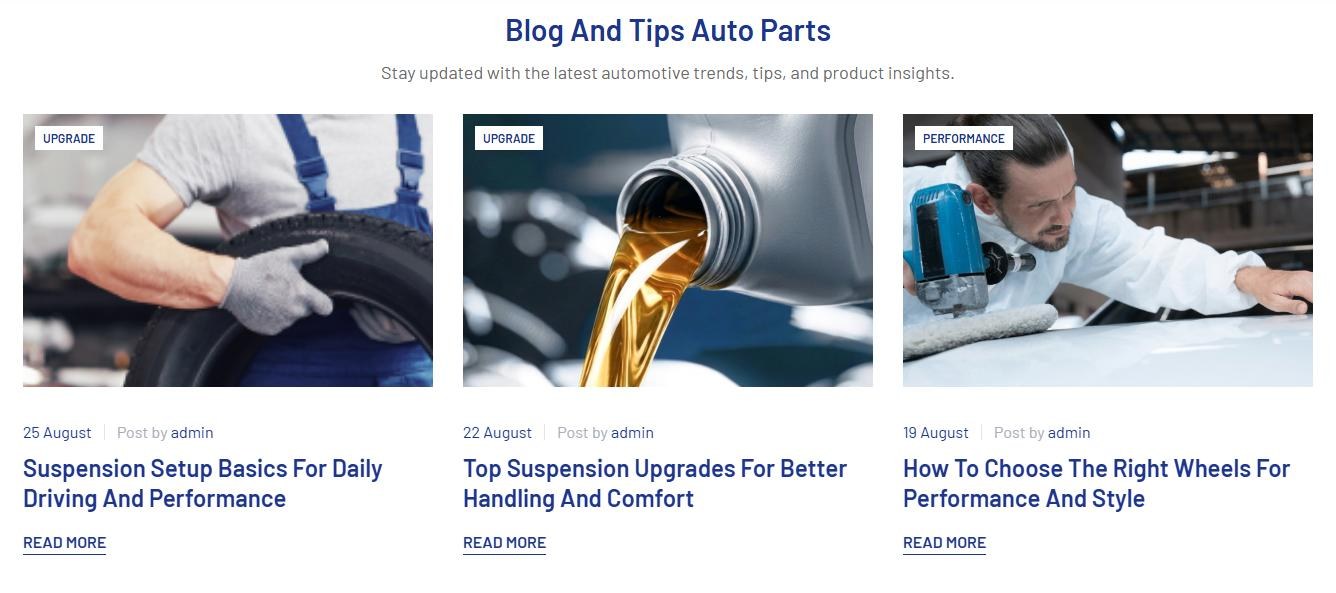

Content tab
Banner Sale Coupon
- Coupon: Select2 of published shop_coupon posts. The big discount text (‘-N%’ for percent coupons, otherwise ‘-‘ plus wc_price of the amount) and the code on the copy button both come from this coupon; if none is selected or the coupon does not exist the widget outputs nothing.
- Title: Heading line in the banner (default ‘Super Discount For Your First Purchase’); omitted when empty. verified
- Description: Smaller muted text under the title (default ‘Sign In For Discount. Min spend $60. Max reward $20’); plain text, omitted when empty. verified
Good to know
- Requires WooCommerce (uses WC_Coupon and wc_price); no code guard if WooCommerce is inactive: Not confirmed from code beyond that.
- Coupon default is empty, so a freshly added widget renders nothing on the front-end until a coupon is chosen.
- All non-percent coupon types (fixed cart, fixed product) are shown as ‘-‘ plus a formatted price of the coupon amount.
- The copy button has data-coupon-code; slider-core.js (loaded via get_script_depends) binds a click handler on .coupon-copy-wrap that copies the code, with execCommand fallback and a toast if $.toast exists.
- Coupon options list is built with posts_per_page = -1 (all published coupons); expired coupons are not filtered out in code.
Style tab
Style groups: Banner, Copy Button. Each group sets typography, colors, spacing and borders for that part of the widget.
Ovinx Blog


Renders a Swiper carousel of blog post cards with an optional centered heading. Style 1 and Style 3 auto-query the latest posts (optionally filtered by category); Style 2 shows hand-picked posts with a custom call-to-action link per slide. Used to show blog/news posts on a landing page.
Add it with Edit with Elementor → Ovinx widgets → Ovinx Blog, then customize it in the Content and Style tabs.
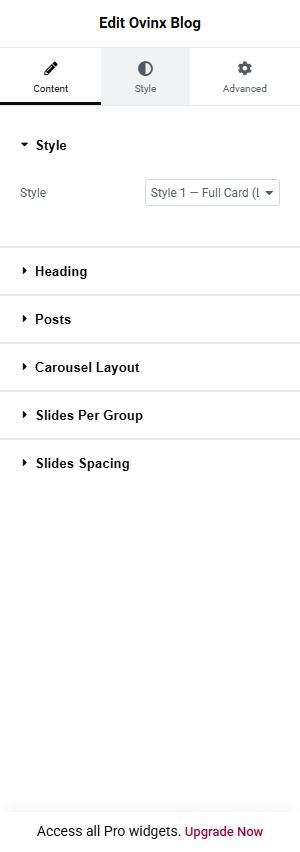
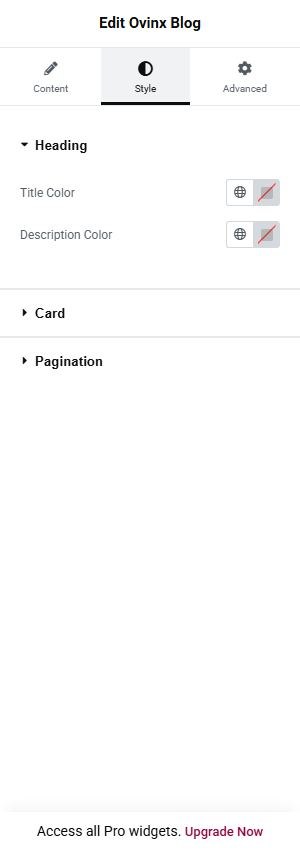
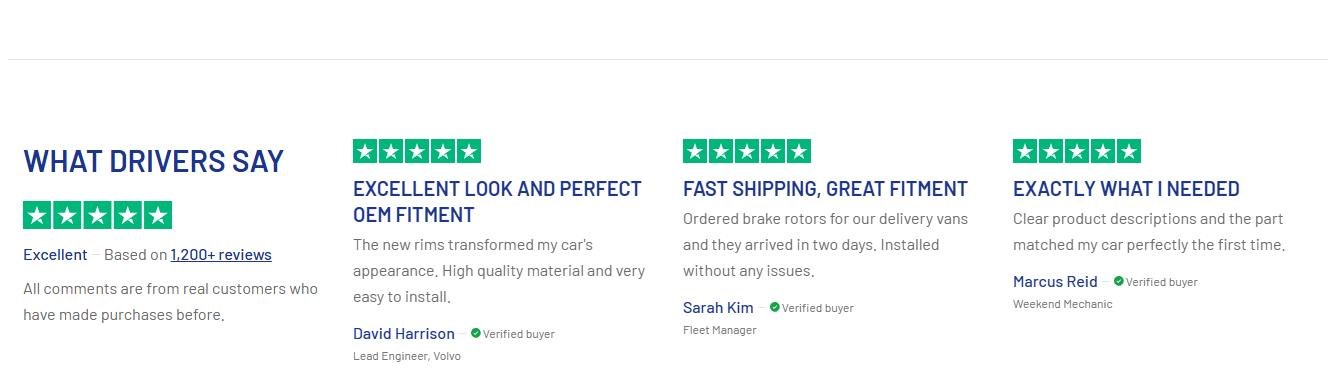

Content tab
Style
- Style: Chooses the card layout: ‘Style 1 — Full Card (Latest Posts)’ renders article-blog style-2 cards from a latest-posts query; ‘Style 2 — Minimal Card (Curated Posts)’ renders image + title + optional excerpt + CTA for posts picked in the Slides repeater; ‘Style 3 — List Card Grid (Latest Posts)’ renders article-blog blog-style_list cards with a 2-line-clamped title and can use Swiper grid rows. verified
Heading
- Title: Heading text above the carousel (Style 1 and 3 only; the Heading section is hidden for Style 2); Style 3 outputs it as an h4, Style 1 as a p.s-title.h4; not printed if empty. verified
- Description: Paragraph under the heading (Style 1 and 3 only); not printed if empty. If both Title and Description are empty the whole heading block is omitted. verified
Posts
- Category: Restricts the auto-queried posts (Style 1 and 3 only) to the selected category via WP_Query ‘cat’; ‘All Categories’ (empty) applies no filter. verified
- Number of Posts: Sets posts_per_page of the latest-posts query for Style 1 and 3 (1-20, default 6). verified
- Show Excerpt: Style 1 and 3 only: when switched on, each card shows a 3-line-clamped excerpt paragraph (setting key show_excerpt_full, default off). verified
Slides
- Slides: Repeater (Style 2 only) listing the curated slides; each row uses Post, CTA Text and CTA Link as described above.
- Show Excerpt: Style 1 and 3 only: when switched on, each card shows a 3-line-clamped excerpt paragraph (setting key show_excerpt_full, default off). verified
Carousel Layout
- Items — Desktop (≥1440px): Number of slides visible at the widest breakpoint; output as the data-laptop attribute on the swiper (default 3, 1-6). verified
- Items — Laptop (≥1200px): Slides visible at laptop width; output as data-preview (default 3, 1-6). verified
- Items — Tablet (≥768px): Slides visible at tablet width; output as data-tablet (default 2, 1-6). verified
- Items — Mobile (≥575px): Slides visible at mobile width; output as data-mobile-sm (default 2, 1-6). verified
- Items — Small Mobile (<575px): Slides visible below 575px; output as data-mobile (default 1, 1-6). verified
- Grid Rows: Style 3 only: number of Swiper grid rows (data-grid is emitted only when the value is greater than 1; default 2, 1-3). not confirmed in preview
Slides Per Group
- Slide Per Group: Number of slides that move at once when the visitor clicks next/previous or swipes at this screen size (Swiper “slidesPerGroup”).
- Group — Small Mobile (<575px): Number of slides that move at once when the visitor clicks next/previous or swipes at this screen size (Swiper “slidesPerGroup”).
- Group — Mobile (≥575px): Number of slides that move at once when the visitor clicks next/previous or swipes at this screen size (Swiper “slidesPerGroup”).
- Group — Tablet (≥768px): Number of slides that move at once when the visitor clicks next/previous or swipes at this screen size (Swiper “slidesPerGroup”).
- Group — Laptop (≥1200px): Number of slides that move at once when the visitor clicks next/previous or swipes at this screen size (Swiper “slidesPerGroup”).
- Group — Desktop (≥1440px): Number of slides that move at once when the visitor clicks next/previous or swipes at this screen size (Swiper “slidesPerGroup”).
Slides Spacing
- Spacing: Choose: Design default, Custom per breakpoint.
- Spacing — Small Mobile (<575px): Set the number.
- Spacing — Mobile (≥575px): Set the number.
- Spacing — Tablet (≥768px): Set the number.
- Spacing — Laptop (≥1200px): Set the number.
- Spacing — Desktop (≥1440px): Set the number.
Item fields and related settings
- Post: Repeater field (Style 2 only): the published blog post shown in that slide (title, thumbnail, excerpt and permalink come from the post); a slide with no post or a non-published post is skipped.
- CTA Text (optional): Repeater field (Style 2 only): text of the line-button under the excerpt; falls back to ‘Browse All Parts’ when blank.
- CTA Link (optional): Repeater field (Style 2 only): URL of the CTA button; when blank it links to the posts page (page_for_posts), else the post archive, else the home URL.
Good to know
- Style 1/3 cards reuse theme template parts (tpl/feature-post-related, tpl/entry-content/entry-content-meta-related, tpl/entry-content/entry-content-readmore-related) via get_template_part(), so the Read More label, category tag and meta come from the theme/Customizer, not from widget controls.
- Style 2 default repeater is three empty rows ([[],[],[]]); rows without a Post render nothing, and if every slide is empty the widget outputs nothing at all (render returns early when there are no slides).
- Style 1/3 also output nothing if the query returns no posts.
- Spacing between slides is hard-coded per style (data-space attributes); there is no content control for it.
- Depends on swiper scripts/styles ‘themesflat-swiper’ and ‘slider-core’.
- Style 1 excerpt uses the excerpt_more filter ‘themesflat_excerpt_not_more’ (theme function; not confirmed from this file that it exists).
Style tab
Style groups: Heading, Card, Pagination. Each group sets typography, colors, spacing and borders for that part of the widget.
Ovinx Testimonial


Renders a Swiper carousel of customer testimonial cards with a 5-star graphic and an optional ‘Verify buyer’ badge. Style 1 adds a left summary card (title, rating label, review count, description) beside the carousel; Style 2 shows dark cards with author avatar and an optional live WooCommerce product card, under a heading with a ‘view all’ link.
Add it with Edit with Elementor → Ovinx widgets → Ovinx Testimonial, then customize it in the Content and Style tabs.
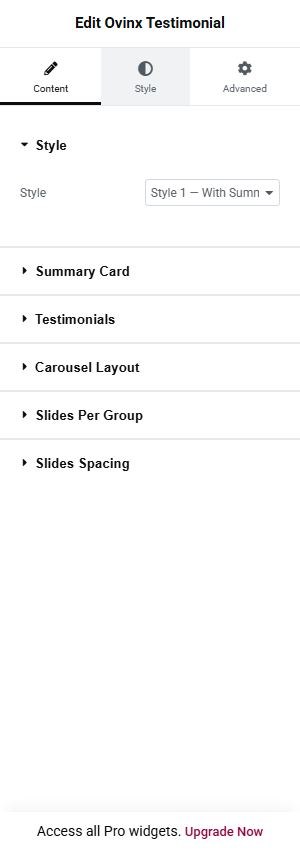
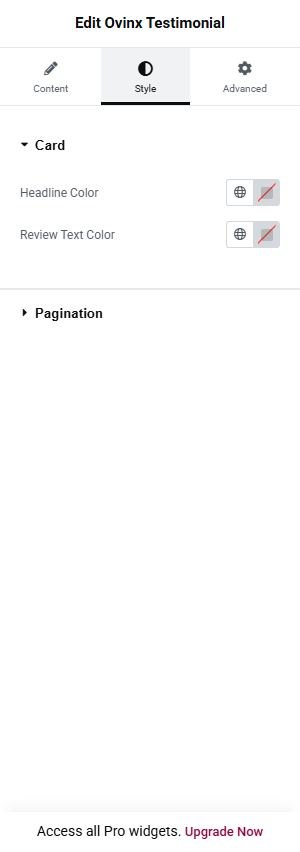


Content tab
Style
- Style: Switches between ‘Style 1 — With Summary Card’ (section-testimonial layout with a summary column plus carousel) and ‘Style 2 — With Product’ (testimonial-v02 cards in a container with heading and View All link). verified
Summary Card
- Title: Summary Card section (Style 1 only, key summary_title): bold title in the left summary card; not printed if empty. verified
- Rating Label: Style 1 only: text next to the large star graphic in the summary card (default ‘Excelled’); not printed if empty. verified
- Review Count Text: Style 1 only: underlined text in the summary card showing the review count (default ‘4200 reviews’); it is plain text, not computed from data. verified
- Description: Style 1 only: paragraph in the summary card (key summary_desc). verified
Heading
- Title: Summary Card section (Style 1 only, key summary_title): bold title in the left summary card; not printed if empty. verified
- View All Text: Style 2 only: label of the link at the right of the heading (default ‘VIEW ALL’); the link is rendered only when View All Link has a URL. not confirmed in preview
- View All Link: Style 2 only: URL of the View All button; if empty the link is not rendered.
Testimonials
- Testimonial Items: Repeater listing the testimonial cards (default three rows with the default texts); each row uses the sub-fields above.
Carousel Layout
- Items — Desktop (≥1440px): Slides visible at the widest breakpoint (data-laptop; default 4, 1-6). verified
- Items — Laptop (≥1200px): Slides visible at laptop width (data-preview; default 3, 1-6). verified
- Items — Tablet (≥768px): Slides visible at tablet width (data-tablet; default 2, 1-6). verified
- Items — Mobile (≥575px): Slides visible at mobile width (data-mobile-sm; default 1, 1-6). verified
- Items — Small Mobile (<575px): Slides visible below 575px (data-mobile; default 1, 1-6). verified
Slides Per Group
- Slide Per Group: Number of slides that move at once when the visitor clicks next/previous or swipes at this screen size (Swiper “slidesPerGroup”).
- Group — Small Mobile (<575px): Number of slides that move at once when the visitor clicks next/previous or swipes at this screen size (Swiper “slidesPerGroup”).
- Group — Mobile (≥575px): Number of slides that move at once when the visitor clicks next/previous or swipes at this screen size (Swiper “slidesPerGroup”).
- Group — Tablet (≥768px): Number of slides that move at once when the visitor clicks next/previous or swipes at this screen size (Swiper “slidesPerGroup”).
- Group — Laptop (≥1200px): Number of slides that move at once when the visitor clicks next/previous or swipes at this screen size (Swiper “slidesPerGroup”).
- Group — Desktop (≥1440px): Number of slides that move at once when the visitor clicks next/previous or swipes at this screen size (Swiper “slidesPerGroup”).
Slides Spacing
- Spacing: Choose: Design default, Custom per breakpoint.
- Spacing — Small Mobile (<575px): Set the number.
- Spacing — Mobile (≥575px): Set the number.
- Spacing — Tablet (≥768px): Set the number.
- Spacing — Laptop (≥1200px): Set the number.
- Spacing — Desktop (≥1440px): Set the number.
Item fields and related settings
- Author Avatar: Repeater field: author photo shown in Style 2 cards (42×42 img, alt text = author name); ignored by Style 1; not shown if no URL.
- Author Name: Repeater field: author name shown in the card footer (Style 1) or header (Style 2); also used as the avatar alt text.
- Author Title/Company: Repeater field (key author_duty): small caption under the author name.
- Show “Verified Buyer”: Repeater field (default yes): shows a green check icon with the text ‘Verify buyer’ next to the author name.
- Headline: Repeater field (key title): bold headline of the review (p.tes-name in Style 1, p.tes-title in Style 2).
- Review Text: Repeater field (key text): body text of the review.
- Featured Product (Style 2 only): Repeater field (key product_id): WooCommerce product shown as a small card (thumbnail, linked name, live price incl. sale price) inside a Style 2 testimonial.
Good to know
- Summary Card section only shows when Style = Style 1; Heading section only when Style = Style 2.
- A repeater row is skipped when both Author Name and Headline are empty; if no row renders the widget outputs nothing.
- Star graphic and verified-check icon are static inline SVG, not editable.
- The ‘Verify buyer’ text is a fixed translatable string, not a control.
- Style 2 product card calls wc_get_product(); it requires WooCommerce active (not confirmed whether the widget guards against WooCommerce being inactive). A missing/invalid product ID renders no product card.
- Style 1 shows the carousel pagination dots hidden on xl (class d-xl-none); Style 2 uses line pagination.
- Avatar and Featured Product controls carry a ‘Style 2 only’ hint but are not hidden by condition in the editor.
Style tab
Style groups: Card, Pagination. Each group sets typography, colors, spacing and borders for that part of the widget.
Ovinx Icon List
Renders a Swiper carousel of feature boxes, each with an icon in a circle, a title and a description, plus line pagination. Use it for trust/benefit strips such as returns, shipping, support.
Add it with Edit with Elementor → Ovinx widgets → Ovinx Icon List, then customize it in the Content and Style tabs.
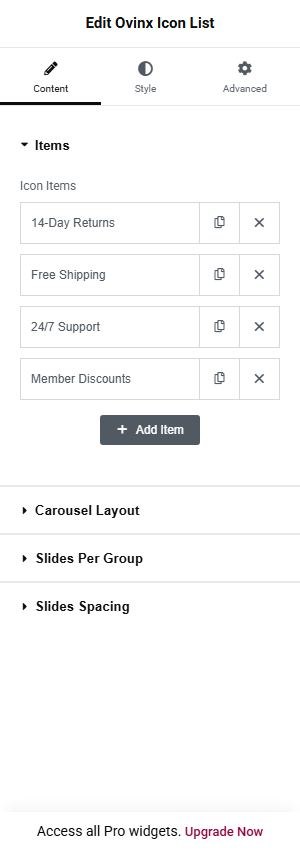
Content tab
Items
- Icon Items: Repeater of boxes; each row becomes one slide, skipped only if it has neither icon nor title. Sub-fields: Icon (ovinx_icon library by default) shown in a circle with aria-hidden; Title as an h6; Description as a paragraph. Empty sub-fields are not output.
Carousel Layout
- Items — Desktop (≥1440px): Slides visible at 1440px and up (output as data-laptop); default 4, range 1-8. verified
- Items — Laptop (≥1200px): Slides visible from 1200px (data-preview); default 4. verified
- Items — Tablet (≥768px): Slides visible from 768px (data-tablet); default 3. verified
- Items — Mobile (≥575px): Slides visible from 575px (data-mobile-sm); default 2. verified
- Items — Small Mobile (<575px): Slides visible below 575px (data-mobile); default 1. verified
Slides Per Group
- Slide Per Group: Number of slides that move at once when the visitor clicks next/previous or swipes at this screen size (Swiper “slidesPerGroup”).
- Group — Small Mobile (<575px): Number of slides that move at once when the visitor clicks next/previous or swipes at this screen size (Swiper “slidesPerGroup”).
- Group — Mobile (≥575px): Number of slides that move at once when the visitor clicks next/previous or swipes at this screen size (Swiper “slidesPerGroup”).
- Group — Tablet (≥768px): Number of slides that move at once when the visitor clicks next/previous or swipes at this screen size (Swiper “slidesPerGroup”).
- Group — Laptop (≥1200px): Number of slides that move at once when the visitor clicks next/previous or swipes at this screen size (Swiper “slidesPerGroup”).
- Group — Desktop (≥1440px): Number of slides that move at once when the visitor clicks next/previous or swipes at this screen size (Swiper “slidesPerGroup”).
Slides Spacing
- Spacing: Choose: Design default, Custom per breakpoint.
- Spacing — Small Mobile (<575px): Set the number.
- Spacing — Mobile (≥575px): Set the number.
- Spacing — Tablet (≥768px): Set the number.
- Spacing — Laptop (≥1200px): Set the number.
- Spacing — Desktop (≥1440px): Set the number.
Item fields and related settings
- Icon: Icon picker shown in the circle at the top of the box (default icon-KeyReturn); circle omitted if no icon. (repeater sub-field)
- Title: Box heading (default ‘Title’); omitted when empty. (repeater sub-field)
- Description: Short text under the title (default ‘Description’); omitted when empty. (repeater sub-field)
Good to know
- Defaults: four items (14-Day Returns, Free Shipping, 24/7 Support, Member Discounts) with ovinx_icon icons.
- If there are no renderable items the widget outputs nothing.
- Line pagination (.sw-line-default) is always output; spacing is fixed at 15/20/30 px by breakpoint via data attributes.
- No WooCommerce dependency; loads themesflat-swiper style and slider-core script.
Style tab
Style groups: Icon, Content, Pagination. Each group sets typography, colors, spacing and borders for that part of the widget.
Ovinx Countdown
This widget is not used on the demo pages, so there is no front-end screenshot.
Renders a promotional banner card with a mini title, title, a text-link button, an image and an optional live countdown (Days, Hours, Mins, Secs) to a chosen end date. Intended for ‘deal of the week’ style promotions.
Add it with Edit with Elementor → Ovinx widgets → Ovinx Countdown, then customize it in the Content and Style tabs.
Content tab
Content
- Mini Title: Small highlighted line above the title (escaped text); omitted if empty.
- Title: Main h5 heading of the banner (escaped plain text); omitted if empty.
- Button Text: Label of the underlined link-button; the button is omitted if empty.
- Button Link: URL and attributes of the button; falls back to ‘#’ when empty.
- Image: Picture shown in the banner (placeholder by default); uses the Image Size group control when it is a media-library image, otherwise a plain lazy-loaded img with alt ‘Image’.
- Image Resolution: Elementor image size: choose a registered size (Thumbnail, Medium, Large, Full) or Custom.
- Image Dimension: Width and height in px, used when Image Resolution is set to Custom.
Countdown
- End Date/Time: Target date and time of the countdown; the server computes the seconds remaining (interpreted in the WordPress site timezone) and writes it to data-timer. The countdown block is only rendered when this is set.
Good to know
- Nothing is rendered if both Title and Image URL are empty.
- If the end date is in the past, seconds left is clamped to 0, so the timer shows zero rather than disappearing.
- Seconds remaining are computed once on the server at render time and the JS timer counts down from that value (data-timer); on cached pages the number is baked in at cache time: Not confirmed from code how the JS script (js-countdown-core) handles this, only that it is the declared script.
- Countdown labels are hard-coded in English via data-labels=’Days,Hours,Mins,Secs’ and are not translatable through the widget.
- Without an End Date/Time, no countdown is shown at all (there is no default date).
Style tab
Style groups: Content, Countdown. Each group sets typography, colors, spacing and borders for that part of the widget.
Ovinx Contact Support


Renders a two-column support section: a media column (image with title, description and a button) and a content column (mini title, heading, description and a Contact Form 7 shortcode form). Used for a ‘Need help?’ contact block on landing pages.
Add it with Edit with Elementor → Ovinx widgets → Ovinx Contact Support, then customize it in the Content and Style tabs.
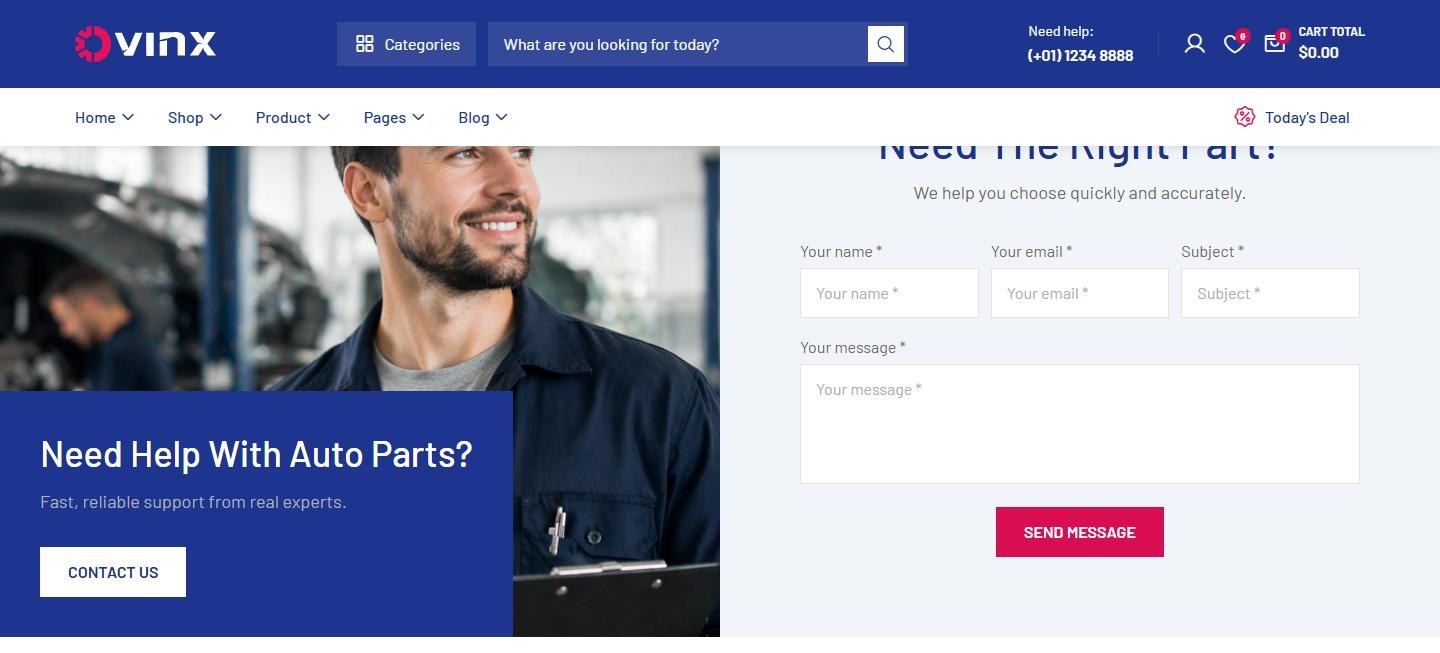


Content tab
Media
- Style: ‘Style 1 — Default’ stacks media title as h3/description/button and uses h2 for the heading; ‘Style 2 — Boxed’ wraps the section in a .container, uses h5 for the media title with the button beside it, adds the ‘style-2’ class and an h3 heading. verified
- Image: Image shown in the media column (default is the Elementor placeholder); rendered with the Image Size group control when it is a media-library image, otherwise as a plain img with alt ‘Image’.
- Image Resolution: Elementor image size: choose a registered size (Thumbnail, Medium, Large, Full) or Custom. not confirmed in preview
- Image Dimension: Width and height in px, used when Image Resolution is set to Custom.
- Media Title: Heading on top of the media image (default ‘Need Help With Auto Parts?’); not printed if empty. verified
- Media Description: Paragraph under the media title (default ‘Fast, reliable support from real experts.’). verified
- Button Text: Label of the button over the media (default ‘CONTACT US’); button is omitted if empty. verified
- Button Link: URL of the media button; falls back to ‘#’ when empty.
Content
- Mini Title: Small primary-colored text above the heading (default ‘CONTACT SUPPORT’). verified
- Title: Main heading of the content column (h2 in Style 1, h3 in Style 2). verified
- Description: Paragraph under the heading. verified
- Form Shortcode: Contact Form 7 shortcode (e.g.
Error: Contact form not found.
) executed with do_shortcode() inside div.form-support; the widget builds no fields itself, so validation and submission are handled entirely by Contact Form 7. verified
Item fields and related settings
- Image Size (group control ‘image_size’): Elementor image-size group control that selects the resolution of the Image (default ‘full’); its label text is not set in this source (Not confirmed from code).
Good to know
- Widget outputs nothing when Image URL, Title and Form Shortcode are all empty.
- The Form Shortcode field is empty by default, so no form shows until a shortcode is pasted.
- Any shortcode is executed (not only CF7); the code comment treats it as trusted admin input.
- Depends on Contact Form 7 only through the pasted shortcode; no code check that the plugin is active.
- The ‘Media’ section holds the Style control, not just media fields.
Style tab
Style groups: Media, Content, Button. Each group sets typography, colors, spacing and borders for that part of the widget.
Ovinx Contact


Renders a contact page section with a left column (heading, phone, email, address with map link, open-time rows, social icon links) and a right column (‘Get In Touch’ heading, description and a Contact Form 7 form). Used on a Contact page.
Add it with Edit with Elementor → Ovinx widgets → Ovinx Contact, then customize it in the Content and Style tabs.
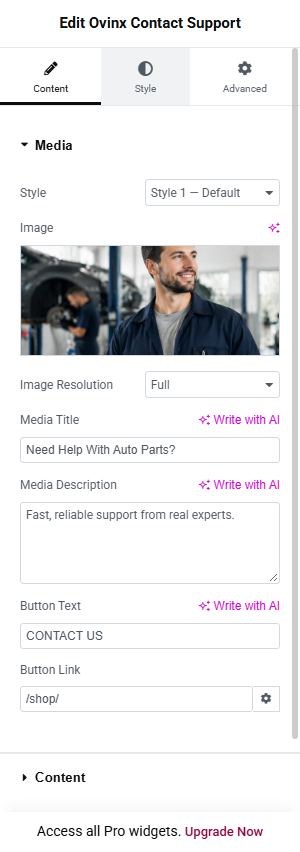


Content tab
Heading
- Title: Heading section (key heading_title): h4 in the left column (default ‘We’re here to help you grow’). verified
- Description: Heading section (key heading_desc): paragraph under the left heading. verified
Contact Info
- Phone Label: Label (h6) above the phone link (default ‘Phone:’). verified
- Phone: Phone number shown as a tel: link (non-digit/+ characters are stripped from the href); when empty it falls back to the Customizer value footer_contact_phone, and the block is hidden if still empty. verified
- Email Label: Label above the email link (default ‘Email:’). verified
- Email: Email shown as a mailto: link; empty falls back to Customizer footer_contact_email; block hidden if still empty. verified
- Address Label: Label above the address (default ‘Address:’). verified
- Address: Address text shown as a link opening in a new tab (rel noopener); empty falls back to Customizer footer_contact_address; block hidden if still empty. verified
- Map Link: URL for the address link; if empty and the address came from the Customizer it uses Customizer footer_contact_map_url when set, otherwise a Google Maps search URL built from the address.
- Open Time Label: Label above the opening-hours list (default ‘Open Time:’). verified
- Open Time Rows (empty = hide block): Repeater of day/hours rows (defaults: Mon – Sat and Sunday); with no rows the whole Open Time block is hidden.
- Social Label: Label above the social icons (default ‘Follow Us On social media:’). verified
- Social Links (empty = hide block): Repeater of social icons (defaults Facebook, Instagram, YouTube, X); with no rows the social block is hidden.
Form
- Title: Heading section (key heading_title): h4 in the left column (default ‘We’re here to help you grow’). verified
- Description: Heading section (key heading_desc): paragraph under the left heading. verified
- Form Shortcode: Contact Form 7 shortcode executed with do_shortcode() inside div.form-get; the widget has no own form handling, so field markup, validation and sending are done by Contact Form 7 (its template is expected to use .tf-field fieldsets per the code comment). verified
Item fields and related settings
- Day: Repeater field in Open Time Rows: the day/range text (muted span), default ‘Mon – Sat:’.
- Hours: Repeater field in Open Time Rows: the hours text shown after the day, default ‘7:30am – 8:00pm PST’.
- Network: Repeater field in Social Links: choice of Facebook, Instagram, YouTube, X (Twitter), TikTok or Pinterest, which selects the icon class and the aria-label; values outside this list are skipped.
- Link: Repeater field in Social Links: URL of the icon link (default ‘#’, opens in a new tab per default; falls back to ‘#’ if empty).
Good to know
- Contact details fall back to Customizer options read with themesflat_get_opt() (footer_contact_phone, footer_contact_email, footer_contact_address, footer_contact_map_url); if that function does not exist the fallback is an empty string.
- The right column is rendered only if Form Title, Form Description or Form Shortcode is non-empty; Form Shortcode has no default so the form is empty until pasted.
- Phone, Email and Address have no default value (placeholders only), so on a site without Customizer footer values the info blocks are not displayed.
- Left column is placed after the form on small screens (flex-wrap-reverse).
Style tab
Style groups: Heading, Contact Info, Form. Each group sets typography, colors, spacing and borders for that part of the widget.
Ovinx FAQs


Renders an accordion FAQ list organised in groups (each with an h4 title) plus an optional side box containing a Contact Form 7 ‘Ask Your Question’ form. Defaults to 15 auto-parts Q&As in 3 groups. Used for a FAQ page.
Add it with Edit with Elementor → Ovinx widgets → Ovinx FAQs, then customize it in the Content and Style tabs.


Content tab
FAQs
- Questions: Repeater with all Q&A items; the editor row title shows ‘[group] question’. Accordion items inside a group use Bootstrap collapse with data-bs-parent, so opening one closes the others in the same group.
Question Form
- Show Form Box: Shows or hides the right-hand form box (default Show); when shown the FAQ list uses col-lg-8, otherwise full width col-12. verified
- Title: Form box section (key form_title, visible only when Show Form Box is on): h6 title above the form (default ‘Ask Your Question’). verified
- Form Shortcode: Visible only when Show Form Box is on: Contact Form 7 shortcode executed via do_shortcode() inside the form box; submission is handled by Contact Form 7. verified
Item fields and related settings
- Group Title: Repeater field: when filled, starts a new group with this h4 heading; when empty the question continues the group above (the first item always starts a group, with no heading if empty).
- Question: Repeater field: accordion header text (escaped plain text); items with an empty question are skipped.
- Answer: Repeater field (WYSIWYG): collapsible body, output through wp_kses_post.
- Open by Default: Repeater field: when on, that item renders expanded (class ‘show’, aria-expanded true); by default only the second item of the first group is open.
Good to know
- Form Title and Form Shortcode controls have condition show_form = yes.
- Widget returns nothing when there are no groups/questions and the form box is hidden; if the form box is shown it still renders even with no questions.
- Form Shortcode has no default, so the form box shows only the title until a shortcode is pasted.
- Default content is 15 hard-coded Q&As (3 groups x 5) inserted as the repeater default; the second item of the first group has open = yes.
- Accordion relies on Bootstrap collapse data attributes (data-bs-toggle=’collapse’); the script dependency is not declared by this widget (Not confirmed from code that the theme loads Bootstrap JS).
Style tab
Style groups: Group Title, Question, Answer, Form Box. Each group sets typography, colors, spacing and borders for that part of the widget.
Ovinx Privacy Policy
This widget is not used on the demo pages, so there is no front-end screenshot.
Renders a legal/privacy page layout with a sticky side navigation listing the sections and the sections themselves (h5 title plus rich-text content). Defaults to 5 ‘Terms of Use’ sections; used for Privacy Policy or Terms pages.
Add it with Edit with Elementor → Ovinx widgets → Ovinx Privacy Policy, then customize it in the Content and Style tabs.
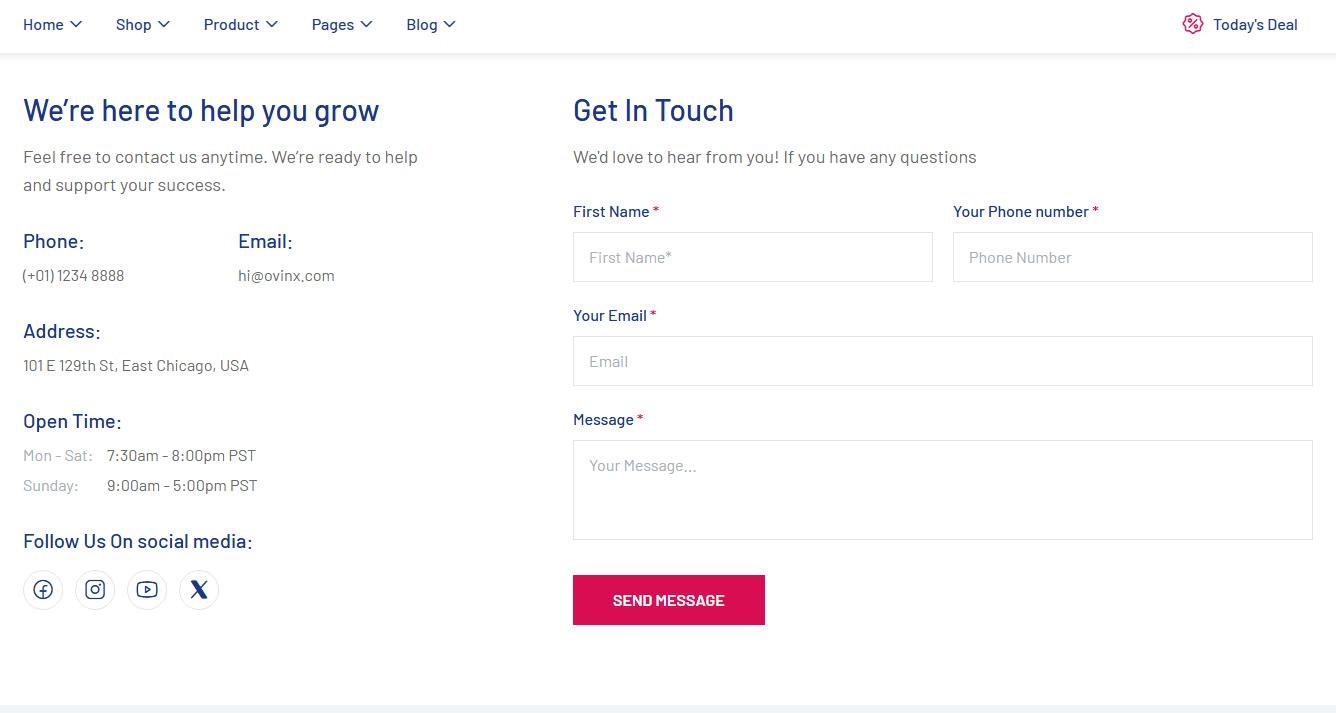


Content tab
Sections
- Side Navigation: Shows or hides the left sticky nav list (default Show); hidden on phones (d-none d-sm-block) and when hidden the content takes the full width instead of col-sm-8. verified
- Sections: Repeater with all sections (defaults to 5 Terms of Use sections); rows with both Title and Content empty are skipped.
Item fields and related settings
- Title: Repeater field: section heading (h5.privacy-title); also used for the nav label and auto anchor when those are empty.
- Navigation Label (empty = Title): Repeater field: text of the side-nav link for this section; falls back to the Title.
- Anchor ID (empty = from Title): Repeater field: id of the section block and href target of the nav link; passed through sanitize_title(), derived from Title when empty, ‘section-N’ if still empty, and made unique with a -2, -3 suffix on duplicates.
- Content: Repeater field (WYSIWYG): section body, output through wp_kses_post; bare <p> tags without a class get the class privacy-text added.
Good to know
- Widget outputs nothing when no section has a Title or Content.
- Smooth-scroll and active-link highlighting come from script ‘privacy-policy-core’ (declared via get_script_depends); the file itself is not read here.
- The nav is built from the same repeater as the sections, so links and anchors cannot drift apart.
- Nav column uses inline style top: 15px with sticky-top.
- The regex that adds privacy-text class matches <p tags whose attributes contain no ‘class=’ substring.
Style tab
Style groups: Navigation, Title, Text. Each group sets typography, colors, spacing and borders for that part of the widget.
Ovinx Store Info


Renders a grid of store/office cards (.wg-our-store), each with a store name, phone and email side by side, and an address link below. Used to list multiple office locations (e.g. on a contact/store page); defaults are four US offices (New York, Houston, San Francisco, Miami).
Add it with Edit with Elementor → Ovinx widgets → Ovinx Store Info, then customize it in the Content and Style tabs.
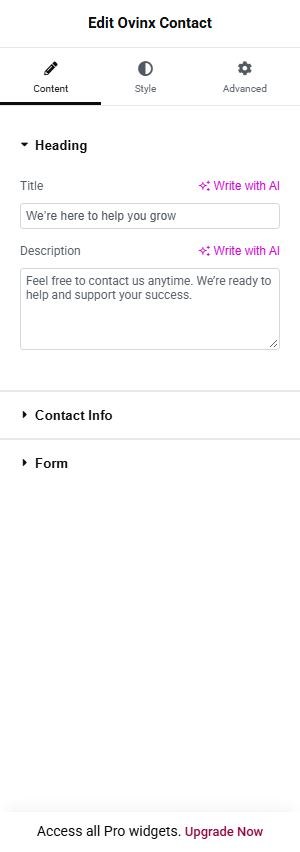


Content tab
Labels
- Phone Label: Text printed above every phone number (default ‘PHONE:’); if emptied, the label line is omitted. verified
- Email Label: Text printed above every email (default ‘EMAIL:’); if emptied, the label line is omitted. verified
- Address Label: Text printed above every address (default ‘ADDRESS:’); if emptied, the label line is omitted. verified
Stores
- Stores: Repeater; one card per item, shown in a grid (1 column on lg per the class lg-col-1, 2 columns on sm). Sub-fields: Store Name = h6 title of the card (not rendered if empty); Phone = shown as a tel: link (non-digit/non-plus characters stripped from the href); Email = shown as a mailto: link; Address = shown as a link opening in a new tab; Map Link (empty = Google Maps search) = URL for the address link, falling back to a Google Maps search of the address text.
Good to know
- Default repeater content has 4 offices; the default Map Link is empty so each address links to https://www.google.com/maps?q=<address>.
- A phone or email left empty is not rendered; if both are empty the whole phone/email row is skipped. An empty address hides the address block (and the Map Link is then unused).
- If the Stores repeater is empty, render() outputs nothing.
- Labels are shown only when non-empty; there is no per-store label override.
- Style tab (Store Card): name color/typography, label color, value color (not part of content options).
Style tab
Style groups: Store Card. Each group sets typography, colors, spacing and borders for that part of the widget.
Ovinx Footer


Renders a full site footer (<footer class=’tf-footer … tf-ovinx-footer’>) with an optional top bar, a logo/contact column, menu link columns, an optional currency/language/social row (Style 2) and a bottom copyright bar. It is the content widget for the footer template: ovinx-addon’s tf_header_footer post type (tf-header-footer/index.php) with tfhf_template_type footer is output via the tf_footer action (tf_render_footer) when footer templates are enabled and its location conditions match; the widget itself does not reference the post type.
Add it with Edit with Elementor → Ovinx widgets → Ovinx Footer, then customize it in the Content and Style tabs.
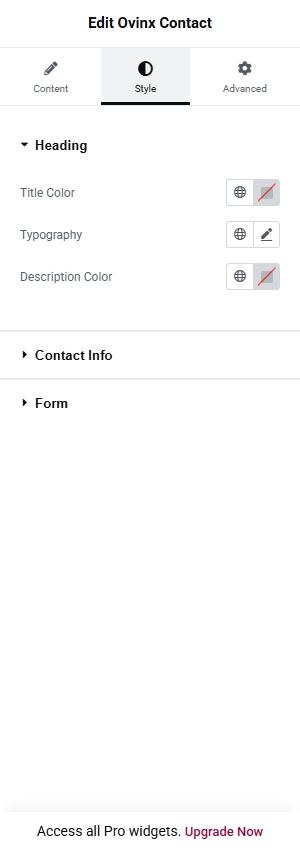

Content tab
Footer Style
- Style: Select: ‘Style 1 — Newsletter Bar (light)’ (v2, default) renders .footer-v2 bg-surface with a newsletter + social top bar and a full contact column; ‘Style 2 — Info Boxes (dark)’ (v3) renders .footer-v3 with phone/location/email info boxes in a swiper on top, logo + description on the left, and a currency/language/social row above the bottom bar. verified
Top Bar
- Show Top Bar: Switcher (default yes); when on, renders the .footer-top bar (newsletter bar for v2, info-box swiper for v3); when off, no top bar is output. verified
- Newsletter Title: Style 1 only (needs Show Top Bar): h5 heading in the top bar (default ‘Subscribe To Newsletter’), omitted if empty. verified
- Newsletter Form Shortcode: Style 1 only (needs Show Top Bar): a Contact Form 7 shortcode that is run through do_shortcode in the top bar centre; nothing is shown if empty. verified
- Phone Box Label: Style 2 only (needs Show Top Bar): heading of the phone info box (default ‘Phone Number’); the value comes from the Contact Phone field or the Customizer footer_contact_phone. not confirmed in preview
- Location Box Label: Style 2 only (needs Show Top Bar): heading of the location info box (default ‘Our Location’); value from Contact Address / Customizer footer_contact_address, link from Map Link / footer_contact_map_url. not confirmed in preview
- Email Box Label: Style 2 only (needs Show Top Bar): heading of the email info box (default ‘Email Address’); value from Contact Email / Customizer footer_contact_email. not confirmed in preview
Currency & Language
- Show Currency Switcher: Style 2 only: when yes (default) includes the theme partial tpl/topbar/currency in the row above the bottom bar. not confirmed in preview
- Show Language Switcher: Style 2 only: when yes (default) includes the theme partial tpl/topbar/language in the row above the bottom bar. not confirmed in preview
Social Links
- Social Links: Repeater of social icons printed as a link list: Icon = icon rendered inside the link (items with no icon value are skipped); Link = URL and target/nofollow attributes of the link. Default has Facebook, Instagram, YouTube, X. In Style 1 it appears in the top bar right side; in Style 2 in the row above the bottom bar.
Contact
- Logo: Logo image linking to the home URL; if empty, falls back to the Customizer/Elementor site_logo, and if none then to the site name text.
- Support Label: Style 1 only: small text above the phone number in the contact column (default ’24/7 Support Center:’), omitted if empty. verified
- Description: Style 2 only: paragraph under the logo (default ‘We deliver reliable auto parts for strength and performance. Designed for everyday driving needs.’). not confirmed in preview
- Phone: Phone number shown as a tel: link (Style 1 contact column; Style 2 phone info box); empty falls back to Customizer footer_contact_phone. verified
- Address: Address text shown as a link (Style 1 contact column; Style 2 location box); empty falls back to Customizer footer_contact_address. verified
- Map Link: URL for the address link (opens in new tab); empty falls back to Customizer footer_contact_map_url, and if that is also empty the link is ‘#’. verified
- Email: Email shown as a mailto: link (Style 1 contact column; Style 2 email box); empty falls back to Customizer footer_contact_email. verified
Menu Columns
- Columns: Repeater list. Each item has: Heading, Menu.
Bottom Bar
- Copyright: Textarea for the bottom-bar text with basic HTML allowed (wp_kses_post); empty falls back to ‘©{current year} {site name}. All Rights Reserved.’ verified
- Bottom Links: Repeater of links in the bottom bar, separated by vertical lines: Text = link label (items with empty text are skipped); Link = URL (falls back to ‘#’ when empty). Defaults: Sitemap, Accessibility, Cookies Policy.
Item fields and related settings
- Menu Columns: Repeater of link columns (default headings Store Information, Our Services, Legal). Sub-fields: Heading = column title (also a mobile accordion toggle); Menu = a WordPress menu (Appearance > Menus) whose top-level items only are listed as links. A column with neither heading nor menu items is skipped.
Good to know
- Default Style is v2 (Style 1). Elementor condition hides Style-specific controls (Newsletter fields only v2+Show Top Bar; info labels only v3+Show Top Bar; Support Label only v2; Description only v3; Currency & Language section only v3).
- The Social Links section is shown when Style is v3 OR Show Top Bar is yes; but in v2 social icons are only rendered inside the top bar, so with v2 and Show Top Bar off the items are not displayed.
- In Style 2 (v3) the Phone/Address/Email/Map Link fields are shown only through the top info boxes, so with Show Top Bar off these contact values are not displayed anywhere (the left column shows only logo + description).
- Contact fallbacks depend on the theme function themesflat_get_opt(); if it does not exist, empty fields yield empty strings and the logo URL falls back to ”.
- Currency/language switchers use get_template_part(‘tpl/topbar/currency|language’) from the theme; WOOCS/WPML awareness is claimed in a code comment, not confirmed from this file.
- Mobile accordion for columns is handled by the theme’s main.js, not by this widget; Style 2 info boxes need scripts ‘themesflat-swiper’ and ‘slider-core’.
- The menu select lists all menus via wp_get_nav_menus() with a blank default option; empty selection renders a column with only a heading and an empty list.
- Newsletter shortcode output depends on a Contact Form 7 form template that outputs .form-sub markup (per control description); not verified here.
Ovinx Mega Menu
This widget is not used on the demo pages, so there is no front-end screenshot.
Renders the inner content (.tf-mega-menu > .container > .row) of a mega menu panel: several link columns (.col-lg-2) plus either a promo banner (Style 1) or WooCommerce product cards (Style 2). It is intended to be placed in a Mega Menu post (CPT ‘megamenu’, template woocommerce/megamenu/megamenu.php) that TF_MegaMenu_Walker wraps in .sub-menu.mega-menu, per the file’s header comment.
Add it with Edit with Elementor → Ovinx widgets → Ovinx Mega Menu, then customize it in the Content and Style tabs.
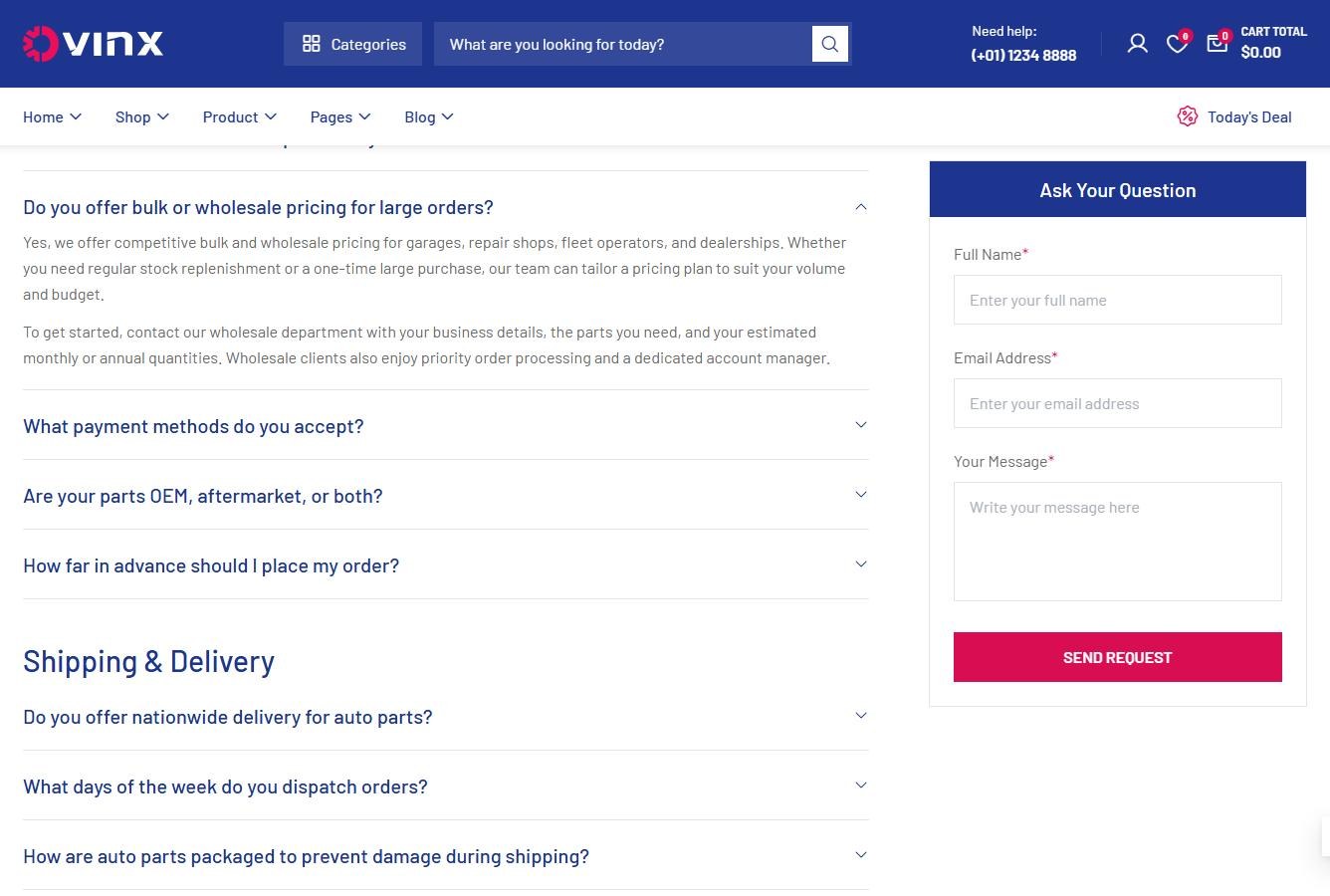
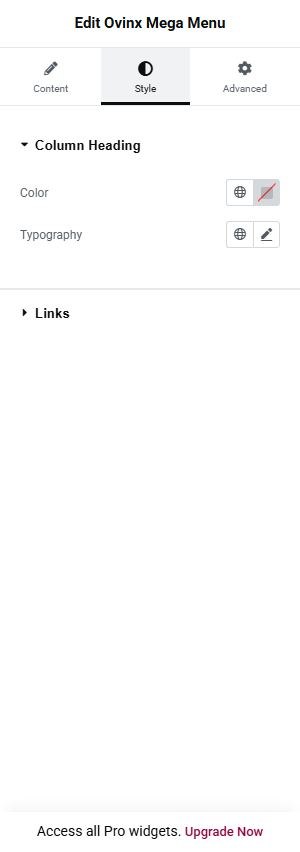


Content tab
Layout
- Style: Select (default ‘Style 1 — Links + Banner’): Style 1 shows 3 link columns plus one banner (.col-lg-6); ‘Style 2 — Links + Products’ shows 4 link columns plus product cards (.col-lg-4). It also controls which column/banner/products sections are visible. verified
Column 1
- Heading: One per column section (‘Column 1..n’, separate controls per style, keys {style}_col_{n}_heading): column title printed as .menu-heading; defaults Style 1 = SHOP LAYOUT / SHOP FEATURE / MY PAGES, Style 2 = PRODUCT LAYOUT / PRODUCT DETAIL / PRODUCT FEATURE / PRODUCT SWATCH. verified
- Links: One repeater per column section: Text = label of the link (items with empty text are skipped); Link = URL and attributes of the link, with ‘#’ used when empty. Defaults are preset labels (e.g. Shop Default, Left Sidebar…) with no URL.
Column 2
- Heading: One per column section (‘Column 1..n’, separate controls per style, keys {style}_col_{n}_heading): column title printed as .menu-heading; defaults Style 1 = SHOP LAYOUT / SHOP FEATURE / MY PAGES, Style 2 = PRODUCT LAYOUT / PRODUCT DETAIL / PRODUCT FEATURE / PRODUCT SWATCH. verified
- Links: One repeater per column section: Text = label of the link (items with empty text are skipped); Link = URL and attributes of the link, with ‘#’ used when empty. Defaults are preset labels (e.g. Shop Default, Left Sidebar…) with no URL.
Column 3
- Heading: One per column section (‘Column 1..n’, separate controls per style, keys {style}_col_{n}_heading): column title printed as .menu-heading; defaults Style 1 = SHOP LAYOUT / SHOP FEATURE / MY PAGES, Style 2 = PRODUCT LAYOUT / PRODUCT DETAIL / PRODUCT FEATURE / PRODUCT SWATCH. verified
- Links: One repeater per column section: Text = label of the link (items with empty text are skipped); Link = URL and attributes of the link, with ‘#’ used when empty. Defaults are preset labels (e.g. Shop Default, Left Sidebar…) with no URL.
Column 1
- Heading: One per column section (‘Column 1..n’, separate controls per style, keys {style}_col_{n}_heading): column title printed as .menu-heading; defaults Style 1 = SHOP LAYOUT / SHOP FEATURE / MY PAGES, Style 2 = PRODUCT LAYOUT / PRODUCT DETAIL / PRODUCT FEATURE / PRODUCT SWATCH. verified
- Links: One repeater per column section: Text = label of the link (items with empty text are skipped); Link = URL and attributes of the link, with ‘#’ used when empty. Defaults are preset labels (e.g. Shop Default, Left Sidebar…) with no URL.
Column 2
- Heading: One per column section (‘Column 1..n’, separate controls per style, keys {style}_col_{n}_heading): column title printed as .menu-heading; defaults Style 1 = SHOP LAYOUT / SHOP FEATURE / MY PAGES, Style 2 = PRODUCT LAYOUT / PRODUCT DETAIL / PRODUCT FEATURE / PRODUCT SWATCH. verified
- Links: One repeater per column section: Text = label of the link (items with empty text are skipped); Link = URL and attributes of the link, with ‘#’ used when empty. Defaults are preset labels (e.g. Shop Default, Left Sidebar…) with no URL.
Column 3
- Heading: One per column section (‘Column 1..n’, separate controls per style, keys {style}_col_{n}_heading): column title printed as .menu-heading; defaults Style 1 = SHOP LAYOUT / SHOP FEATURE / MY PAGES, Style 2 = PRODUCT LAYOUT / PRODUCT DETAIL / PRODUCT FEATURE / PRODUCT SWATCH. verified
- Links: One repeater per column section: Text = label of the link (items with empty text are skipped); Link = URL and attributes of the link, with ‘#’ used when empty. Defaults are preset labels (e.g. Shop Default, Left Sidebar…) with no URL.
Column 4
- Heading: One per column section (‘Column 1..n’, separate controls per style, keys {style}_col_{n}_heading): column title printed as .menu-heading; defaults Style 1 = SHOP LAYOUT / SHOP FEATURE / MY PAGES, Style 2 = PRODUCT LAYOUT / PRODUCT DETAIL / PRODUCT FEATURE / PRODUCT SWATCH. verified
- Links: One repeater per column section: Text = label of the link (items with empty text are skipped); Link = URL and attributes of the link, with ‘#’ used when empty. Defaults are preset labels (e.g. Shop Default, Left Sidebar…) with no URL.
Banner
- Image: Style 1 banner image (default Elementor placeholder), wrapped in a link; with an attachment id it uses the Image Size group control, otherwise a plain img with width 635 / height 250.
- Image Resolution: Elementor image size: choose a registered size (Thumbnail, Medium, Large, Full) or Custom. not confirmed in preview
- Image Dimension: Width and height in px, used when Image Resolution is set to Custom.
- Tag: Style 1: small tag text above the banner title (default ‘FOR PROTECTION’); omitted if empty. not confirmed in preview
- Title: Style 1: banner h4 text; each new line becomes a <br> shown only on screens >= 576px (default ‘Advanced Full / Synthetic Motor / Oil Formula’). not confirmed in preview
- Button Text: Style 1: label of the banner button (default ‘SHOP NOW’); the button is omitted if empty. not confirmed in preview
- Link: Style 1 banner link, used on both the image and the button; ‘#’ if empty.
Products
- Products: Style 2: multi-select of WooCommerce products shown as cards in the given order; leave empty to show the 2 latest published products.
Good to know
- Control label ‘Link’ appears in both the link-column repeaters and the banner section; ‘Heading’ and ‘Links’ repeat once per column section (Style 1: 3 sections, Style 2: 4 sections), each titled ‘Column %d’ and conditioned on the Style.
- Link columns are fixed in number per style (3 for Style 1, 4 for Style 2); extra columns cannot be added.
- The Image Size group control (banner_image_size, default ‘full’) also appears in the Banner section but has no explicit label in this file (label comes from Elementor).
- Style 2 requires WooCommerce: render_products() calls wc_get_products() and WC_Product methods without a function_exists check; if WooCommerce is inactive this would fatal (not tested).
- The Products dropdown loads ALL published products via get_posts(posts_per_page -1) in the editor, which may be slow on large catalogs.
- Product cards use the Quick Add markup (tf_add_to_cart, data-product_id, product_type_<type>) matched by shop.js; the cards link to products and show category (first term), name and price HTML.
- If both columns and side content are empty, render() outputs nothing; if no products are found in Style 2 the products column is omitted.
Style tab
Style groups: Column Heading, Links, Banner. Each group sets typography, colors, spacing and borders for that part of the widget.
There are more widgets for you to choose. Everything is simple when you just drag and drop. Wish you have a great website!
We are Themesflat and we create premium WordPress themes and Template Kits Addons for Elementor. If you have any question please contact via email [email protected].
Color & CSS System
All colors are CSS custom properties declared on :root. Use the variable, never the hex value, so a change in Customizer propagates everywhere.
Brand & Text
| Color | CSS variable | Value | Used for |
|---|---|---|---|
| Primary | --primary | #d90d51 | Buttons, links, highlights, sale. |
| Text primary | --text-primary | #1d358f | Headings, menu, main text, footer background. |
| Main | --main | #1a1a1a | Page title text, dark elements. |
| Text secondary | --text-secondary | #6b6b6b | Body text ( color). |
| Text mute | --text-mute | #aab0bb | Placeholder, disabled. Not for body text. |
Surface & Line
| Color | CSS variable | Value | Used for |
|---|---|---|---|
| White | --white | #ffffff | Page and card background. |
| Surface | --surface | #F1F4F8 | Section and button-square background. |
| Background 2 | --bg-2 | #E8EDF6 | Alternate light section. |
| Background | --bg | #05326F | Dark navy section. |
| Line | --line | #e4e4e4 | Borders of input and wishlist button. |
| Black | --black | #000000 | Base for . |
Status
| Color | CSS variable | Value | Used for |
|---|---|---|---|
| Critical | --critical | #DC2626 | Error, out of stock. |
| Success | --success | #16A34A | In stock, success. |
| Yellow | --yellow | #F59E0B | Rating stars, warning. |
Alpha Scales
Overlays use generated scales, for example background: var(--black_30).
| Variable | Range | Output |
|---|---|---|
--black_11 … --black_99 | 11 to 99 | rgba(0,0,0,0.NN) |
--white_10 … --white_99 | 10 to 99 | rgba(255,255,255,0.NN) |
--elevationshadow | – | #0000000a |
Contrast (WCAG 2.2)
Ratios computed with the WCAG relative-luminance formula. Threshold: 4.5:1 normal text, 3:1 large text and UI components.
| Foreground on background | Ratio | Normal text |
|---|---|---|
Main #1a1a1a on white | 17.40 | Pass |
White on Background #05326F | 12.41 | Pass |
Text primary #1d358f on white | 10.72 | Pass |
Text secondary #6b6b6b on white | 5.33 | Pass |
White on Primary #d90d51 | 5.09 | Pass |
Text secondary #6b6b6b on Surface #F1F4F8 | 4.83 | Pass |
White on Critical #DC2626 | 4.83 | Pass |
White on Success #16A34A | 3.30 | Large text / icons only |
Text mute #aab0bb on white | 2.18 | Fail, do not use for text |
Yellow #F59E0B on white | 2.15 | Fail, decorative only (stars) |
The theme darkened two original values for AA: --primary #ea0f5b to #d90d51 and --text-secondary #717171 to #6b6b6b. The demo already uses the darker values. Keep them.
Change Colors
Go to Dashboard → Appearance → Customize → Typography & Color → Main Color.
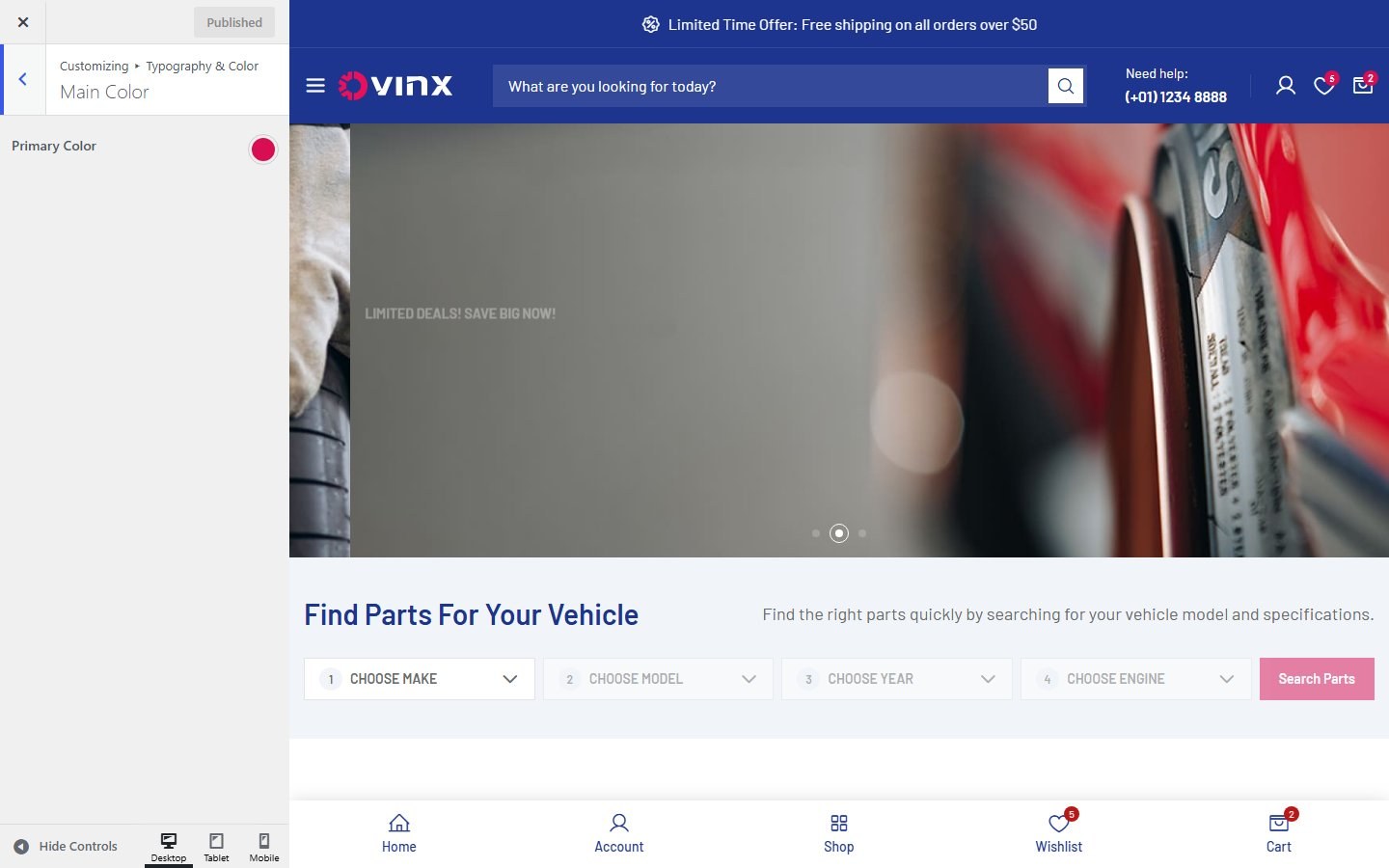

| Section | Controls |
|---|---|
| Main Color | Primary Color (default #d90d51). Sets --primary site-wide. |
| Promo Bar, Topbar, Header | Background, text, menu, hover and active colors. |
| Body, Page Title, Footer, Bottom | Text, background, widget title, link colors. |
| Shop badges | Color and background for Stock, Trending, Sale, New, Custom, Order badges. |
Only Primary Color has a stored default. Other color controls are empty by default, which means the theme falls back to the CSS variables above. Leave them empty unless the design needs an override.
CSS System
Files & Structure
Path (in wp-content/themes/ovinx/) | Role |
|---|---|
css/styles.css | Compiled stylesheet. Do not edit. |
scss/abstracts/_variable.scss | Source of all :root variables. |
scss/core/_typography.scss, _classes.scss, _reset.scss | Headings, utility classes, reset. |
scss/component/ | blog, elements, footer, header, landing, layout, shop. |
css/3rd/ | bootstrap, animate, jquery.toast, swiper (third party). |
css/icon-ovinx.css + fonts/icomoon.* | Icon font. |
inc/styles.php | Prints Customizer values as inline CSS (for example :root{--primary:...}). |
Typography
Font family Barlow, weights 400, 500, 600. Heading default weight is 500, letter-spacing 0. Fluid sizes use clamp(); values below are measured at 1440px width.
| Element | Size / line-height @1440 | Weight | Fluid rule |
|---|---|---|---|
| body, p | 16px / 26px | 400 | – |
| h1 | 56px / 68px | 500 | clamp(34px, 5vw, 56px) |
| h2 | 36px / 44px (hero section), 44px / 50px (base) | 600 in demo | clamp(30px, 4.2vw, 44px) |
| h3 | 20px / 44px in demo cards, 40px / 48px (base) | 600 in demo | clamp(28px, 3.8vw, 40px) |
| h4 | 30px / 42px | 500 | clamp(24px, 3.5vw, 30px) |
| h5 | 24px / 30px | 500 | clamp(22px, 3vw, 24px) |
| h6 | 12px / 20px in demo, 20px / 28px (base) | 500 | – |
| Caption | 14px / 20px | 400 | --caption-fs, --caption-lh |
| Main menu link | 16px / 26px | 500 | – |
| Price | 16px / 26px | 600 | – |
Headings h2, h3, h6 on the demo differ from the base SCSS because individual Elementor sections set their own size. These are section-level choices, not theme defaults.
Variables available: --h3-fs clamp(24px, 3.4vw, 36px), --h3-lh clamp(32px, 4.2vw, 44px), --h4-fs clamp(22px, 2.6vw, 30px), --h4-lh clamp(28px, 3.2vw, 42px), --h5-fs clamp(20px, 2.6vw, 24px), --h5-lh clamp(28px, 3.2vw, 30px).
Change fonts at Customize → Typography & Color. Sections in the panel: Main Color, Promo Bar, Topbar, Header, Body, Page Title, Blog Post, Sidebar Widget Title, Footer Widget Title, Footer, Bottom, Heading H1 – H6, Buttons, Pagination.
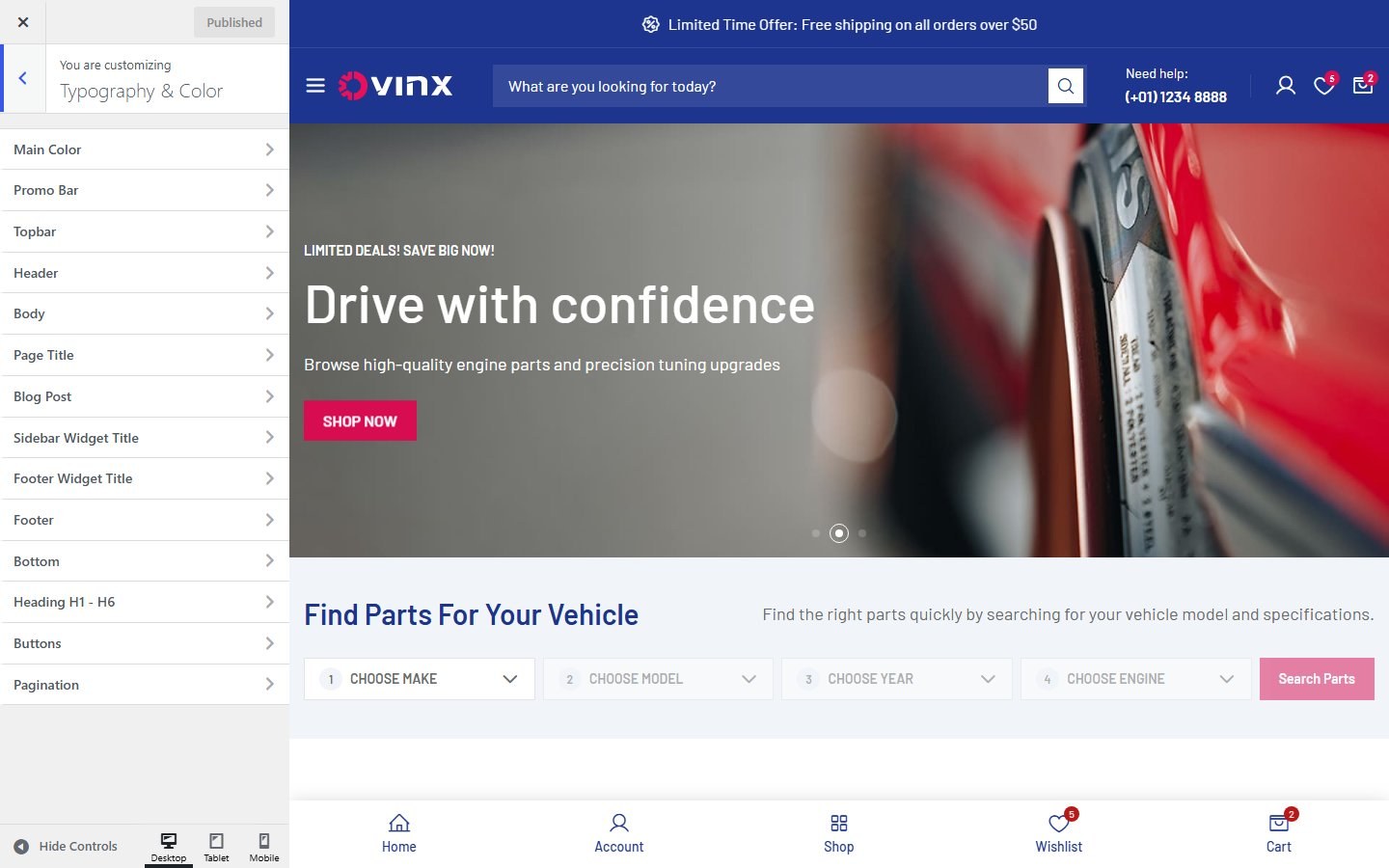

Layout & Breakpoints
Container width on the demo at 1440px: 1320px (Bootstrap grid).
| Breakpoint | Usage count in styles.css |
|---|---|
min-width: 1200px | 93 |
min-width: 992px / max-width: 991px | 31 / 30 |
max-width: 575px | 29 |
min-width: 1440px | 26 |
max-width: 1199px | 26 |
max-width: 767px / min-width: 768px | 25 / 22 |
min-width: 576px | 19 |
max-width: 425px | 8 |
min-width: 1600px | 7 |
Buttons & Forms
Measured on the demo. Radius is 0px on buttons, inputs and cards (square design). The only rounded element sampled was the base button element at 6px.
| Component | Class | Size | Colors |
|---|---|---|---|
| Button white | .tf-btn.btn-white-2 | height 50px, padding 0 28px, 16px / 500 | text --text-primary, bg white |
| Button square (Add to cart) | .tf-btn-square.add_to_cart_button | height 36px, 16px / 500 | text --text-primary, bg --surface |
| Icon button (wishlist) | .box-icon | height 36px | border 1px --line, bg white |
| Text input (CF7) | .wpcf7-form-control.wpcf7-text | height 50px, padding 11px 15px, 16px / 400 | border 1px --line, text --text-primary |
| Search input (header) | .ajax-search-input | height 44-46px, 16px | transparent or --white_10 |
Utility Classes
Defined in scss/core/_classes.scss. Margin and padding utilities use !important except .mb-30.
| Group | Available classes |
|---|---|
| Margin bottom | mb-2 3 4 5 6 7 8 9 10 12 14 15 16 20 24 28 30 32 36 40, mb--20 (negative) |
| Margin top | mt-4 10 14 20 30 |
| Padding | pt-30 pt-40, pb-4 pb-20 pb-40 |
| Gap | gap-4 6 8 10 12 13 15 16 20 21 24 28 30 40 |
| Text color | .text-primary, .text-secondary, .cl-text-main, .cl-text-yellow, .cl-text-line, .cl-text-2 ... .cl-text-14, .text-white_20, .text-white_60, .text-white-50 |
| Background | .bg-primary, .bg-secondary, .bg-surface, .bg-main, .bg-main-2, .bg-main-5, .bg-main-6, .bg-dark, .bg-white-2, .bg-white_10 |
| Text | .text-line-clamp-1 / 2 / 3, .text-vertical, .text-decoration-thickness |
Motion & Shadow
--animation-nav: 0.5s cubic-bezier(0.6, 0, 0.4, 1);
--animation-default: 0.5s cubic-bezier(0.3, 1, 0.3, 1);
--animation-fast: 0.3s cubic-bezier(0.7, 0, 0.3, 1);
--duration-default: 200ms;
--duration-image: 1000ms;
--shadow: 0 0 20px rgba(0, 0, 0, 0.3); Icon Font
Icons use the icomoon font via css/icon-ovinx.css (72 unique icon-* classes). Usage: <i class="icon-name"></i>. Icons inherit color from the parent, so use the text-color utilities above.
Safe Override
Never edit css/styles.css; updates overwrite it. Put overrides in Appearance → Customize → Additional CSS or a child theme, and prefer variables:
:root {
--primary: #d90d51; /* keep contrast >= 4.5:1 with white */
--text-primary: #1d358f;
}
.tf-btn-square { background: var(--surface); color: var(--text-primary); } Check any new color pair against the contrast table before using it for text.
Sources & Notes
- Screenshots were taken on the Ovinx demo (read only; nothing was changed or saved). Customizer option lists use the control labels, choices and values shown in the Customizer.
- Features marked “turned off on the demo” (Top Categories, Live Notification, Cookies, Size Guide) are available in the theme but not visible on the demo, so they have no front-end screenshot.
- Editor screenshots (Elementor panels, product edit tabs, mega menu options) were taken by opening existing pages and products on the demo without changing or saving anything. Widget option lists were read from Elementor’s widget definitions.
- Not included: Style tab options per widget (summarized by group), the Ovinx Countdown panel (the widget is not placed on any demo page), and the Size Guide and 3D Viewer product tabs (not shown on the demo products).
- Color and CSS values were measured on the demo (2026-10-08) and cross-checked with
theme/css/styles.css.
Support & Credits
If you have any question, create a ticket or email us from the box below. Plugins used by Ovinx:
Still need help?
Thank you for choosing Themesflat. If something in this guide is unclear, or need help with the demo import, our team is happy to help. Create a ticket or send us an email and we will reply as soon as possible.
© Themesflat · Sold on Vithemes. All demo images are for preview purposes only.